How to find duplicate files on a Mac without deleting the wrong one
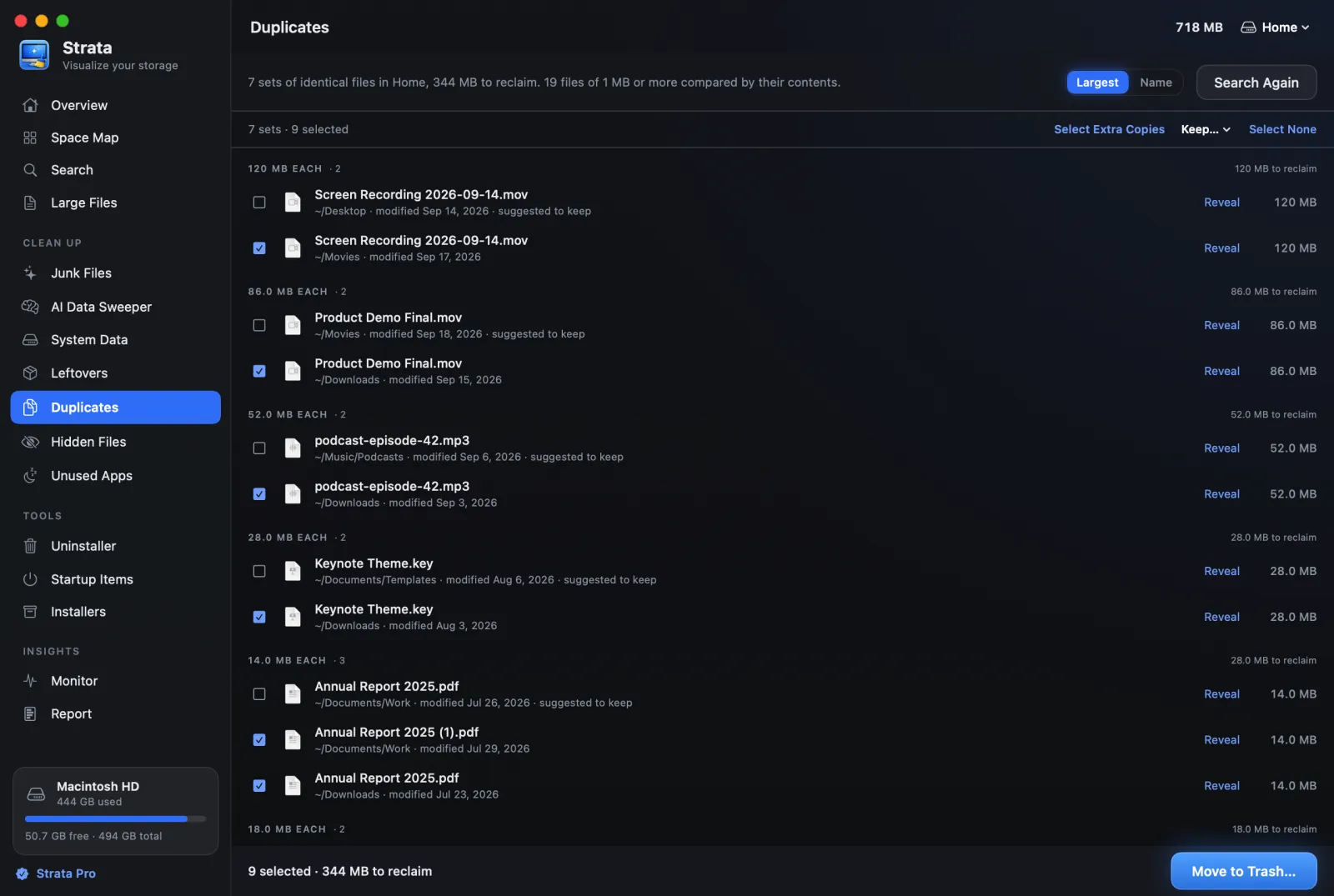
Somewhere on your Mac there is a file called invoice final FINAL v2 (1).pdf. There are also three other copies of it, and at least one of them is not actually a copy.
Duplicate files are the least dramatic storage problem and the most annoying one to fix, because unlike a 60 GB virtual machine you cannot solve it with a single decision. There are four hundred of them, each one needs a judgement, and roughly twelve of those judgements actually matter.
Worse, a meaningful share of what any duplicate finder shows you are not duplicates, and some of the real ones are not costing you a single byte. Both of those are worth understanding before you start deleting.
The six ways you ended up with four copies
Duplicates are not carelessness. Every one of these is a normal thing happening normally.
The browser did it. Download the same PDF twice and you get
statement.pdf and statement (1).pdf. The browser is being
careful not to overwrite something you might want. It is right to do this and the
result is still clutter.
Cloud sync resolved a conflict. Edit a document on two devices before
they sync and Dropbox, iCloud or OneDrive keeps both, with the loser renamed to
something like Notes (conflicted copy 2025-03-14).md. This is the correct
behaviour and infinitely better than silently discarding your work, but nothing ever
cleans it up afterwards.
You imported the same photos twice. Camera cards get imported, then imported again after you were not sure the first one worked.
Someone made a backup folder. Project, then
Project old, then Project old 2, made at the moment before
attempting something risky. The risky thing worked. The folders remain.
An email attachment was saved more than once. Mail keeps its own copy inside the message store, and you saved another to Downloads, and possibly a third to Desktop when you needed to attach it to something else.
A restore put things back that were already there. Migration Assistant and Time Machine restores are the single largest producer of duplicates, because they faithfully return files to a Mac that in many cases still had them.
Proving two files are actually identical
This is where most duplicate finders are bad, and where the difference between tools is real rather than cosmetic.
Matching by name does not work
Two files called IMG_4471.jpg from two different cameras are different
photos. One file called report.pdf and another called
report copy.pdf may be identical. Names carry almost no information about
content, in either direction.
Matching by size barely works
Same size is necessary but nowhere near sufficient. Every empty file is zero bytes. Every photo from the same camera at the same settings clusters within a narrow band. Uncompressed audio of the same length is the same size regardless of what the audio is. Size is useful only as a first filter to decide what is worth looking at more closely.
Matching by content is the only honest answer
The reliable method reads the bytes and produces a hash, a fixed length fingerprint where identical input always gives identical output. Two files with the same hash are the same file, for any practical purpose.
Doing this naively is slow, because it means reading every byte of every file on the disk. The standard approach is three passes, each cheaper than the one after it:
- Group by size. Anything with a unique size cannot have a duplicate, and this eliminates the large majority of files without reading any content at all.
- Within each size group, hash the first few kilobytes. Files that differ near the start, which is most of them, drop out here.
- Only for the survivors, hash the whole file.
You can do a single comparison yourself:
shasum -a 256 file-one.pdf file-two.pdfMatching output means identical files. This is fine for checking two things and completely impractical for checking forty thousand, which is the entire reason dedicated tools exist.
The duplicates that cost you nothing
Now the part that catches people out, and the reason a duplicate finder can report "40 GB recoverable" and then recover 3 GB.
APFS supports clones. When you duplicate a file in Finder, macOS frequently does not copy any data. It creates a second name pointing at the same blocks on disk, and only writes new data if one of the two is later modified.
So you have two files. Both report 4 GB. Both are genuinely, byte for byte, identical. Together they occupy 4 GB of disk, not 8. Delete one and you free nothing at all, because the blocks are still in use by the other.
Hard links behave the same way for the same reason. Any tool that adds up the logical sizes of the duplicates it found will confidently overstate what you stand to gain, sometimes by an enormous margin. This is the same distinction between logical and allocated size covered in the article on finding large files, and it matters more here than anywhere else.
What to look for in a tool. If it tells you how much space you will actually reclaim, rather than the combined size of everything it found, it is accounting for clones. If those two numbers are always the same, it is not.
Choosing which copy to keep
Most tools default to keeping the oldest, or the newest, or the one with the shortest path. All three are bad defaults, because file dates on a Mac are close to meaningless. Copying a file, syncing it, restoring it from a backup or unzipping it can all rewrite the creation date. The "original" is frequently dated later than the copy.
A better rule: keep the one you would look for first.
A file in ~/Documents/Tax/2025/ is worth more than a byte identical copy
in ~/Downloads/, not because it is older but because in eighteen months
you will find it. That is the entire value of a file you are keeping for reference.
In descending order of what to keep:
- Anything in a deliberately organised folder structure.
- Anything in Documents, Desktop or Pictures.
- The copy without
(1),copyorconflictedin its name. - Anything in Downloads, which is a waiting room and not a filing system.
To see what has waited in Downloads longest, Strata's Junk Files lists files there unused for three months, from 10 MB up, each with the date it was last used, and never ticks them for you.
Four places to never run a duplicate finder
This is the section that prevents the bad afternoon. In all four of these, duplicate files exist deliberately and removing them breaks things.
| Location | Why the duplicates are there |
|---|---|
Inside .app bundles |
Apps ship the same resource at several sizes and in several localisations. The bundle is also code signed, so changing anything inside it invalidates the signature and macOS may refuse to launch it. |
| The Photos library | It is a database that manages its own originals, thumbnails and edit versions. Removing files from inside it corrupts the library. Delete photos in Photos, never in Finder. |
node_modules, .venv, and similar |
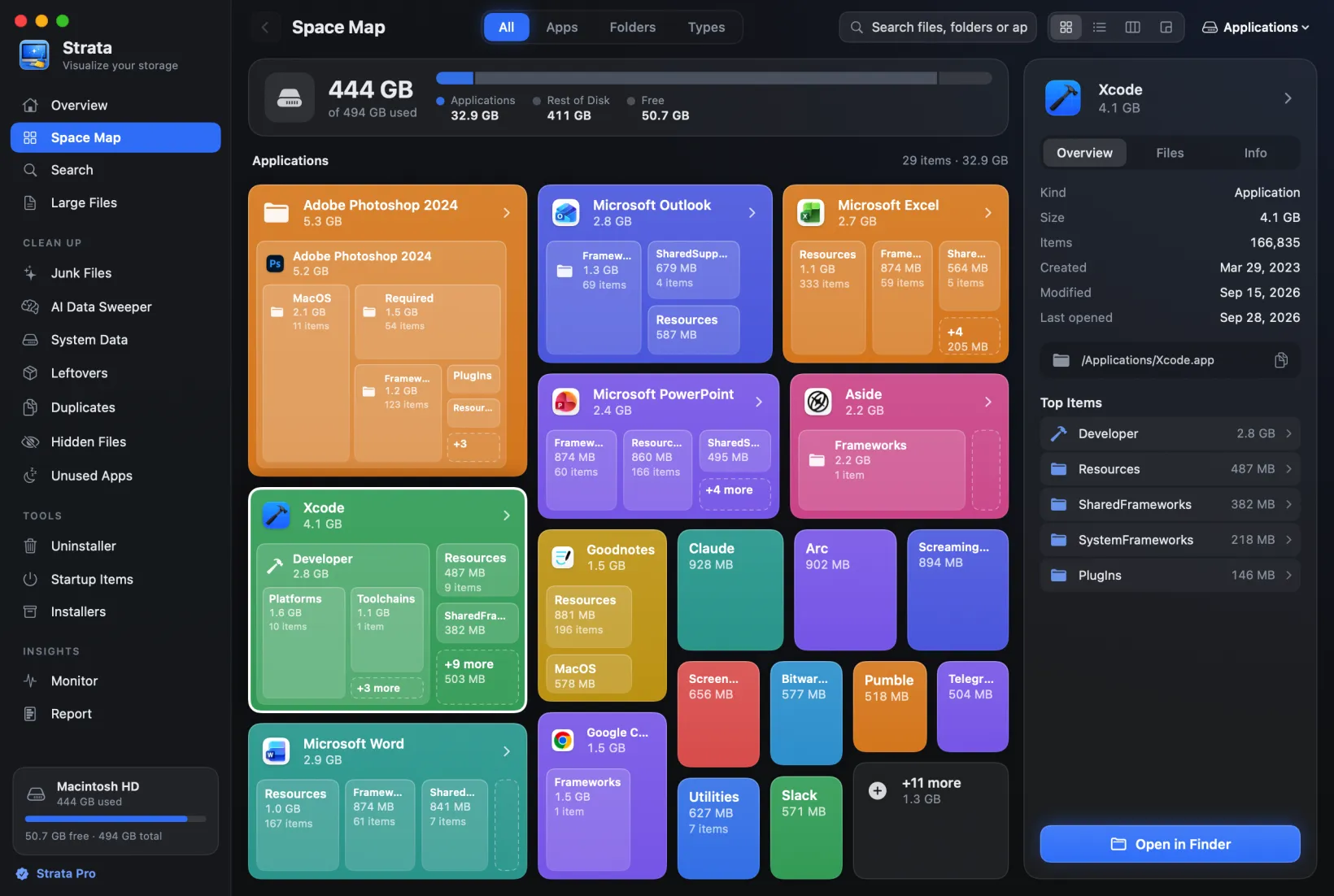
Package managers deliberately install the same library many times at different versions. The duplication is how dependency resolution works. Delete the whole folder if you want the space; never prune inside it. Strata's Duplicates never looks inside these. Strata's Junk Files offers a project's node_modules or Python environment whole, and ticks it only where a lockfile brings the same versions back and nothing in the project has changed for three months. |
.git directories |
Git's object store is content addressed and already deduplicated. Anything that looks like a duplicate inside it is part of the repository's integrity, and removing it damages history. |
The general rule. If a folder is managed by a program rather than by you, let that program manage it. Duplicate finders should be pointed at the folders where you put things, which is where duplicates are accidental and therefore safe to remove.
A process that will not hurt you
- Scan only Documents, Downloads, Desktop and Movies to begin with. Nothing system, nothing application managed.
- Sort results by recoverable space, not by count. Forty duplicate text files are not worth a single decision; one duplicated video might be.
- Ignore anything under a megabyte on the first pass. The time you spend deciding is worth more than the space.
- Send everything to the Trash rather than deleting outright.
- Leave the Trash for a week. If nothing has gone wrong, empty it.
Step three is the one that saves your evening. There is a strong temptation to clear every duplicate because the number is satisfying to reduce, and the honest maths is that ninety percent of the entries account for two percent of the space.
Find real duplicates, with real numbers
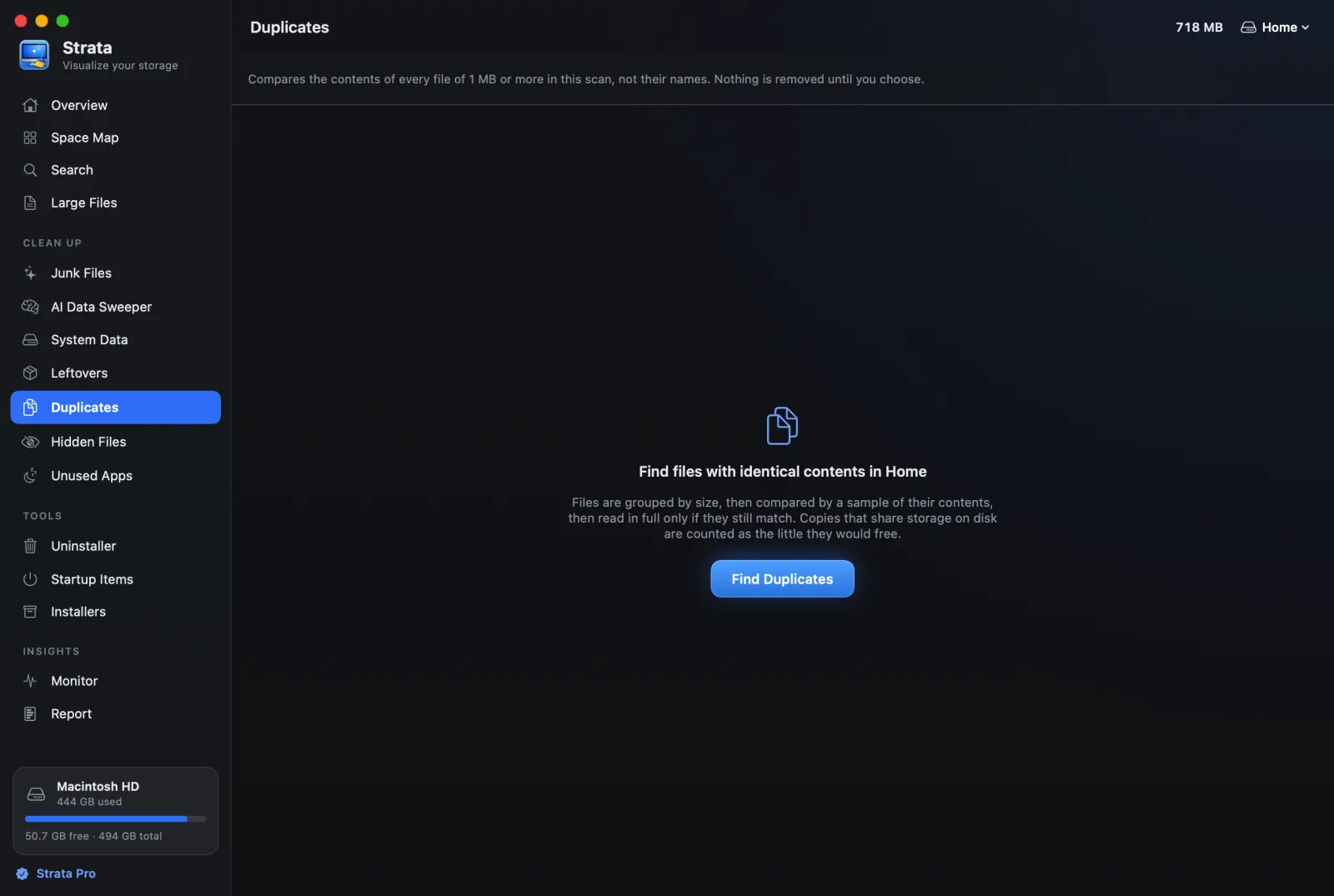
Strata compares file contents rather than names, using the three-pass approach above so a full scan finishes in a reasonable time. It reports the space you will actually reclaim, accounting for APFS clones and hard links, so the number it shows you is the number you get.
Everything it removes goes to the Trash with a one-step undo. The duplicate finder is part of Strata Pro, a one-time $9.99 with no renewal. Every download starts with 14 days of Strata Pro, free; the trial can remove up to 40 GB.
Common questions
Are duplicate photos worth chasing?
Only outside the Photos library. If your photos are in Photos, use its own Duplicates album, which understands the database and merges rather than deletes. If you have loose photos in folders from old imports, those are ordinary files and ordinary rules apply.
What about duplicate songs in Music?
Same principle. Music maintains a library database, and deleting files underneath it leaves broken entries pointing at nothing. Use the app's own duplicate view.
Two files have the same hash but different names. Are they definitely the same?
For any practical purpose, yes. A SHA-256 collision has never been produced and would be significant news. If two of your files share a SHA-256 hash, they contain identical bytes and the names are the only difference.
Can I replace duplicates with links instead of deleting them?
Technically yes, and it is a bad idea for personal files. A hard link means editing one changes the other, silently, with no indication anywhere that the two are connected. You will forget this arrangement within a month and be genuinely baffled when a document changes on its own.
How do I find duplicate files on a Mac?
Finder cannot do it. Reliable duplicate detection compares file contents with a hash rather than comparing names or sizes, because identical files routinely have different names and different files routinely have the same size. A tool that only matches filenames will both miss real duplicates and flag files that are not duplicates at all.
Is it safe to delete duplicate files?
It depends entirely on where they are. Duplicates in your Documents, Downloads and Desktop are generally safe. Duplicates inside application bundles, the Photos library, package manager folders and version control directories are not, because the software involved expects the copies to exist and will break without them.
Why does deleting a duplicate not free any space?
Because on APFS, copying a file in Finder often creates a clone rather than a real copy. Both names point at the same blocks on disk and only diverge when one is edited. Two 4 GB clones occupy 4 GB in total, not 8, so deleting one frees nothing. Both files still report 4 GB each, which is what makes this so confusing.
Which duplicate should I keep?
Keep the one in the location you would look in first, not the oldest or the newest. Dates are unreliable because copying, syncing and restoring from a backup all rewrite them. The copy in a sensibly named folder is more valuable than an identical copy in Downloads, regardless of which came first.