Documentation: all pages
Your first scan
A scan reads how much space every folder takes, here on your Mac, and changes nothing. The first time you open Strata, a short tour shows you where everything is, and Strata checks whether it can see the whole disk.
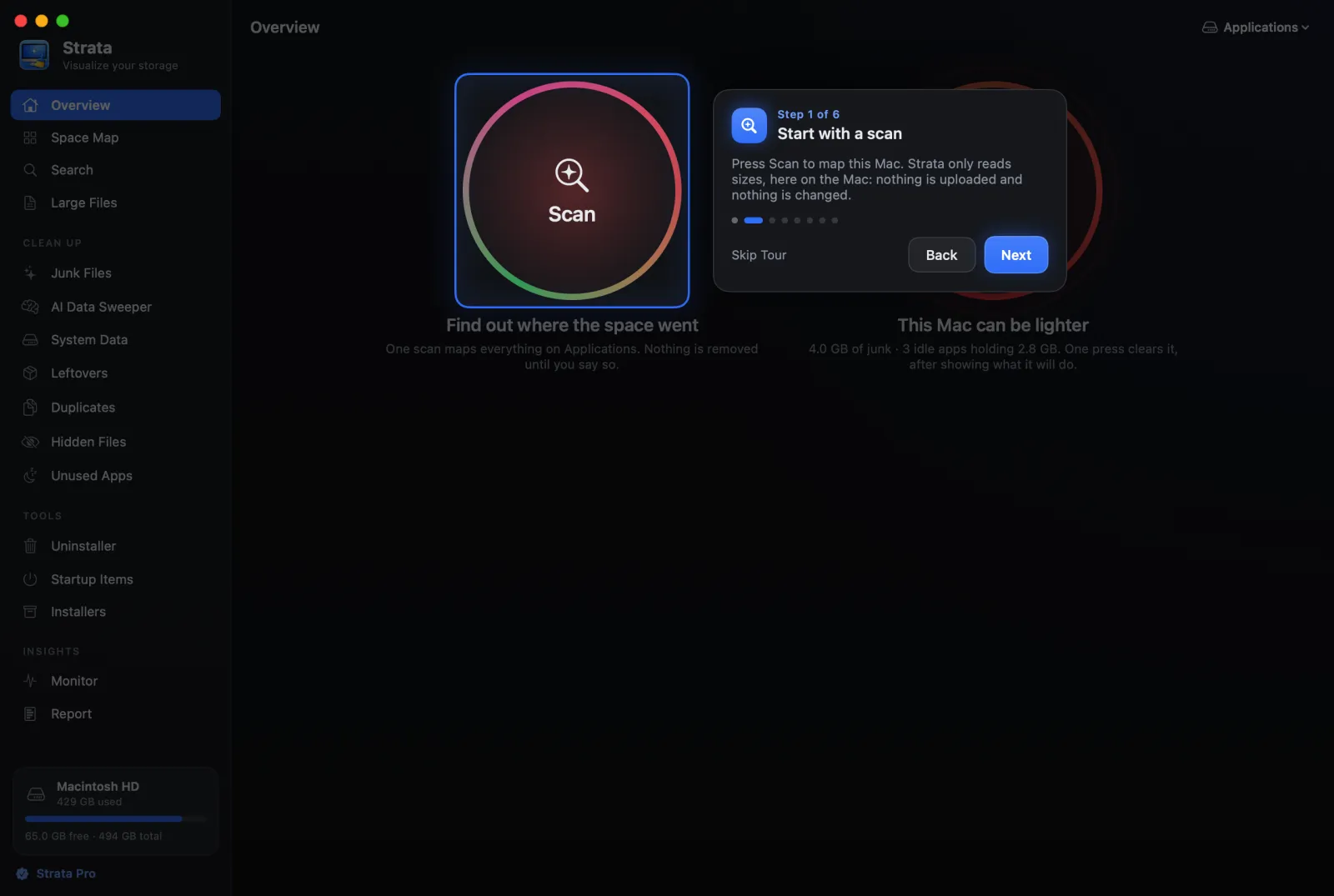
The tour
The first time Strata opens, it dims the window and lights up one part of it at a time. The first card, Welcome to Strata, offers Show Me Around or Skip Tour. Then six steps:
- Start with a scan. The Scan button. Strata only reads sizes, here on the Mac: nothing is uploaded and nothing is changed.
- Optimize in one press. The Optimize button, and what its red, amber and green mean.
- Choose what to map. The menu at the top right of the window.
- See where the space went. The Space Map, where every app and folder is a card sized by the space it takes.
- Clean up safely. The Clean Up rooms, where only what is safe to remove starts ticked.
- Keep an eye on free space. The disk at the foot of the sidebar, and the free space in the menu bar.
Return moves to the next card and Esc skips the tour. It shows once; to see it again, choose Show the Tour from the Help menu.
The Full Disk Access check
Each time Strata opens, it checks whether it has Full Disk Access. While it does not, a card titled What Strata needs for a deep clean covers the window, with a button that opens the right page of System Settings, and Continue. The first scan waits until you answer it, so macOS's own folder prompts cannot land on top of it.
Without Full Disk Access, macOS hides Mail, Messages, Safari and other apps' data from Strata. The scan still runs, but those folders are left out and the totals come out short. You can say no: Strata works either way, and when a total is short because of it, it says so with an orange unreadable count at the top of the window. Permissions has the steps.
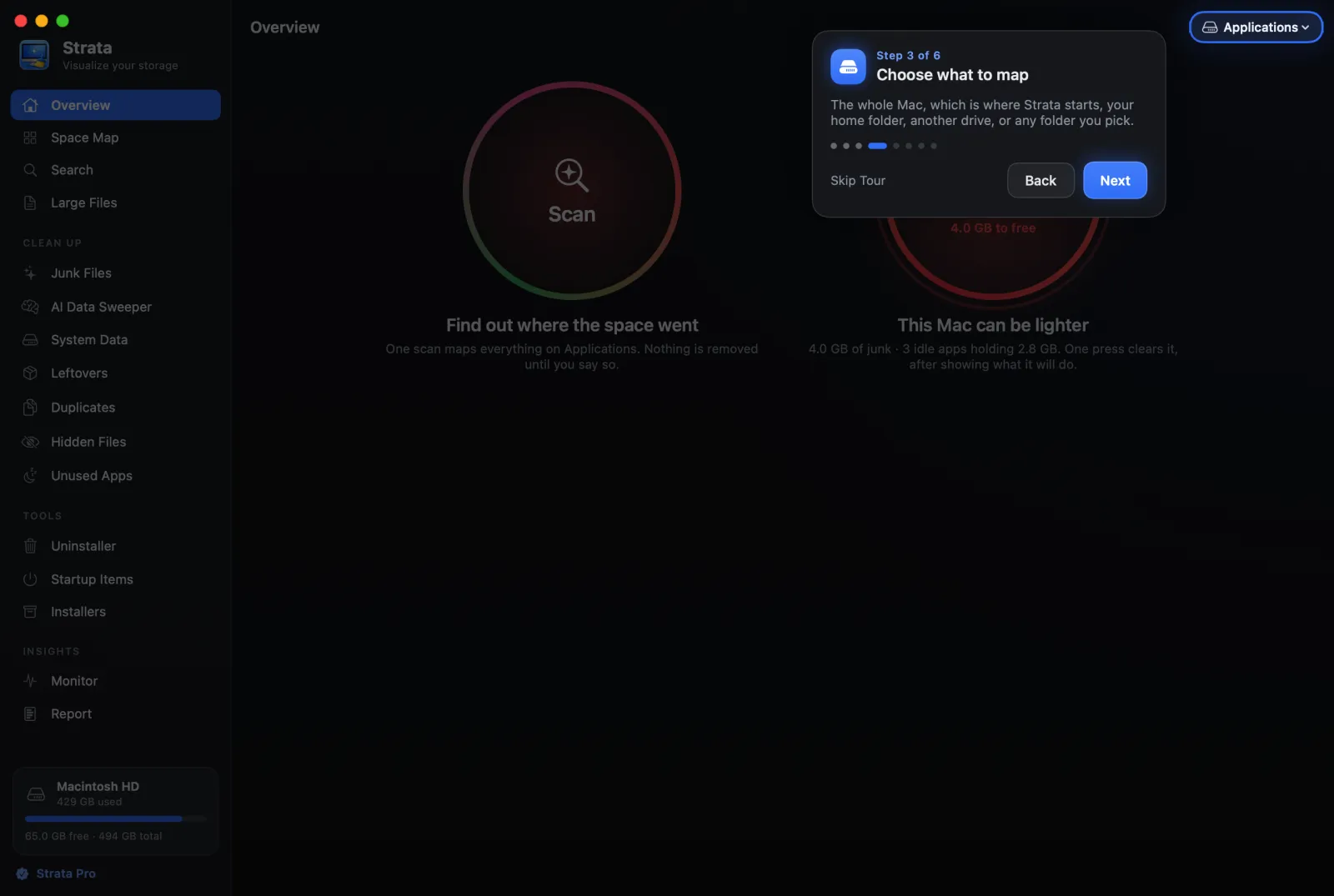
Choose what to map
By default Strata maps the whole Mac: the startup disk, named as it is in Finder, for example Macintosh HD. The menu at the top right of the window offers:
- Every drive connected to the Mac, the startup disk and external drives alike. Choosing one scans it at once. Scanning an external drive is free.
- Home, Library, Downloads and Applications, for a quicker look at one of them.
- Choose Folder…, for any folder on any drive.
- Scan Again, which scans the same place afresh.
The list of drives is read when Strata starts. A drive you connect later appears after you reopen Strata; until then, Choose Folder… reaches it.
What a scan reads, and what it does not
A scan reads the size and dates of files and folders. It does not open your files or read what is in them, and it sends nothing anywhere.
- Sizes are what each file occupies on the disk. On APFS that often differs from the length Finder shows: clones share storage, sparse files have holes, and compressed files take less than they claim. That is why Strata's totals agree with the disk.
- A file with several hard links counts once.
- Files under 1 MB are counted in their folder's total rather than listed one by one, which keeps a scan of millions of files quick and small in memory.
- A scan stays on one drive. A disk image or network share mounted inside the scanned folder is not walked, and neither are macOS's swap files or the Spotlight index.
- Folders kept only in the cloud are not downloaded. A folder whose files live only in iCloud Drive, Google Drive, OneDrive or Dropbox counts as empty, because nothing of it is on this Mac.
Sometimes the total is larger than the space the disk says is used. On APFS a clone is two files sharing the same blocks, and each one reports its full size. Files duplicated in Finder share blocks this way, as do virtual machine disks and container images from tools that clone, so the overlap can be large. When it is more than 1% of the space in use, Strata shows how much is really on disk beside the total, and says why.
How long it takes, and stopping
A whole startup disk usually takes under a minute, and a folder a few seconds. You do not have to wait for it: the Overview shows the disk at once, and the Scan circle shows how far the scan has got. When the same place has been scanned before, that is a percentage of last time's total.
Strata scans once each time it starts, not each time you open its window. There is no Stop button; choosing another place from the menu stops the scan under way and starts the new one. Scan Again works once a scan has finished.
If a folder stops answering (a network share or a drive going to sleep, usually), Strata waits 30 seconds, then carries on without it and says Skipped a folder that did not respond, naming it, with Scan Again.
What to look at first
When the scan is done, three places are worth a look before anything else:
- Largest Folders on the Overview, or the whole Space Map, for where most of the space went.
- Junk Files, for caches and build data that rebuild themselves.
- Unused Apps, for apps you have not opened in months.
Nothing is removed until you choose it and confirm, and what is removed goes to the Trash. Free up space on your Mac walks through a whole clean-up, in order.