The files macOS does not show you
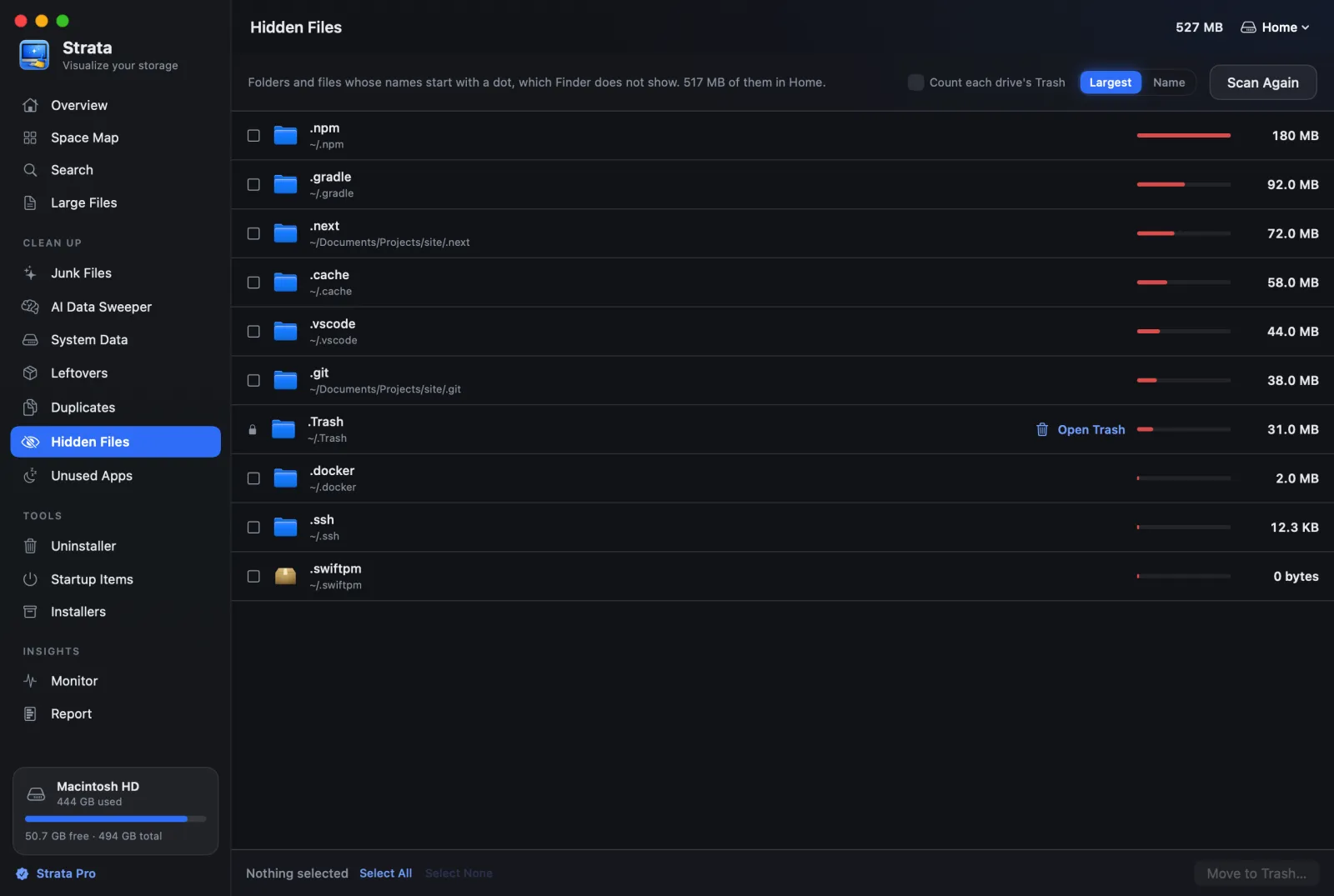
Press Command-Shift-Period in Finder and roughly forty things appear that were not there a second ago. Most are harmless. Two of them are why your external drive is still full after you emptied it.
macOS hides files for a reason that has nothing to do with secrecy. It hides them because a folder containing eleven documents and forty pieces of bookkeeping is a worse folder than one containing eleven documents.
The trouble starts when you are trying to work out where your disk went, because some of that bookkeeping is enormous, and none of it appears in a normal Finder window.
Three separate ways a file gets hidden
These are genuinely different mechanisms with different rules, and knowing which one you are looking at tells you something useful about the file.
1. The leading dot
Any file whose name starts with . is hidden. This is inherited from Unix,
where it was reportedly an accident: someone writing the code to skip the special
entries . and .. wrote a check that also skipped everything
else beginning with a dot, and the behaviour became a convention because it turned out
to be useful.
Almost every configuration file on your Mac is hidden this way. Reveal them with Command-Shift-Period.
2. The hidden flag
A file can have a normal name and still be hidden, because macOS stores a flag on it.
/usr, /bin and /private are hidden this way. You
can see the flag with:
ls -lO /Anything showing hidden in the flags column is using this mechanism
rather than a dot. Command-Shift-Period reveals these too.
The Library folder in your home directory is the important one here. It carries this flag, which is why it appears, greyed out, when you press Command-Shift-Period in your home folder. Check it with:
ls -ldO ~/LibraryTo reach it without showing everything else, hold Option while clicking Finder's Go
menu, and Library appears in the list. Or press Command-Shift-G and type
~/Library. To keep it visible, open your home folder, choose Show View
Options from the View menu and tick Show Library Folder.
This matters because Library is where nearly all of your reclaimable space lives, as covered in the article on app leftovers. The single most useful hidden folder on the Mac is one keystroke away.
3. Hidden by Finder specifically
Finder has its own rule for .DS_Store, the file it writes in every folder
you open. The name starts with a dot, but since macOS Sierra, Finder never displays
it, even with hidden files turned on, so Command-Shift-Period does not bring it back.
This is the one mechanism the standard shortcut does not touch. Terminal still lists
it:
ls -aThe catalogue
What you will actually find once you look, roughly in order of how often you will encounter it.
| Name | What it is | Delete? |
|---|---|---|
.DS_Store | Finder's view settings for that folder | Yes, returns instantly |
.localized | Empty marker telling Finder to translate the folder name | Harmless, pointless to remove |
.Trash | Your Trash, in your home folder | Empty it normally instead |
.Trashes | Per-volume trash on external and secondary drives | See below. This one matters |
.Spotlight-V100 | The search index for that volume | Rebuilds, but slowly. Leave it |
.fseventsd | Log of filesystem changes, used by Time Machine and Spotlight | Leave it |
.zshrc, .bash_profile | Your shell configuration | Only if you wrote it and want it gone |
.ssh | SSH private keys and known hosts | Never. Not recoverable |
.gnupg | GPG private keys | Never. Same reason |
.config | Settings for a great many command line tools | Only specific subfolders you recognise |
.npm, .cargo, .gradle | Package manager caches, frequently gigabytes, beside things that are not caches | The cache folders inside, yes. Not the whole folder |
.git | The entire history of a repository | Only if you are deleting the project |
.CFUserTextEncoding | A few bytes recording your language preference | Leave it, it is a few bytes |
The one rule for this table. Hidden does not mean unimportant and it
does not mean disposable. .DS_Store and .ssh both hide behind
the same leading dot. One is regenerated the instant you open a folder, the
other is a private key that, if you lose it, is gone in the strongest sense the word
has.
The hidden things that are actually using your disk
Most of the catalogue above is kilobytes. Four entries are not, and these are the ones worth looking for.
.Trashes on external drives
This is the one that produces genuine confusion. Every volume gets its own trash
folder, named .Trashes, at the root of that volume. When you delete a file
from an external drive, it is moved there. It stays on that drive, still occupying
space, until the Trash is emptied while the drive is connected.
So: you delete 40 GB from a backup drive. You eject it. Later you empty the Trash. The 40 GB is still on the external drive, because macOS could not reach it. The drive stays full and nothing in Finder explains why.
The fix is to reconnect the drive and empty the Trash with it mounted. To see what is
sitting there, name your own folder inside it: on a Mac-formatted drive, macOS makes
.Trashes itself impossible to list, even for you.
du -sh /Volumes/*/.Trashes/$(id -u) 2>/dev/nullPackage manager caches
If you write software, .npm, .cargo, .gradle,
.m2 and .pub-cache all hold download caches that grow without
limit and are never pruned by anything. Several gigabytes each is normal. The caches
re-download, so clearing them costs you time on the next build and nothing else. Not
everything beside them does: ~/.cargo/bin holds cargo and
rustc themselves, and .gradle and .m2 can hold
settings and credentials. Clear ~/.npm/_cacache,
~/.cargo/registry, ~/.gradle/caches and
~/.m2/repository, not the folders around them.
.Spotlight-V100
The search index. On a large volume it can be several gigabytes. It is not junk and deleting it means Spotlight reindexes the whole drive, which takes hours and hammers the disk. Only worth touching if search is genuinely broken, and even then there are better ways to ask for a rebuild.
Old .fseventsd logs
Rarely large on a healthy system, occasionally enormous on a drive that has had millions of file changes. Worth looking at only if a disk map points you there, which is the honest answer for most of this category.
The ._ files on USB sticks
A category of its own, because it only appears on drives formatted for something other than a Mac, and it baffles everyone the first time.
macOS attaches extra information to files that most filesystems have no way to store: Finder tags, custom icons, the quarantine flag that produces the "downloaded from the internet" warning, and where a file came from. On an APFS or HFS+ drive this rides along invisibly as extended attributes.
Copy that file to a FAT32 or exFAT USB stick, which has no such concept, and macOS
refuses to lose the information. It writes a second hidden file alongside the first,
with the same name and a ._ prefix, containing everything that would not
fit. Copy report.pdf and the stick receives both
report.pdf and ._report.pdf.
They are individually tiny and collectively noticeable if you have copied tens of thousands of files. Their real cost is social: anyone opening that drive on Windows sees a duplicate of every file you gave them, and reasonably concludes something went wrong.
You can strip them from a drive before handing it over:
dot_clean /Volumes/YourDriveNameThat merges the extra data back where possible and removes the separate files. Nothing of yours is lost, because the information they carry is metadata about the file rather than the file's contents. The same command is the fix for a drive that has accumulated them over years of use.
Should you leave hidden files visible?
Probably not, and this is a mild opinion rather than a rule.
Leaving them on permanently means your home folder acquires a dozen configuration files you will never edit, and the signal to noise ratio of every Finder window drops for no ongoing benefit. The files were hidden because they are not things you act on.
The shortcut is one keystroke. Turn them on when you are looking for something, turn them off when you are done. The exception is if you write software, in which case you are editing dot-files often enough that leaving them visible saves real time.
A note on .DS_Store in shared folders. If you sync a
folder with people on Windows or Linux, they see these files and find them baffling.
Adding .DS_Store to a .gitignore is one of the most
universally agreed conventions in software, for exactly this reason.
See hidden files in the map, not just in Finder
Strata can include hidden files and folders in its scan, so .Trashes on
an external drive and a 6 GB .gradle cache appear in the map at
their real size rather than being silently skipped. It shows allocated size, so the
totals match what your disk actually reports.
Hidden file scanning is part of Strata Pro, a one-time $9.99 with no renewal. The map, search and large file view are free forever. Every download starts with 14 days of Strata Pro, free.
Common questions
Can I stop macOS creating .DS_Store files?
On network shares, yes, with a defaults command Apple documents. On local disks there is no supported way, and working around it tends to break Finder's ability to remember how you like your folders arranged. It is not worth the fight for a file measured in kilobytes.
I deleted a dot-file and something broke. Can I get it back?
If it went to the Trash, yes: open the Trash, right click and choose Put Back, and it
returns to exactly where it was. If you used rm, no. That is the practical
difference between the two, and it is the whole argument for using the Trash even when
you are certain.
Why does my home folder have so many dot-files?
Because the home directory is the default place for a program to put its
configuration, and there have been a lot of programs. Newer tools tend to use
~/.config instead, which keeps things tidier, but nothing forces the
older ones to move and so they never do.
How do I show hidden files on a Mac?
Press Command-Shift-Period in any Finder window. Press it again to hide them. This reveals dot-files and files with the hidden flag, including the Library folder in your home folder, which carries that flag. The exception is .DS_Store, which Finder never shows. To open Library on its own, hold Option while clicking Finder's Go menu.
Is it safe to delete hidden files on a Mac?
Some are, some are not, and the leading dot tells you nothing about which. .DS_Store files are safe and regenerate instantly. The .ssh and .gnupg folders hold private keys that cannot be recovered if lost. Judge by what the file is, never by whether it is hidden.
What is a .DS_Store file?
A small file Finder writes in every folder you open, storing that folder's view settings: icon positions, window size, sort order. They are harmless, regenerate the moment you open the folder again, and are mostly a nuisance when they end up in shared folders or git repositories.
Why is my external drive still full after emptying the Trash?
Because each volume has its own trash folder called .Trashes, and emptying the Trash on your Mac does not always empty it. Files deleted from an external drive sit in a hidden .Trashes folder on that drive, still occupying space, until the Trash is emptied while the drive is connected.