How to delete files on a Mac or MacBook without regretting it
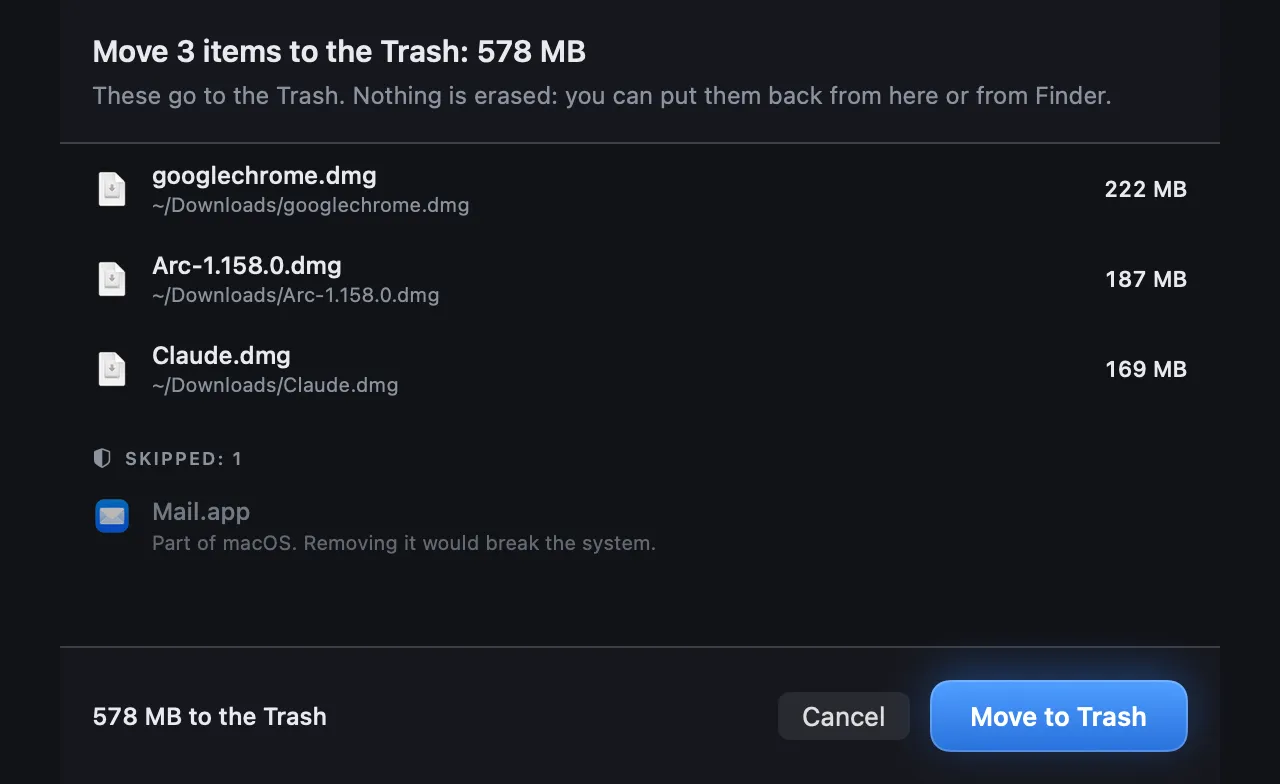
Almost every deletion on a Mac is reversible for as long as you can resist the urge to tidy up properly. The small number that are not reversible are worth knowing by name.
The quick answer
- Select the file in Finder and press Command-Delete, or drag it to the Trash in the Dock. It moves to the Trash, and you can still put it back.
- To free the space, empty the Trash: Finder > Empty Trash, or Shift-Command-Delete.
- Option-Command-Delete deletes a file immediately and skips the Trash. There is no undo.
- Files on an external drive go to that drive's own Trash, so empty the Trash before you eject it.
There is a specific moment, roughly four seconds after emptying the Trash, when you remember what was in it. Everything in this article is an attempt to make that moment less expensive.
Every way to delete a file on a Mac
All six work the same on macOS 27, on an iMac, a Mac mini or a MacBook. The first three move the file to the Trash, where it can be put back, unless it is on a network drive with no Trash of its own; the last three never use the Trash:
- The keyboard. Command-Delete, with the file selected in Finder. On a MacBook, Delete is the key Windows would call Backspace.
- The menu. Control-click the file, or click it with two fingers on a trackpad, and choose Move to Trash. Finder's File menu has the same command.
- The Dock. Drag the file onto the Trash at the end of the Dock.
- For good, at once. Hold Option with Finder's File menu open and choose Delete Immediately…, or press Option-Command-Delete. Finder asks first.
- Storage settings. In System Settings > General > Storage, a file deleted from a category's list skips the Trash, and macOS warns that this cannot be undone.
- Terminal. The
rmcommand skips the Trash entirely; see the one that does not even ask.
What the Trash actually is
The Trash is not a special system. It is a hidden folder called .Trash in
your home directory, and moving a file there is an ordinary move.
Two things follow from that, and both surprise people.
Trashing a file frees no space whatsoever. The file is in a different folder on the same disk. If you are deleting things because you are out of room, nothing improves until you empty the Trash. This is also precisely why undo works: the file has not been altered, only relocated.
Every volume has its own. You cannot move a file across disks without
copying it, so an external drive keeps its deleted files in a folder called
.Trashes at its own root. Delete 40 GB from a backup drive, eject it,
then empty the Trash, and those 40 GB are untouched, because macOS could not reach
the drive. This one accounts for a lot of "my external drive is still full" confusion
and is covered further in
the article on hidden files.
Put Back, and why it sometimes refuses
Select something in the Trash, right-click, choose Put Back, and it returns to where it came from. macOS usually records the original path when the file is trashed, which is how it knows.
It fails in three situations, all logical once you know the mechanism:
- The original folder no longer exists. There is nowhere to put the file back to. You can still drag it out of the Trash by hand, you just have to decide where it goes.
- Something else now occupies that exact path. macOS will not silently overwrite the newer file, and it is right not to.
- macOS never recorded where it came from. Finder records it for everything it moves. Items another app moved sometimes lack it, and then there is no Put Back. Drag those back by hand.
None of these is data loss. The file is still sitting in the Trash in every case. It just needs you to make the decision that macOS declined to make on your behalf. How to restore files from the Trash goes through it step by step, with what a backup can do once the Trash is emptied.
The one that has no undo
The rm command does not use the Trash. It unlinks the file immediately.
There is no Put Back, no recovery, and no confirmation unless you ask for one.
rm -rf ~/Downloads/old-projectThat is gone. Not in the Trash, not recoverable through any normal means, gone in about eight milliseconds.
This is not a design flaw. rm is a tool for scripts, and a script that
filled up the Trash instead of deleting things would be useless. But it does mean that
copying a command off the internet has a materially different risk profile from
dragging something to the Trash, and the two feel deceptively similar while you are
doing them.
The particular trap. Almost every cleanup guide online, including
parts of this one, gives you rm -rf commands because they are compact and
unambiguous. Every one of them is irreversible. When you paste one, read the path
twice, and be especially careful that no accidental space has crept in after the
first slash.
When a file will not delete
Finder says why, and the reason points to the fix:
- It is open. Finder says the item cannot be moved to the Trash because it is open, or that it is in use. Quit it if it is an app, or quit the app using it, or restart the Mac, and try again.
- It is locked. Finder asks whether to move it to the Trash anyway: click Continue, or first choose File > Get Info and untick Locked. If a locked item keeps the Trash from emptying completely, Finder's own advice is to hold Option while you choose Finder > Empty Trash.
- It is not yours. Items owned by another account or by macOS need an
administrator's password, or cannot be moved at all. Under
/System, that refusal is System Integrity Protection, and it is right.
The never list
Short, and worth memorising.
| What | Why |
|---|---|
/System, and /usr outside /usr/local | System Integrity Protection blocks this anyway. If something appears to let you, that is more alarming, not less |
~/.ssh and ~/.gnupg | Private keys. There is no backup and no reissue. Losing these locks you out of servers and repositories permanently |
Anything inside a .app bundle | Apps are code signed. Changing one file inside invalidates the signature and macOS may refuse to launch it |
| Files inside the Photos or Music library | These are databases. Removing files underneath them leaves broken records. Delete inside the app instead |
| Time Machine local snapshots | macOS reclaims them automatically the moment you need space. Deleting them manually costs your local recovery history for space you had coming anyway |
Anything you cannot identify in /Library/LaunchDaemons | Runs as root at boot. May be why your VPN, audio interface or backup software works |
The three questions
For everything not on that list, three questions settle it faster than any amount of searching.
1. Who created this, me or a program?
If you made it, you know whether you want it. If a program made it, the program has opinions about it existing, and you should find out what they are before intervening. This one question resolves the majority of cases.
2. Does it come back on its own?
Caches, indexes, thumbnails, derived data and build output all regenerate. Deleting them costs a slow first run and nothing else. Documents, photos, keys and configuration you wrote yourself do not come back, ever.
If you are unsure, the folder name is usually honest. Anything containing "Cache", "Derived", "tmp", "Logs" or "Index" is telling you what it is.
3. Could I get it again if I was wrong?
A downloaded installer is replaceable. A film you bought is replaceable. Photos of a person who has died are not. This question is about consequences rather than likelihood, and it is the one worth weighting most heavily, because the cost of being wrong is wildly uneven across files that all look identical in a list.
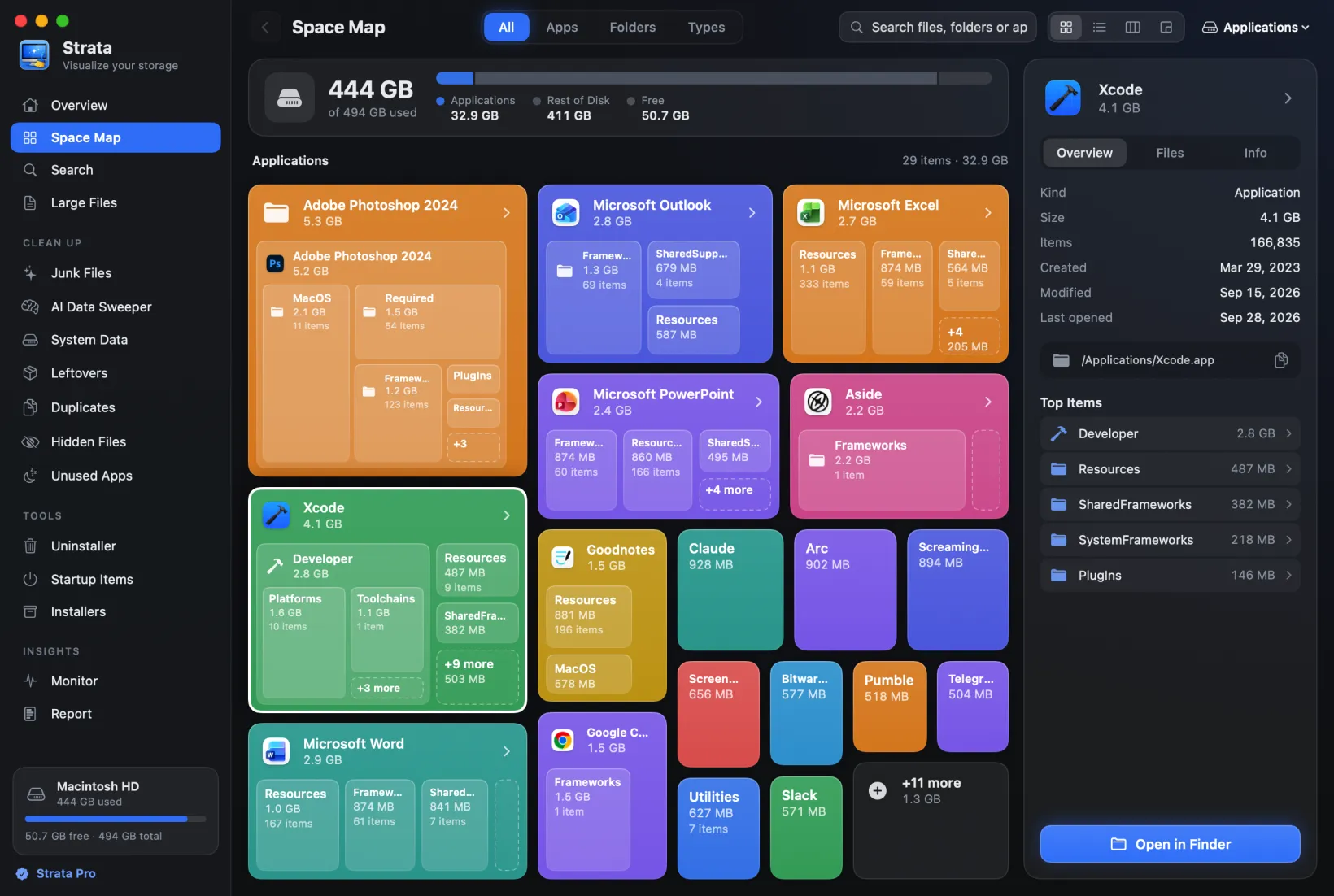
Strata's Junk Files leaves that judgement to you. Old downloads unused for three months, virtual machines and games are listed apart, as yours, and never ticked for you.
Reliably safe, in practice. ~/Library/Caches, one app's
folder at a time (our guide to clearing caches shows
how), Xcode
derived data, iOS simulator runtimes you no longer target, package manager caches
(.npm, .gradle, .cargo), old installer
.dmg files, and node_modules in projects you have finished.
All regenerate or are re-downloadable. Strata's Junk Files finds most of these. It ticks a
project's node_modules only after three months in which nothing in the project
changed, and lists simulators for a version of iOS no longer installed, which cannot run.
Simulator runtimes themselves are in Strata's System Data room, with Open Xcode, since only Xcode
removes them.
The one day rule
The single most effective habit in this whole subject, and it costs nothing.
Never empty the Trash in the same session you filled it.
Delete everything you intend to delete. Then use the Mac normally for a day. If something is broken, you will find out during ordinary use, and the fix is dragging one file back out of the Trash. Empty it the next day.
The cost is getting your disk space back a day later than you could have. The benefit is that every mistake in the entire operation stays reversible through the period when you would actually notice it. There is no version of this trade that favours emptying immediately, and yet almost everyone does, because the number at the bottom of the Finder window is satisfying to watch change.
How Strata handles deletion
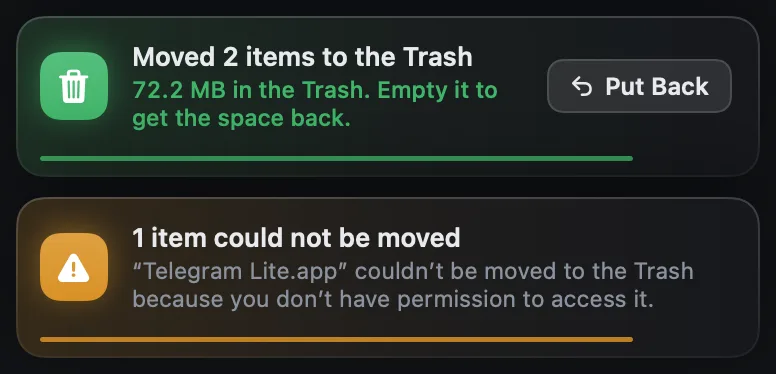
Three decisions worth stating plainly, because they are the ones that determine whether a cleanup tool is safe to use.
Everything goes to the Trash. Strata moves files to the Trash the way
macOS lets any app do it, not with rm. Anything it removes can be recovered
with Strata's own Put Back, or by dragging it out of the Trash by hand. What only an
administrator can move goes the same way once you allow Strata's administrator helper, which
moves only to your own Trash and never deletes; without the helper, Strata leaves it to
Finder. An app with a system extension always goes by way of Finder, since macOS removes the
extension only when Finder moves the app. Strata selects such things in Finder, and you move
them there. There is no mode that deletes permanently, because there is no situation where
that is worth the risk to you.
Undo restores the exact original path. One step, and every file in the operation goes back where it came from. It does not overwrite anything newer that has appeared at that path in the meantime. The notice offers it at once, and Recently Removed for 90 days, after Strata has quit or updated too. For folders in the Trash that Strata kept no record of, such as those versions before 1.0.30 removed, Earlier removals (since 1.0.31) looks in Strata's scan history for where each probably was.
Protected paths are refused, twice. There is a list of locations that cannot be deleted regardless of what is selected: system directories, key stores, anything inside an app bundle. The check runs when you select something and again at the moment of deletion, because the time between those two events is exactly when a path can change underneath you.
Delete with a working undo
Strata shows you what you are about to remove and how much space it will actually recover, sends everything to the Trash, and keeps a one-step undo that puts every file back exactly where it was.
Scanning, the map and search are free forever. Moving things to the Trash and uninstalling are part of Strata Pro, a one-time $19.99 that never expires, with nothing to upgrade to later, and putting things back stays free. Every download starts with 14 days of Strata Pro, free; the trial can remove up to 40 GB.
Common questions
Is Secure Empty Trash still a thing?
No, and its removal was correct. It overwrote files repeatedly, which made sense for spinning disks and does not for SSDs, where wear levelling means the drive decides where data physically lives and an overwrite may not touch the original blocks at all. On an encrypted Mac, which is the default, deleting the file is already sufficient.
Can I recover something after emptying the Trash?
Sometimes, with recovery software, and the odds fall the longer you keep using the Mac. On an encrypted APFS volume with TRIM enabled, which is the default configuration on every modern Mac, the realistic answer is usually no. Treat emptying as permanent and you will never be unpleasantly surprised.
Why does deleting a big file sometimes free nothing?
Two possibilities. It is still in the Trash, which is a move rather than a deletion. Or a running program still has it open, in which case the space is not released until that program closes it or quits. The second is common with log files that something is actively writing to.
Is it safe to delete everything in ~/Library/Caches?
Nothing in it is lost for good, since apps rebuild their caches, but there is a better way: one app at a time. Quit the app, move its own folder to the Trash, and reopen it. A running app can be confused when a file it holds open disappears. Leave the Caches folder itself, and Apple's folders whose names start with com.apple, to macOS: they add up to little, and macOS manages them. The first launch of each app is slower, then everything is normal.
Can I undo deleting a file on a Mac?
If it went to the Trash, yes. Open the Trash, right-click the file and choose Put Back, and it returns to its original location. This works until you empty the Trash. If Put Back is not offered, drag the file out of the Trash. If you deleted it with the rm command in Terminal, there is no undo, because rm does not use the Trash at all.
How do I permanently delete files on a Mac?
Empty the Trash: choose Finder > Empty Trash, or press Shift-Command-Delete; Finder asks first unless you have turned its Trash warning off. To delete one item for good without the Trash, select it and choose Delete Immediately… from Finder's File menu while holding Option, or press Option-Command-Delete; Finder always asks first for that. Either way there is no Put Back afterwards.
What files should I never delete on a Mac?
Anything in /System or /usr outside /usr/local, which System Integrity Protection blocks anyway. The .ssh and .gnupg folders, which hold unrecoverable private keys. Files inside application bundles, which invalidates their code signature. Files inside the Photos or Music library, which corrupts the database. And Time Machine local snapshots, which macOS reclaims on its own when space is needed.
Does the Trash take up disk space?
Yes. Moving a file to the Trash moves it to a hidden folder on the same volume and changes nothing about how much room it uses. The space is only released when you empty the Trash. This is also why the Trash is a genuine undo: the file has not gone anywhere.
Why did Put Back not work?
Put Back needs the original folder to still exist. If you deleted a file and then deleted or renamed the folder it came from, macOS has nowhere to return it to and the option is greyed out. It also needs macOS to have recorded where the file came from: Finder does so for everything it moves, but items another app moved may lack that record. You can still drag the file out of the Trash manually, it just will not go back automatically.