What purgeable space is on a Mac, and how to get it back
Purgeable space is the part of your Mac's disk that macOS counts as available even though something is still stored in it, such as Time Machine's local snapshots and caches it can delete when it needs the room. It is why a Mac can report plenty of space and still refuse a large copy. Here is what purgeable space is made of, how to see it, and the safe ways to clear it yourself when you cannot wait for macOS.
Key takeaways
- Available space on a Mac is free space plus purgeable space: storage macOS will clear when it needs the room.
- It includes Time Machine's local snapshots, whose space Apple counts as available, and caches macOS can delete.
- On our test Mac, 13.25 GB of the 56.57 GB available was purgeable.
- Purging is not instant. In independent tests on macOS 26 it lagged by up to about half an hour, or failed, so before a big copy, delete snapshots yourself.
- Skip the fill-the-disk trick and
sudo purge: the first can leave a Mac with no room to work, the second only empties a memory cache.
How we tested: every figure we measured comes from one MacBook Air (M2, 512 GB)
on macOS 27.0.1, read on 6 October 2026 with read-only commands: Foundation's volume capacity
keys, df, diskutil and tmutil. No snapshot was deleted to
write this. Apple's documentation is linked wherever we rely on it.
What counts as purgeable space
Apple's Disk Utility guide says a volume's available space can include both its free space and its purgeable space, meaning files macOS may remove when it runs short of room. Apple names two things that behave this way, and describes a third without using the word.
Time Machine's local snapshots
If Time Machine backs up automatically, it also keeps snapshots of your startup disk on the disk itself. Apple's article on them says Time Machine takes one roughly every hour and keeps it for 24 hours, keeps one more of the last successful backup until the space is needed, and takes one before every macOS update. It also says plainly that "your Mac counts the space used by snapshots as available storage".
On our Mac, diskutil agrees. It labels every Time Machine snapshot on the data
volume Purgeable: Yes, and the snapshot macOS keeps of its own sealed system
Purgeable: No.
Caches macOS can delete
Apple's Mac User Guide describes available storage as free space plus purgeable disk caches, and its page on optimising storage lists what macOS clears by itself when space is needed: temporary database files, interrupted downloads, staged macOS and app updates, and Safari website data (Optimize storage space on Mac).
iCloud copies, behaving the same way
With Optimize Mac Storage turned on for iCloud Drive, Apple says your Mac can keep documents only in iCloud when it needs more space; with it on in Photos, the Mac can keep smaller versions of photos and leave the originals in iCloud. Apple describes this behaviour without calling those files purgeable, so treat them as a likely part of the figure rather than a documented one.
What is not purgeable
- The Trash. Apple says the space it takes becomes available only once you empty it. At least one widely read guide lists it as purgeable; it is not.
- Swap and the sleep image. Apple's Storage help files VM files under System
Data, and no Apple page calls either purgeable. Swap lives on a volume of its own, VM; the
sleep image is
/private/var/vm/sleepimage, on the Data volume. Leave both alone.
What purgeable space looked like on our Mac
macOS gives apps three different answers to "how much room is there?", and the gap between two of them is our measure of purgeable space. These are the three, read a few seconds apart on our test Mac:
| Figure | What it means | Our Mac |
|---|---|---|
| Free | Blocks nothing is using. This is what df reports | 43.32 GB |
| Available for important use | What an app may count on for something you asked for, purgeable space included | 56.57 GB |
| Purgeable | The difference between the two: our measure of it | 13.25 GB |
| Available for opportunistic use | What an app should count on for a download you did not ask for | 38.44 GB |
| Local snapshots | Listed by tmutil listlocalsnapshots / | 6 |
The middle rows come from Apple's developer guidance on checking volume storage capacity, which tells apps to use the "important" figure for things the user asked for, such as a video they are about to watch, and the "opportunistic" one for things they might want later. Apple does not say how either is calculated. On our Mac the opportunistic figure was almost 5 GB below the free one, which suggests macOS keeps some free space back from apps that are only guessing; Apple does not explain the gap.
The snapshots moved while we watched. Sixteen minutes after the first reading there were five: the two from the evening before had expired, as Apple's 24-hour rule says they should, and a new hourly one had appeared.
Where macOS shows it
- Disk Utility. Select the volume and click the Info button. Apple's guide says Available can include free and purgeable space, and lists the used, purgeable and free figures separately.
- System Settings > General > Storage. Apple's help for macOS 27 says the light grey part of the bar is free space. It does not document a purgeable segment, and guides disagree about whether one appears, so do not rely on Storage for this. An experienced member of Apple's forums reports that macOS 27 counts this space inside System Data rather than as available (more on that). Apple has not said so, and on our Mac macOS still counted about 13 GB as purgeable, with Disk Utility in macOS 27.0.1 still carrying its Purgeable labels.
- Terminal.
df -h /shows free space only. To see which snapshots macOS may purge, list them with their flags:
tmutil listlocalsnapshots /
diskutil apfs listSnapshots /System/Volumes/Data
Neither command changes anything, and on our Mac neither asked for a password.
When purgeable space gets in the way
Apple says snapshots do not use the space needed for downloading, copying or installing software, because macOS deletes them as that space is needed. Most of the time that holds. It is not guaranteed, and the moments it fails are the ones that matter, such as a large copy or a macOS update. If System Data jumped after updating to macOS 27, see what is normal, and what to check.
In tests on macOS 26 published in August and September 2026, Howard Oakley found a Finder copy refused while about 95 GB of snapshot data was purgeable, and the space that deleted files left in snapshots taking about 29 minutes to count as purgeable on one disk, and longer on another. In another test he found that once a startup disk is down to about 1 GB free, most file operations fail, even creating a folder. His advice, which we follow: do not count on purgeable space until it has actually been freed.
A rule of thumb. If the job is big and cannot fail halfway, such as a macOS update or copying a large project, plan with the free figure, not the available one. If the gap matters, clear the snapshots first.
How to free purgeable space yourself, safest first
The part of purgeable space you can clear directly, with Apple's own tools, is local snapshots; the caches in the figure are macOS's to clear. Deleting snapshots costs you only the hourly restore points on the disk itself: backups on your Time Machine disk are separate, and stay.
-
Let Time Machine delete them (Apple's way)
Apple's own routine needs no Terminal. Open System Settings > General > Time Machine, click Options, set Backup Frequency to Manually, and click Done. Wait a few minutes while macOS deletes the local snapshots, then set Backup Frequency back to the automatic choice you had before. Time Machine remembers your backup disks. The last step matters: some guides stop before it and leave the Mac with no automatic backups.
-
Or delete chosen snapshots in Disk Utility
In Disk Utility, choose View > Show APFS Snapshots and select your startup disk's Data volume, which holds the Time Machine snapshots (Macintosh HD - Data on our Mac; if it is not in the sidebar, choose View > Show All Devices). Select one or more in the table and click Delete Snapshot. Apple's guide to APFS snapshots also warns against renaming one, which can make it invalid.
-
Or use tmutil in Terminal
tmutil deletelocalsnapshots /deletes every local Time Machine snapshot on the startup disk. Given a date such as2026-10-06-124451instead, it deletes that date's snapshots on every mounted disk, so check what else is connected first.tmutil thinlocalsnapshots / 20000000000asks it to reclaim about 20 GB by thinning snapshots rather than deleting them all; an urgency from 1 to 4 can follow the amount. Its manual marks the verbs that need administrator rights and Full Disk Access, and these are not among them, though many guides addsudoanyway. We deleted nothing, so we did not test whether macOS asks for a password.
If the purgeable figure is small and the disk is still full, the space is not purgeable and none of this will help. Look instead at what is really there: start with what is taking up space on your Mac, and if System Data is the large category, what System Data is.
What not to do
Do not fill the disk to force a purge. A common trick is to write a huge file until macOS warns and purges. No Apple document recommends it, and it runs the disk towards the point where, in Oakley's tests, most file operations fail. If it goes wrong mid-update or while an app is saving, the cost is far higher than the space.
sudo purgeis about memory, not disk. Its manual page says it flushes and empties the disk cache to approximate a cold start for performance analysis. It frees no storage.- Do not leave Time Machine off. Turning off automatic backups clears the snapshots; forgetting to turn them back on clears your backups' future too.
- Do not delete
/System/Volumes/VMor/private/var/vm/sleepimage. They are swap and the sleep image, which macOS manages and needs.
The snapshot marked "(dataless)"
On our Mac, tmutil listlocalsnapshots / listed one snapshot from 26 August, six
weeks old, with (dataless) after its name. tmutil listlocalsnapshotdates
leaves it out entirely, so a script that loops over those dates would never touch it.
diskutil still marks it purgeable.
Apple does not explain the label anywhere we could find. Its Apple File System Reference only describes a snapshot that has no data. We left it alone, and so should you unless you have a reason: we could not confirm whether it is safe to delete, or whether it takes any space.
How Strata shows purgeable space
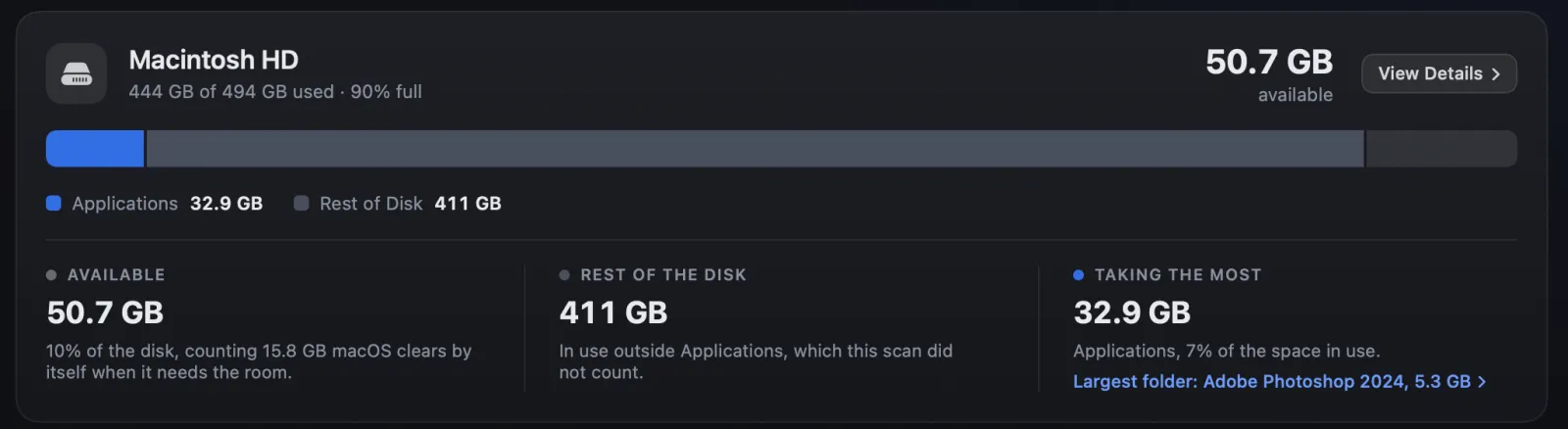
Strata's Overview works it out the same way as the table above: the space macOS reports as available for important use, minus the free blocks. When that comes to 1 GB or more, the Available line under the disk bar says so; in the picture at the top it reads "counting 15.8 GB macOS clears by itself when it needs the room". When less than a tenth of the disk is available, the line warns about the space instead. Purgeable space is never counted as used, so it never makes the bar look fuller than it is. Strata's warnings for a nearly full disk read the same available figure, purgeable space included, every minute. Since version 1.0.26 they come once a day when available space is below the share you choose in Settings, under Notices (10% unless you change it), and every hour once it is also under 5% of the disk. Under 2%, a warning drops from Strata's icon in the menu bar. When that happens, see what to clear first when the startup disk is almost full.

Its System Data room lists the local snapshots by count and oldest date, says how many tmutil marks dataless when any are, and has a button that opens Time Machine settings. Strata never deletes snapshots itself; it leaves that to Time Machine, where it belongs. The room is part of Strata Pro, which every download includes for its first 14 days.
Frequently asked questions
Is it safe to delete purgeable space on a Mac?
You cannot delete purgeable space as such, because it is not a folder. The part you can safely remove yourself is Time Machine's local snapshots, through Time Machine settings or Disk Utility. You lose only the local restore points; backups on your backup disk are separate and stay.
Why is purgeable space so large on my Mac?
Often because of Time Machine's local snapshots. After you delete or change a lot of files, the snapshots still hold the old versions, so their size grows. macOS keeps hourly snapshots for 24 hours and one of the last backup until the space is needed.
Does restarting a Mac clear purgeable space?
Apple does not say that it does. Hourly snapshots expire after 24 hours whether or not you restart. Starting up in safe mode clears some system caches and can make a little more space available for a while; in a test by Howard Oakley on macOS 26 it freed about 0.2 GB.
Does sudo purge free purgeable space?
No. Its manual page says purge flushes and empties the disk cache, which lives in memory, to approximate a cold start for performance tests. It does not touch snapshots or purgeable files on the disk.
How can I see how much purgeable space my Mac has?
Disk Utility shows used, purgeable and free figures for a volume. In Terminal, df shows free space only, and diskutil apfs listSnapshots marks each snapshot Purgeable: Yes or No. Strata's Overview gives the amount in its Available line when it is 1 GB or more.
See what is really free
Strata's Overview splits your disk into what is yours, what apps keep and what macOS needs, and says how much of the available space is purgeable. Its System Data room shows the backups and attachments that Storage settings counts beside System Data, and the snapshots it counts as available.
The scan, the map and search are free forever. Every download starts with 14 days of Strata Pro, removing up to 40 GB.