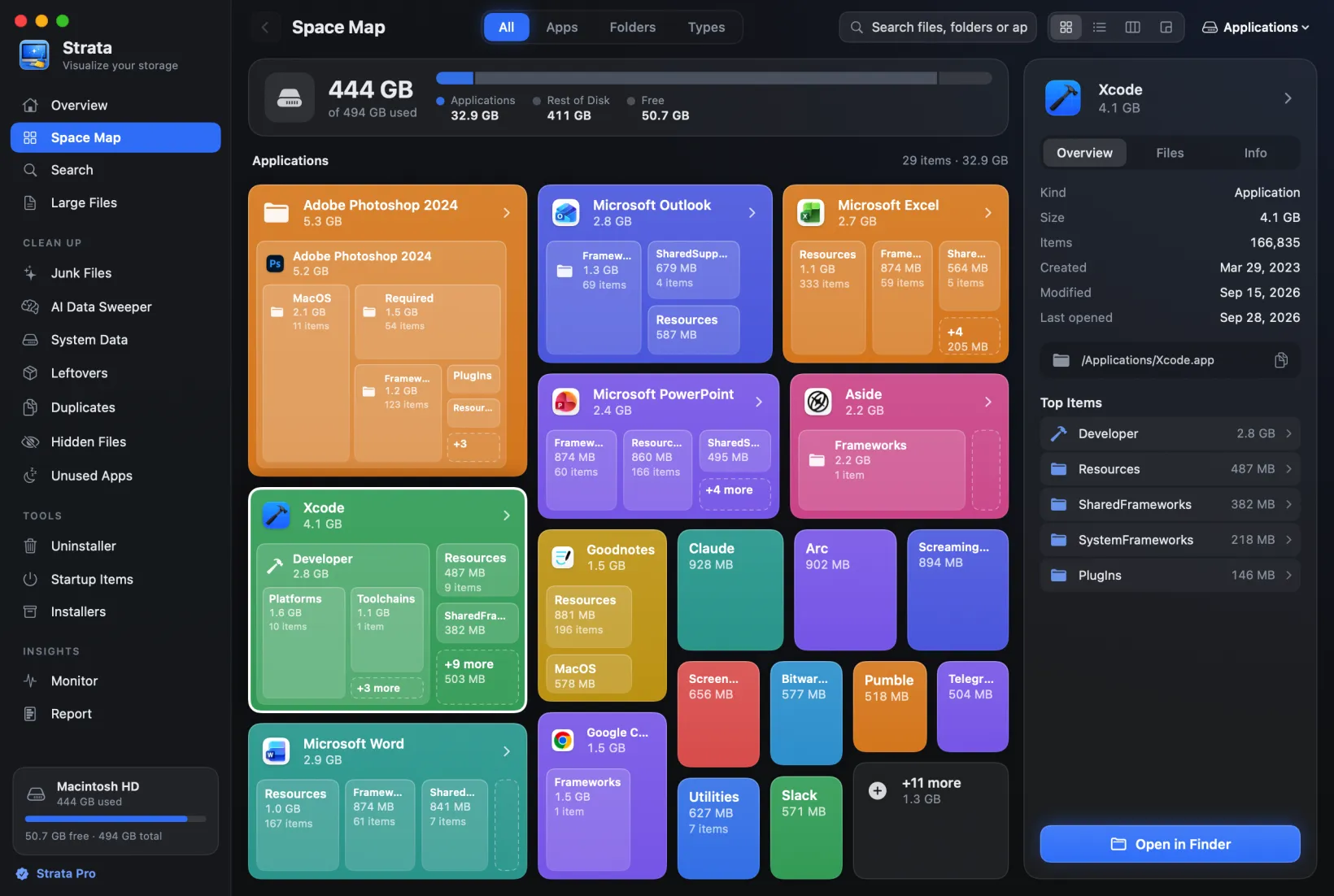
System Data huge after the macOS 27 update? What is normal, and what to check
After updating to macOS 27, some Macs show far more System Data than before, sometimes with a hundred gigabytes or more of free space gone. Replies to people who saw it say part of it is macOS catching up and often settles within days, though Apple gives no timescale. Here is what a macOS 27 Mac keeps beside your files, how long to give it, and what you can safely check if it stays large.
Key takeaways
- System Data growing after the macOS 27 update has been reported in Apple's and other forums, and Apple's guide says the category varies with the current state of your Mac.
- Replies to those reports say part of it is background work after the update that often settles within days; Apple gives no timescale.
- Restart, leave the Mac plugged in, and look again after a day or two before deleting anything.
- If it stays large, check Time Machine's local snapshots, swap, and big app data in your Library, one at a time.
- System Data is a total, not a folder, so no app can empty it in one go; never delete files from System or Library folders at random.
How we tested: our own figures come from one MacBook Air (M2, 512 GB)
that has run macOS 27 since July 2026, through its beta versions, and was updated to 27.0.1
(26A434) on 1 October. We took them on 12 October with read-only commands that need no
administrator password: tmutil listlocalsnapshots, diskutil apfs
listSnapshots, diskutil apfs list, sysctl vm.swapusage,
xcrun simctl runtime list, and defaults read on Time Machine's
preferences file. So
they show a Mac eleven days after a point update, not the first hours after moving from
macOS 26. The reports of a jump after the update are other people's, linked where we cite
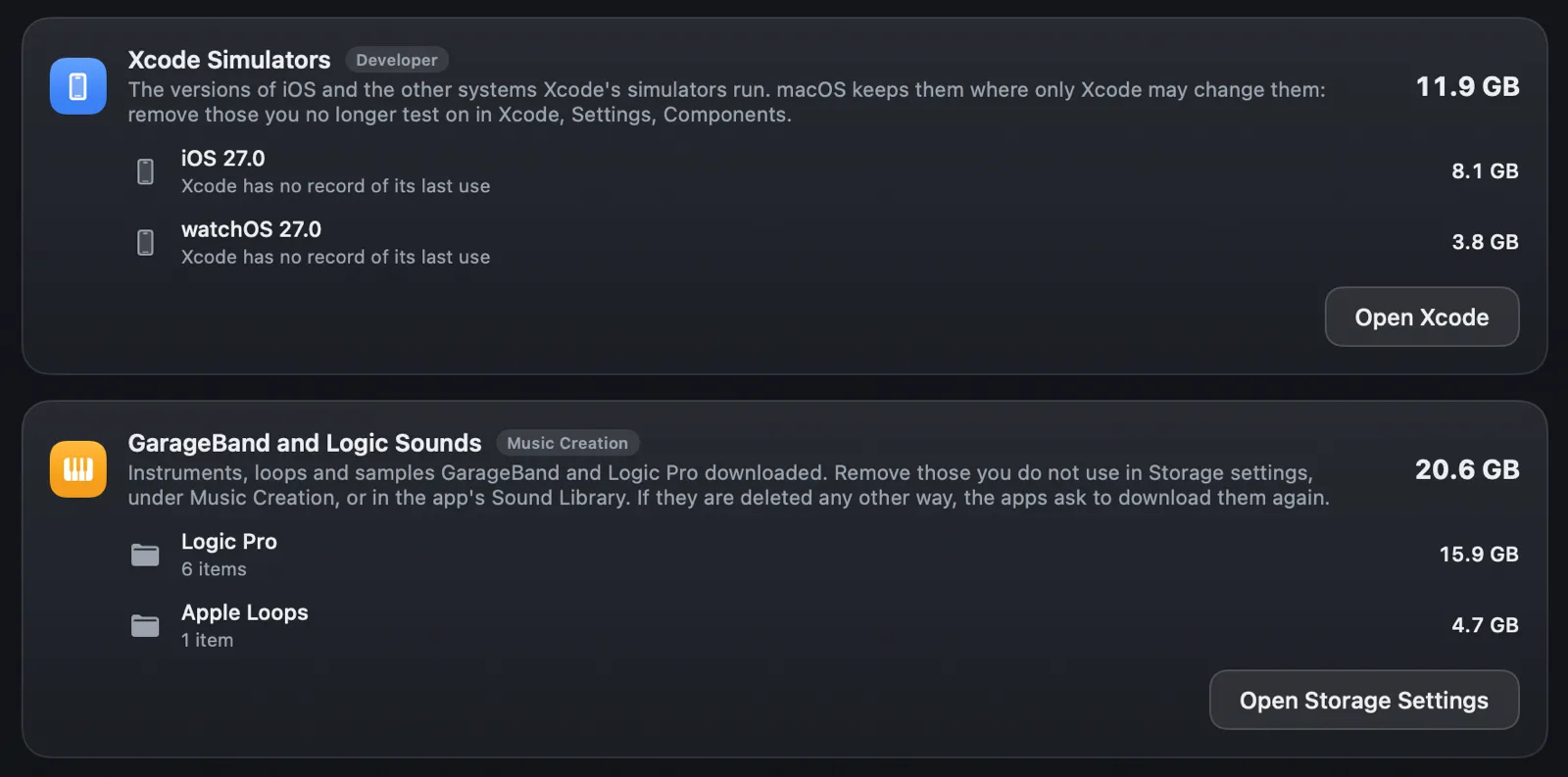
them. The picture of the simulators and sounds is Strata 1.0.29 on the same Mac on
14 October.
Is a bigger System Data after the macOS 27 update normal?
It is common, and replies to people who saw it say it is often temporary. Apple's guide to Storage settings says System Data contains files that don't fall into its other categories, that its contents are managed by macOS, and that it "varies in size depending on the current state of your Mac". It also says you can't manage what is in it from there.
People noticed the jump within days of the release. On 15 September, a MacBook Air owner on macOS 27.0 asked in the Apple Community (in German) about 100 GB of System Data. The reply ranked highest told them to check Storage settings, restart and delete no files from the System or Library folders, adding that local snapshots can take space but macOS manages them; another said background work after the update needs space and should settle within days. On 21 September, the owner of a 2024 Mac mini with a 500 GB disk wrote on a forum run by the maker of a Mac cleaner that System Data had reached 121.6 GB and about 125 GB of free space had gone after an overnight update. Neither found a single cause, and we found no word from Apple about one as of 12 October.
Part of the reason the number moves so much is how it is worked out. Howard Oakley explained in 2025 that Storage settings adds up the categories it recognises and calls what is left of the used space System Data: in his words, "an etcetera, a ragbag". Anything it fails to recognise lands there, so the total can change without a file of yours changing.
What a macOS 27 Mac keeps beside your files
These are the things we could see on our Mac that grow or change around an update, and where Storage settings is likely to count them. Apple does not say how it splits some of them between macOS and System Data.
Time Machine's local snapshots
If you back up with Time Machine, Apple's page About Time Machine local snapshots says it saves a snapshot of the startup disk about every hour and keeps it for 24 hours, keeps one more of the last successful backup until space is needed, and saves another before installing any macOS update. As Howard Oakley notes, a snapshot keeps what was on the disk when it was taken, so files deleted afterwards can still take space until it goes, and that space can show up in System Data. Apple, for its part, says the Mac counts the space snapshots use as available storage. That is one reason free space and System Data do not always tell the same story.
On our Mac, tmutil listlocalsnapshots / listed four:
Snapshots for disk /:
com.apple.TimeMachine.2026-08-26-103108.local (dataless)
com.apple.TimeMachine.2026-10-12-094536.local
com.apple.TimeMachine.2026-10-12-104501.local
com.apple.TimeMachine.2026-10-12-114423.localThree are from the morning of 12 October. The fourth, from 26 August, is the one Apple says Time Machine keeps of the last successful backup: our backup disk was last connected that day, and Time Machine's preferences file gives the same date and time. tmutil marks it dataless, which Apple's page does not explain. No snapshot from our 1 October update to 27.0.1 was left by 12 October.
The snapshot macOS itself runs from
diskutil apfs listSnapshots / shows a different kind: one snapshot named
com.apple.os.update- followed by a long code, marked
Purgeable: No. It belongs to the system volume, which takes 13.7 GB on our
Mac, and Apple's guide to the
signed
system volume says the sealed system uses APFS snapshots: this one is part of it, not
leftovers of an update. Leave it alone.
The volumes beside your data
A Mac's disk holds several volumes that share its space. diskutil apfs list gave
these on our Mac: the system itself 13.7 GB, Preboot 10.9 GB, Recovery 1.5 GB and
VM, where swap lives, 4.3 GB, beside about 408 GB of data. None of them is yours to
clear, and an update can change their sizes.
Swap and background work
Swap is memory written to disk when the Mac runs short of it. sysctl vm.swapusage
reported about 1.5 GB in use on our Mac; a restart clears it. One reply in the Apple
Community thread adds that background work after a fresh update needs space for a while.
Activity Monitor's CPU tab shows what is busy; Spotlight's indexing appears there as
processes named mds_stores and mdworker_shared.
Developer tools
If you use Xcode, its simulators may have updated too. On our Mac the iOS 27 and watchOS 27
simulator runtimes are mounted as volumes that report 18.0 GB and 9.0 GB, but the
disk images behind them take 11.9 GB: 11.1 GB in the binary units
xcrun simctl runtime list reports. Storage settings most likely counts them under
Developer rather than System Data. Remove the ones you do not use in Xcode's settings, under
Components, rather than in Finder. Since version 1.0.29, Strata's System Data room shows each
runtime at the size of its disk image, tagged Developer, with Open Xcode to remove it
there.
First, wait, restart and look again
Give macOS a day or two before you delete anything.
- Restart the Mac, then leave it plugged in and awake for a few hours, or overnight, so the work after the update can finish.
- Look again after a day or two in System Settings, General, Storage. Time Machine's hourly snapshots each last 24 hours, so a day is the least worth waiting.
- Check free space in Disk Utility rather than in Storage settings or Finder if the numbers disagree: choose View, then Show All Devices, and select the container. Howard Oakley recommends its free space as the figure to trust.
If it stays large: what to check
Work through these one at a time, and stop when you find the space. Each is safe to look at; only remove what you are sure of.
- Local snapshots. Run
tmutil listlocalsnapshots /in Terminal, or open Disk Utility, choose View, then Show APFS Snapshots, and select Macintosh HD - Data. Look only, and do not use Revert. Time Machine deletes snapshots as they age or when space is needed. To remove them sooner, Apple's page says to turn off automatic backups, wait a few minutes, then turn them back on. - Swap. If
sysctl vm.swapusageshows several gigabytes in use, a restart clears it. If it fills again quickly, your apps need more memory than the Mac has; Activity Monitor's Memory tab shows which use most. - Big app data in your own Library. Virtual machines, Docker's disk image,
AI models and some apps' downloads can live in
~/Library, which Storage settings usually counts as System Data; models kept in hidden folders of their own, such as~/.ollama, may count as Documents instead. Apple's guide says to manage these in Finder or in the apps that made them. Strata's Junk Files lists virtual machines and Docker's disk apart, with when each last changed, and never ticks them; Docker's disk and the machines UTM keeps in its own folder need Full Disk Access. - Space outside System Data that still fills the disk. The Trash, old iPhone and iPad backups (iOS Files), and Mail's and Messages' attachments each have a category of their own in Storage settings, and are worth a look when space is short.
- Xcode simulators, if you develop for Apple's platforms, in Xcode's settings under Components.
For everything else System Data can hold, and what is safe to shrink, see what System Data is on a Mac, and for space macOS says is free but will not hand over, purgeable space.
What not to do
Most of what makes System Data large is macOS's to manage, so the quickest moves are the riskiest.
- Do not delete files from System or Library folders at random. Both macOS 27 threads above warn against it, and Apple's guide says the category's contents are managed by macOS.
- Do not try to delete the com.apple.os.update snapshot. It is part of the system your Mac runs from.
- Do not expect any app to empty System Data in one go. It is a total, not a folder: a cleaner can only remove some of the things counted in it.
- Do not erase and restore, or reinstall macOS, first. The MacBook Air owner in the Apple Community thread restored from a Time Machine backup; waiting and the checks above are far smaller steps.
How Strata helps, and what it cannot do
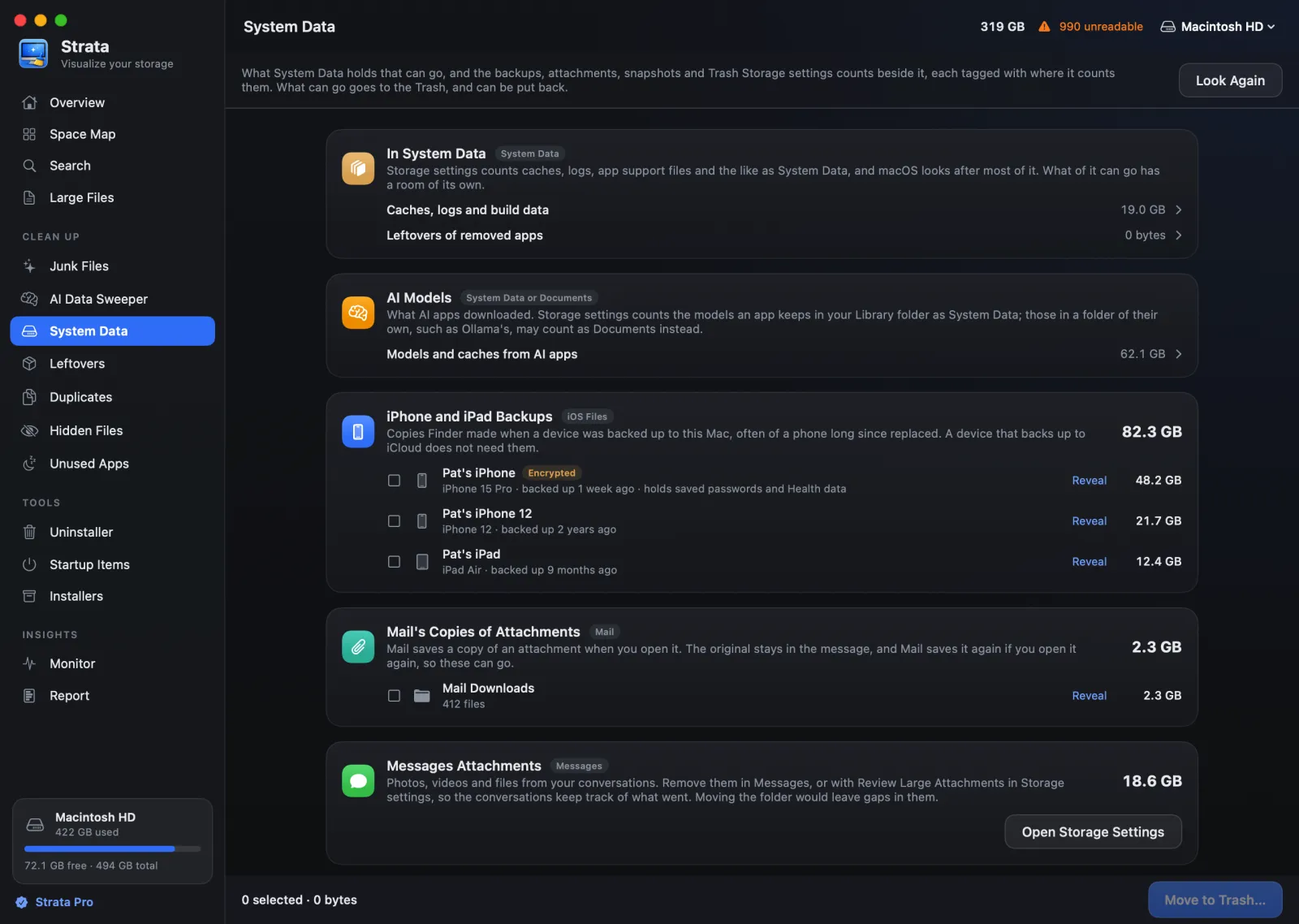
Strata's System Data room, partly shown at the top, lists the parts of System Data it can name, and what Storage settings counts beside it, each tagged with where it counts them: caches, logs and build data, leftovers of removed apps and AI models, then iPhone and iPad backups, Mail's copies of attachments, Messages' attachments, Xcode's simulators and the sounds GarageBand and Logic Pro download (where there are any), Time Machine's local snapshots and the Trash. What it can remove goes to the Trash and can be put back; simulators are left to Xcode and sounds to Storage settings. The room is part of Strata Pro, which every download includes for its first 14 days.

What it cannot do: Strata never asks for your password, and leaves snapshots, swap and the system to macOS. For snapshots it shows how many there are and opens Time Machine settings. A scan of the whole disk counts the space it cannot read as part of Needed by macOS on the Overview's disk bar, rather than leaving it out, so you can see how much of the total is yours to act on.
Frequently asked questions
Why is System Data so big after updating to macOS 27?
Several things change at once. If you back up with Time Machine, it saves a snapshot before the update as well as its hourly ones, and replies to people who saw the jump say background work after the update needs space for a while. Storage settings also works System Data out as whatever is left over after its other categories, so the figure can jump without any file of yours changing.
How long does System Data take to go down after an update?
Apple gives no time. Time Machine keeps each hourly snapshot for 24 hours, and replies to people reporting a jump after macOS 27 suggest restarting and giving it a few days, though neither report we cite says the space came back. If it is still far larger after a few days, work through the section on what to check.
Can a cleaner app empty System Data?
No. System Data is a total of many things rather than a folder, and Apple's Storage settings guide says you can't manage its contents, which macOS manages. A cleaner can only remove some of what is counted in it, such as caches and app data you no longer need, one part at a time.
Is it safe to delete Time Machine local snapshots?
Usually, yes. They are extra restore points kept on the Mac beside your Time Machine backups, and Time Machine deletes them by itself as they age or when space is needed. If your backup disk has not been connected for a while, back up first, since they may hold the only copy of recent changes. Apple's way to remove them is to turn off automatic backups for a few minutes, then turn them back on.
What is the com.apple.os.update snapshot?
It is part of the sealed system macOS runs from, not leftovers of the update, so leave it alone. On our Mac, diskutil lists it on the system volume and marks it as not purgeable.
Find out what fills your System Data
Strata scans the whole disk in one pass, names the parts of System Data it can, and moves what you choose to the Trash, where you can put it back.
The scan, the map and search are free forever. Every download starts with 14 days of Strata Pro, removing up to 40 GB.