Documentation: all pages
The Overview
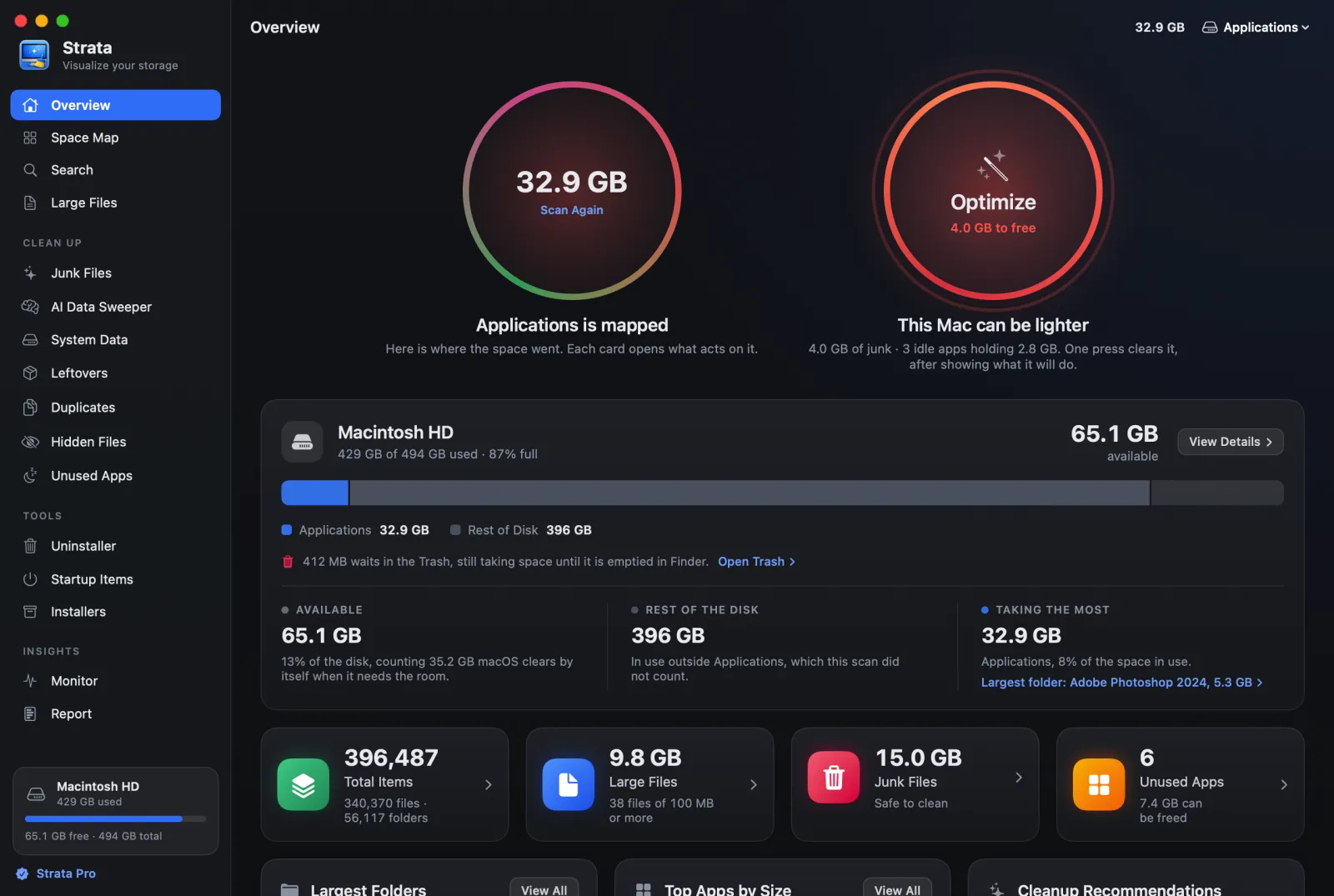
The Overview is the first room in the sidebar and where Strata opens. It holds the two big buttons, Scan and Optimize, and under them a summary of the disk in which every card opens the room that acts on it.
Scan and Optimize
The left circle is Scan. Before a scan it reads Scan; during one it shows how far the scan has got; afterwards it shows the total, with Scan Again under it. The caption beneath says what was mapped, for example Macintosh HD is mapped. What a scan covers is in Your first scan.
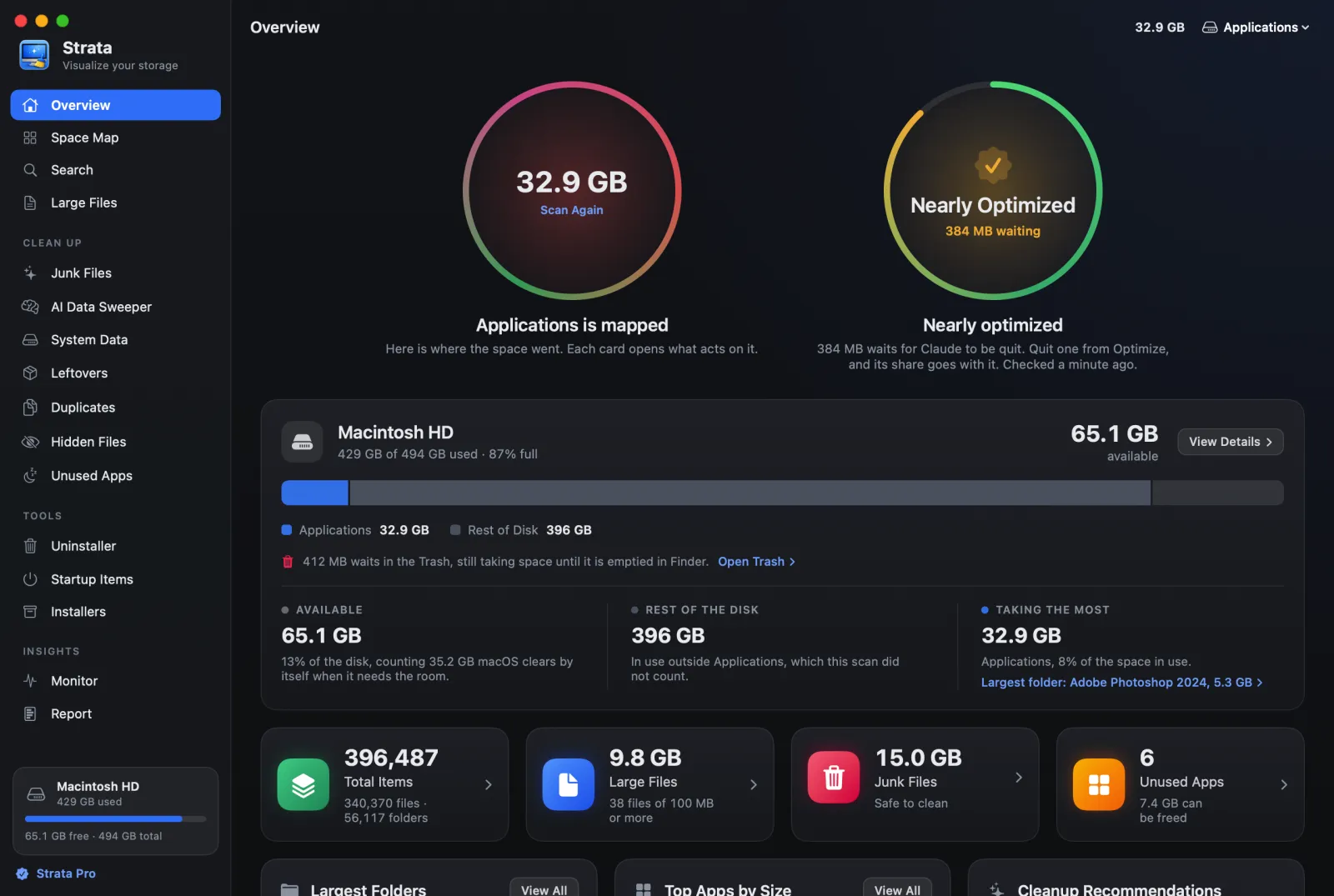
The right circle is Optimize, which clears junk nobody will miss and asks idle apps to quit, after showing you exactly what it would do. Its colour tells you whether there is anything worth doing:
- Red, with This Mac can be lighter: 300 MB or more of junk that is safe to clear, or idle apps holding 1.5 GB of memory or more, or memory under pressure with an idle app open.
- Amber, Nearly optimized: junk worth 20 MB or more is waiting for the apps using it to be quit.
- Green, Optimized: nothing worth clearing, and nothing idle holding memory.
Seeing the colour and what Optimize would do is free. Pressing it needs Strata Pro. Optimize has the rules it follows.
The disk in one bar
Under the circles, the whole disk in one bar: its name, how much of it is used, and how much is available. The bar is split by kind, what is yours first and largest first, then what macOS keeps, with the free space at the end. Hover over a part to see what is in it. View Details opens the Space Map.
- The parts
- Applications, Documents, Downloads, Pictures, App Data, Other and System. Downloads and Pictures are your folders of those names, Pictures with the Photos library in it, and Documents is the rest of your home folder. A scan of one folder shows that folder against the rest of the disk.
- Available
- The space you can use, as Finder counts it, and how much of the disk that is. When macOS holds a gigabyte or more that it clears by itself when it needs the room, such as purgeable caches, it says how much. Under a tenth of the disk, the figure turns amber.
- Needed by macOS
- The System part: macOS itself, its swap and its own files. It also holds what is in the folders the scan could not read, and says how many there were. Even with Full Disk Access some stay unread, such as the folders macOS keeps for root alone; without it there are many more. After a scan of one folder this is Rest of the Disk instead. What of the System Data category in Storage settings can go, and what Storage settings counts beside it, has a room of its own, System Data.
- Taking the Most
- The largest of your parts, its share of the space in use, and the largest folder, which opens in the Space Map.
- The Trash
- When 100 MB or more waits in the Trash, a line under the bar says how much, since it still takes space until it is emptied in Finder, with Open Trash. Strata never empties it for you.
During a new scan the bar shows the last scan's figures, and says when that scan was.
The four figures
Under the bar, four figures, each a button:
- Total Items
- How many files and folders the scan counted. Opens the Space Map.
- Large Files
- How much the files of 100 MB or more take, and how many there are. Opens Large Files.
- Junk Files
- How much junk is safe to clean. It opens Junk Files. The junk search is part of Strata Pro, so on the free version this figure stays at None yet.
- Unused Apps
- How many apps you have not opened lately, and how much they take. Opens Unused Apps.
The cards below
- Largest Folders
- Five folders, biggest first. A folder holding more than 40% of the scan is opened up and replaced by the folders inside it, so the list points at something you can act on rather than at your home folder. Click a row to open it in the Space Map.
- File Type Distribution
- A ring of the space by kind of file, with sizes and percentages.
- Storage Trend
- The disk's use over 7, 30 or 90 days. Strata notes it once a day while it runs and keeps the points on this Mac, so the line draws itself from the second day.
- Top Apps by Size
- The five largest apps. Click one to open it in the Uninstaller.
- Recent Large Files
- The five most recently changed files of 100 MB or more. Files inside apps and other bundles, in your Library, in macOS's own folders or in hidden folders are left out, so what is listed is almost always something a person saved.
- Cleanup Recommendations
- Junk Files, Unused Apps, Duplicate Files, Large Files and Leftovers, each with its size once measured and a button that opens the room.
At the foot, one line about the Mac: macOS version, model, processor, memory, startup disk and the last scan. Copy copies them as text, which is handy in a support email.
Good to know
- The Overview is useful before the scan finishes. The disk figures, junk and unused apps come from their own quick checks, which start when the window opens.
- Closing the window does not throw the scan away. It lasts as long as Strata runs, so the Overview reopens with the same results.
- Optimize checks itself again when you come back to the Overview more than five minutes after its last check.