How-to guides: all pages
How to free up space on your Mac with Strata
The order that frees the most space for the least risk: measure first, take what rebuilds itself, then what you have finished with, and look at the big things last. Nothing is freed until you empty the Trash, which is the step you control.
What you need
- Strata, on macOS 13 or later. Download it if you have not.
- Strata Pro, or the 14-day trial, which removes up to 40 GB, for the clean-up steps. Seeing everything is free.
- Full Disk Access, so the totals are complete: give it in a minute.
Steps
-
Scan the whole Mac
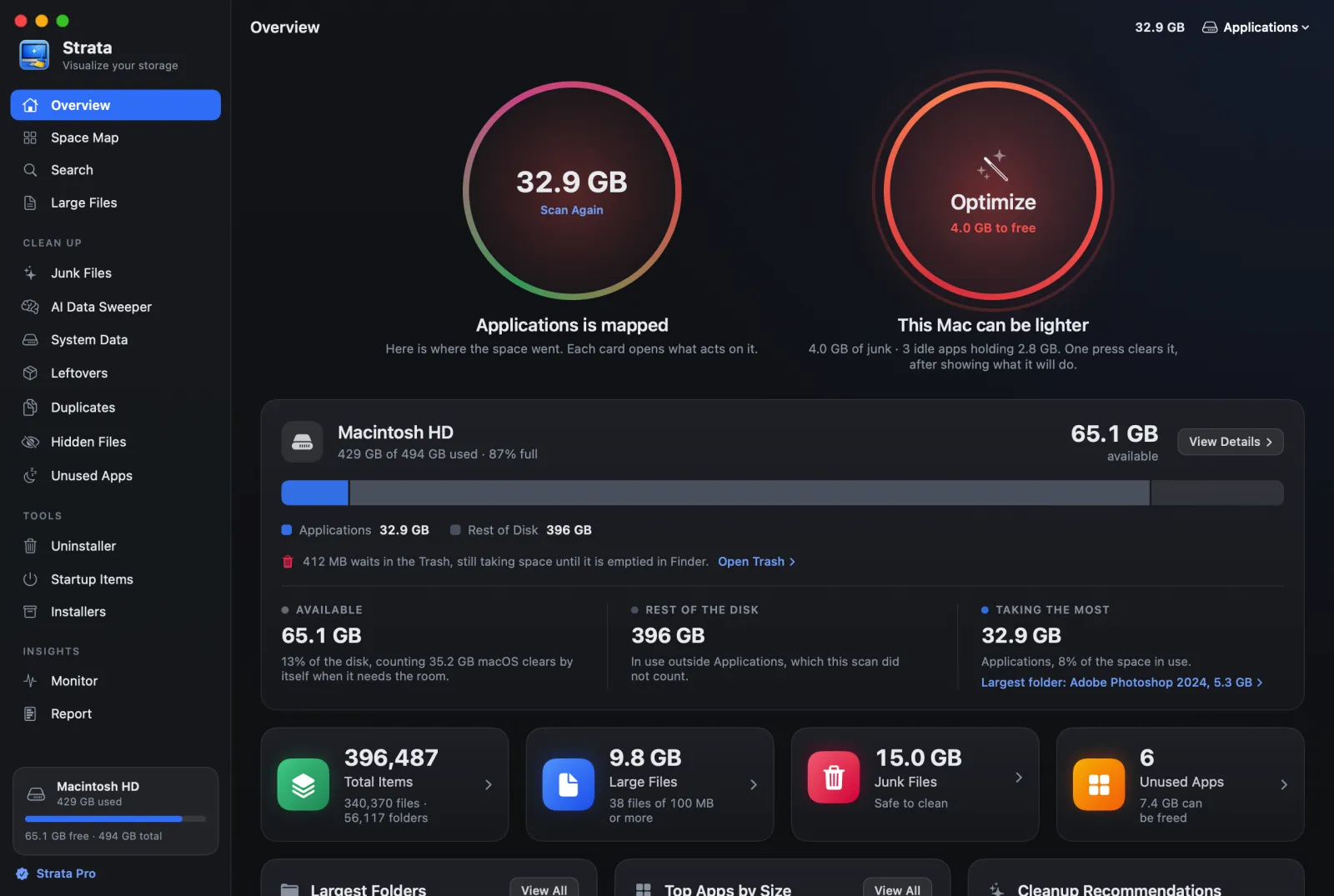
Open Strata. It scans the whole Mac by itself when it starts; if it has been open a while, press Scan Again on the Overview. Most Macs take under a minute.
-
See where the space went
On the Overview, read Largest Folders and Cleanup Recommendations. Click any of them to open the room that deals with it. For the full picture, open the Space Map: the biggest cards are the ones worth opening.
-
Clear junk files
Open Junk Files. Caches, logs, build data and package downloads are listed with their sizes, and only what nobody will miss is ticked. Press Move to Trash… and confirm. On a developer's Mac this is often the biggest single step. More on junk.
-
Remove apps you no longer use
Open Unused Apps and pick a span, such as 6 Months. For each app you are sure about, press Uninstall…: it opens in the Uninstaller with its leftovers found, and they go together. More on uninstalling.
-
Delete installers you have finished with
Open Installers. Disk images and packages in Downloads and on the Desktop whose app is already installed are listed. Press Select Confirmed to tick those whose contents prove the match, then Move to Trash….
-
Clear old device backups
Open System Data. Backups of iPhones and iPads are listed by device, with how old each is, and Mail's copies of attachments sit beside them. Tick the backups of devices you no longer have, and the copies if you like, then Move to Trash…. Keep the latest backup of any device you still use. More on System Data.
-
Find duplicate files
Open Duplicates and press Find Duplicates. When it is done, Select Extra Copies ticks every copy but one of each file. Read the list before you move it: how to choose.
-
Look at the big files
Open Large Files and set Larger than to 1 GB. Old videos, disk images and virtual machines usually show up here. These are yours, so only you can say what goes.
-
Empty the Trash
Everything so far went to the Trash, which still takes up space. When you are sure you do not want any of it back, open the Trash in Finder and choose Empty. Many people wait a day or two first. This is the one step that cannot be undone, which is why Strata leaves it to you.
In a hurry? Optimize does step 3 in one press, and asks idle apps to quit as well, after showing you everything it would do.
If something goes wrong
- You removed something you need: press Put Back in the notice, or put it back from the Trash in Finder. How to undo a removal.
- The free space did not change: empty the Trash. macOS may also take a few minutes to update its figure.
- The totals look short: Strata needs Full Disk Access to see Mail, Messages and some app data. Give it, then reopen Strata.