How-to guides: all pages
How to use Optimize to free memory and clear junk
Optimize asks apps you have not used for half an hour to quit, as you would, and moves junk nobody will miss to the Trash. It shows you everything first, and it never touches an app that is doing something.
What you need
- Strata Pro or the trial to press it. Seeing what it would do is free.
Steps
-
Look at its colour
On the Overview, or in the menu bar panel. Red means there is something worth doing; amber that some junk is waiting for an open app; green that there is nothing to do. If it is green, stop here.
-
Press Optimize
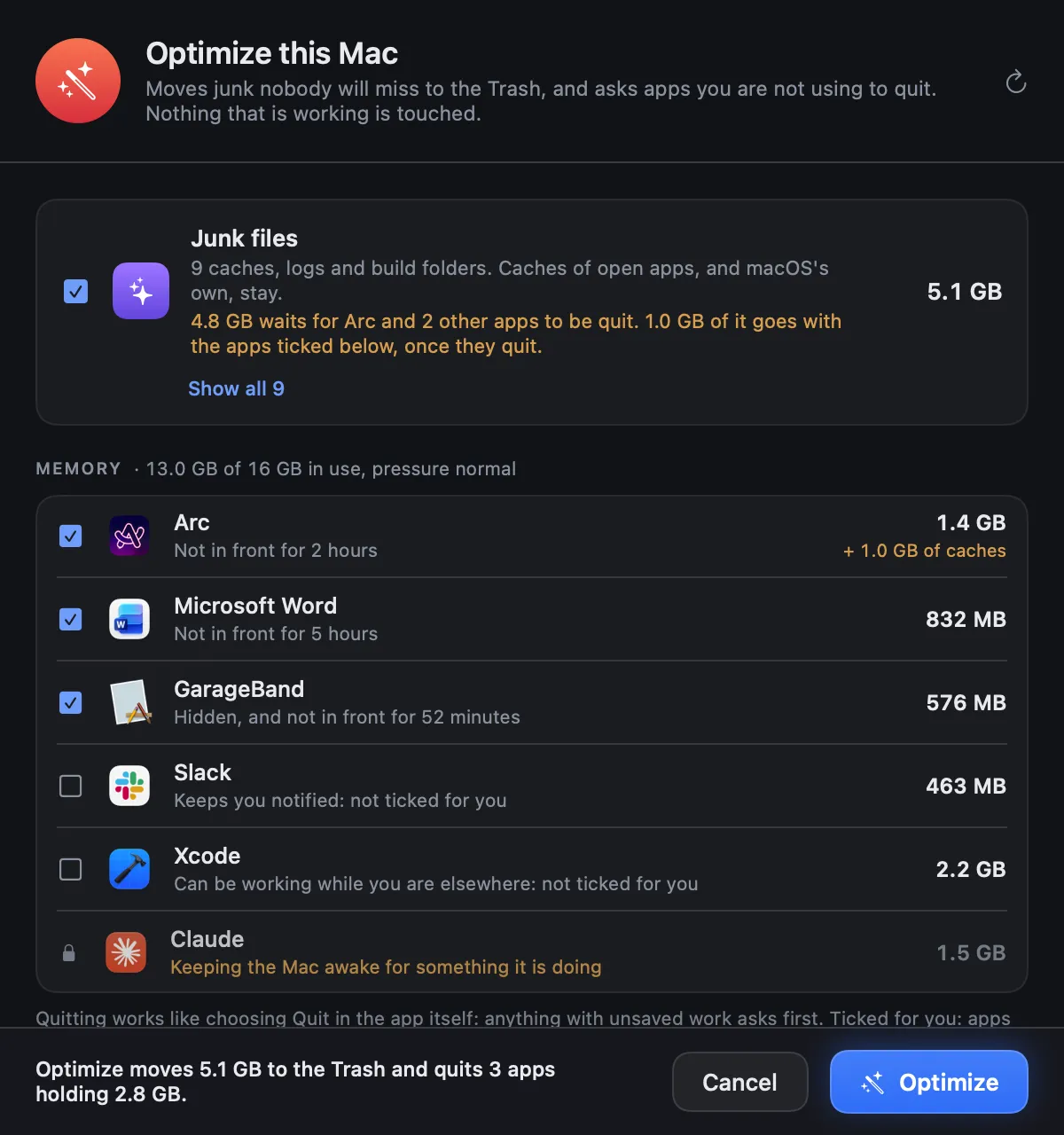
A sheet lists the junk it would clear and the open apps it would quit, each with why. Apps idle for half an hour are ticked. Mail, chat and similar apps, terminals, editors and AI assistants are shown but never ticked for you. An app that is in front, playing sound or busy is locked.
-
Adjust, then press Optimize
Untick anything you want left alone. The footer says exactly what will happen. Apps are asked to quit with their own Quit, so anything with unsaved work asks you first.
When does quitting apps help? When memory is under pressure, or a forgotten app is holding gigabytes. macOS fills spare memory with cache on purpose, so free memory near zero is normal and not a problem. The Monitor shows the pressure; Normal means there is nothing to fix.
If something goes wrong
- An app did not quit: it may be asking about unsaved work. Answer it there, or keep it open. Strata says which apps are still open.
- You want the junk back: press Put Back in the notice. The apps stay quit; open them as usual.
Every rule Optimize follows is in the Optimize documentation.