How-to guides: all pages
How to find and remove duplicate files
Strata compares what is inside files, not their names, so it finds real duplicates and nothing else. You choose which copy of each to keep, and the extras go to the Trash.
What you need
- Strata Pro or the trial.
- A finished scan of the place you want to check, such as the whole Mac or your home folder.
Steps
-
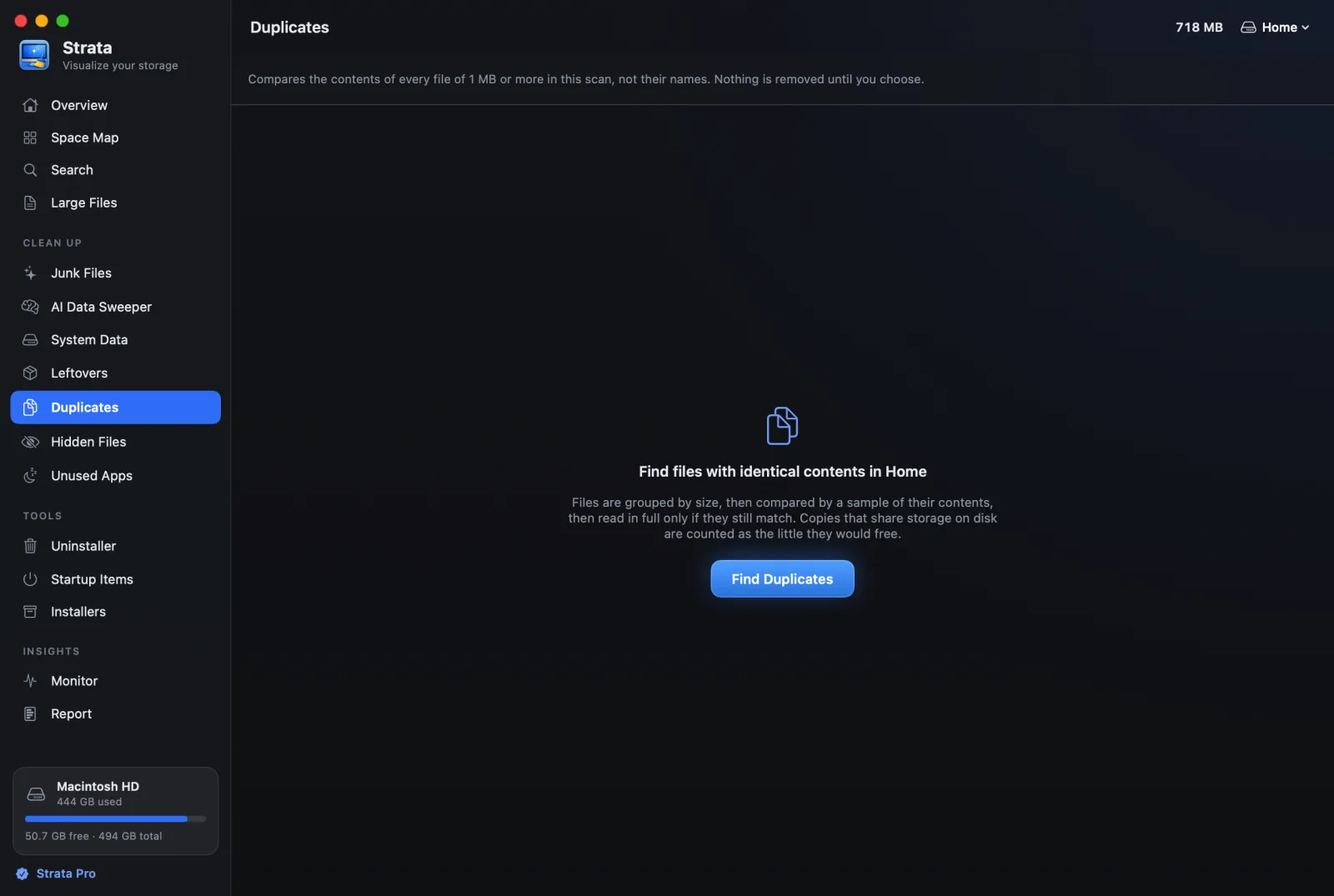
Open Duplicates and press Find Duplicates
It compares every file of 1 MB or more in the last scan: by size, then by samples from the start and end, then in full. It skips apps, the Photos and Music libraries,
node_modules, hidden folders and your Library, where a copy is usually there on purpose. -
Read a few sets
Each set shows the copies, their folders and dates, and how much removing the extras would free. One copy is marked suggested to keep: a folder you named, then Documents or Desktop, with Downloads last.
-
Choose which copy stays
Press Select Extra Copies. By default it keeps the suggested copy; its Keep… menu can keep the newest or the oldest instead. Copies that share storage with another (APFS clones, hard links) are left unticked, because removing them frees nothing.
-
Move the extras to the Trash
Press Move to Trash… and confirm. If you ticked every copy of a file, Strata warns you first.
A duplicate is not always a spare. Two apps can each rely on their own copy of a file, and a project can need the same image in two places. Remove extras from folders you manage: Downloads, Desktop, Documents, old exports and backups.
If something goes wrong
Something missing after a clean-up? Press Put Back, or put the file back from the Trash in Finder. The ideas behind all this are in How to find duplicate files without deleting the wrong one.