How-to guides: all pages
How to stop apps starting by themselves
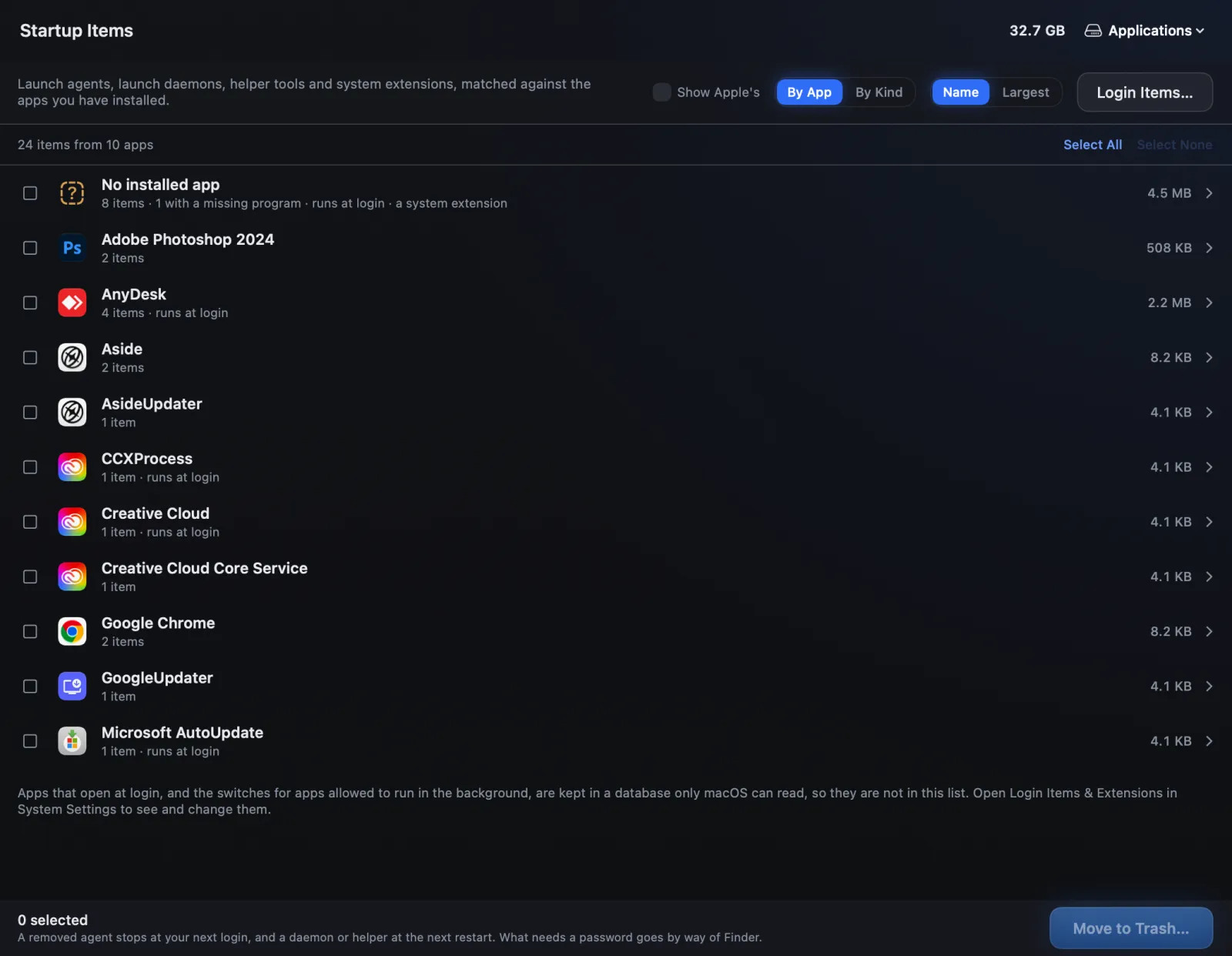
Things start themselves on a Mac in several ways. Strata lists the agents, daemons, helpers and system extensions by the app they belong to, and picks out the ones whose program is gone. Login items live in System Settings, and Strata opens that page for you.
What you need
- Strata Pro or the trial.
- Your password for items in the system's folders; Finder asks for it, not Strata.
Remove agents and helpers nothing owns
-
Open Startup Items
Under Tools. By App shows one row per app; look first at No installed app.
-
Select Missing Programs
It ticks only the items whose program is no longer on the Mac: leftovers of apps you removed, doing nothing useful except failing at every login.
-
Move them to the Trash
Your own items move at once. Items tagged Password are in the system's folders: Strata selects them in Finder, where Command Delete moves them after your password.
-
Log out or restart
A removed agent stops at your next login, and a daemon or helper at the next restart.
Switch off apps that open at login
-
Press Login Items… in Startup Items
It opens System Settings, General, Login Items & Extensions (Login Items on macOS 13 and 14). Apps that open at login live in a list only macOS can read, so this is where they are changed.
-
Remove or switch off
Select an app under Open at Login and press the minus button. In the list of apps allowed to run in the background (Background App Activity on macOS 27, Allow in the Background on macOS 13 to 15), switch off what you do not want running.
System extensions
A camera or network extension an app installed can only be switched off or removed by macOS. From macOS 15, its row in Startup Items has Turn Off…, which opens Login Items & Extensions in System Settings, and the row says which category to look under there. On macOS 13 and 14, System Settings has no switch for it, and macOS removes it once Finder has moved its app to the Trash.
Which kinds of startup item are safe to switch off, and which are not, is explained in Mac startup items: what really starts when your Mac boots.