How-to guides: all pages
How to delete AI models you no longer use
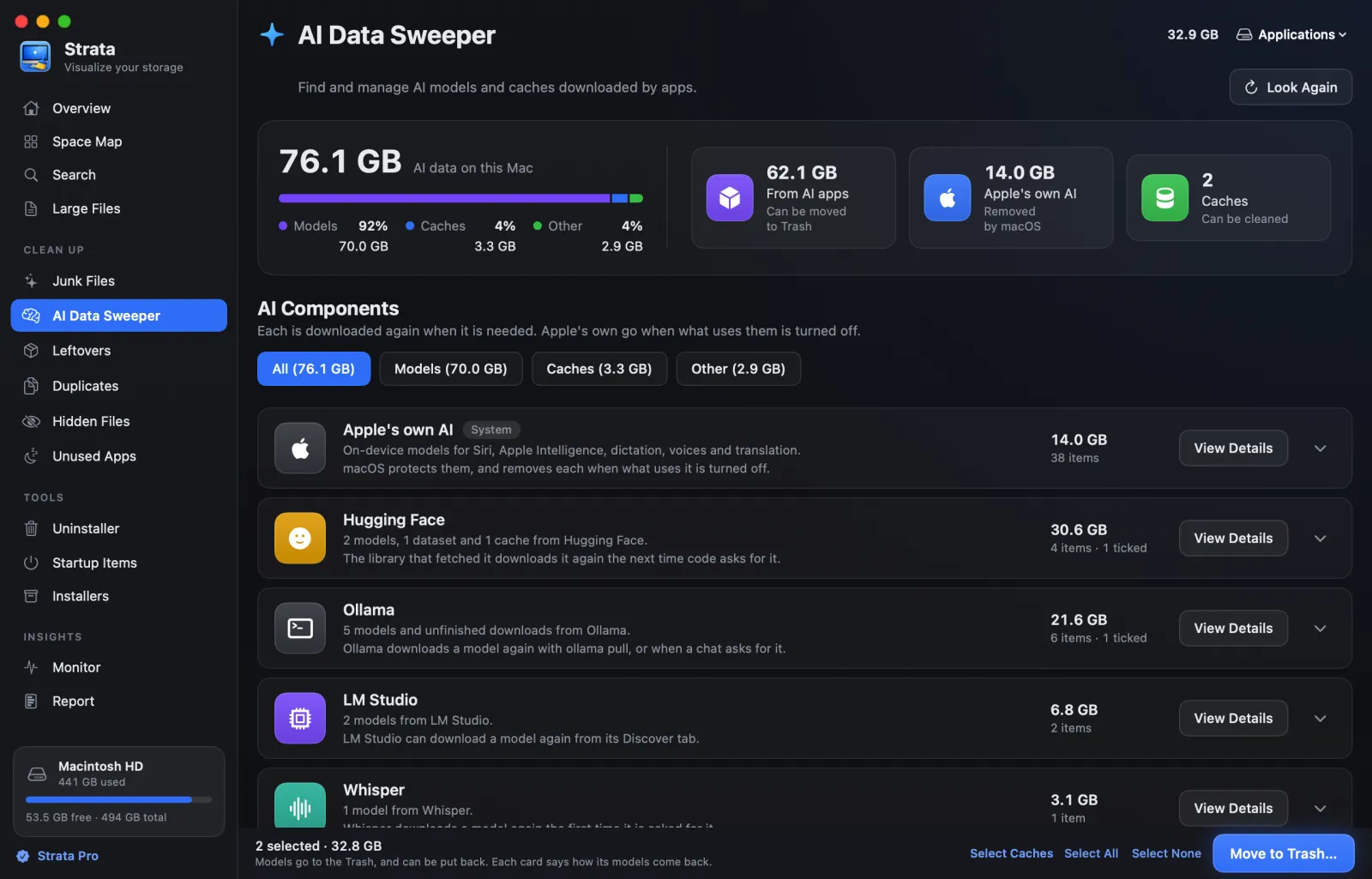
AI apps download models of several gigabytes each and keep them until you remove them. Strata's AI Data Sweeper finds them all, as a card for each app, and moves the ones you choose to the Trash. For Apple's own AI data, which no app can remove, it opens the setting that lets macOS remove it.
What you need
- Strata 1.0.20 or later, with Strata Pro or the trial. Earlier versions have the room too, but let Ollama 0.40's models be ticked, which breaks Ollama's own clean-up.
- Full Disk Access, so no folder is kept from the search.
Steps
-
Open AI Data Sweeper
In the sidebar, under Clean Up. The search runs when the room opens. The summary at the top is all the AI data on this Mac, split into models, caches and other data, with how much of it AI apps downloaded and how much is Apple's own.
-
Quit the AI apps you are clearing
An app that is running is tagged Running, and so are Ollama and LM Studio while their command-line server runs. Quit the app, or stop its server, first, so nothing is using the files you move. Ollama 0.40 and later is the exception: Ollama removes its own models, so leave it running for the next step.
-
Tick what you are done with
Each app has a card, largest first. Open one with its chevron and tick single models, or all of them at once. Models, Caches and Other above the cards show only that kind, and Select Caches in the footer ticks only caches and unfinished downloads, which nobody chose to keep. View Details shows where an app keeps its models and what is in them. With Ollama 0.40 or later, Ollama's models have no tick box: use each row's Copy Command and paste the command in Terminal instead, with Ollama running.
-
Move them to the Trash
Press Move to Trash…, read the list, and confirm. Before Ollama 0.40, Ollama's files are named by model and role there, not by their hash names. A notice says how much is now in the Trash, with Put Back.
-
See where Apple's AI is set
Open the Apple's own AI card with its chevron, and each feature gets a card of its own. Open a feature's card, or its View Details, for a button to where it is set: System Settings for Apple Intelligence's features, Siri for Siri, Keyboard for dictation, Accessibility for spoken voices, or Language & Region for translation and language data. Only macOS removes these files, and Apple does not say whether switching a feature off frees its space.
-
Empty the Trash when you are sure
The space comes back when you empty the Trash in Finder.
Worth knowing
- A model can usually come back. Most apps can download it again, for
example Ollama with
ollama pull. A model you added to ComfyUI or a similar app by hand has to come from where you got it. Each card's View Details says which. - Shared files are safe. Several Ollama models can share a file, and so can Hugging Face models since huggingface_hub 1.32. A shared file goes only when every model that uses it is ticked, and from Ollama 0.40, Ollama removes its own.
- Only fixed places are searched. A model you saved in a folder of your own shows up in Large Files instead.
- With Ollama 0.40 or later, Ollama removes its own models. Strata lists
them with their sizes, and each row's Copy Command copies
ollama rmand the model's name, to paste in Terminal while Ollama is running: moving their files here would leave Ollama unable to remove them. The commands for every tool are in How to delete Ollama models and other AI models.
If something goes wrong
If an app cannot find a model you removed, press Put Back, or put it back from the Trash in Finder, or let the app download it again. If Ollama stopped clearing unused layers after a model was removed with Strata 1.0.19, put back what Strata moved, or pull the model again. AI Data Sweeper in the docs describes every part of the room.