Documentation: all pages
AI Data Sweeper
AI apps download models of several gigabytes each, usually without saying how much. AI Data Sweeper sums up all the AI data on your Mac, shows each part as a card, and moves the models you choose to the Trash. It also shows what Apple's own AI keeps, with the System Settings pane where you turn off what uses each part, because macOS protects those files.
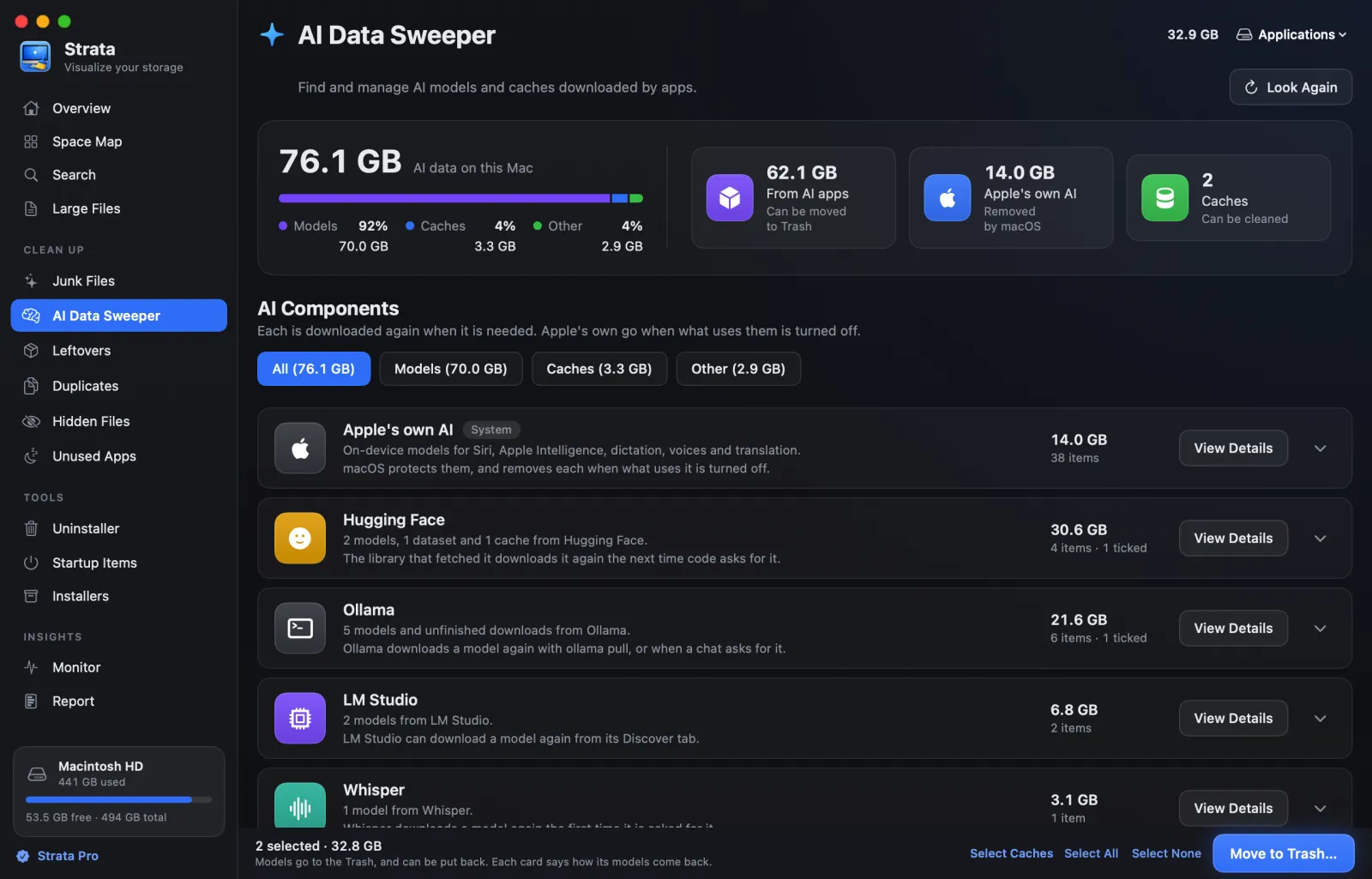
What it finds
The room is in the sidebar under Clean Up. Its search starts when you open it, looks only in the folders where AI apps keep their models, and lists anything of 10 MB or more. Look Again measures every AI folder again.
At the top, a summary gives the total AI data on this Mac, with a bar split into Models, Caches and Other, and three figures:
- From AI apps · Can be moved to Trash
- Models and caches that apps downloaded: Ollama, LM Studio, Hugging Face, Msty, GPT4All,
Jan, Draw Things, DiffusionBee, ComfyUI, Stable Diffusion web UI, Stability Matrix, Mochi
Diffusion, Whisper, MacWhisper, PyTorch, Keras, llama.cpp and Docker Model Runner, plus
Other AI Caches for model files and caches from AI tools Strata does
not know by name. When Ollama keeps a
manifests-v2folder, as 0.40 and later do, the note reads Ollama's via ollama rm, since Ollama removes those itself; if Msty keeps its models that way too, it reads Some by their own apps. - Apple's own AI · Removed by macOS
- What Apple Intelligence, Siri, Dictation and Speech, Spoken Voices, Translation and Language Data keep. macOS protects these files, so Strata shows them and tells you where to turn them off.
- Caches · Can be cleaned
- How many download caches and unfinished downloads there are: nothing anyone chose to keep.
In the bar, caches and unfinished downloads count as Caches, datasets and Apple's language data as Other, and everything else as Models.
AI Components
Below the summary, each part is a card: Apple's own AI first, then the AI apps, largest first. The buttons All, Models, Caches and Other, each with its size, show only that kind, and Strata remembers which you chose.
- Apple's own AI, tagged System, sums up what macOS keeps. Its chevron shows or hides a card for each feature beneath it; Strata remembers which.
- A card for each AI app says what it holds, such as "2 models, 1 dataset and 1 cache", and how its models come back, for example "Ollama downloads a model again with ollama pull, or when a chat asks for it." With Ollama 0.40 or later, Ollama's card says how they go instead: "Removed with ollama rm in Terminal: since Ollama 0.40, only Ollama removes its models safely." A model added by hand to ComfyUI, Stable Diffusion web UI, Stability Matrix or Mochi Diffusion has to be downloaded again from where it came from.
- Other AI Caches holds model files and caches from AI tools Strata does not know by name.
Each card shows its size and how many items it holds, with two controls:
- View Details opens a sheet. For an app: how its models come back, where it keeps them, with Show in Finder, and what is in it. For an Apple feature: what uses it, how it goes, a button to its pane in System Settings, and its folders.
- The chevron opens the card. An app's card then lists its models, each with a tick box, and a box to tick all of them. Ollama's models, from Ollama 0.40, have no tick box: see Good to know.
The tag Running means the app is running, or for Ollama and LM Studio that their command-line server is: quit it, or stop its server, before moving its models.
The models inside a card
Each row is a model with its size and, where it applies, a tag:
- Dataset
- A Hugging Face dataset, rather than a model.
- Cache
- Fetched again as needed.
- Unfinished
- Downloads that stopped part way, or that no model uses.
Click a row for its details. Ollama stores a model as layers, and several models can share one. Such a row says which models it shares data with, and adds "+ size shared" under its own size. Before Ollama 0.40, a shared layer goes only when every model that uses it is ticked, so removing one model never breaks another. Hugging Face's newer downloads work the same way: a file kept once in its shared store goes only with the last model that uses it.
Choosing what goes
- Nothing starts ticked. Tick models in an app's card, or all of its models at once.
- In the footer, Select Caches ticks the caches and unfinished downloads only; Select All and Select None do what they say.
The footer shows how many items and how much space are ticked. Press Move to Trash…: the confirmation lists every file, and, before Ollama 0.40, names Ollama's files by model and role, such as "model weights", rather than by their hash names. Everything goes to the Trash, and Put Back returns it.
Apple's own AI
macOS downloads these by itself and protects them: no app can move them to the Trash, and Finder cannot either, so only macOS removes them. Each feature's card and sheet say where the feature is set, with a button to that pane of System Settings. Apple does not say whether switching a feature off frees its space, so Strata does not promise it, and changes no setting itself.
| Part | What uses it | Where it is set | Button |
|---|---|---|---|
| Apple Intelligence | Writing Tools, summaries, Image Playground, Clean Up in Photos and its other features that run on this Mac | A switch for each feature, in System Settings or in the app that uses it; only macOS removes the models | Open System Settings |
| Siri | Understanding what is said, and answering in Siri's voice | The Siri pane; only macOS removes the models | Open Siri Settings |
| Dictation and Speech | Dictation, Voice Control and Live Captions | Turn off Dictation, or remove the languages you do not dictate in | Open Keyboard |
| Spoken Voices | The voices that read text aloud | In Spoken Content, System Voice, Manage Voices, untick the voices you do not use | Open Accessibility |
| Translation | Languages downloaded for translating on this Mac | Remove the Translation Languages you do not use | Open Language & Region |
| Language Data | Autocorrect, prediction and understanding of text | Remove a language in Language & Region | Open Language & Region |
When macOS keeps all of a feature's folders from apps, its card reads Size private in place of its count.
Good to know
- It looks in fixed places. Only the folders these apps use, such as
~/.ollama/models,~/.lmstudio/modelsand~/.cache/huggingface, and folders in~/.cachethat hold model files. A model you saved somewhere of your own is in the Space Map and Large Files instead. - Look Again measures afresh, for example after you download or remove a model in the app itself.
- Removing a model does not remove the app. To remove the app and its other files, use the Uninstaller.
- With Ollama 0.40 or later, Ollama removes its own models. Ollama 0.40
keeps each model's manifest in a second folder too,
manifests-v2, and moving a model's files would leave Ollama unable to remove it. While that folder exists, Strata reads Ollama's models from it, copies and created models included, and lists them with their sizes but no tick box. Each row's Copy Command copiesollama rmand the model's name, to paste in Terminal while Ollama is running, and no layer is offered as an unused download. If a model was removed with Strata 1.0.19 and Ollama no longer clears unused layers, Put Back returns what Strata moved, or pulling the model again repairs it. - Hugging Face's newer downloads share one folder. Since huggingface_hub
1.32.0, files fetched through its Xet storage are kept once in
~/.cache/huggingface/hub/blobs, and each model's folder only links to them. Strata counts those files with each model that uses them, so the card shows the space a model takes; a file only one model uses goes to the Trash with it, and a file several use goes with the last of them. Where each tool keeps its models, and the commands that remove them, are in How to delete Ollama models and other AI models. - Without Strata Pro or the trial, the room is locked, with a sentence saying what it does.