Documentation: all pages
Search and Large Files
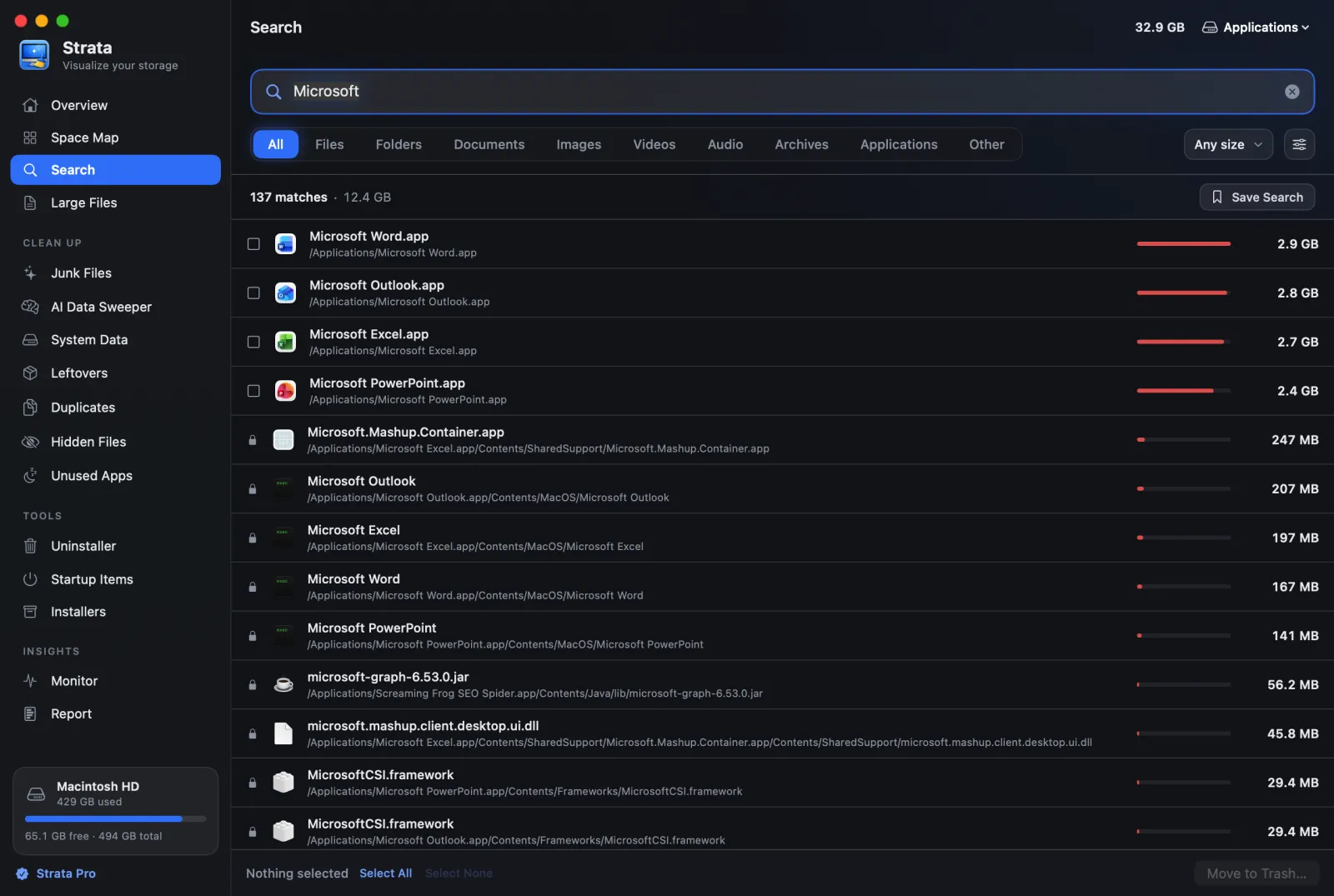
Search finds anything in the last scan by name, extension or kind, with a size floor. Large Files skips the typing and lists everything over a size you pick, biggest first. Both are free; ticking results and moving them to the Trash needs Strata Pro.
Search
Type in the field at the top. Results appear a moment after you stop typing, largest first. Search looks through the last scan in memory, so it is instant, and it only knows what that scan covered: to search another drive, scan it first.
What you can type
- Words. Every word must appear in the name, in any order.
tax 2025finds2025 Tax Return.pdf. - An extension, as a word starting with a dot.
final .mp4finds MP4 files with "final" in their names;.dmgalone finds every disk image. - Case and accents do not matter.
resumefindsrésumé.pdf.
Only folders, and files of 1 MB or more, have names Search can match. Smaller files are counted into their folder's size without their names, which is what keeps a scan of millions of files fast. For finding space, they rarely matter.
Narrowing it down
- Kind tabs: All, Files, Folders, Documents, Images, Videos, Audio, Archives, Applications and Other. Choosing a kind with nothing typed is a search on its own: Videos lists every video. An app, or a bundle such as a Photos library, counts as one item and is not searched inside.
- Size: Any size, or larger than 10 MB, 50 MB, 100 MB, 500 MB, 1 GB, 5 GB or 10 GB.
- Order: Largest first, Smallest first, or By name.
Esc clears the words, the kind and the size together.
Before you type
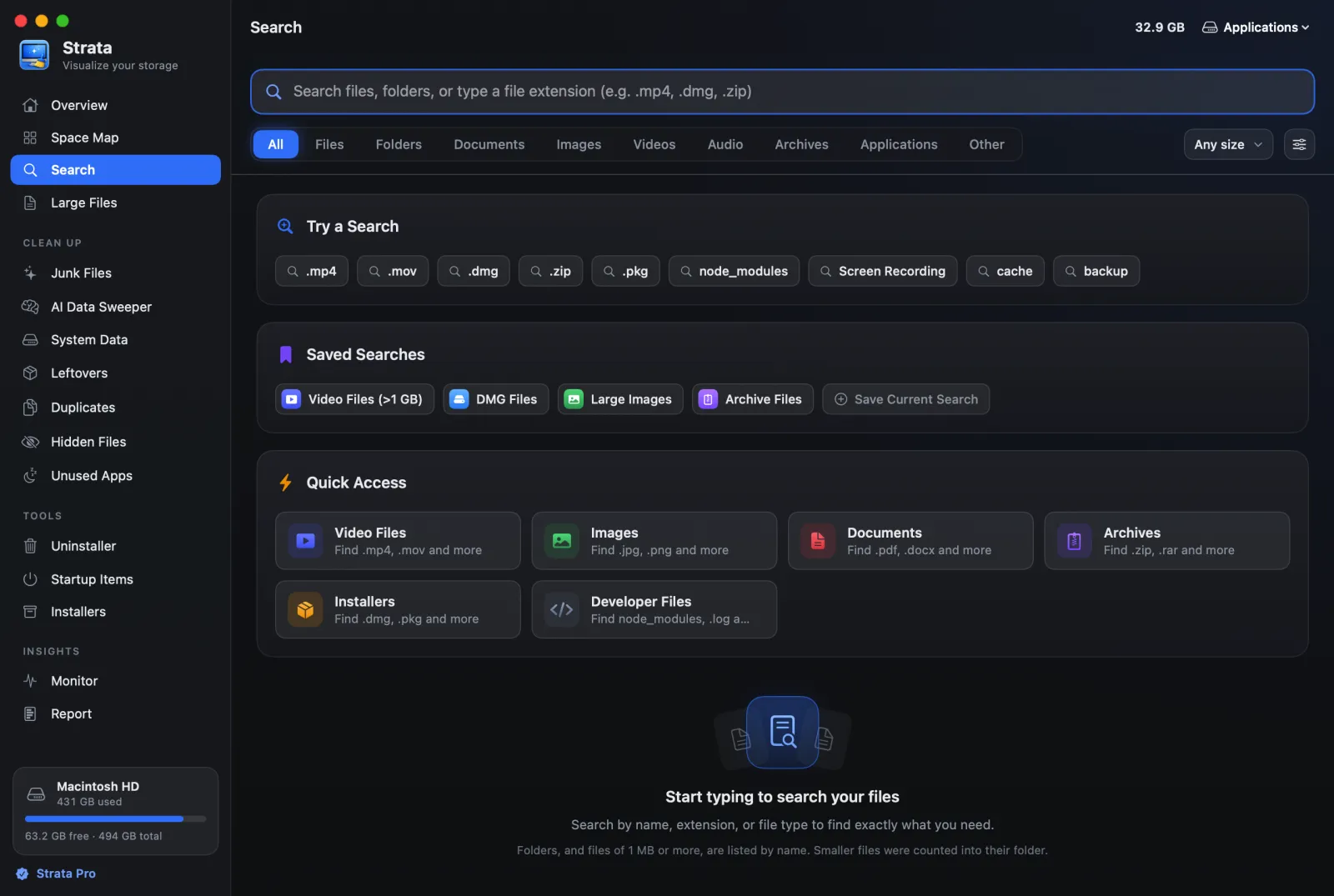
The empty room offers Try a Search (examples to click, such as
.dmg, node_modules and Screen Recording), which becomes
Recent Searches once you have searched;
Saved Searches, which start with Video Files over 1 GB, DMG
Files, Large Images and Archive Files; and Quick Access, which adds
two kinds you cannot type: Installers (.dmg, .pkg) and
Developer Files (node_modules, DerivedData, .venv, build folders and
code).
To keep a search, press Save Search above its results. To remove a saved one, right-click it. Recent and saved searches stay in Strata's settings on this Mac, and nowhere else.
Large Files
Large Files lists every file over the size you choose, biggest first, up to the largest 500. Pick the threshold from Larger than: 10 MB, 50 MB, 100 MB (the default), 500 MB, 1 GB or 5 GB. Tick Include folders to list big folders and apps as well.
It never looks inside apps, libraries or other packages, so the list is things you can actually do something about rather than the parts of an app.
Working with results
- Click a row to see it in depth: where it is, its size, when it was made, changed and last opened, and for a folder, what takes the most inside it.
- Double-click to open it in the Space Map, in its folder.
- Right-click for Show in Map, Reveal in Finder (Strata Pro) and Copy Path (free).
- With Strata Pro, each row has a tick box. Select All ticks every result that can be moved, and Move to Trash… (or Command Delete) opens the confirmation sheet. A row with a lock instead of a tick box is protected; point at the lock to read why.
For the ideas behind this, such as why Finder's sizes and Strata's differ and where large files usually hide, read How to find large files on a Mac.