Documentation: all pages
Startup Items
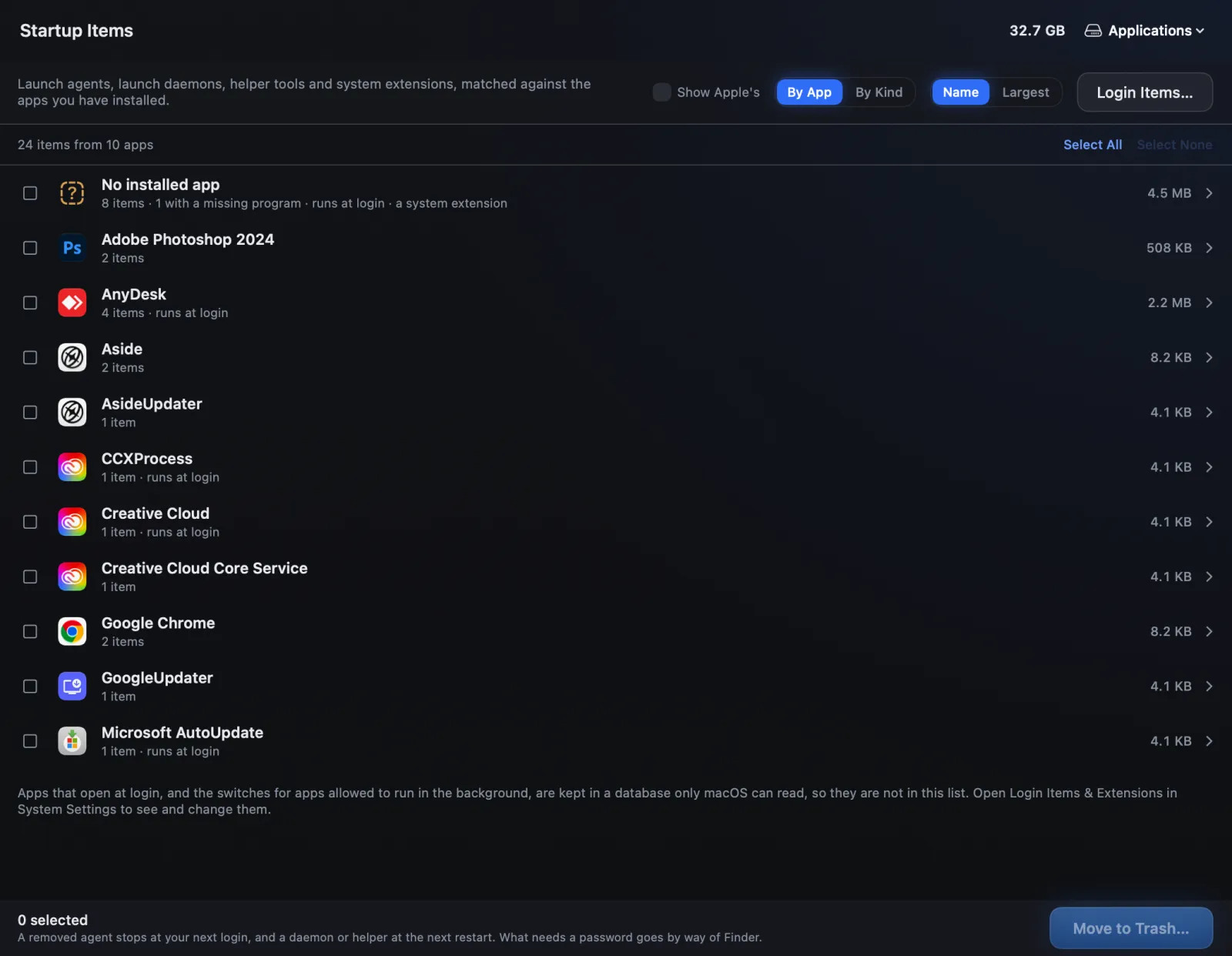
Startup Items lists what starts itself on your Mac, by the app it belongs to: launch agents, launch daemons, helper tools and system extensions. It points out the ones whose program is gone, which are the safest to remove, and ticks nothing for you.
What it lists
Strata reads these when it opens, with Strata Pro or the trial, and matches each one against the apps you have installed:
| Kind | Where it lives | Starts |
|---|---|---|
| Launch agents, your account | ~/Library/LaunchAgents | When you log in |
| Launch agents, every account | /Library/LaunchAgents | When anyone logs in |
| Launch daemons | /Library/LaunchDaemons | When the Mac starts, before anyone logs in |
| Helper tools | /Library/PrivilegedHelperTools | When an app or a daemon calls them |
| System extensions | Registered with macOS | As macOS loads them |
Apple's own items are hidden unless you tick Show Apple's.
By App or By Kind
By App, the default, puts each app on one row with its icon, how many items it has and whether any run at login; click the row to see them. Items no installed app owns are gathered under No installed app, and that is usually where the removable ones are. By Kind lists them by the table above instead.
Each item says which app it belongs to and how Strata knows, and adds what matters: runs at login, restarts itself, switched off, or the warning Its program is missing, which means it points at an app or tool that is no longer on the Mac.
Removing startup items
-
Pick the ones to go
Nothing is ticked for you. Select Missing Programs ticks only the items whose program is gone, which are leftovers doing nothing useful. Select All and Select None are there too. Ticking a helper tool also ticks the daemon that starts it.
-
Move them to the Trash
Items in your own account move straight away, after the confirmation. Items in the system's folders are tagged Password: Strata selects them in Finder, where Command Delete moves them and Finder asks for your password or Touch ID.
-
Restart or log out
A removed agent stops at your next login, and a daemon or helper at the next restart. Until then it may still be running.
System extensions
Only macOS can remove a system extension, such as a camera or network extension an app installed, and Strata does not change the extension itself. On macOS 15 and later, Turn Off… opens Login Items & Extensions in System Settings, where you can switch it off; the row names the category it is under, such as Network Extensions. macOS 13 and 14 have no such switch: there, macOS removes one when Finder moves its app to the Trash, so the Uninstaller hands such an app to Finder.
What is not in this list
Apps that open at login, and the switches for apps allowed to run in the background (Background App Activity on macOS 27, Allow in the Background on macOS 13 to 15), are kept in a database only macOS can read, so no app can list them. Login Items… at the top opens that page of System Settings.
Removing a startup item does not remove its app. If an app you still use comes back with its agent, the app put it back, as it is entitled to. To remove both, use the Uninstaller.
The five ways something can start itself on a Mac, and which are safe to switch off, are explained in What is really starting when your Mac boots.