Documentation: all pages
The Uninstaller
The Uninstaller removes an app together with the preferences, caches and support files it keeps in your Library. Every leftover is graded by how sure Strata is that it belongs to the app, and only the sure ones start ticked. Looking is free; uninstalling needs Strata Pro.
The app list
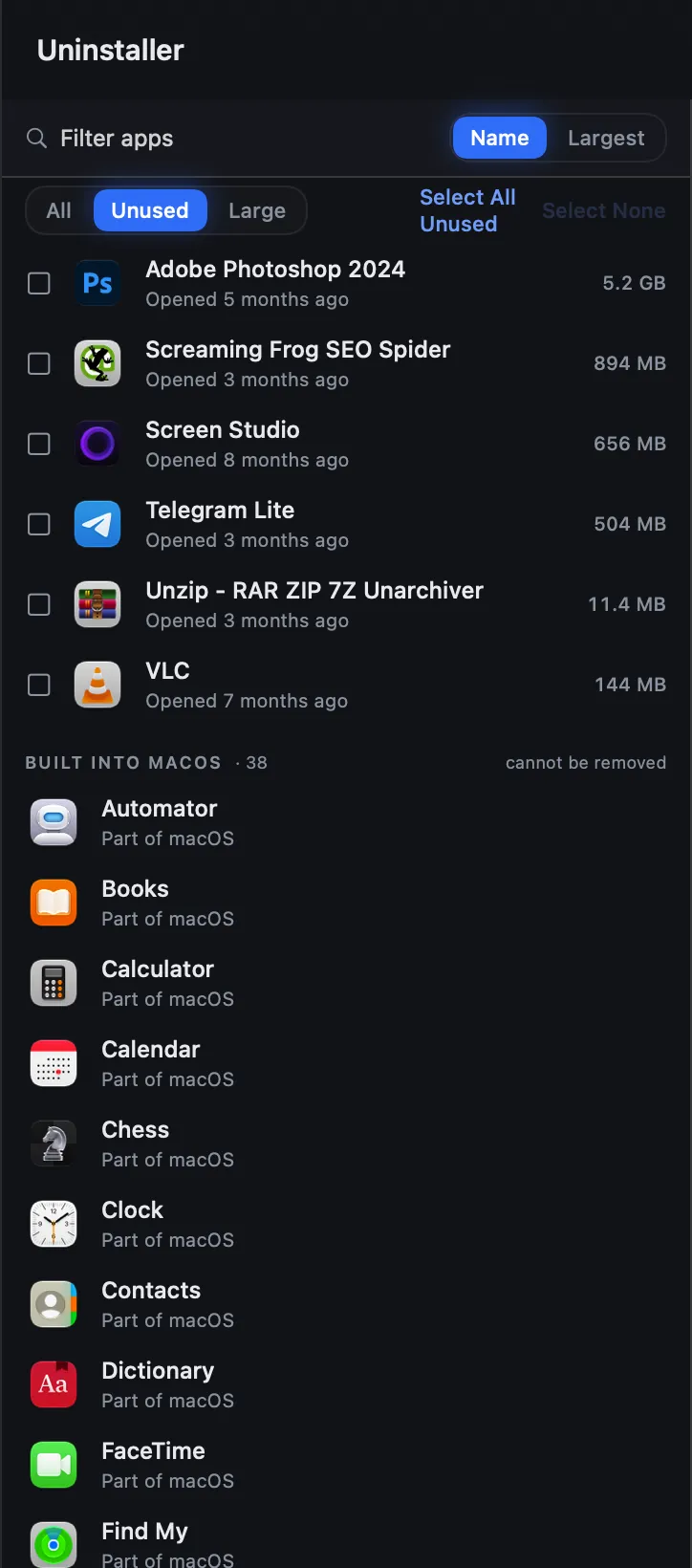
The list on the left holds the apps in /Applications, its Utilities folder and
~/Applications, and in plain folders one level inside them. Each row says when
the app was last opened, or Never opened here, and its size, which
fills in a few at a time.
- Filter apps matches a name, ignoring case and accents, or a bundle identifier.
- The filters All, Unused (not opened for three months) and Large (1 GB or more) narrow the list.
- Name and Largest sort it.
How leftovers are found and graded
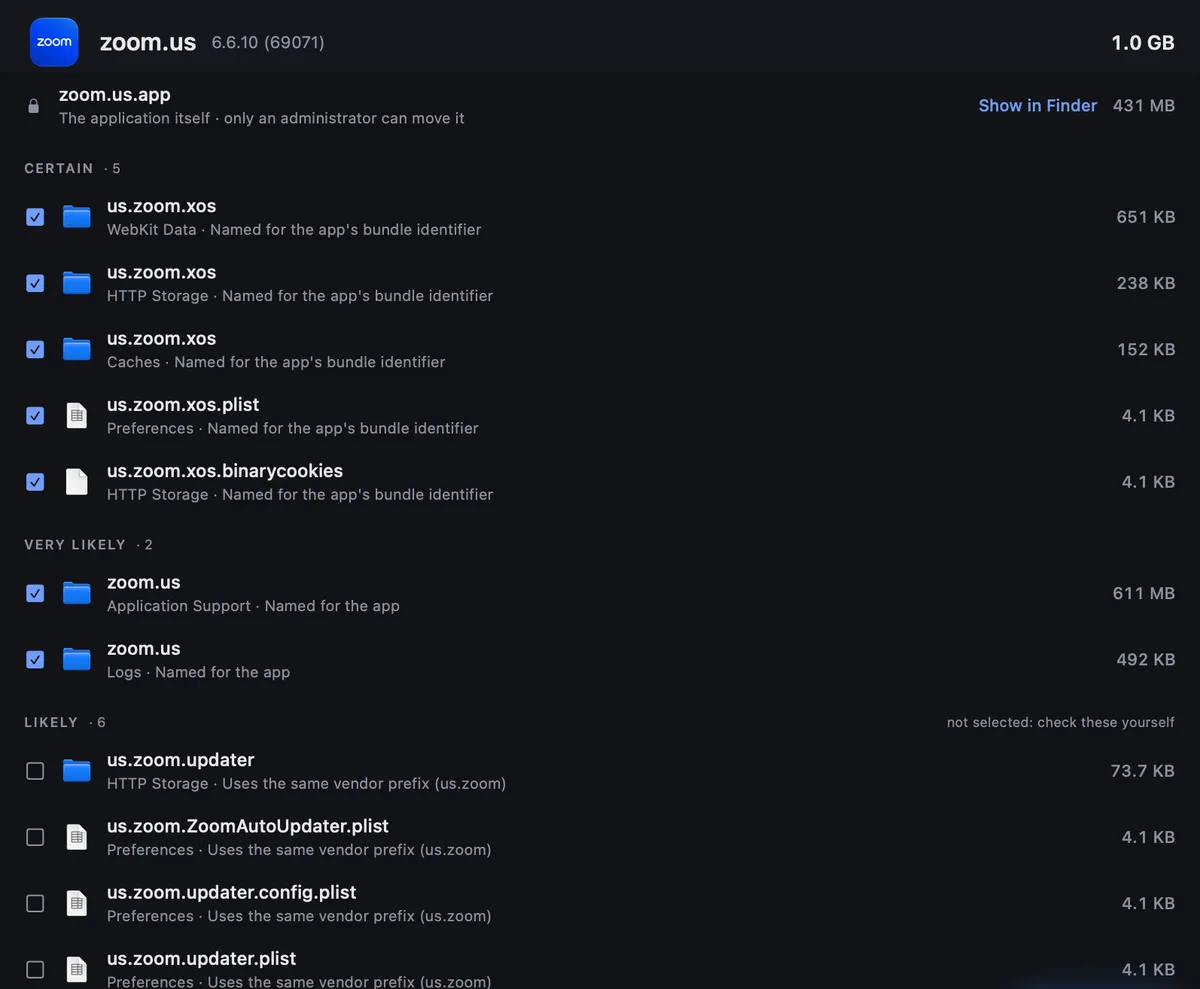
Choose an app and Strata searches 18 places for what belongs to it: in your Library,
Application Support, Caches, Preferences, Containers, Group Containers, Saved Application
State, HTTP storage, WebKit data, Logs, Cookies, Launch Agents, Internet Plug-Ins and
Application Scripts; and in the shared /Library, Application Support,
Preferences, Launch Agents, Launch Daemons and Privileged Helper Tools.
Every match is checked against every other installed app first, so nothing another app uses is offered. Folders a vendor shares between several apps (Adobe, Google, Microsoft, Mozilla, JetBrains and others) are left out altogether. Then each match is graded:
| Grade | Meaning | Ticked for you |
|---|---|---|
| Certain | Named for the app's bundle identifier, or part of it | Yes |
| Very likely | Contains the bundle identifier, or is named exactly as the app | Yes |
| Likely | Uses the same vendor prefix, when only one installed app has it | No: check it yourself |
| Possible | The name resembles the app's | No: check it yourself |
The reasoning is simple: a missed leftover costs a few megabytes, and a wrong one can cost
data. The deliberate gap is shared vendor folders. Taking Application Support/Google
while uninstalling Chrome would take Drive's data with it, so that folder is never offered,
even though it means Chrome's own part of it is not found either.
Uninstalling
-
Choose the app
Click it. If it is running, Strata says so: quit it first, or its preferences will come back as it saves them.
-
Check the ticks
The app itself and its Certain and Very likely leftovers are ticked. Read the Likely and Possible ones and tick those you recognise. Click a row for its details, or Reveal to see it in Finder.
-
Press Uninstall
Uninstall… opens the confirmation sheet listing everything. Confirm, and it all goes to the Trash. If the app was in the Dock, its icon leaves the Dock with it. Put Back reverses it, the icon included.
Several apps at once
Tick several apps, or Command-click and Shift-click as in Finder, or use Select All under a filter (it reads Select All Unused under Unused). Strata finds each app's leftovers in turn and shows the apps as icons, each with its size and how many leftovers it has; what is ticked in each goes with it. Click an app to see its files, and All 3 apps to go back; the cross on an app leaves it out. A leftover two of them share counts only once. The button then reads Uninstall 3 Apps…, for example.
Apps and files only an administrator can move
An app that an installer placed, and anything in the system's Launch Daemons or Helper Tools, belongs to the system, so macOS lets only an administrator move it. Strata never asks for your password. These items are listed apart, under Needs an administrator, and are never ticked. Show in Finder… selects them in a Finder window: press Command Delete there, and Finder asks for your password or Touch ID and moves them to the Trash. If Finder ever says it will delete something immediately, macOS will not keep it in the Trash, and you can cancel there.
An app whose system extension macOS has installed, such as a camera or network extension, even one switched off, is never ticked: macOS removes the extension only when Finder moves the app to the Trash, and, moved by Strata, it would keep running. Its row shows a puzzle piece and offers Show in Finder, which selects the app in Finder, where Command Delete moves it. With several apps chosen, it is tagged Extension.
Strata can still clear what such an app left in your own Library.
Apps built into macOS
Music, TV and macOS's other own apps are listed at the bottom, under Built into macOS. They live on the part of the disk macOS seals, which nothing can change: not Strata, not Finder, not an administrator. They take no space you could get back.
What Strata can do, with Strata Pro, is keep one closed. Choose it and turn on Keep Music closed (or the app's name): whenever it opens, even by itself, as Music does when you press Play or connect headphones, Strata quits it at once. Nothing on the disk changes, and turning the switch off gives the app back. Stop Music opening by itself walks through it.
System Settings, the App Store, Finder, Preview, TextEdit, Tips, Siri and the launchers are never offered. Your default browser is listed, but its switch cannot be turned on, because it opens your links: choose another default browser in System Settings first.