Documentation: all pages
Junk Files
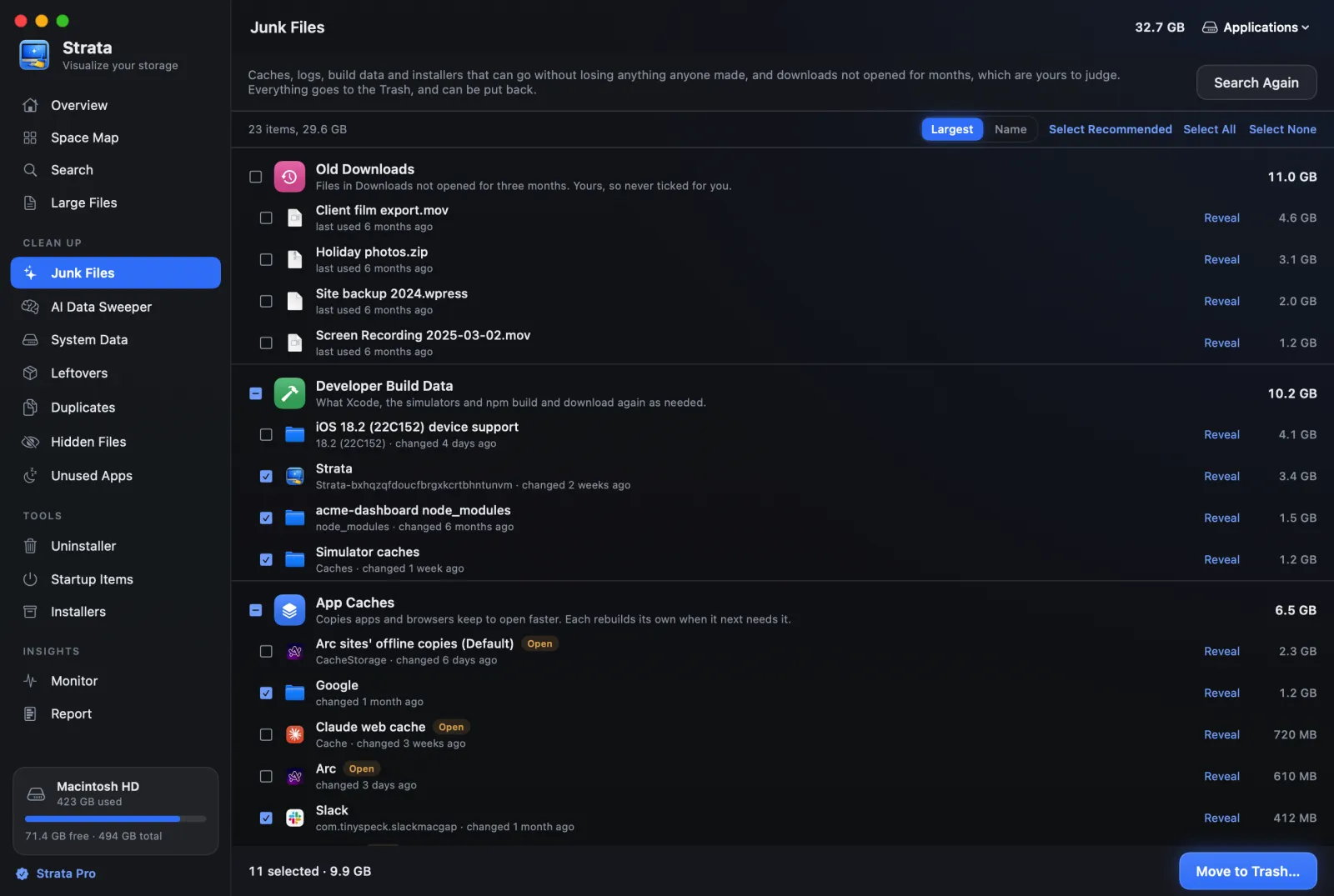
Junk Files measures what apps and developer tools keep for themselves and rebuild when they need it: caches, logs, build data, package downloads and installers you have finished with. It also lists, in groups of their own, the downloads you have not used for three months, virtual machines and games. Only what nobody will miss starts ticked, and everything goes to the Trash.
What it measures
The search starts by itself when Strata opens, if you have Strata Pro or the trial. It reads your own home folder, and outside it only the Applications folder, for macOS installers and Xcode, and the Epic Games folder in Shared; with Xcode, it also asks Xcode which simulators can no longer run. It groups what it finds by kind, biggest first:
- App Caches
- Copies apps keep to open faster, one entry per folder in
~/Library/Caches. Browsers and apps built on Chromium (Arc, Chrome, Brave, Edge, Slack, Discord, VS Code, Claude and others) keep theirs beside their settings in~/Library/Application Support, and those are listed too, profile by profile. With Full Disk Access, so are the caches sandboxed apps keep in their own containers and in the ones they share. Each app rebuilds its own when it next needs it. - Logs and Crash Reports
- Records apps and macOS wrote about what they did and how they failed, from
~/Library/Logs. - Developer Build Data
- What Xcode, the simulators and your projects' tools build and download again as needed:
DerivedData for each project, the module cache, device support for each iOS, watchOS, tvOS
and visionOS version, simulator caches, SwiftUI preview data, and simulators for a version of
iOS (or watchOS, tvOS, visionOS) no longer installed. Xcode's archives are listed here too,
though nothing makes them again. And in each project in your home folder, up to six folders
down: its
node_modules, and what its tools build or install, found by the project file beside it: Flutter'sbuildand.dart_tool, Rust'starget, Swift's.build, Gradle'sbuildand.gradle, CocoaPods'Pods, Python's.venvandvenv, the caches of Next.js, Nuxt, SvelteKit, Turborepo, Parcel and Angular, and Unity'sLibrary. A folder of one of those names without its project file is left alone. Library, Applications, Movies, Music, Pictures, Public and hidden folders are not searched for projects. - Package Caches
- Downloads that Homebrew, npm, pip, Yarn, CocoaPods, node-gyp, Go, Gradle, Cargo, Bun and
the Android SDK keep in case they are needed again, and the folders tools keep in
~/.cache. AI models kept there are left to the AI Data Sweeper. - Downloaded Installers
- Disk images, installer packages and iPhone and iPad updates (.dmg, .pkg, .mpkg, .xip, .ipsw) in Downloads and one folder down, the iPhone and iPad updates Finder keeps, and macOS installers in the Applications folders. What they installed stays installed.
- Old Downloads
- Anything else in Downloads that has not been used for three months: not changed, not added, and not opened, as far as Spotlight records it. A folder counts as used when anything directly inside it was changed or added. These are your own files, listed with when each was last used.
- Virtual Machines
- Whole computers kept as files: UTM, Parallels and VMware machines in the folders searched for projects, VirtualBox's, and, with Full Disk Access, UTM's own and Docker's disk, which holds every image, container and volume Docker keeps. Each is listed with when it last changed; running a machine changes it.
- Games
- Games Steam installed, and those Epic Games keeps in the Shared folder, one each, with when each last changed. Remove one in its store, which keeps the store's list right.
Anything under a megabyte is left out, and old downloads under 10 MB: they are not worth a
decision. Something that sits inside another item on the list, such as a project's
node_modules in an old download, is counted once, with the item outside it.
What starts ticked, and why
Everything starts ticked except:
- macOS's own caches, tagged macOS. macOS rebuilds them too, but they are its business.
- The caches and logs of apps that are open, tagged Open, including a browser's caches in its own folder. An app may be using them right now. Quit it first, or let Optimize do it.
- A cache shared by a family of apps that Strata cannot name, because it then cannot know whether one of them is open.
- A project's build output and
node_modules, unless nothing in the project has changed for three months. Installed packages (node_modules,Pods, a Python environment) also need the project's lockfile, which means installing again brings back the same versions. For build output,Podsand Python environments, the project is the outermost one around the folder: an Android app's build counts with the Flutter project it is in. Fornode_modules, it is the folder that holds it. A commit counts as a change; changes inside build output ornode_modulesdo not. A project too big to check is left unticked. - Xcode's archives, which hold the symbols needed to read the crash reports of the versions they archived.
- Device support files, which Xcode needs again if you plug that device in to debug.
- Installers, which you may want to keep.
- Old downloads, virtual machines and games, which are yours. Strata never ticks them for you.
- Anything only an administrator can move, tagged Password.
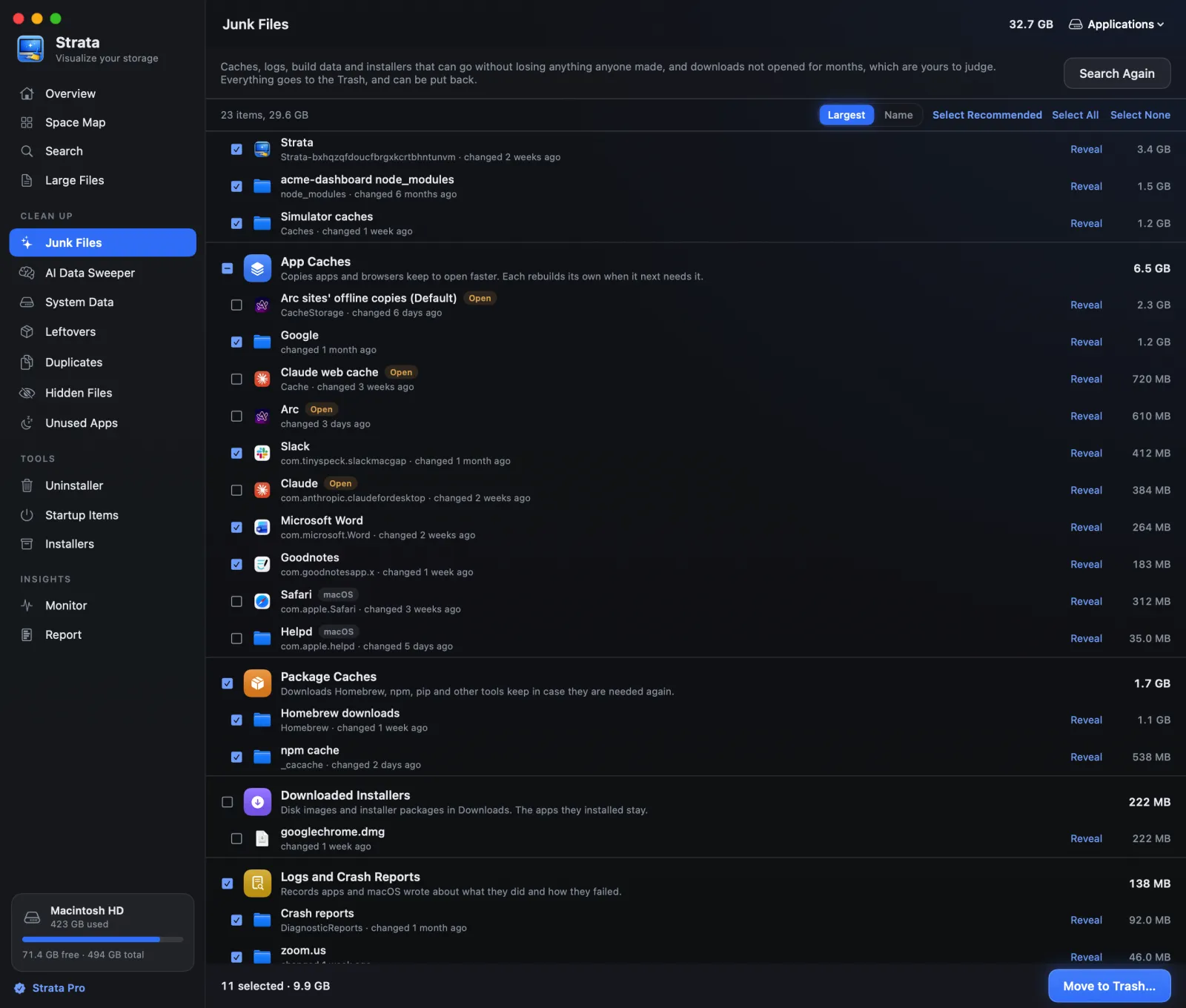
Point at any row to read why it is or is not ticked, and where it is. Select Recommended puts the ticks back to exactly this, after you have changed them; Select All and Select None do what they say, and a group's own tick box ticks the whole group. Select All ticks old downloads, virtual machines and games too, as does each of those groups' own tick box, so look before you press either.
Clearing it
-
Look down the list
Each row says when it last changed; an old download's says when it was last used. Click a row to see it in depth, or Reveal to show it in Finder.
-
Adjust the ticks
The defaults are safe to take as they are. Untick anything you would rather keep, such as the cache of an app you use offline. Tick an old download only once you are sure you no longer need it.
-
Press Move to Trash
The footer shows how many items and how much space are ticked. Move to Trash… opens a confirmation sheet listing every item. Confirm, and they go to the Trash, where Put Back can return them.
Caches come back. That is what a cache is for: apps rebuild what they
need, a little slower the first time, and sites save their offline copies again on the next
visit. Clearing caches is worth doing when they have grown large or when a disk is nearly
full, not as a daily habit. Old installers, Xcode's archives, old downloads, virtual
machines and games stay gone once the Trash is emptied; build output comes back only for
projects you build again, and installed packages (node_modules,
Pods, a Python environment) only once you install again.
Good to know
- Search Again at the top measures afresh, for example after quitting an app whose cache was held back.
- Optimize uses this room's judgement. It clears exactly what this room
would tick by itself, less the caches of open apps, and the build data and package caches
of tools that are running: a project's build output waits while its own tools run (a
Flutter project's while flutter, dart, Java, Gradle or xcodebuild does), and its
node_moduleswhile node, npm, Yarn, pnpm, Bun or Deno does. It never moves installers, old downloads, virtual machines or games. - Without Full Disk Access the caches in sandboxed apps' containers, and in the containers they share, are not read, nor are Docker's disk and the machines UTM keeps in its own container, because macOS would ask you about each app in turn. See how to give Full Disk Access.
- On the Overview, the Junk Files figure leaves out old downloads, virtual machines and games, since they are not junk; old downloads have a line of their own under Cleanup Recommendations.
- Without Strata Pro or the trial the room is locked, and the Overview's Junk Files figure stays empty, because the search does not run.