Documentation: all pages
System Data
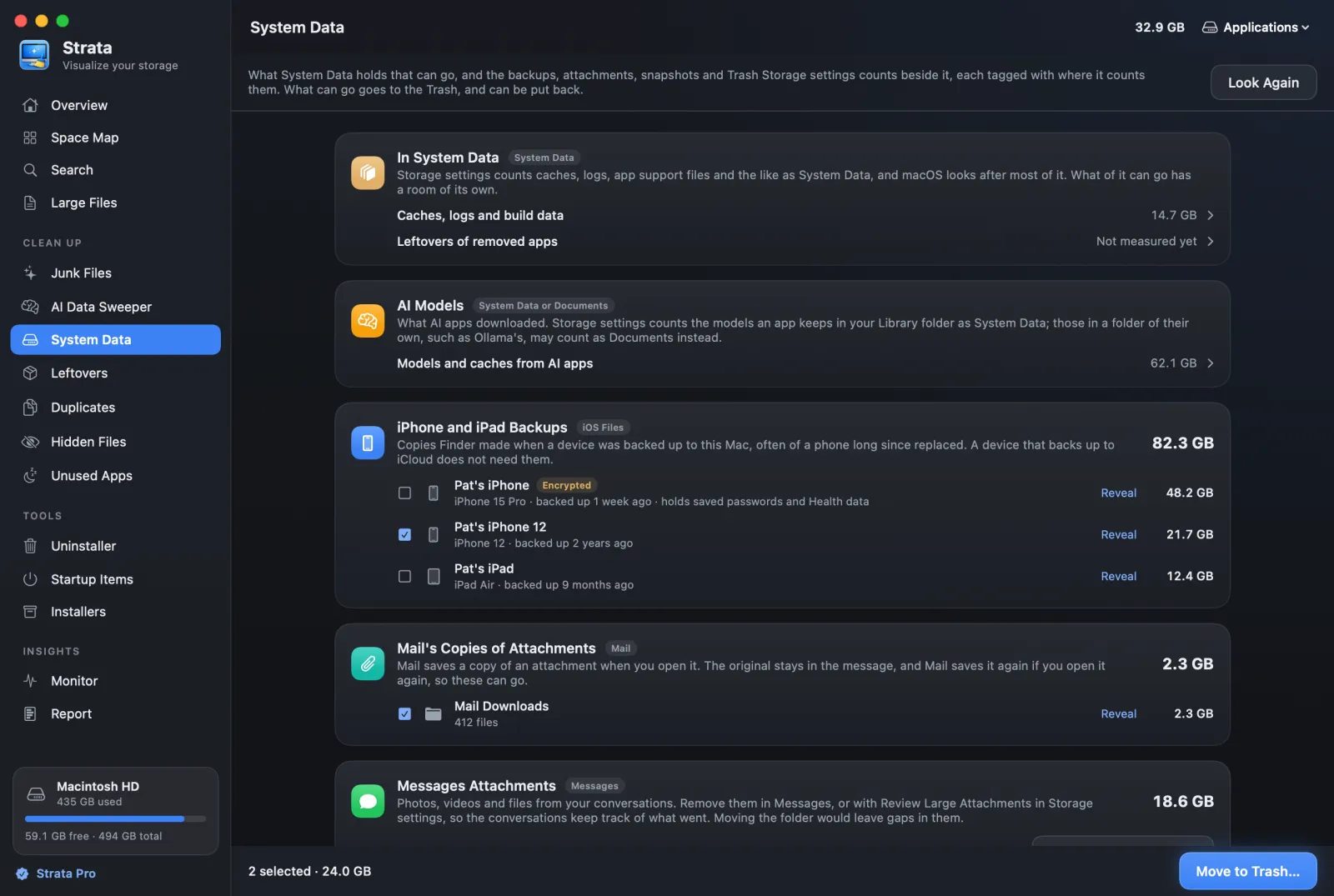
Storage settings lists System Data with no way to open it. This room shows what of it can go, and the large things Storage settings counts beside it: device backups, Mail's copies of attachments, Messages attachments, Xcode's simulators, GarageBand and Logic Pro's sounds, Time Machine's snapshots and the Trash, each tagged with where Storage settings counts it.
What the room shows
In System Settings > General > Storage, macOS sorts the disk into categories, and System Data is the one it will not open. Apple counts device backups under iOS Files, and Mail, Messages and the Trash under their own names, so they are not part of System Data, though they are often blamed for it. The room shows both sides: what System Data holds that can go, and the large things Storage settings counts beside it. Each card is tagged with where Storage settings counts it.
It looks the first time you open it, and again when you choose Look Again. Nothing is guessed from a name: a backup is named from its own record of the device.
The cards
- In System Data
- Caches, logs, app support files and the like, which Storage settings counts as System Data and macOS mostly looks after. What of them can go has a room of its own, and this card links to each with its size once that room has looked: Caches, logs and build data (Junk Files) and Leftovers of removed apps (Leftovers). Until a room has looked, its line reads Not measured yet.
- AI Models
- Tagged System Data or Documents. Storage settings counts the models an AI app keeps in your Library folder as System Data, and those kept in a folder of their own, such as Ollama's, may count as Documents instead. The card links to the AI Data Sweeper with the size of the models and caches AI apps downloaded, once that room has looked, even when it found none.
- iPhone and iPad Backups
- Tagged iOS Files. Every backup Finder made on this Mac, by the device's name and model, with how long ago it was backed up. An encrypted backup is marked Encrypted, since it also holds saved passwords and Health data. Each can be ticked and moved to the Trash.
- Mail's Copies of Attachments
- Tagged Mail. The copies Mail saves in its Mail Downloads folder when you open an attachment. The original stays in the message, and Mail saves it again if you open it again, so the folder can be ticked and moved to the Trash.
- Messages Attachments
- Tagged Messages. Photos, videos and files from your conversations, shown with their size and never moved: taking the folder away would leave gaps in the conversations. Remove them in Messages, or with Review Large Attachments in Storage settings; Open Storage Settings takes you there.
- Xcode Simulators
- Tagged Developer. The versions of iOS and the other systems Xcode's simulators run, each
at the size of its disk image as
xcrun simctl runtime listgives it (mounted, they look far bigger). macOS keeps them where only Xcode may change them, so they are shown, not moved: remove those you no longer test on in Xcode, Settings, Components; Open Xcode opens it. Shown only when Xcode is in the Applications folder and has simulators installed. - GarageBand and Logic Sounds
- Tagged Music Creation. The instruments, loops and samples GarageBand and Logic Pro downloaded, in a folder each and the Apple Loops folder they share, shown with their size and never moved: if they are deleted any other way, the apps ask to download them again. Remove the ones you do not use in Storage settings, under Music Creation, or in the app's Sound Library; Open Storage Settings takes you there. Shown only when one of those folders holds something.
- Time Machine Snapshots
- Tagged Counted as available. How many local snapshots Time Machine keeps between backups,
and the oldest. macOS deletes them by itself when the space is needed, and already counts that
space as available, so Strata never deletes them; Time Machine
Settings opens the place that does. The count is of every snapshot
tmutil listlocalsnapshotslists, and when it marks any of them(dataless), the card says how many. - The Trash
- Tagged Trash. What is already in the Trash and still takes space. Strata never empties it; Open Trash opens it in Finder, where Empty gets the space back.
Moving backups and attachments to the Trash
-
Tick what can go
Only device backups and Mail's copies of attachments have tick boxes. Nothing starts ticked. Reveal shows any of them in Finder first.
-
Move them
Choose Move to Trash… at the foot of the room. The confirmation sheet names each backup by its device, rather than by the folder's long identifier, and says how much goes to the Trash.
-
Put them back, or empty the Trash
The notice that follows has Put Back, and Finder's Put Back works later too. The space comes back to the disk when you empty the Trash. How deleting works has the details.
Keep the latest backup of every device you still use, unless it backs up to iCloud. Which backups can go, and why an encrypted one is worth keeping, is in Where iPhone backups are stored on a Mac.
Without Full Disk Access
macOS hides device backups and attachments from apps without Full Disk Access. When that stops the room from measuring something, it says some of System Data could not be measured, with Open Settings. Permissions explains it.
Good to know
- The room is part of Strata Pro. With the trial it is open; without either, it is locked, with a sentence saying what it does.
- The Overview's Needed by macOS is something else. That part of the disk bar is macOS itself, its swap and its own files. This room is about the category in Storage settings.
- Nothing here asks for a password. Strata never asks for one. Snapshots are left to Time Machine, which keeps and deletes them.
What Apple counts as System Data, and which parts are safe to shrink by hand, is in What System Data is on a Mac.