Mac startup items: what really starts when your MacBook boots
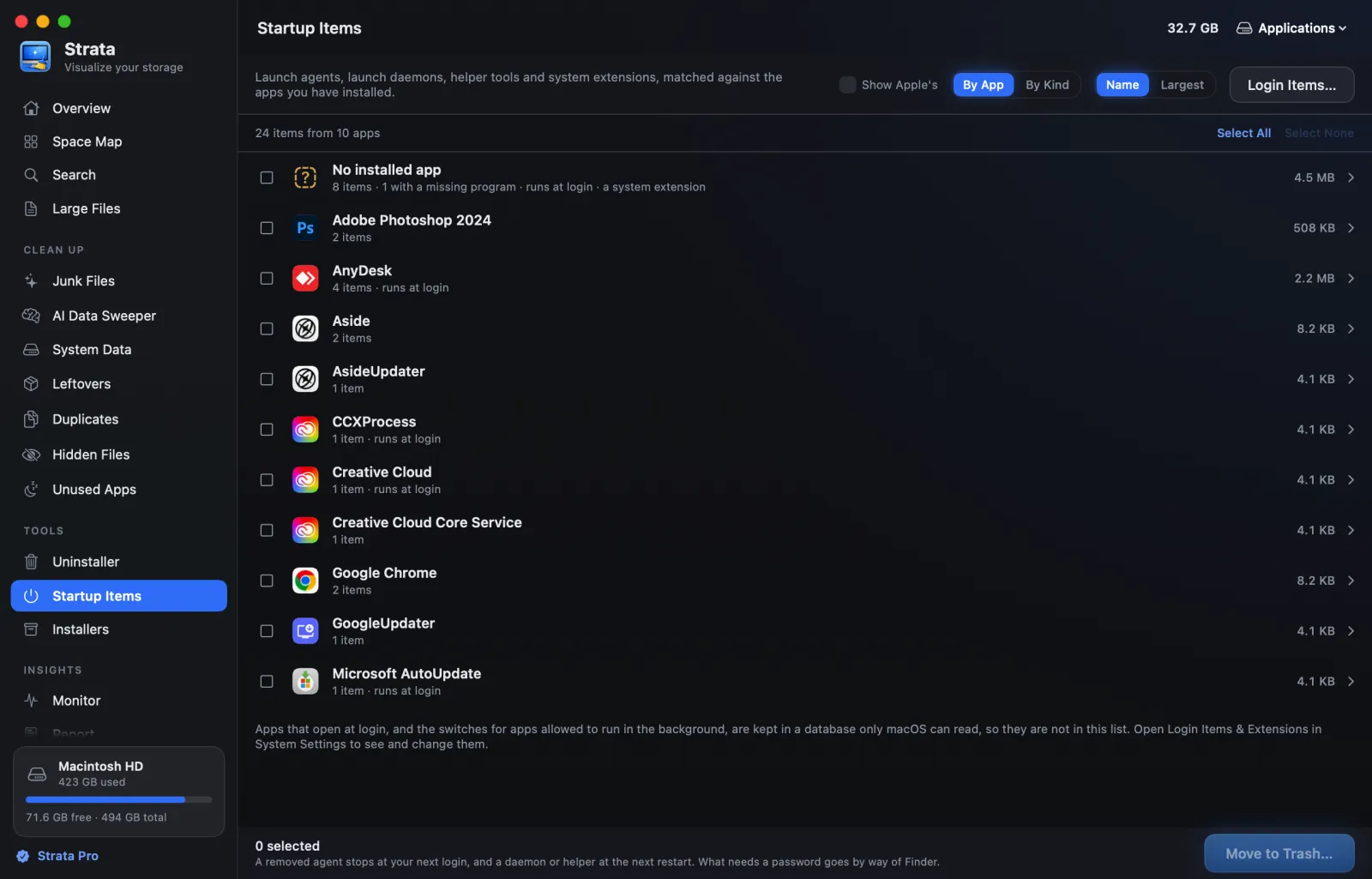
System Settings shows you a tidy list of login items. On a Mac that has been in use for three years, that list shows perhaps a fifth of the startup items that actually run.
A MacBook or iMac that takes ninety seconds to become usable after logging in is not usually a Mac with a hardware problem. It is a Mac carrying three years of accumulated background software, most of which was installed as a side effect of installing something else, and a decent fraction of which belongs to apps that are no longer on the machine.
The reason it is hard to clean up is that there is no single list. Early Mac OS X had startup items, System Settings has login items, and there are in fact five separate mechanisms: they work differently, they live in different places, and only one of them appears in System Settings.
1. Login items, the only honest one
These are the ones Apple shows you. System Settings, General, Login Items & Extensions (just Login Items on macOS 13 and 14). Two lists: "Open at Login", which is applications, and a list of everything allowed to run in the background: "Allow in the Background" on macOS 13 to 15, renamed in macOS 26 and shown as "Background App Activity" on macOS 27.
That second list was added in Ventura and was genuinely a good change, because before it existed there was no supported way to see background software at all without opening a terminal. It is still incomplete, and it names things by their developer rather than by anything you would recognise, so you get entries like "Wondershare Technology Co." with no clue which of their products it belongs to.
Everything here can be switched off, apps at login with the Remove button and background items with their toggle, and either is reversible. If you do nothing else on this page, go through this list and turn off anything you do not recognise. Worst case, something stops updating itself and you turn it back on.
2. Launch agents, the ones that actually matter
A launch agent is a small XML file that says, in effect: start this program when this user logs in, and if it stops, start it again. macOS reads them from two folders:
~/Library/LaunchAgents      # just your account
/Library/LaunchAgents       # every account on the Mac
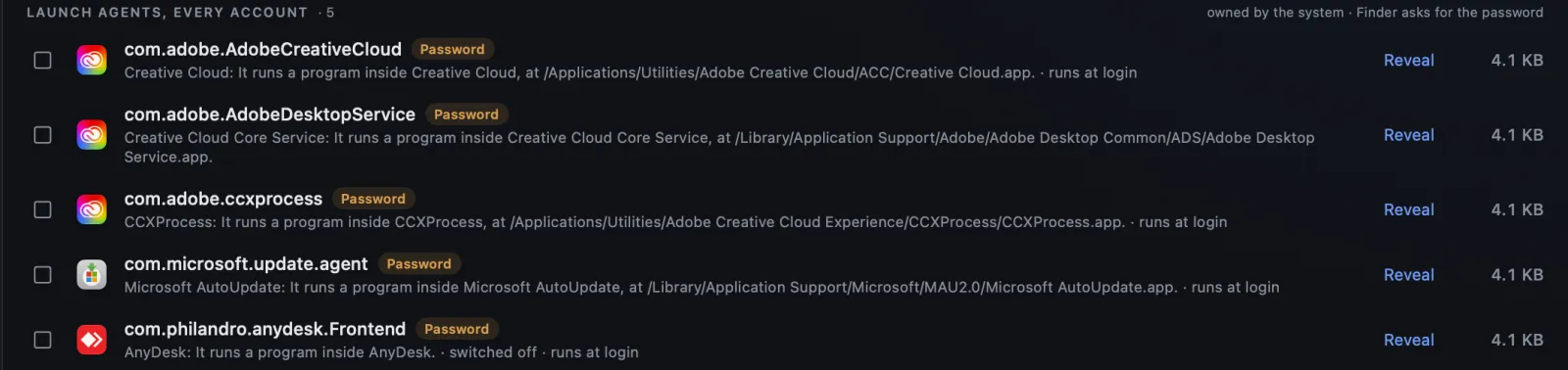
These are the interesting ones for three reasons. They are not shown in System Settings unless the app registered itself properly, which many do not. They restart themselves, so quitting the process achieves nothing. And they are completely separate files from the app they launch, which means deleting the app does not delete the agent.
That last point is the one that produces the mess. macOS keeps trying to launch a program that no longer exists, failing, waiting, and trying again, at every login, for years. It never mentions this to you. It is the software equivalent of a light switch still wired to a room that was demolished.
To see what you have:
ls -1 ~/Library/LaunchAgents /Library/LaunchAgentsThe filenames are bundle identifiers, so com.adobe.AdobeCreativeCloud.plist
is fairly self explanatory and com.tinyspeck.slackmacgap.plist is Slack,
for reasons covered in
the article on uninstalling apps
properly. If a name means nothing to you, search the identifier before deciding
anything.
To see what is actually loaded right now, rather than what is on disk:
launchctl list | grep -v com.appleThe first column is the process id if it is running, or a dash if it is not. The second is the last exit code. A row with a dash and a non-zero exit code is an agent that tried to start something and failed, which is exactly the fingerprint of an orphaned agent pointing at a deleted app.
The quick win. Anything in launchctl list with a
non-zero exit status and no process id has been failing at every login, possibly for
years. Those are almost always safe to remove and are the closest thing to free speed
available here.
3. Launch daemons, which run before you even log in
Same file format, different folder, considerably more power:
/Library/LaunchDaemonsDaemons start at boot rather than at login, run as root, and do not belong to any user. This is where drivers, VPN clients, backup services, antivirus software and licensing enforcement live.
Two rules here. First, be much more careful than with agents, because these have
genuine system responsibilities and something in this folder may be the reason your
external audio interface works. Second, never touch anything in /System,
which is a separate read only volume and is not yours to edit regardless of what you
think about it.
A useful heuristic: if you can name the product it belongs to and you still use that product, leave it. If it belongs to something you uninstalled, it is a leftover like any other. If you cannot identify it at all, search the filename before doing anything, because this is the one folder where a wrong guess has real consequences.
4. Privileged helper tools
These live in /Library/PrivilegedHelperTools and are the actual programs
that the daemons above start. An app that needs to do something requiring
administrator rights, such as installing an update or modifying network settings,
installs a small helper here once, so that it can ask for your password a single time
instead of every single day.
That is a reasonable design and it is how Apple recommends doing it. The problem is the same as everywhere else on this page: uninstalling the app does not remove the helper, and the helper keeps its elevated privileges. A helper from an app you deleted two years ago is still sitting there, still able to run as root, still being started by a daemon that also was not removed.
Removing these requires administrator rights, which is appropriate given what they are. The pairing matters: a helper tool and its daemon belong together, and removing one without the other leaves a daemon pointing at nothing.
5. System extensions, the modern replacement for kexts
The fifth mechanism is the newest. System extensions replaced kernel extensions and cover things like network filters, endpoint security agents and virtual network adapters. VPN clients and corporate security tools are the common examples.
You can list them with:
systemextensionsctl listThese should not be removed by hand. They are registered with the system, and are usually load bearing for whatever installed them. On macOS 15 and later, System Settings lists them under General, Login Items & Extensions, each with a switch; macOS 13 and 14 have no switch for them. On any macOS, an app's system extension goes when Finder moves the app to the Trash. Moved any other way, by Terminal or a script, the app leaves its extension running. So if you want one gone, use the app's own uninstaller, or move the app to the Trash in Finder.
Strata's Startup Items lists them with the app each belongs to. On macOS 15 and later, its Turn Off… opens Login Items & Extensions in System Settings, where the extension can be switched off; on macOS 13 and 14, the row says the extension goes when its app is moved to the Trash in Finder.
What this actually costs you
Worth being honest about scale, because there is a lot of nonsense written about startup items and reclaimed performance.
A single orphaned launch agent costs you almost nothing. It is a failed process spawn, a few milliseconds, once. Twenty of them is still not the reason your Mac is slow.
What genuinely costs you is the small number of these that succeed: updaters that wake up and check a server, sync clients that index a folder, cloud storage daemons that walk your filesystem, telemetry agents that batch and upload. Each of those is real CPU, real disk activity, and on a laptop, real battery. Five of those running constantly is worth more of your attention than fifty inert plist files.
So the honest advice is not "remove everything". It is: remove the orphans because they serve no purpose whatsoever, and then look hard at the handful that are actually running to decide whether you want them.
Doing it without breaking your Mac
- Start with System Settings login items. Safe, reversible, no terminal.
- Run
launchctl list | grep -v com.appleand note anything with a non-zero exit code and no process id. Those are failing already. - Match each suspicious agent to an app you still have installed. If there is no such app, it is an orphan.
- Move orphan plists to the Trash rather than deleting them. Do not empty it.
- Restart. Use the Mac normally for a few days.
- Only then empty the Trash.
Steps four and six exist because you will occasionally be wrong, and a mistake you can undo by dragging a file back is not really a mistake. Deleting things permanently in the same session you identified them is how a tidy-up becomes a support ticket.
Do not use sudo to force anything here. If a file
refuses to move, that is usually System Integrity Protection telling you the file
belongs to macOS. It is right and you are not. The correct response is to leave it
alone, not to escalate until it gives in.
See your startup items in one list
Strata lists launch agents, launch daemons, helper tools and system extensions together, matches each entry against the apps you actually have installed, and flags the ones pointing at software that is no longer there. Login items stay in System Settings, which Strata opens for you. Instead of four folders and two terminal commands, it is one list that tells you what each item is and whether anything still owns it.
Startup Items is part of Strata Pro, a one-time $9.99 with no subscription and no renewal. Scanning and the disk map are free forever. Every download starts with 14 days of Strata Pro, free; the trial can remove up to 40 GB.
Common questions
I turned something off and an app broke. What now?
Launch the app. In the overwhelming majority of cases it notices its helper is missing and reinstalls it, sometimes asking for your password once. This is why disabling before deleting is the right order: a toggle in System Settings is trivially reversible, and a deleted file in an emptied Trash is not.
Does macOS ever clean these up on its own?
No. There is no garbage collection for launch agents. A plist stays until something deliberately removes it, and the only things that do so are the app's own uninstaller or you. Since the app is usually gone by the time you notice, that leaves you. System extensions are the exception: when Finder moves an app to the Trash, macOS removes the app's system extension with it. If the app is moved any other way, the extension keeps running, which is why Strata's Uninstaller leaves such an app to Finder.
Why does an app I deleted keep asking me to update it?
Its updater agent is still installed and still running on schedule. The updater is a separate program from the app, with its own launch agent, and deleting the app it updates does not make it stop. It is the purest example of the whole problem: software whose only remaining function is to nag you about something you no longer own.
Why is my Mac slow to start up?
Usually because of accumulated background items rather than hardware. Each installed app can add a login item, a launch agent, a launch daemon, a privileged helper tool or a system extension, and uninstalling the app frequently leaves those behind. Forty apps installed over three years can leave dozens of things starting at login, several belonging to software you no longer have.
What is the difference between a login item and a launch agent?
A login item is listed in System Settings and you can toggle it there. A launch agent is a .plist file in a LaunchAgents folder that macOS loads at login, it is not shown in Settings by default, and it restarts automatically if it stops. Launch agents are the more persistent of the two and the ones that survive uninstalling an app.
Is it safe to delete launch agents?
Agents belonging to apps you have removed are safe, and are the main thing worth clearing. Agents belonging to apps you still use will usually be recreated when you next launch the app. Never remove anything in /System, and be cautious with launch daemons, which run as root and can belong to drivers, VPNs or security software your Mac needs.
How do I change startup items on a MacBook?
The same way as on any Mac. Choose Apple menu, System Settings, General, then Login Items & Extensions (Login Items on macOS 13 and 14). To stop an app opening at login, select it under Open at Login and click the Remove button below the list; to stop one running in the background, switch it off in the list below that. Launch agents and daemons that are not listed there live in ~/Library/LaunchAgents, /Library/LaunchAgents and /Library/LaunchDaemons.
Where were startup items in Mac OS X?
Early Mac OS X ran programs at boot from a StartupItems folder, /Library/StartupItems for most software. Apple's archived developer guide calls startup items a deprecated technology and points to launchd instead, which since Mac OS X 10.4 Tiger has started the launch agents and daemons described on this page.
Where are startup items stored on a Mac?
In five places: System Settings login items, ~/Library/LaunchAgents for your account, /Library/LaunchAgents for all users, /Library/LaunchDaemons for things running as root before anyone logs in, and /Library/PrivilegedHelperTools for the programs those daemons start.