What is actually taking up space on your Mac
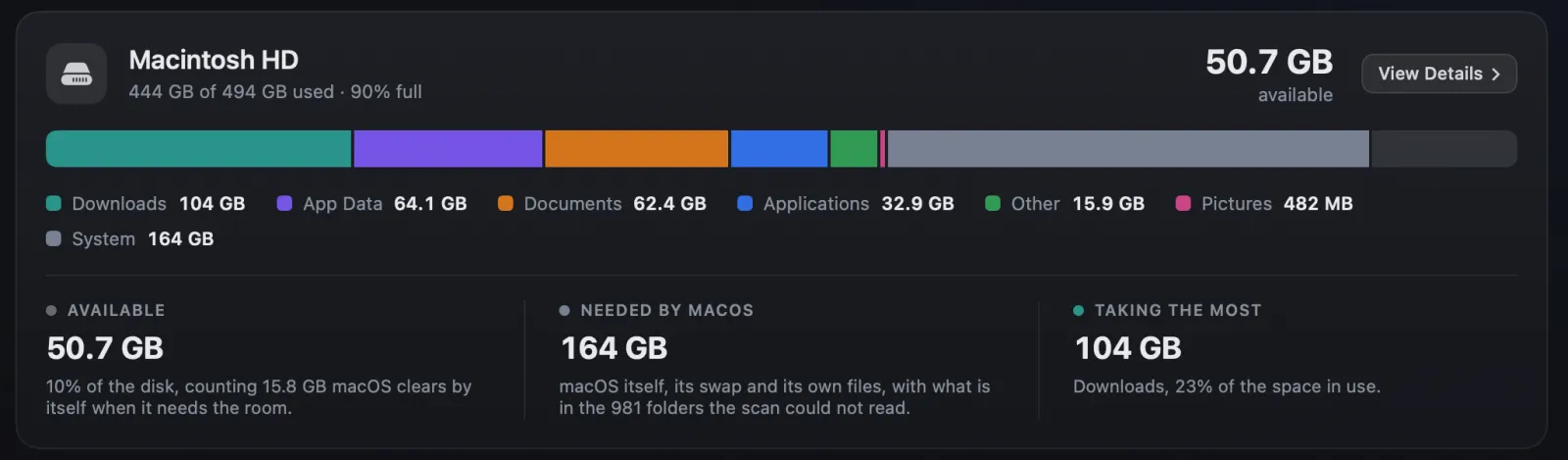
Ten places the room goes, in the order worth checking. Two of them look enormous and should be left exactly where they are.
Short answer
- Xcode derived data and simulators: tens of gigabytes, safe to delete
- Docker images and volumes: often the single largest item on a developer's Mac
- Old iPhone and iPad backups: frequently 50 GB or more
- The Photos library, especially "Recently Deleted"
- Virtual machine disks, which grow and never shrink
node_modulesfolders in projects you have finished- Mail downloads and attachments
- Downloads, which nobody ever empties
- Application caches, which matter less than you think
- Time Machine local snapshots: leave these alone
Why "About This Mac" is not enough
macOS gives you a coloured bar and a category called System Data that is routinely 100 GB and tells you nothing about what is inside it. That category is not a single thing. It is caches, logs, swap and sleep files, app support files and whatever else did not fit the other labels; what System Data is takes it apart.
There is no folder called System Data. You cannot open it, which is why every guide telling you to "clear System Data" is describing something that does not exist. What you can do is find the real folders underneath the label, and those have ordinary names in ordinary places.
The second complication is purgeable space. Some of what your Mac reports as available is still holding something, such as Time Machine's local snapshots and caches macOS can delete, which it releases when it needs the room. This is why your available space sometimes changes while you are watching, and why it can be larger than the space that is actually free.
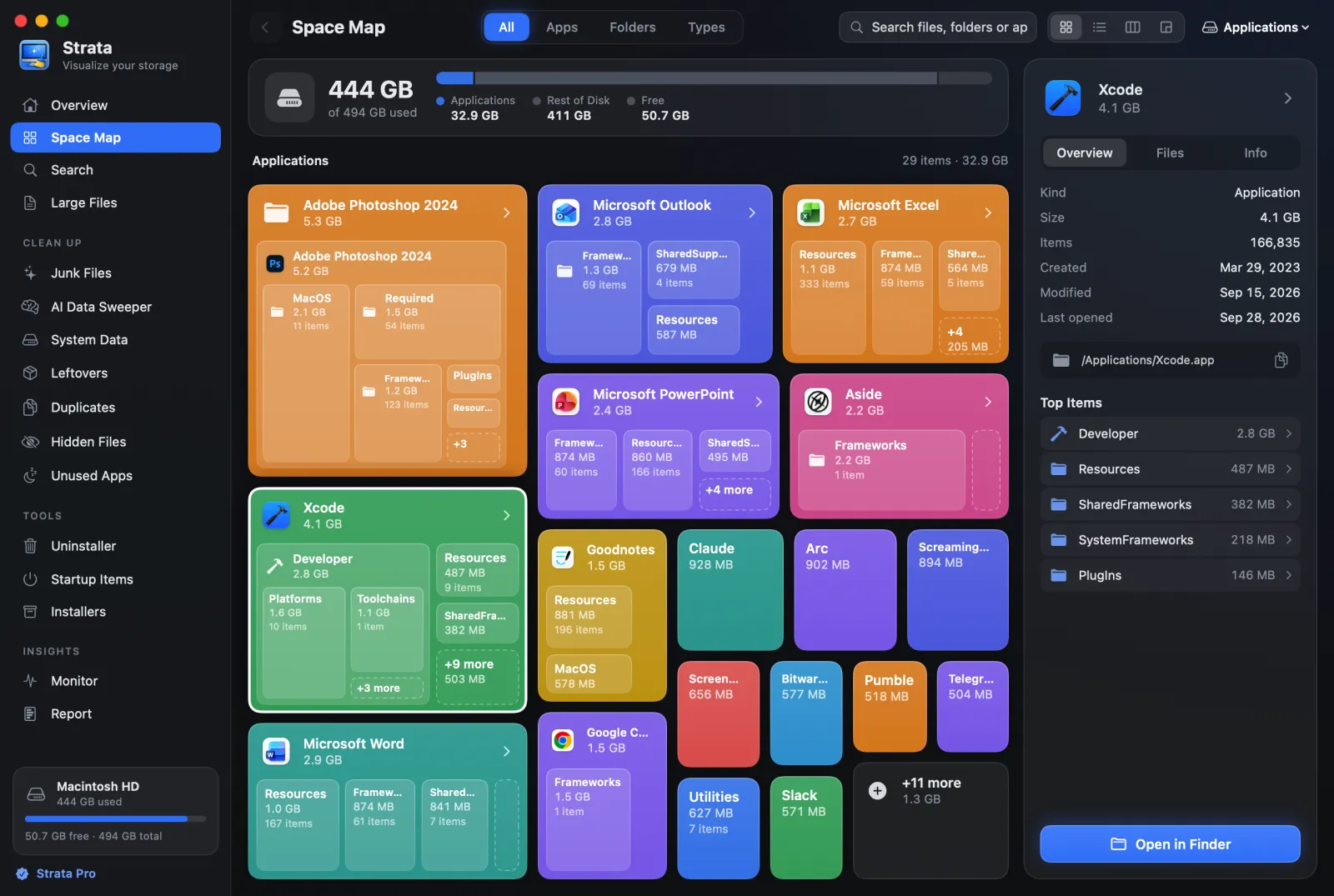
To find space that is genuinely yours to reclaim you need folders sized by what they actually occupy, ranked largest first. That is what a disk map does, and it is the reason this entire category of app exists.
1. Xcode, if you have it
Derived data is build output. It regenerates. It is also usually the biggest single folder on a developer's Mac, and it is completely safe to remove.
~/Library/Developer/Xcode/DerivedDataDelete the whole folder. Xcode rebuilds what it needs on the next build, once, more slowly than usual. Old simulator runtimes are the other half of the problem, and each one is a full copy of iOS:
xcrun simctl delete unavailableThat removes simulators for OS versions you no longer have installed. There is also
~/Library/Developer/Xcode/iOS DeviceSupport, which accumulates a folder for
every iOS version of every device you have ever plugged in for debugging. Nothing ever
cleans it, and on a Mac used for iOS work over several years it is frequently over
20 GB by itself.
2. Docker
Docker keeps every image layer, container and volume you have ever pulled, inside one disk image that grows and does not shrink on its own. Deleting things inside Docker frees space inside the image and changes the file on your disk not at all.
docker system dfThat shows the damage before you act, broken down by images, containers, volumes and build cache. To reclaim:
docker system prune -a --volumesThis deletes unused volumes. If a database you care about lives in a
stopped container's volume, it goes too, and there is no undo. Run
docker volume ls first and check what is there. This is one of very few
commands on this page that can destroy something irreplaceable.
3. Old iPhone and iPad backups
A backup of every iPhone and iPad you have backed up to this Mac, and any you archived, sitting here:
~/Library/Application Support/MobileSync/BackupApple publishes no typical size, but owners describe single backups of 40 to 50 GB, and a family Mac that has backed up several phones over the years keeps one for each of them. Where they are and how to delete them has the details.
Manage them in Finder by selecting your device and choosing Manage Backups, which shows the date and device name for each. Keep the most recent backup for any device you still own. The rest are backups of phones that no longer exist, and deleting them through that interface is safer than removing folders by hand, because the folder names are opaque identifiers that tell you nothing about which device they belong to.
4. Photos
Check "Recently Deleted" inside Photos first. It holds items for 30 days, and on a large library that is routinely several gigabytes of things you already decided you did not want.
If you use iCloud Photos, the setting that matters is Optimise Mac Storage. With it off, every full resolution original lives on your Mac permanently. With it on, smaller versions stay local and originals are fetched when you need them. On a large library this single toggle is often worth more than everything else on this page combined.
The trade-off is real: you need a connection to work with originals. If you edit photos on a plane, leave it off and accept the storage cost.
Never delete files inside the Photos library. It is a database, not a folder of pictures. Removing files underneath it leaves broken records and can damage the library beyond repair. Delete photos in Photos.
5. Virtual machines and disk images
Parallels, VMware, UTM and any .dmg you have mounted all create single
files that behave the same way Docker does: they expand as the guest writes data and
they do not contract when it deletes it.
A Windows virtual machine you set up once to run one application is a 60 GB file that will sit there indefinitely. Most virtualisation software offers a compact or reclaim operation which shrinks the disk to fit its actual contents, and it is worth running before deciding you need to delete the machine entirely.
6. node_modules
Every finished JavaScript project is carrying a few hundred megabytes it will never need again. A single project can hold 250,000 files, none of them large, which makes this invisible to any search that filters by file size. Find them all:
find ~ -name node_modules -type d -prune -print0 | xargs -0 du -sh | sort -hr | head -20They rebuild from package.json with one command, so deleting them from
dormant projects costs nothing except the reinstall if you ever come back. The same
logic applies to .venv, target, build and
vendor folders in other ecosystems. Strata's Junk Files finds
node_modules, Python's .venv, Rust's target and
Flutter's and Gradle's build folders in the projects in your home folder, and ticks
one only when nothing in that project has changed in three months.
7. Mail
Mail keeps a copy of every attachment you have ever received, whether or not you ever opened it:
~/Library/MailDo not delete this folder by hand. Use Mail, then Settings, then Accounts, and set attachments to download recent messages only, then rebuild the mailbox. Deleting the folder directly can take local-only mail with it, meaning anything not stored on the server is simply gone.
This folder is also one of the ones a scan cannot see without Full Disk Access, which is a common reason a disk tool's total comes up short. That mechanism is explained in the article on Full Disk Access.
8. Downloads
Disk images, installers, and the same PDF four times. Sort by size in Finder and be ruthless: almost everything here can be downloaded again, and the installer you used to set up an app two years ago has never once been needed since. Strata's Junk Files lists the installers in Downloads and, apart from them, what you have not used for three months, from 10 MB, with when each was last used, and ticks neither for you. If macOS has already said your startup disk is almost full, see what to clear first.
Not glamorous, reliably worth several gigabytes, and the lowest risk cleanup available to anyone.
9. Application caches
~/Library/CachesWorth a look, rarely worth much, and dramatically over-recommended. Individual apps sometimes hoard gigabytes, browsers and design tools especially, but the folder as a whole is usually smaller than people expect, and macOS refills it within days.
Delete a specific large offender rather than the lot, and quit the app first. Removing a cache underneath a running program can confuse it, because it is holding an open handle to something that no longer exists. How to clear cache on a Mac has the steps, and the developer caches that are worth more.
10. Time Machine local snapshots: leave these alone
macOS keeps local snapshots on your startup disk between backups. They can occupy tens of gigabytes and they are the single most common thing people try to delete after seeing them in a disk map.
They are already handled. macOS reports that space as purgeable and reclaims it when the disk gets tight. Deleting snapshots by hand removes your ability to restore a file you deleted this morning, in exchange for space the system would have given back on its own. The exception is a big copy or update on a nearly full disk, where purging can lag; purgeable space covers that.
The two rules worth keeping
If you do not recognise it, do not delete it. A folder with a reverse domain name belongs to an app. If that app is still installed, its cache is doing a job. Searching the folder name takes eight seconds and is always cheaper than the alternative.
Move things to the Trash, not past it. Almost every "I deleted the wrong thing" story involves someone who was certain, and certainty is not a backup. The Trash is a free undo that lasts exactly as long as you leave it alone, and emptying it the same day you filled it converts every reversible mistake into a permanent one for no benefit beyond getting your space back a few hours sooner.
Find all ten in one scan
Strata reads every folder on your disk in a single pass and draws it as a map sized by
what each one actually occupies, so a 60 GB virtual machine and a
node_modules folder made of a quarter of a million tiny files are equally
visible. It measures allocated size rather than logical, so the totals match your real
free space.
Scanning, the map, search and the large file list are free forever. No account, nothing sent anywhere.
Common questions
Should I use a cleaner app that does this automatically?
Be careful with anything that deletes without showing you the list first. The difference between a safe cleanup and a bad one is entirely in the judgement calls, and an app that makes all of them silently is making them without the context only you have. Tools that show you what they found and let you decide are a different proposition from tools that present a single large button.
Why does my Mac fill up again a week later?
Because most of what you deleted was regenerable, and it regenerated. Caches, derived data and simulator files come back through normal use. Lasting gains come from the items that do not rebuild themselves: old device backups, finished projects, virtual machines and downloads.
Is it bad to run a Mac nearly full?
Yes, mildly, and less than it used to be. SSDs want free blocks to write into, and a drive above roughly 90 percent full has fewer of them, which slows writes. macOS also needs room for swap and snapshots. Ten percent free is a reasonable floor to aim for, and there is no benefit to obsessing beyond that.
What is System Data on a Mac?
It is not a folder. It is the leftover category macOS uses for whatever does not fit its other labels: mainly caches, logs, swap and sleep files, temporary files, fonts, app support files and plug-ins. iPhone backups, Mail and Messages have categories of their own. You cannot open System Data because it does not exist as a place, which is why it is impossible to clear directly.
What is purgeable space on a Mac?
Space still holding Time Machine local snapshots and caches that macOS counts as available and releases when it needs the room. That is why your available space can appear to change on its own. It rarely needs clearing by hand, though before a large copy or update on a nearly full disk it can be worth deleting the snapshots yourself.
What takes up the most space on a Mac?
For most people the Photos library or old iPhone and iPad backups, either of which can pass 50 GB alone. For anyone who writes software, Xcode derived data, iOS simulator runtimes or Docker images, which regularly exceed 100 GB combined and are almost entirely regenerable.
Why is my Mac full when my files are small?
Almost always because of things you did not create: caches, build output, device backups, virtual machine disks and package manager folders. On a typical machine the documents and photos a person actually made are a small fraction of what is used, and the rest was written by software on your behalf.