Your startup disk is almost full: what it means, and what to clear first
macOS warns that your startup disk is almost full without a figure, a deadline or a setting. Here is what the warning means, what to clear first so the first minutes count, and how to be warned at a level you choose next time.
Key takeaways
- The warning, "Your disk is almost full" in recent versions of macOS, 27 included, or the older "Your startup disk is almost full", means the disk your Mac runs from is nearly out of space.
- Empty the Trash first: Apple says the space of what is in it doesn't become available until you do.
- Then clear what rebuilds itself, old downloads, apps you no longer use and big files you have finished with.
- The "available" figure counts purgeable space that macOS frees only when it needs it: on our Mac, 110 GB of the 155 GB available.
- macOS will not warn you sooner, but Strata can, at a share of the disk you choose and more often as it fills.
How we tested: on an M2 MacBook Air with a 512 GB disk and macOS
27.0.1 (26A434), we found which part of macOS shows the warning and read its words from the
system's own files. On 14 October 2026 we measured the disk's free space with commands that
change nothing: diskutil info / and the figure macOS gives apps, which is the one
Finder shows. Strata's warnings are described from its code as of version 1.0.29, and the card
at the top is drawn with stand-in figures, since our own disk was not that full.
What does "Your startup disk is almost full" mean?
Your startup disk is the one your Mac runs from, usually called Macintosh HD. When it is nearly out of space, macOS 27 shows a notification that says "Your disk is almost full" and "Save space by optimizing storage.", with a Manage… button that opens Storage settings. "Your startup disk is almost full" is the wording of an older alert: macOS 27 still carries those words, but we found nothing in it that shows them. People have reported the newer notification since macOS Sierra, in 2016.
On macOS 27 the notification comes from diskspaced, a background part of macOS's storage management. Apple does not say at what level it appears, and we found no setting that changes it, so it comes when macOS decides. It gives no figure either. Storage settings (Apple menu, System Settings, General, Storage) shows how much is used and by what, and the More Info button beside a category, such as Applications or Documents, lists what is in it, with sizes.
Act on it early. Apple lists a startup disk without enough free space among the possible causes in its guide If your Mac runs slowly, and with little room left, downloads, installs and copies can fail for lack of space. With none at all, apps cannot save what you are working on.
What to clear first
Empty the Trash, then clear what rebuilds itself, then old downloads and the apps you no longer use, then the big files you have finished with. If one task needs room right now, such as a macOS update, safe mode may free enough for it.
-
Empty the Trash
Everything you moved to the Trash is still on the disk until the Trash is emptied: Apple's article Free up storage space on Mac says its space "doesn't become available until you empty the Trash". Open the Trash from the Dock, check nothing in it is still needed, then click Empty. This applies just as much to what an app moved there for you, Strata included.
-
Clear what rebuilds itself
Caches and developers' build output are made again when they are next needed, and logs are only records of what apps did. macOS clears some caches by itself when space runs short, but only those it counts as safe, so clearing a big app's cache yourself still helps. Our guide to clearing caches on a Mac shows which folders are safe to empty by hand. Quit each app first, or it writes its cache straight back.
-
Look in Downloads
Disk images, installers and archives pile up there long after they were used. In Finder, open Downloads, choose View, as List, then click the Size column to put the biggest at the top. To size folders too, choose View, Show View Options, and turn on Calculate all sizes.
-
Remove apps you no longer use
Apps can be large, and Storage settings shows each one's size: click the More Info button beside Applications, then sort the list by Size. Dragging an app to the Trash leaves its support files behind in your Library, so see how to uninstall apps completely to remove both.
-
Find the big files you no longer need
Videos, old projects, virtual machines and iPhone backups are the usual giants. See how to find large files on a Mac and where iPhone backups are stored, and our guide to what is taking up space for the rest.
-
If one task needs room right now
Apple's article on freeing storage suggests starting up in safe mode when a task such as installing a macOS update needs more room while it runs: the Mac then clears certain system caches, which macOS makes again as needed. To leave safe mode, restart as usual.
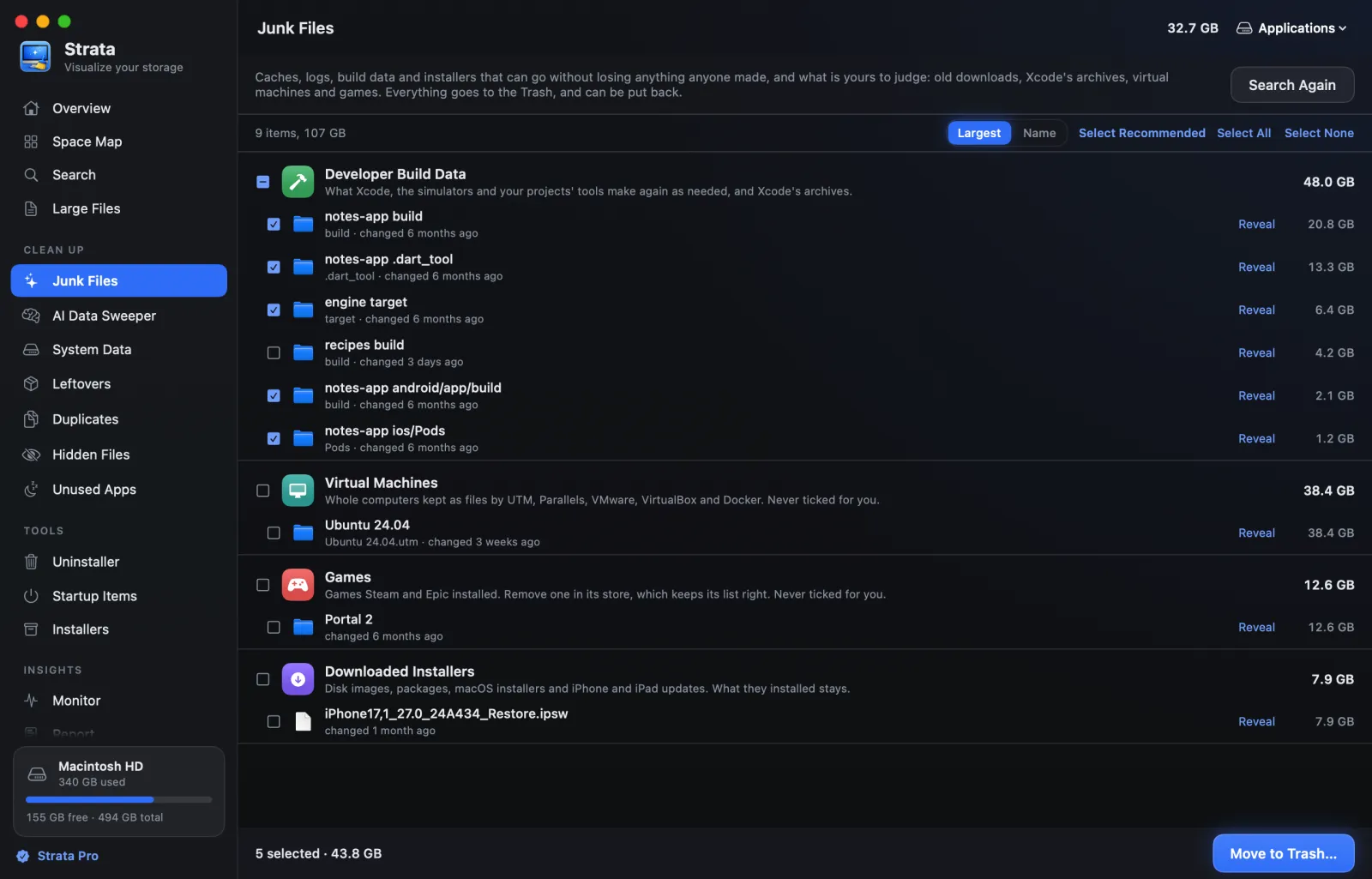
Strata does steps two and three in one list. Its Junk Files room, which needs Strata Pro or the trial, ticks what can go without losing anything you made: apps' caches and logs, Xcode's build data and, since version 1.0.29, the build output kept in projects where nothing has changed for three months. A project you changed recently keeps that folder; Xcode's own build data is ticked whatever the project's age, since Xcode builds it again. Downloads you have not used for three months, virtual machines and games are listed but never ticked for you, and Xcode's archives and installers start unticked.
Once the pressure is off, our step-by-step guide to freeing up space with Strata goes through the rest.
Why the free space figure can mislead you
The "available" figure that Finder and Storage settings show counts purgeable space: room macOS holds now, for caches and copies it can download again, and frees by itself when something needs it. So a disk can look roomier than it is.
On our MacBook Air on 14 October 2026, Finder's figure was 154.6 GB, but only
44.9 GB was actually unused; the other 109.7 GB was purgeable. diskutil info
/ agreed, with 44.9 GB of Container Free Space. Our guide to
purgeable space on a Mac explains what it holds and
how to free it.
Time Machine adds a twist. If it backs up automatically, it keeps an hourly snapshot of your
startup disk for a day, plus one of the last backup, kept until the space is needed, and these
hold the space of files you delete. Apple says your Mac counts that space as
available, and deletes snapshots when the space is needed, so Finder counts it as free while
diskutil does not. The purgeable space guide shows how to list them.
How to be warned before it gets this far
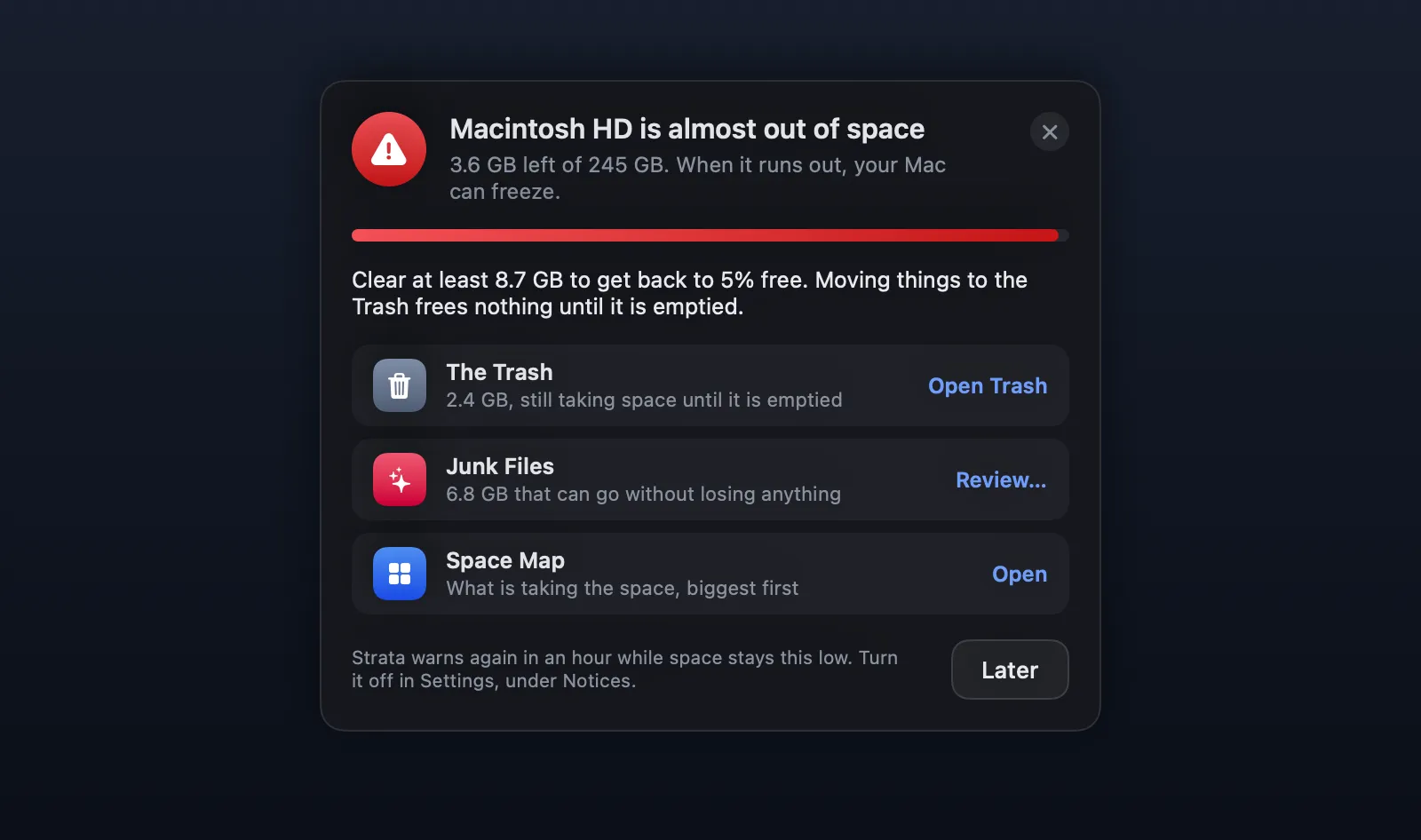
macOS will not warn you sooner, and you cannot ask it to. An app that watches the disk can. Strata's notices count the disk as almost full under a share you choose in its Settings, under Notices, from 2% to 20% of the disk: 10% unless you change it, which is 24.5 GB on a 245 GB disk.
At the default share, the fuller the disk gets, the more often and the louder they say so:
- Under your share: a notice once a day.
- Under 5% as well: an hourly notice with a sound, telling you how much to clear to get back to 5%.
- Under 2%: every hour, the card at the top of this page drops from Strata's icon in the menu bar (at the top right of the screen if the icon is hidden), over every app and on every Space. It shows what is left and how much to clear, with the Trash, Junk Files and the Space Map a click away, and closes by itself once the disk is back above 2%.
Strata reads the disk every minute, and a disk that drops under 5% or under 2% is warned about at once, rather than at the next interval. It goes by the figure Finder shows, so purgeable space counts as free. The warnings are worked out on your Mac and cost nothing; macOS asks once whether Strata may show notifications, and the card under 2% needs no permission. Only reviewing Junk Files from the card needs Strata Pro or the trial. Strata has to be open, as a window or in the menu bar; turn on Open Strata at login in its Settings so it always is. Strata's Settings guide lists each notice.
How to keep it from filling again
Storage settings offers three recommendations, which Apple's guide to optimizing storage describes: Store in iCloud, Optimize Storage, and Empty Trash Automatically, which erases items that have been in the Trash for more than 30 days. It adds that macOS "clears caches and logs that are safe to delete" whenever space is needed.
Beyond those, the disks that fill again fastest belong to people who make things: video, music, apps and virtual machines. Keep finished projects and old archives on an external drive, and look once a month at what grew. Strata's Report compares today's scan with an earlier one and shows exactly that, with Strata Pro: see how to see what changed on your disk.
Frequently asked questions
What does "Your startup disk is almost full" mean on a Mac?
The disk your Mac starts up from, usually called Macintosh HD, is running out of free space. On macOS 27 the warning is a notification that says "Your disk is almost full", from a background part of macOS called diskspaced; "Your startup disk is almost full" is the older wording. Apple does not publish the level at which it appears, and we found no setting to change it.
How much free space should a Mac have?
Apple gives no figure. Guides that say 10% or 15% are giving a rule of thumb, not Apple's rule. Leave room for the next macOS update and for your apps' working files. Strata counts a disk as almost full under 10% free unless you choose another share, from 2% to 20%.
I deleted files but my free space did not change. Why?
Deleted files wait in the Trash, and Apple says their space doesn't become available until you empty it. Time Machine's local snapshots can also hold the space of deleted files for a while. Apple says your Mac counts that space as available, so Finder's figure goes up, but diskutil's free space does not until the snapshots are deleted. And if what you deleted was purgeable, Finder's figure already counted it as free, so it does not move.
Can I make macOS warn me sooner?
Not in macOS: Apple documents no setting for its warning. Strata's notices count the disk as almost full under a share you choose in its Settings, under Notices, from 2% to 20% free, and warn more often as it fills: at the default 10%, once a day, then every hour under 5%, and with a card from the menu bar under 2%.
Is it safe to delete System Data to free space?
Not as a whole. System Data is a total of many things macOS manages, not a folder, and Apple says you can't manage its contents from Storage settings. Some parts of it can go, such as caches, logs and the leftovers of apps you removed. iPhone backups are counted apart, under iOS Files.
What if the disk is too full to install a macOS update?
Clear what you can first, starting with the Trash. If a task such as a macOS update still needs more room while it runs, Apple's article "Free up storage space on Mac" suggests starting up in safe mode: the Mac then clears certain system caches, which macOS makes again as needed. It may free only a little. Restart as usual afterwards. If your Mac does not start up all the way, Apple's article "If your Mac doesn't start up all the way" explains each screen it can stop at.
Know before your disk is full
Strata maps the whole disk in one scan, shows what can go, and warns you at the level you choose, more often as the disk fills.
The scan, the map, search and the disk warnings are free. Every download starts with 14 days of Strata Pro, removing up to 40 GB.