How to clear cache on a Mac, and which caches are worth clearing
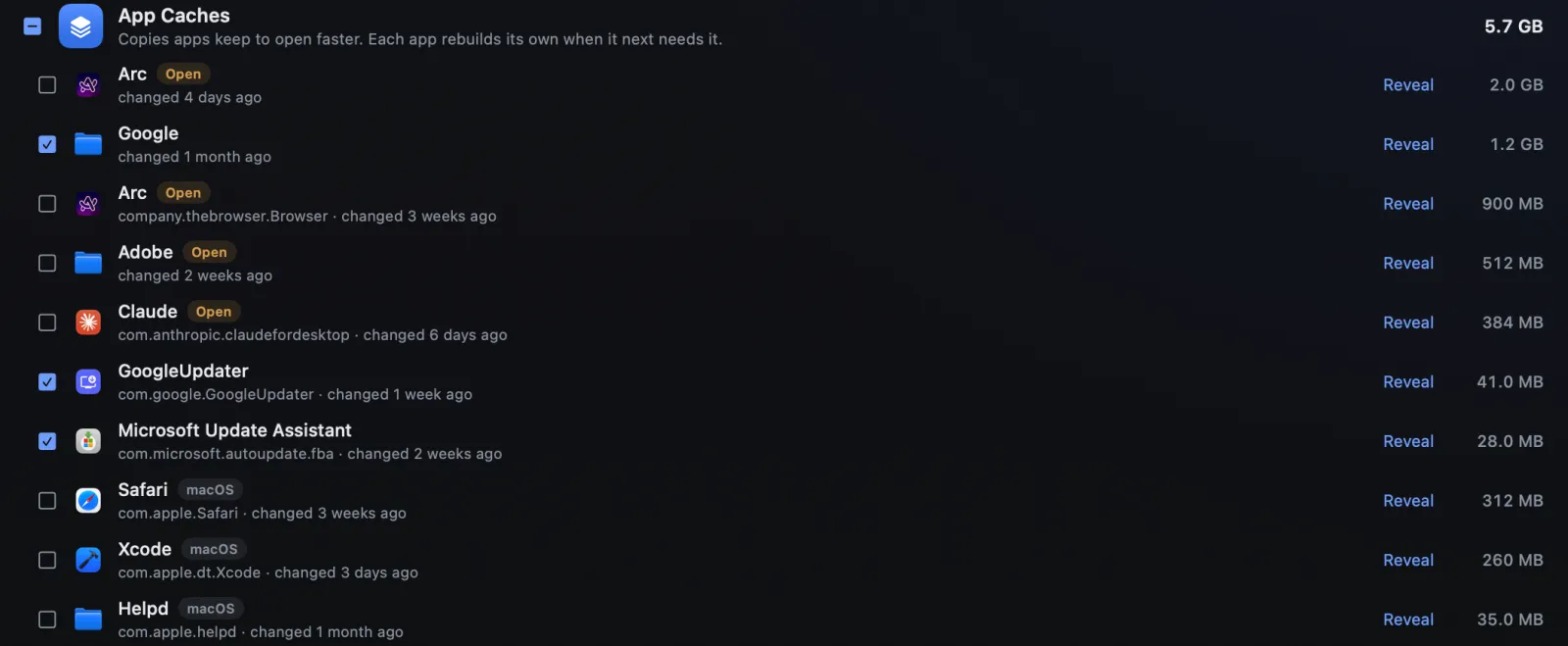
To clear cache on a Mac, quit the app, open ~/Library/Caches with Go to Folder, and move that app's folder to the Trash. Browsers have buttons of their own. That is the whole method. The rest of this guide is about when it is worth doing, which caches macOS already clears for you, the developer caches that are often the largest, and the ones to leave alone.
Key takeaways
- Most apps keep their caches in
~/Library/Caches, one folder per app: quit the app, move its folder there to the Trash, and it rebuilds what it needs. Browsers built on Chrome, and apps built like them, keep more beside their settings, in folders such as Cache, Code Cache and GPUCache; move only those, never the app's own folder. - Clearing a cache rarely speeds a Mac up; it is for a misbehaving app or site, or for space.
- macOS already clears caches and logs it considers safe when it needs room, and a daily job removes temporary files untouched for three days.
- The big caches are often developer tools': Homebrew, npm, pip and Xcode, each with its own command.
- Leave
/Library/Caches,/System/Library/Cachesand the Caches folder itself alone, and do not usesudo rm -rfon any of them.
How we tested: on a MacBook Air (M2) with macOS 27.0.1, Safari 27.0.1, Chrome 154, Xcode 27, Homebrew 7.0.8 and npm 11.19, on 6 and 7 October 2026, using read-only commands and Homebrew's dry runs. Safari and Chrome labels are from Apple's and Google's current help; Firefox's are from Firefox's own interface text. We deleted nothing to write this.
How to clear an app's cache
Quit the app, open ~/Library/Caches, and move that app's folder to the Trash. The
app makes a fresh one the next time it needs it. Step by step:
-
Quit the app
Choose Quit from its menu, or press Command-Q. A running app may be writing to its cache, and will start rebuilding it at once.
-
Open your Caches folder
In Finder, choose Go > Go to Folder, or press Shift-Command-G, type
~/Library/Cachesand press Return. -
Find the app's folder
Most are named after the app's bundle identifier, such as
company.thebrowser.Browserfor Arc orcom.anthropic.claudefordesktopfor Claude. Some use the developer's name instead: Chrome's cache is inGoogle/Chrome. Some keep more than one: Arc has anArcfolder as well, which was the larger of the two on our Mac. To see which are large, choose View > as List, then View > Show View Options, turn on Calculate all sizes, and sort by Size. -
Move that folder to the Trash
Select it and press Command-Delete. Move the app's folder, never the Caches folder itself, and do not select everything: Apple's own caches add up to little, and macOS manages them.
-
Open the app, then empty the Trash
The app makes a fresh cache. Once it works as it should, empty the Trash to get the space back.
In Terminal, macOS 15 and later include a trash command that moves files to the
Trash instead of deleting them, which is safer than the rm -rf many guides print:
trash ~/Library/Caches/com.example.appNo need to back up caches first. On our Mac, Time Machine excludes
~/Library/Caches and ~/Library/Logs from backups, as
tmutil isexcluded confirms. A backup would not hold them anyway, and the app
rebuilds them.
Where caches live on a Mac
Most apps keep their caches in one folder, ~/Library/Caches. Browsers built on
Chrome, and apps built the same way such as Slack, Discord and VS Code, keep more beside their
settings in ~/Library/Application Support, a set for each profile, and sandboxed
apps keep theirs inside their own containers. /Library/Caches and
/System/Library/Caches belong to macOS and are best left alone.
| Folder | What is in it | Clear it? |
|---|---|---|
~/Library/Caches | Your apps' caches, one folder each | Yes, one app's folder at a time |
~/Library/Containers/…/Caches | Caches of sandboxed apps, such as most App Store apps, inside each app's container | Yes for apps other than Apple's, one at a time, with the app quit |
~/Library/Application Support/… | More caches of browsers built on Chrome and apps built like them, such as GPUCache, beside each profile's settings | Only those folders, with the app quit; a browser's own button is simpler |
/Library/Caches | Caches shared by every account, owned by the system | No |
/System/Library/Caches | macOS's own | No: macOS protects it |
/private/var/folders | Your temporary files and a per-account cache folder | Leave it to macOS |
On our test Mac, ~/Library/Caches held about 3.6 GB in 127 items. Eighty of
them were named com.apple.; the 74 that macOS let us measure came to only about
0.19 GB, and the other six, Safari's among them, need Full Disk Access to measure. The
other 3.41 GB was in folders not named that way, mostly third-party apps' caches, which is
where clearing pays off.
When clearing a cache helps, and when it does not
A cache is a copy an app keeps so it does not have to fetch or work something out twice: thumbnails, downloaded web pages, compiled code. Apple's developer guidance describes cache files as data an app can re-create whenever it needs to, and tells developers never to depend on them being there. That is what makes clearing an app's cache safe.
It is also why clearing one rarely makes a Mac faster: the app's next launch or the site's next visit is slower while the copy is rebuilt. Google says as much about Chrome. Clearing is worth doing when:
- an app or a site misbehaves, and a damaged cache is the likely cause;
- you need space now, and one cache has grown large;
- the app is gone, and its cache stayed behind.
And there is less to do than most guides suggest. Apple's Mac User Guide says that when space is needed, macOS also "clears caches and logs that are safe to delete", such as interrupted downloads, staged updates and Safari website data.
How to clear the cache in Safari, Chrome and Firefox
Safari
To clear only the cache, turn on Safari > Settings > Advanced > Show features for web developers, then choose Develop > Empty Caches from the menu bar. Older guides call the setting "Show Develop menu in menu bar"; it was renamed when Safari 17 came out.
To clear cache and cookies for particular sites, use Safari > Settings > Privacy > Manage Website Data. Apple warns this "may also sign you out of websites". Clear History goes further than it sounds: Safari's own warning says it takes the cookies and other data those sites stored, too. Safari has a separate command, Clear History and Keep Website Data, for history alone.
Chrome
Choose More (the three dots at the top right) > Delete browsing data, or press Command-Shift-Delete. Pick a time range, tick only Cached images and files, and click Delete data. Google's help calls the menu item Delete browsing data; older guides still say Clear.
Firefox
Choose History > Clear Recent History, set the range to Everything, tick only Temporary cached files and pages, and click Clear. Leave cookies unticked unless you want to be signed out of sites.
System caches and temporary files: let macOS do it
- Temporary files clean themselves. Since macOS 14, a job runs every day and
removes items in
/tmpthat nobody has touched for three days, and the manual page for your own temporary folder says its files may be removed after three days unused. One exception has been reported on macOS Sonoma and Sequoia: aborted Aerial wallpaper downloads piling up in root's temporary folder, where no app can see them. - Safe mode clears more. Apple says starting up in safe mode clears some system caches, including font caches and the kernel cache, which macOS rebuilds; macOS's own documentation adds that it empties your per-account cache folder too. On a Mac with Apple silicon, shut down, hold the power button until the startup options appear, select the startup disk, then hold Shift and click Continue in Safe Mode. Restart normally to leave.
- System folders are protected. On our Mac,
/System/Library/Cachescannot be deleted at all, and parts of/Library/Cachescannot even be listed. Guides that send you into either are sending you where macOS keeps its own. - The DNS cache is not a disk cache. If a website will not load after a change,
restarting the Mac refreshes it. Apple's
archived article gives
sudo killall -HUP mDNSResponderfor OS X 10.10.4 and later. It frees no disk space, whatever some guides imply.
Developer caches: often the largest
On a developer's Mac, package managers and Xcode often keep the largest caches, and none of them clears itself completely. Each has its own command, which is safer than deleting the folder. Several live in folders whose names start with a dot, which Finder hides.
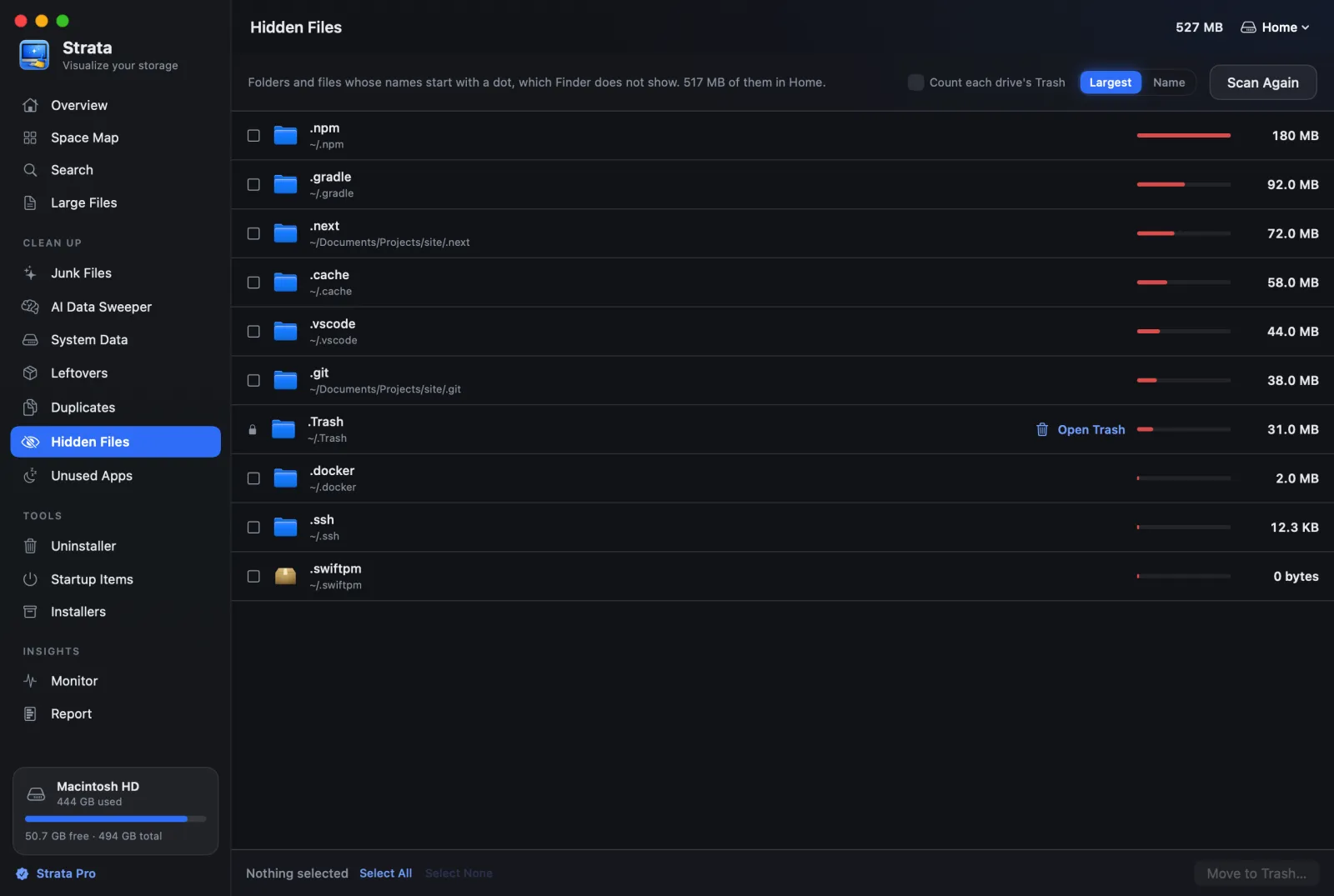
.npm, .gradle
and .cache. Strata's Hidden Files room, part of Strata Pro, lists them by size;
shown here with a demonstration home folder.Homebrew
Homebrew keeps downloads in ~/Library/Caches/Homebrew and tidies some of them
itself. On our Mac its cache took 183 MB, and the dry runs showed how differently its
options behave: Homebrew said the plain clean-up would free about 1.4 MB, and
--prune=all about 138.6 MB.
brew cleanup --dry-run
brew cleanup --prune=all
npm
npm's cache is in ~/.npm, and npm never removes cache data by itself. Its docs say
clearing it is rarely necessary and offer npm cache verify, which garbage-collects
what is no longer needed; npm cache clean --force empties it. On our Mac the surprise
was the separate cache of npx: 229 MB, against 139 MB in the main cache.
npm 11 manages it with npm cache npx ls and npm cache npx rm.
Strata's Junk Files lists the npx cache on a line of its own, and Optimize leaves it while Node
is running.
npm cache verify
npm cache npx ls
pip and Xcode
pip cache purge empties pip's cache, in ~/Library/Caches/pip by
default. Xcode's build data lives in ~/Library/Developer/Xcode/DerivedData, one folder
per project; Apple's Xcode help says it can be rebuilt from your source at any time, so a
project's folder can go. Our guide to System Data covers
Xcode's simulators, which are larger still.
What not to do
Do not run sudo rm -rf ~/Library/Caches/*. Some guides print it.
It deletes every app's cache, Apple's included, permanently and past the Trash, with
administrator rights the folder does not even need, because it is yours. One typo in a command
like that can delete far more than caches.
- Do not delete the Caches folder itself, only what is inside it.
- Do not clear caches to fix a slow Mac. Apps are slower until their caches are rebuilt. Look at memory and disk space instead.
- Do not turn on Content Caching to see your caches. One guide suggests it. Activity Monitor's Cache tab shows Content Caching, a sharing service that keeps software updates for other devices, which adds a cache rather than showing yours.
How Strata's Junk Files clears caches
Strata's Junk Files room lists every app's cache folder by app, including the caches browsers
and apps like Slack and VS Code keep beside their settings, profile by profile, and, with Full
Disk Access, those sandboxed apps keep in their containers. It also lists logs and crash
reports, package caches from Homebrew, npm, pip and others, Xcode's build data, and
installers, macOS installers among them. Projects' node_modules and build output
are there too, ticked only once their project has gone three months without a change.
Otherwise it ticks only what nobody will miss: never macOS's own caches, never the caches of apps
that are open, never Xcode's device support or an installer you may be keeping. It offers a
cache folder, never the Caches folder itself, leaves out anything under 1 MB, and moves what
you choose to the Trash, where Put Back undoes it. Junk Files is part of Strata Pro, which every
download includes for its first 14 days.
Frequently asked questions
Is it safe to delete cache files on a Mac?
Your apps' caches, yes: Apple describes cache files as data an app can re-create and tells developers never to rely on them. Quit the app first and remove its folder inside ~/Library/Caches, not the Caches folder itself. Leave /Library/Caches and /System/Library/Caches to macOS.
Does clearing the cache speed up a Mac?
Rarely. A cache exists to make things faster, so clearing one makes the next launch or page load slower while it is rebuilt. It helps when a cache is damaged and an app or site misbehaves, or when you need disk space now.
How often should I clear the cache on a Mac?
There is no schedule to keep. macOS clears caches and logs it considers safe when space is needed, and a daily job removes temporary files nobody has touched for three days. Clear a cache when an app or site misbehaves, or when one has grown large.
Will clearing the cache sign me out of websites?
Clearing only the cache should not. Clearing cookies and website data can: Apple and Google both warn it may sign you out of sites. In Safari, Empty Caches clears the cache alone, while Manage Website Data and Clear History also remove cookies and website data.
Where is the cache folder on a Mac?
Most apps' caches are in ~/Library/Caches, the Library folder inside your home folder. To open it, choose Go, Go to Folder in Finder, or press Shift-Command-G, and type ~/Library/Caches. Most apps keep a folder there named after them or their developer.
How do I clear temporary files on a Mac?
Mostly, you do not need to. macOS removes files in /tmp that nobody has touched for three days, and files in your own temporary folder can be removed after three days unused. Starting up in safe mode clears some system caches and your per-account cache folder.
See every cache before you clear it
Strata shows each app's cache with its size and when it last changed, ticks the ones that are safe, and moves them to the Trash. The rest of your disk is a click away in the map.
The scan, the map and search are free forever. Every download starts with 14 days of Strata Pro, removing up to 40 GB.