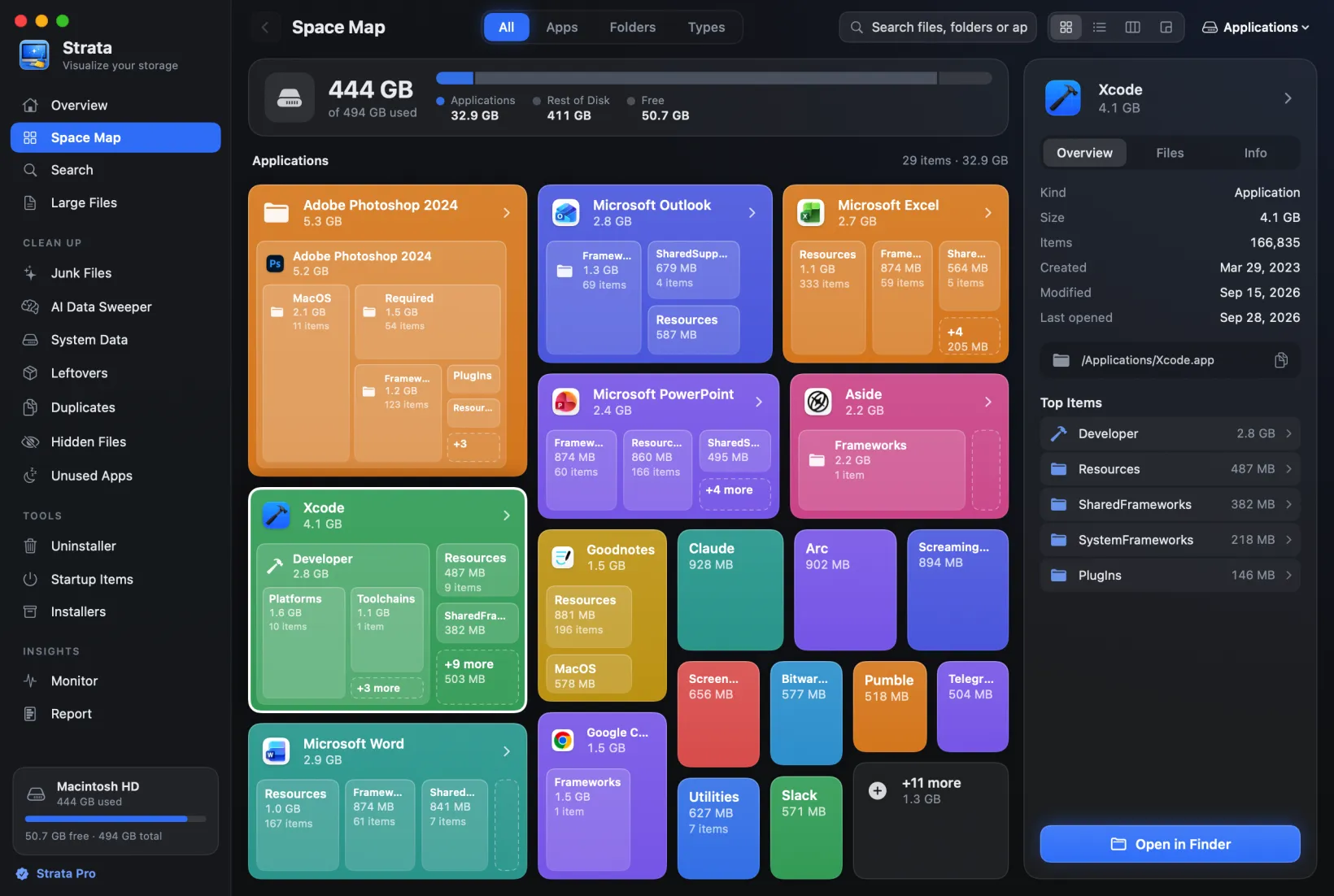
What System Data is on a Mac, and how to make it smaller
System Data is not a folder. It is the category in your Mac's storage settings that holds whatever fits nowhere else, and after an upgrade to macOS 27 it can run to tens of gigabytes. Here is what Apple says System Data on a Mac contains, what we found on a test Mac, which parts you can safely shrink, and which ones to leave alone.
Key takeaways
- System Data is Apple's leftover category: logs, caches, swap files, temporary files, fonts, app support files and plug-ins. Apple says macOS manages it.
- It is not a folder, so nothing called System Data can be deleted. You shrink it by clearing what it is made of.
- iPhone backups, Mail, Messages and the Trash have their own categories in macOS 27, and Downloads counts under Documents, though many guides put them in System Data.
- The safe wins are caches and leftovers of removed apps, and Docker's disk image if you use Docker; Time Machine's local snapshots too, if macOS 27 counts them there.
- Leave swap, the sleep image, the Preboot and Recovery volumes and
/Systemalone, and never turn off System Integrity Protection to clean.
How we tested: on a MacBook Air (M2, 16 GB, 512 GB) running
macOS 27.0.1 with System Integrity Protection on, on 6 and 7 October 2026, with read-only commands
(df, diskutil, tmutil, du,
xcrun simctl) and Strata 1.0.19. Some folders refused du without Full
Disk Access, so those sizes are minimums. We deleted nothing to write this.
What System Data is, in Apple's words
In System Settings > General > Storage, macOS sorts your disk into categories. Apple's macOS 27 guide to Storage settings describes System Data as the files that do not belong in any other category: mainly what the system itself uses, such as log files, caches, virtual memory files and other resources it needs while running, plus temporary files, fonts, app support files and plug-ins. It also says you cannot manage what is in it: macOS does, and its size changes with the state of your Mac.
That is the whole problem in two sentences. System Data is defined by what it is not, so it collects things from all over the disk, and the Storage pane gives you no button for it. Apple's guide for macOS 11 and 12 said outright that "the categories do not correspond to specific folders on your Mac", and before macOS Monterey the same leftover category was called Other.
How to see it
Open System Settings > General > Storage. The list under the bar gives each category's size, System Data included, but unlike Documents or Applications it cannot be opened: Apple's guide lists it, with macOS and Other Users & Shared, among the categories that only show their size. Click All Volumes for a chart of every volume and container on the internal disk, which should also list the hidden volumes covered below.
What is not in System Data
This is where most guides go wrong. Apple's same guide gives these their own categories, so they are not part of System Data even though they are often blamed for it:
| Category in Storage | What Apple puts there |
|---|---|
| macOS | macOS's own apps and files, such as Mail, Terminal and Calculator |
| iOS Files | iPhone and iPad backups, and iOS installers |
| Email and attachments | |
| Messages | Conversations, attachments included |
| Documents | Files in your home folder that no other category claims, Downloads included |
| Trash | What is waiting in the Trash |
Two more are worth knowing on macOS 27. Apple Intelligence's models, which Apple says need up to 14 GB on some Macs and up to 8 GB on others, appear under macOS, according to MacRumors' measurements, which found more than 20 GB on one Mac. And the system files of macOS 27.0.1 include a Developer category, with items for Xcode's build data and simulators, which Apple's guide does not mention; on a Mac with Xcode, that is most likely where they land rather than in System Data.
So if your iPhone backups are large, look under iOS Files; our guide to iPhone backups on a Mac covers deleting them.
What we found on a test Mac
Because System Data is a category rather than a place, the only way to understand it is to measure the places that feed it. These are the main ones on our test Mac. The last column is Apple's documentation where it says, and our reading where it does not.
| What | Size on our Mac | Counted as |
|---|---|---|
Swap and a kernel file on the VM volume (three 1 GiB swap files and a 1 GiB kernelcore) | 4.30 GB | System Data (Apple's "VM files") |
The sleep image, /private/var/vm/sleepimage, on the Data volume | 2.15 GB | System Data, by our reading |
Your caches, ~/Library/Caches | 3.60 GB at least | System Data |
System logs, /private/var/db/diagnostics and uuidtext | 2.10 GB | System Data |
Temporary files and caches, /private/var/folders | 0.96 GB at least | System Data |
| Time Machine local snapshots | 6 snapshots | Available space, per Apple (see below) |
| The Preboot volume, which holds boot data and parts of macOS Apple can patch | 10.95 GB | Not documented |
| The Recovery volume | 1.54 GB | Not documented |
| The sealed system volume | 13.66 GB | macOS, by our reading of Apple's description |
| Xcode's iOS and watchOS simulator runtimes | 11.88 GB on disk | Probably Developer |
Our temporary-files figure is a floor: part of /private/var/folders belongs to
root, and no app can measure it without the administrator password. On macOS Sonoma and
Sequoia, that is where aborted Aerial wallpaper downloads have been found piling
up.
The simulator row is a trap worth knowing about. Mounted, the two runtimes report 18.56 GB
and 9.33 GB; on disk, their images take 8.07 GB and 3.81 GB. Tools that add up
the mounted sizes count 16 GB that is not there. On our Mac, with Xcode 27, the images sit
in /System/Library/AssetsV2, a folder System Integrity Protection guards, not in
the CoreSimulator folder older guides point to.
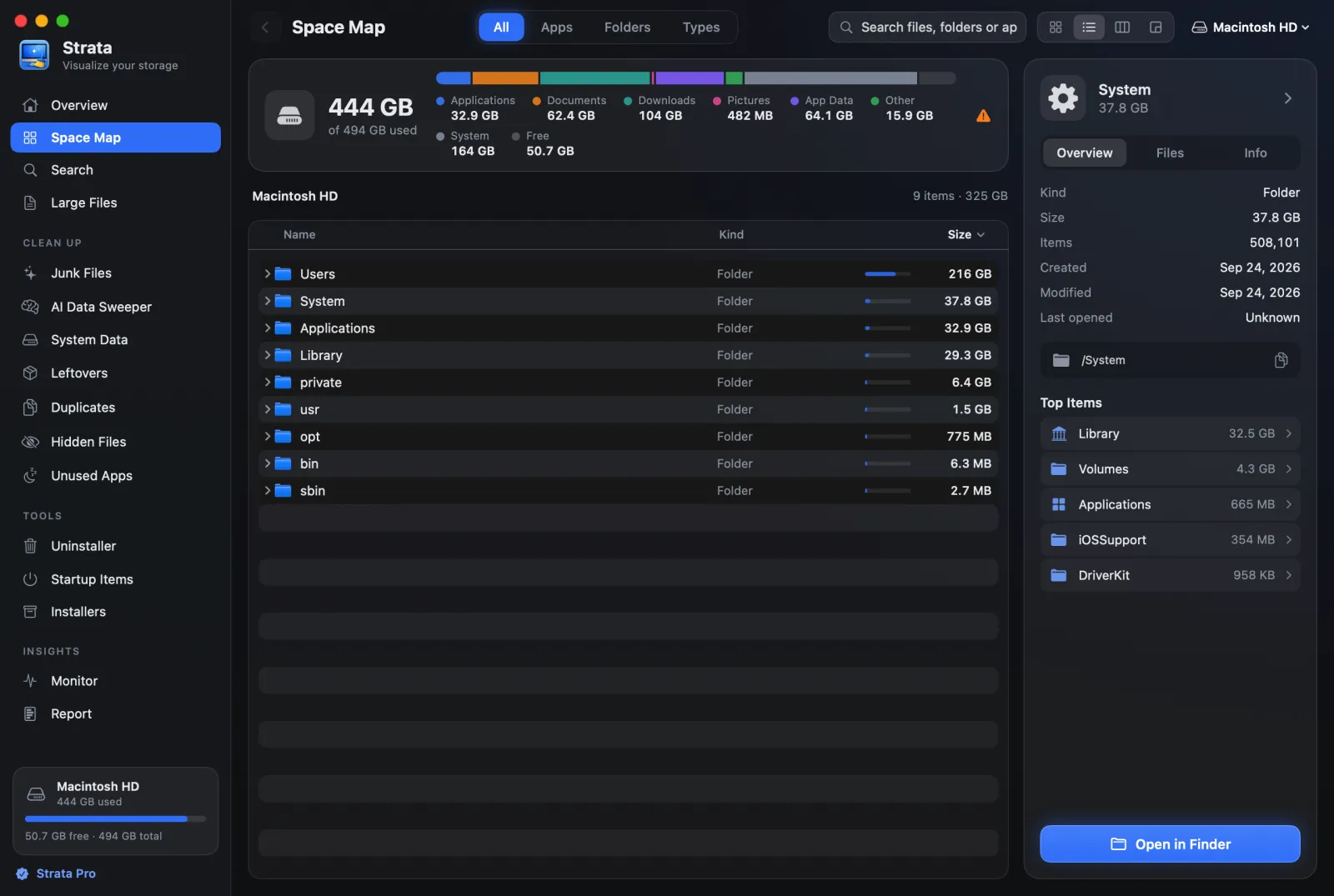
/System selected: 32.5 GB in
its Library folder, protected AssetsV2 folder included, and 4.3 GB in Volumes, the size of
our VM volume.The parts you can shrink, safely
1. Caches and logs
Caches are the part of System Data you can most easily clear yourself, and macOS already
clears caches and logs it considers safe when space runs short. To clear an app's cache now,
quit the app and move its folder in ~/Library/Caches to the Trash; never the Caches
folder itself, and leave the ones named com.apple. to macOS. The full method is in
how to clear cache on a Mac.
2. What deleted apps left behind
App support files are part of System Data, and dragging an app to the Trash leaves its folders in your Library. Our guide to uninstalling Mac apps completely covers where they hide and how to tell which ones are safe.
3. Docker's disk image
Docker Desktop keeps every image and container in one large disk image, shown with its size in
Docker's Settings > Resources > Advanced. Apple does not say which category counts it;
users report it in System Data. Docker's
Mac
FAQ says docker system prune removes stopped containers, unused networks,
dangling images and build cache, and that the file shrinks only when images are deleted. Move it
only through Docker's settings, never in Finder, and know that lowering its maximum size there
deletes every image and container in it. With Full Disk Access, Strata's Junk Files lists
Docker's disk among virtual machines, with when it last changed, and never ticks it. The row's
note says to remove what you no longer need in Docker, or with docker system prune:
moved to the Trash, the disk takes every image, container and volume with it.
4. Time Machine's local snapshots
If Time Machine backs up automatically, it keeps hourly snapshots on your startup disk for 24 hours, plus one of the last backup. Apple says macOS counts their space as available (Apple's article on local snapshots), but on macOS 27 they may show inside System Data (see below). To clear them, open System Settings > General > Time Machine, click Options, set Backup Frequency to Manually, wait a few minutes, then set it back. It costs you only the local restore points; your backups on the Time Machine disk stay. Our guide to purgeable space has the Disk Utility and Terminal routes too.
5. Xcode's simulators and build data
On macOS 27 these most likely count under Developer rather than System Data, but they are the
same disk, and often the largest items on a developer's Mac. Apple's documented route is Xcode
> Settings > Components, which lists each simulator runtime with the space removing it
recovers; click its Info button, then Delete. In Terminal, xcrun simctl can list
them and delete old ones, with a dry run first:
xcrun simctl runtime list
xcrun simctl runtime delete --notUsedSinceDays 90 --dry-run
Xcode's build data in ~/Library/Developer/Xcode/DerivedData can go too: Apple's
Xcode help says it can be rebuilt from your source at any time.
Strata's System Data room lists each simulator runtime at the size of its disk image, with Open Xcode
to remove it there. It counts in decimal gigabytes, as Finder does, so its total reads a little
higher than the binary total xcrun simctl runtime list prints. Strata's Junk Files
room lists Xcode's build data by project, and the simulators for a version of iOS that is
no longer installed, which cannot run; Xcode's archives are listed there but not ticked.
What to leave alone
Do not delete swap or the sleep image. The swap files hold memory that running
apps are still using, and the sleep image is the copy of memory the Mac restores from after a
power loss. macOS recreates and manages both. Old guides that say to delete
/private/var/vm/sleepimage with sudo are advice from another era.
- The Preboot, Recovery and system volumes. Apple's Platform Security guide describes what each holds: what the Mac needs to start up, to start recovery, and macOS itself, sealed and signed. None of it is yours to trim.
- Anything in
/System, including Apple's AI models. They live in/System/Library/AssetsV2, which System Integrity Protection guards. In Apple's developer forums, an Apple engineer said removing files there with that protection turned off is not a supported approach. Turning off features you do not use is the only lever Apple gives you, and it does not document whether that frees their space. - The Spotlight index. Some guides tell you to delete it with
rm -rf. Apple's way to rebuild it is to add the disk to Spotlight's privacy list in System Settings, wait a few seconds and remove it again (Apple's article).
Why System Data grows and shrinks by itself
- Snapshots come and go every hour. On our Mac two expired and a new one appeared within sixteen minutes.
- Updates are staged first. Apple lists staged macOS and app updates among the things macOS clears when space runs low, so a pending update sits in the figure until then.
- Swap grows with memory pressure. All three swap files on our Mac had been created since its last restart.
- The calculation takes time. Storage settings shows "Calculating" while it works the figures out, so a number read too early can change.
- macOS 27 may count it differently. An experienced member of Apple's forums reports that macOS 27 now counts space it can reclaim, such as caches and snapshots, inside System Data rather than as available space, which would explain the jumps people saw after upgrading (the user tip). Apple has not said so, and its macOS 27 guide still describes available space as including purgeable caches. On our Mac, macOS still reported about 13 GB of purgeable space to apps. If yours jumped right after updating, see System Data after the macOS 27 update for what to check.
How Strata helps
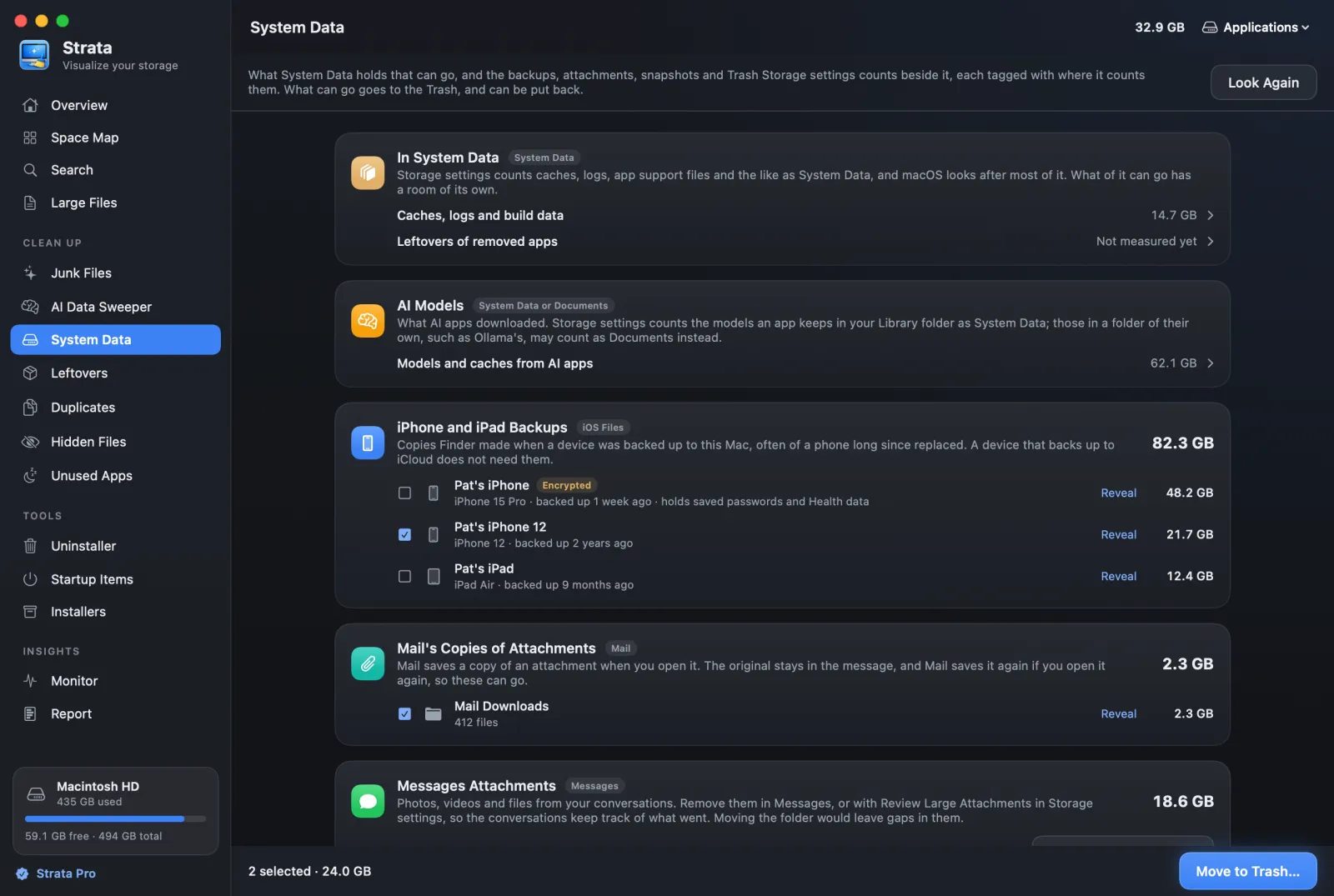
Strata's Overview splits the whole disk into what is yours, what apps keep, and what macOS needs. Its System Data room, pictured at the top, starts with what in System Data can go: caches and logs, and leftovers of removed apps, each with a room of its own. Next come AI models, which Storage settings counts by where each app keeps them, then what it counts beside System Data: device backups by name and age, Mail's copies of attachments, Messages attachments, and, where there are any, Xcode's simulators and the sounds GarageBand and Logic Pro download, then Time Machine's snapshots and the Trash, each tagged with where Storage settings counts it. Backups and Mail's copies go to the Trash, where they can be put back. Simulators are removed in Xcode and sounds in Storage settings, and snapshots stay with Time Machine. The room is part of Strata Pro, which every download includes for its first 14 days.
Frequently asked questions
Can I delete System Data on a Mac?
Not as such: it is a category in Storage settings, not a folder, and Apple says macOS manages what is in it. You make it smaller by removing the things it is made of, such as old caches, logs or leftovers of removed apps, each in its own way. Users report Docker's disk image there too.
Why is System Data so large on my Mac?
Usually a few large items: app caches, leftovers of apps you removed, and swap when memory is under pressure; users also point to Docker's disk image, and say it is often larger for a few days after a macOS upgrade. Experienced users report that macOS 27 also counts space it can reclaim there, such as snapshots, which Apple has not confirmed.
Is it safe to delete files from System Data?
Some of it is. Caches of apps you are not using, leftovers of removed apps, Docker images and old Time Machine snapshots can go, through the routes in this guide. Swap files, the sleep image, the Preboot and Recovery volumes and anything under /System must be left alone.
How much System Data is normal on a Mac?
Apple does not say, and the numbers in other guides are not sourced. It depends on the apps you use, how much memory pressure the Mac is under, and whether Time Machine and developer tools are in use. Compare it with itself over a few days rather than with someone else's Mac.
Does restarting a Mac reduce System Data?
It can shrink the swap files, which macOS creates again as memory fills, and Apple says starting up in safe mode clears some system caches, such as font caches and the kernel cache, which macOS rebuilds as needed. Neither is a lasting fix. The lasting ones are removing what you do not need: caches, leftovers, old snapshots and the like.
Are iPhone backups part of System Data?
Not according to Apple. In macOS 27, Storage settings counts iPhone and iPad backups under iOS Files, email under Mail, Messages attachments under Messages, and Downloads under Documents. Many guides put them in System Data; Apple's own guide does not.
See what System Data is made of
Strata scans the whole disk in one pass and splits it into what is yours, what apps keep and what macOS needs, so the bar in Storage settings becomes a list of things you can decide about.
The scan, the map and search are free forever. Every download starts with 14 days of Strata Pro, removing up to 40 GB.