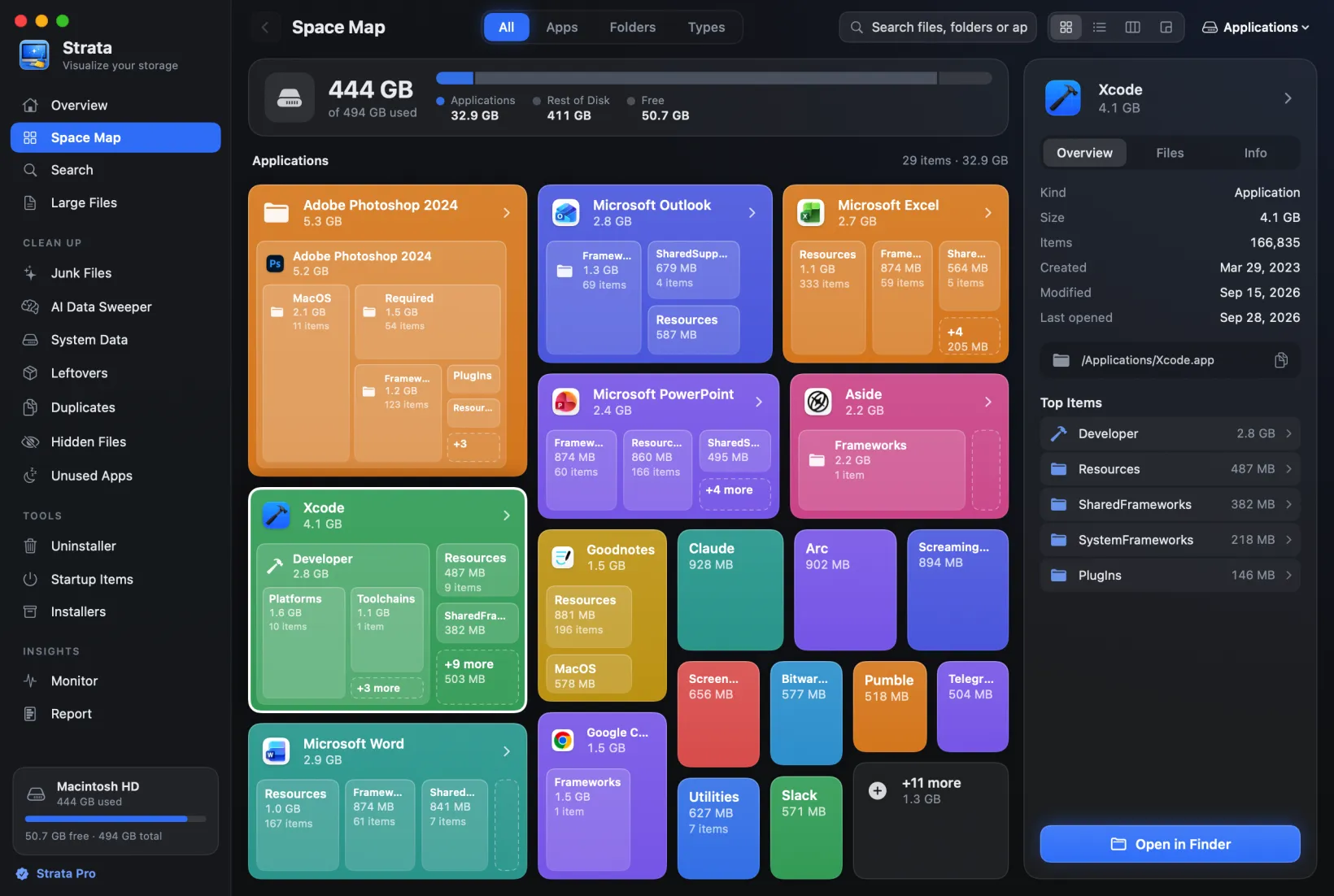
Where iPhone backups are stored on a Mac, and how to delete old ones
Every iPhone or iPad you back up to your Mac leaves its backup in one hidden folder, named with an ID rather than the device's name, and nothing removes the backup of a phone you have stopped using. Here is where iPhone backups are stored on a Mac, the two ways macOS lets you delete them by name, and how to decide which ones can go.
Key takeaways
- Backups are in
~/Library/Application Support/MobileSync/Backup, one folder per device plus one for each archived backup, named with an ID instead of the device's name. - Delete them by name in Finder (connect the device, then Manage Backups) or, with no device to hand, in System Settings > General > Storage > iOS Files.
- Keep the latest backup of every device you still use. Backups of devices you no longer have, and encrypted ones whose password is lost, can go.
- iCloud backups take no space on the Mac, and deleting a Mac backup leaves them alone.
- There is no supported way to move backups to an external drive.
How we wrote this: steps and labels are from Apple's current documentation for macOS 27, checked on 6 October 2026, and from the Mac this guide was tested on (macOS 27.0.1). Where Apple's guidance has changed, we say so and link the older version. We did not delete anyone's real backup to write it.
Where iPhone backups are stored on a Mac
Finder, and iTunes before it on older Macs, keeps device backups in your user Library, in a folder Apple names in its article on locating backups:
~/Library/Application Support/MobileSync/BackupTo open it, choose Go > Go to Folder in Finder's menu bar and paste the path. Apple used to suggest finding it with Spotlight and no longer does, and in Apple's forums someone on macOS 26 could not find it by searching, so use Go to Folder.
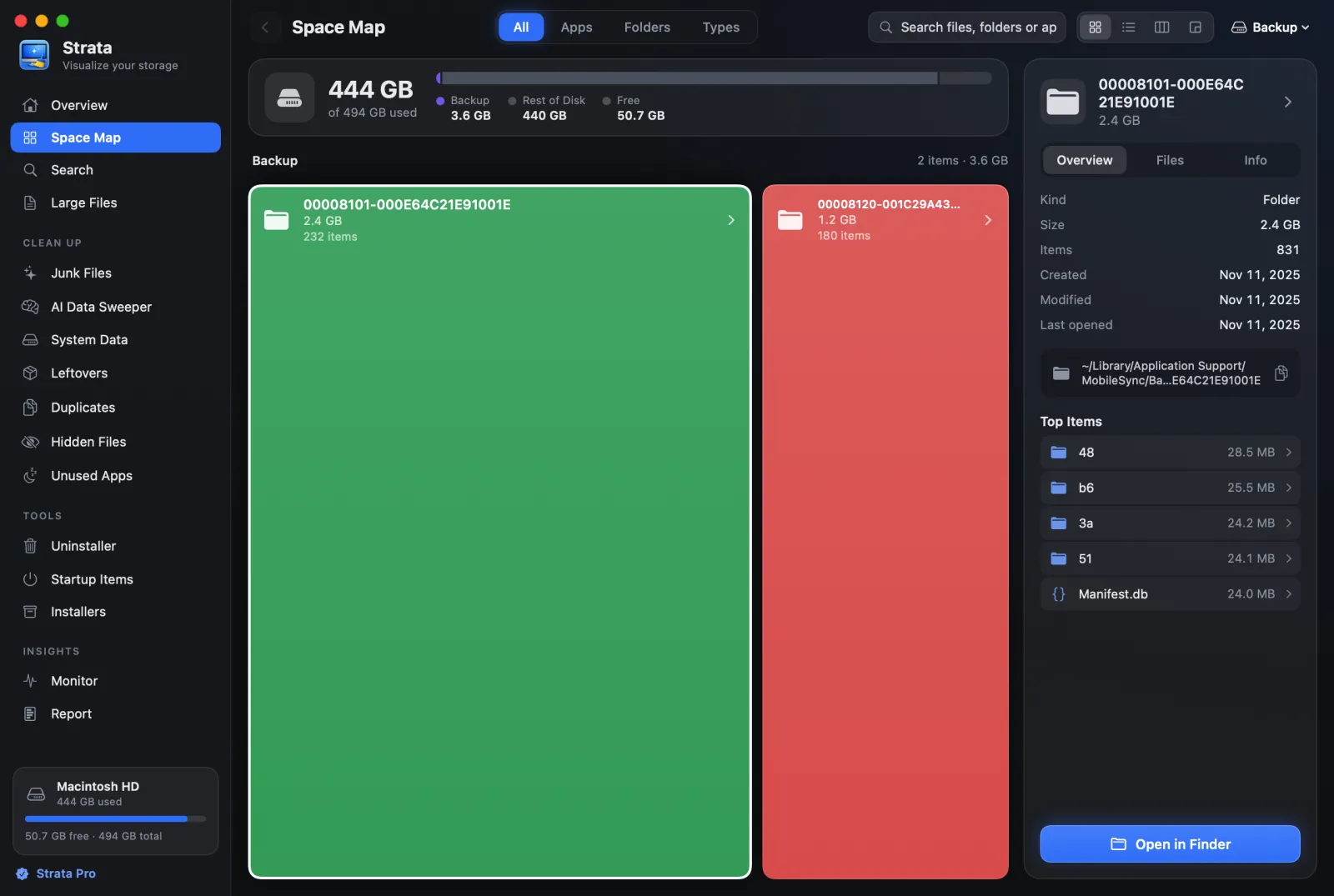
Inside are folders named with an identifier rather than the device's name, like the made-up
00008101-000E64C21E91001E in the picture above: one per device, plus one for each
archived backup. Nothing in the name tells you whether
it is your current iPhone or one you sold three years ago, which is why the folder is the worst
place to decide what to delete.
"Operation not permitted" in Terminal. macOS protects this folder. On our test Mac, listing it from a Terminal without Full Disk Access failed with that error. Apple's description of Full Disk Access does not name the folder, but in practice Terminal, and any app that measures it, needs the permission. See what Full Disk Access allows.
How to see your backups, by device name
Finder shows backups by name and date, and Storage settings lists them too. Use either one; you do not need the folder at all.
In Finder, with the device connected
- Connect the iPhone or iPad with a cable, or over Wi-Fi if you have set that up, and select it in Finder's sidebar. Trust the Mac on the device if asked.
- In the General tab, click Manage Backups.
- Each backup is listed with the device's name and the date it was made. A lock means it is encrypted.
In System Settings, with no device at all
Apple's guide to finding and deleting files describes an iOS Files category in System Settings > General > Storage that holds iOS backups and firmware. Click the Info button beside it to see each backup. This is the way when you have no device to connect.
How to delete an old iPhone backup
-
From Finder
In Manage Backups, right-click the backup you no longer need and choose Delete, then click OK when you are done. The same menu offers Archive and Show in Finder.
-
Or from Storage settings
In System Settings > General > Storage, click the Info button next to iOS Files, select the backup and click Delete.
-
Check the space came back
If you dragged a backup folder to the Trash instead, the space returns only when you empty it. Time Machine's local snapshots can also keep the old files for a while; macOS counts that space as available and clears it when it is needed. More on that in purgeable space.
Apple's current article says right-click and Delete. Many guides, and Apple's own older versions of the steps, call it a Delete Backup button; you may still see that wording.
Which backups can go
| Backup | Verdict |
|---|---|
| A device you no longer own | Delete it, unless there is something on it you never moved anywhere else |
| The latest backup of a device you use | Keep it, unless iCloud Backup is on and you are happy to rely on that |
| An archived backup | Delete it if you no longer need that moment. Archived backups are not replaced by later ones, so they pile up |
| An encrypted backup whose password you have lost | It cannot be restored, so it is dead weight |
A note on the last row. Apple's article on a forgotten backup password explains how to reset the password on the device so you can make a new encrypted backup, and says a new password will not unlock the old ones.
What an encrypted backup holds
Backups to a Mac are not encrypted unless you turn on Encrypt local backup. Apple says encrypted ones can also hold saved passwords, Wi-Fi settings, website history, Health data and call history, which unencrypted ones leave out. That is the reason to keep an encrypted backup of a phone you still use, and to think twice before deleting it.
iCloud backups are separate
A device can back up to iCloud or to the Mac; Finder's General tab offers both. Apple's comparison of the two says iCloud backups are stored in iCloud and are always encrypted, while computer backups are limited by the Mac's available space. So an iCloud backup takes nothing from your Mac, and deleting a backup on the Mac does not touch it. iCloud backups are managed in System Settings > [your name] > iCloud, under Manage > Backups.
How big an iPhone backup gets
Apple does not publish a typical size, and neither will we. What it does publish is what goes in: nearly all of the device's data and settings, including app data and the Camera Roll, and not what is already in iCloud, such as iCloud Photos and messages in iCloud. So the backup of a phone full of photos that are not in iCloud Photos is large, and the backup of one that syncs its photos to iCloud can be small. Owners in Apple's community forums describe single backups of about 40 to 49 GB.
Can you move backups to an external drive?
Not in any way Apple supports. As late as September 2023, Apple's article on backups said never to move the Backup folder to another drive, and to copy it whole if you wanted a copy. The current version dropped those lines without adding a way to relocate it.
The usual workaround, replacing the folder with a symbolic link to an external drive, has been reported failing since macOS Ventura 13.3.1 (a), and an experienced member of Apple's forums warns that no restore from one has been shown to work. We would not trust a phone's only backup to it. If space is the problem, delete old backups or back up to iCloud.
The iOS installers beside them
Storage settings' iOS Files covers more than backups. On our Mac, the macOS 27.0.1 component
behind that category also looks in ~/Library/iTunes/iPhone Software Updates and
the matching iPad folder, where the Mac keeps the iOS installers (.ipsw files) it
downloads to update or restore a device. An installer is not a backup: it holds iOS, not your
data. If you develop apps, Xcode also keeps an iOS DeviceSupport folder, with a
subfolder for each iOS version it has seen; according to a developer in Apple's forums, Xcode
copies those files from the device again the next time it is connected for debugging.
Strata's Junk Files lists those .ipsw files among the installers, and Xcode's
device support folders under build data, and ticks neither for you.
How Strata shows backups
Strata's System Data room lists every device backup on the Mac by the device's name and model, with how old it is and an Encrypted tag where it applies, on a card tagged iOS Files, the category Storage settings counts them in. It moves the ones you choose to the Trash, where they stay until you empty it. Like Terminal, it needs Full Disk Access to see this folder at all. The room is part of Strata Pro, which every download includes for its first 14 days. The Space Map, free in every copy, shows the same folder by size, as above, if you would rather look before you choose.
Frequently asked questions
Is it safe to delete old iPhone backups on a Mac?
Yes, for a device you no longer use, or once you have a newer backup you trust. A backup is only a copy: deleting it does not change anything on the iPhone. Before deleting the only backup of a phone you still use, check that iCloud Backup is on, or make a fresh backup first.
Will deleting an iPhone backup on my Mac delete my photos?
No. The backup is a copy kept on the Mac. Deleting it removes that copy and nothing on the iPhone, in iCloud Photos or in the Photos library on your Mac.
Can I delete an iPhone backup without the iPhone connected?
Yes. In System Settings, General, Storage, click the Info button next to iOS Files, the category Apple says holds iOS backups, then select the backup and click Delete. That list comes from the backup folder on the Mac, not from the device.
How do I know which backup belongs to which iPhone?
Use Finder's Manage Backups list, which shows each backup with the device's name and the date it was made. The folders in MobileSync are named with device identifiers, which tell you nothing on their own.
Can I keep iPhone backups on an external drive?
Not in any way Apple supports. Apple's older guidance said never to move the Backup folder, and the common workaround, a symbolic link, has been reported failing since macOS Ventura. If you need the space, delete old backups, or back up to iCloud instead.
Find every backup on your Mac
Strata's System Data room shows your device backups by name and age, beside Mail's copies of attachments, Messages attachments and Time Machine's snapshots: the large things on a Mac that no folder you normally open will show you.
The scan, the map and search are free forever. Every download starts with 14 days of Strata Pro, removing up to 40 GB.