How to find large files on a Mac, and why the sizes lie
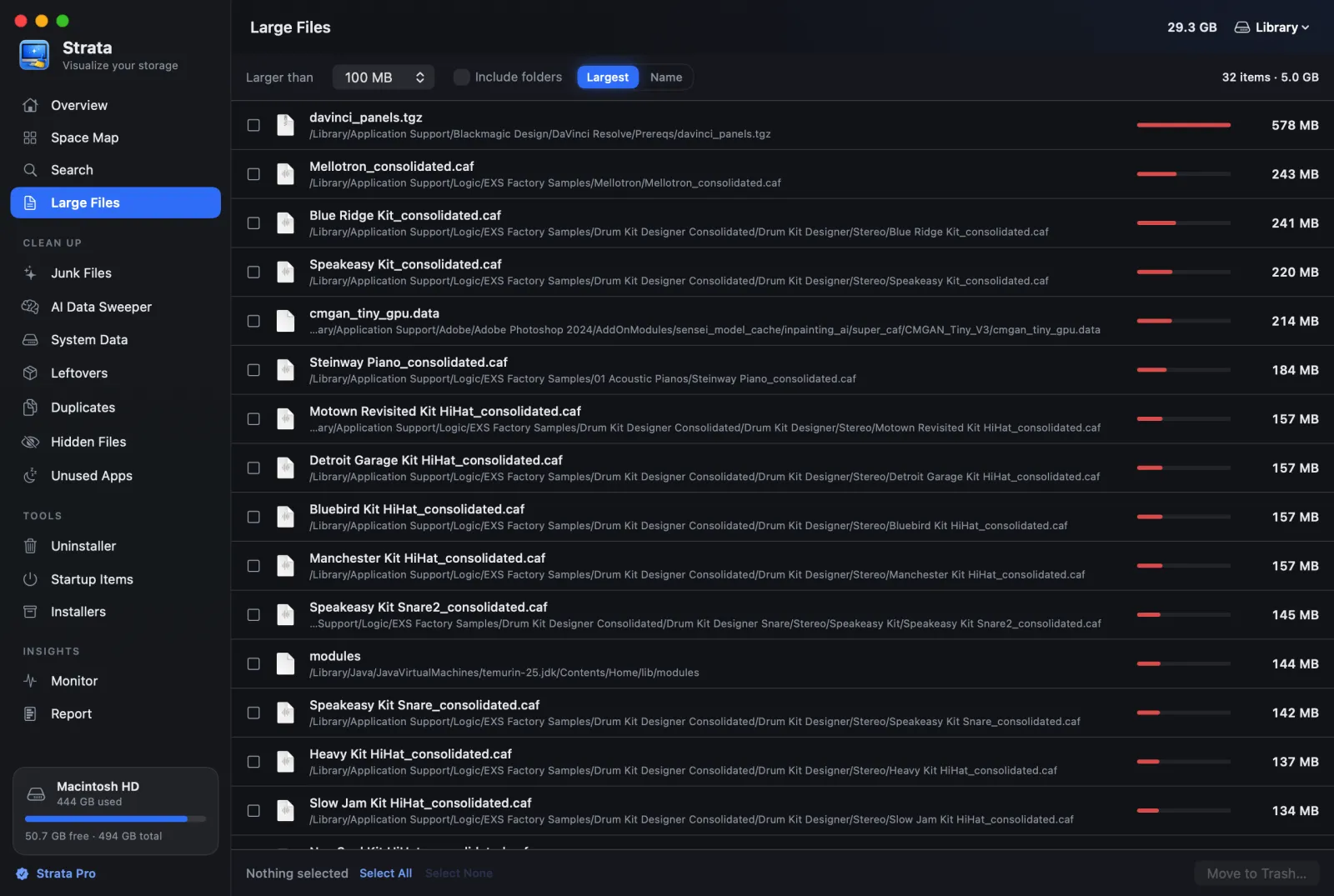
Everyone starts by sorting Downloads by size. That finds the third biggest thing on a typical Mac. The first two are somewhere you would never think to look, and one of them is not really there at all.
There is a particular kind of frustration in a Mac that says it has 8 GB free when you are certain you have not put 500 GB of anything anywhere. The storage bar in System Settings shows you a category called System Data, refuses to explain it, and that is the end of the conversation as far as macOS is concerned.
The useful way to attack this is not to hunt for individual big files. It is to work down through four scales, because the technique that finds a 60 GB virtual machine is useless for finding 40 GB spread across four hundred thousand tiny ones.
Scale one: the things over 20 GB
There are rarely more than three or four of these, and one of them is usually most of your problem. They are worth checking first because finding one ends the search.
The Photos library. Sits at ~/Pictures/Photos Library.photoslibrary
and behaves as a single item, so Finder reports one enormous number and refuses to
break it down. If you use iCloud Photos with "Optimise Mac Storage" turned off, you
have every full resolution original locally, forever. Inside it, the Recently Deleted
album keeps things for 30 days, which on a library that size can be tens of gigabytes
of photos you already decided you did not want.
iPhone and iPad backups. Living at
~/Library/Application Support/MobileSync/Backup. Each one holds nearly
everything on the device that is not already in iCloud, the Camera Roll included unless
iCloud Photos is on. Nothing deletes the backup of a phone you stopped using, so it stays
for years after the phone has gone.
Virtual machines and disk images. Parallels, VMware, UTM and Docker all create single files that grow and, crucially, almost never shrink. Delete 30 GB inside a virtual machine and the host file stays exactly the same size, because the space is now free inside the container and still allocated outside it. Since version 1.0.29, Strata's Junk Files lists the virtual machines of UTM, Parallels, VMware and VirtualBox, and Docker's disk, in a group of their own with when each last changed, and never ticks them for you; without Full Disk Access it cannot see the machines UTM keeps in its own folder, or Docker's disk.
Xcode, if you have it. Derived data is build output that regenerates on demand. Simulator runtimes are full copies of iOS, one per version, kept until you remove them by hand.
rm -rf ~/Library/Developer/Xcode/DerivedData
xcrun simctl delete unavailable
The one to leave alone. Time Machine local snapshots frequently show as tens of gigabytes and look like an obvious target. They are not. macOS deletes them automatically when you need the space, and they are the only thing standing between you and a bad afternoon if a file goes missing. Deleting them manually buys you space you were going to get for free anyway and costs you your local backup history. The one exception, a big copy on a nearly full disk, is in purgeable space.
Scale two: the 1 to 20 GB range
This is the bracket Finder's search is genuinely good at, and where sorting by size actually works. Press Command-F in Finder, change the first dropdown from Kind to File Size, and set it to "is greater than 1 GB". Change the search scope to "This Mac" or you will only be searching whatever folder you happened to have open.
What you will find, in rough order of how often it turns up:
- Video files you downloaded once and forgot. Screen recordings are the usual offender, because QuickTime records uncompressed by default and a ten minute recording can be 4 GB.
- Installer disk images. The
.dmgyou used to install an app two years ago is still in Downloads, and you have never once needed it again. - Mail attachments, which are stored in full inside your mail database whether or not you ever opened them.
- Old project exports. Anyone who edits video or audio has a folder of renders they meant to sort out later.
This bracket is satisfying to clear because the decisions are easy. You either want a 5 GB file or you do not, and you can usually tell in two seconds by looking at the name.
Scale three: many small files, which is where searching fails
Now the interesting part. Search for files over 1 GB and you will never find the folder that is genuinely costing you the most, because it does not contain a single file over 40 KB.
The canonical example is node_modules. A single JavaScript project can
contain 250,000 files. None of them is large. Together they are 1.5 GB, and if you
have twelve old projects sitting in a Developer folder, that is 18 GB that no size
filter will ever surface.
Strata's Junk Files finds these, and what other projects' tools build or install, such as Rust's
target, Swift's .build and Python's virtual environments. It ticks
one only when its whole project has stayed unchanged for three months.
The same shape turns up in plenty of non developer contexts:
- Browser caches, which are thousands of small blobs.
- Photo thumbnail caches, one file per image at several sizes each.
- Email message stores, one file per message.
- Font caches, icon caches and every other cache, all of which are made of many small things by design.
To find these you need something that sizes folders by adding up everything inside them, recursively, and then ranks the folders. That is the entire purpose of a disk map, and it is why this category of app exists at all rather than everyone just using Finder.
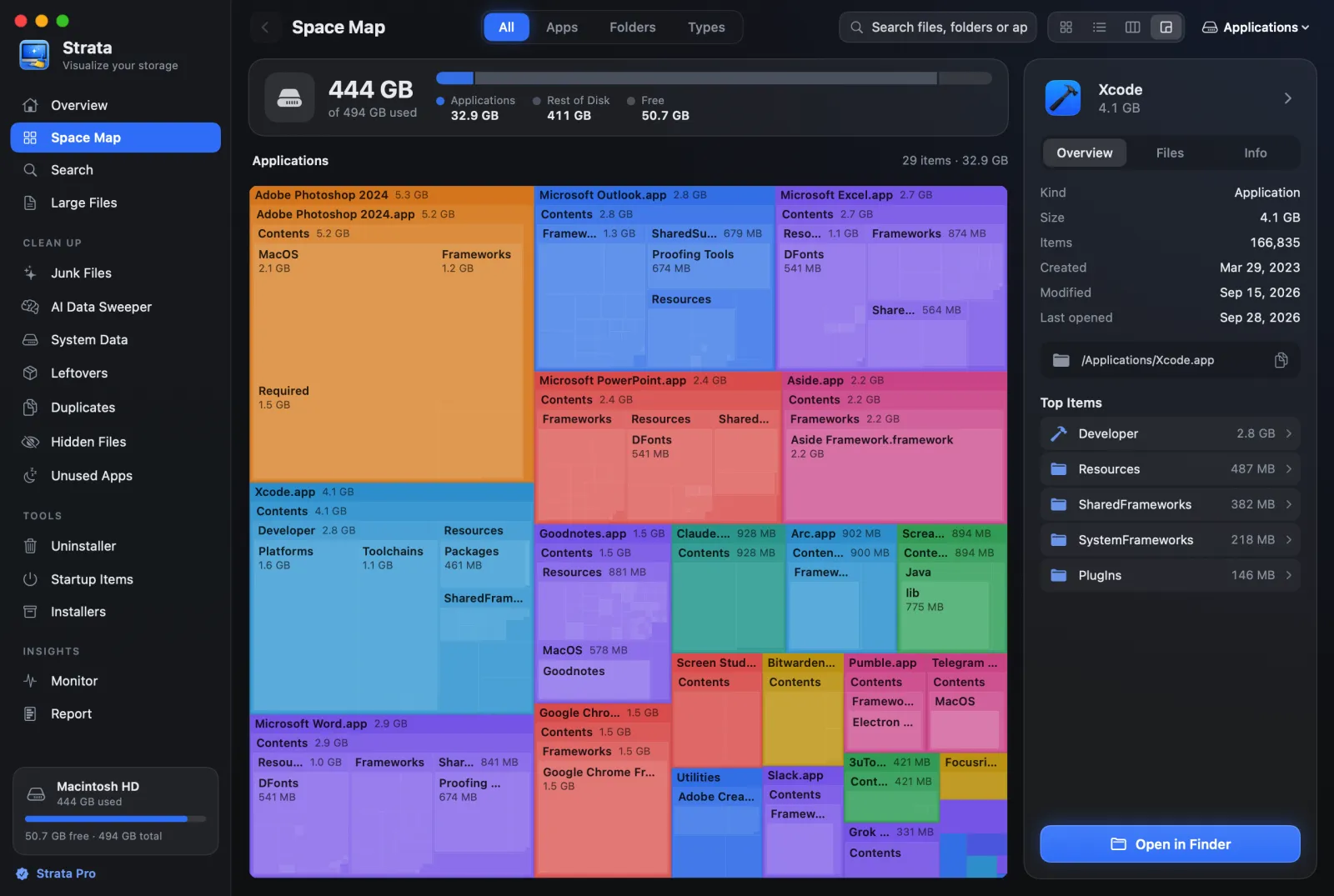
From the command line you can get part of the way there:
du -sh ~/* | sort -rh | head -20That prints your twenty largest home folders. It is genuinely useful and it will take a while, because it is doing the same work a disk map does, just without showing you anything until it finishes.
Why the sizes you are shown are wrong
This is the part almost nothing explains, and it is the reason two tools can look at the same folder and report different numbers without either being broken.
Every file has two sizes. The logical size is how many bytes of content it holds. The allocated size is how much disk it actually consumes. They are not the same, for three separate reasons.
Block rounding
Disks hand out space in fixed blocks, typically 4 KB. A file containing one byte still occupies a whole block. Store 200,000 one byte files and you have used 800 MB to hold 200 KB of actual content. Finder will cheerfully tell you the folder contains 200 KB. Your remaining free space will disagree by 799.8 MB, and your free space is the one telling the truth.
Sparse files
Now the opposite problem. A sparse file is one where large runs of zeroes are recorded as "this bit is empty" rather than actually written out. Virtual machine disks and disk images use this constantly. A VM disk can report 100 GB logical while occupying 12 GB of real disk. Anything adding up logical sizes will tell you that you have used more space than your disk physically contains, which is confusing the first time you see it and obviously nonsense the second.
APFS compression and clones
APFS transparently compresses many files, so they take less room than their content. It also supports clones, where copying a file creates a second name pointing at the same blocks until one of them is modified. Duplicate a 4 GB video in Finder and you have used essentially no additional space. Both copies report 4 GB. Together they occupy 4 GB, not 8.
What to take from this. If a tool's total does not match your actual free space, it is almost certainly adding up logical sizes. Strata measures allocated size, which is the number that changes when you delete something. It is also why its totals are sometimes lower than other tools': it is not counting the same block twice when two hard links point at it.
Scale four: the stuff you should not touch
A short list, because knowing where to stop saves more time than knowing where to look.
| Looks big | Leave it |
|---|---|
| Time Machine local snapshots | Reclaimed automatically when needed |
/System and /usr | Read only on modern macOS. You cannot delete them and should not try |
| The swap and sleep image files | macOS manages them. They come straight back |
Anything in /private/var/db | System databases. Small anyway |
| iCloud Drive placeholder files | Already not taking local space |
The order that actually works
Putting all four scales together, the sequence that finds the most space for the least risk:
- Check the four big ones from scale one. Photos, device backups, VMs, Xcode. One of them is probably your whole answer.
- Run a Finder search for files over 1 GB and clear the obvious ones.
- Empty Downloads. Not glamorous. Reliably worth several gigabytes.
- Use a disk map to find the many-small-files folders you cannot search for.
- Only then start looking at caches, which regenerate and will be back next week.
Step five is where most advice starts, which is why most advice does not help much. Caches are the most talked about and the least worthwhile, because deleting them buys space that the app immediately begins rebuilding.
Find all four scales in one pass
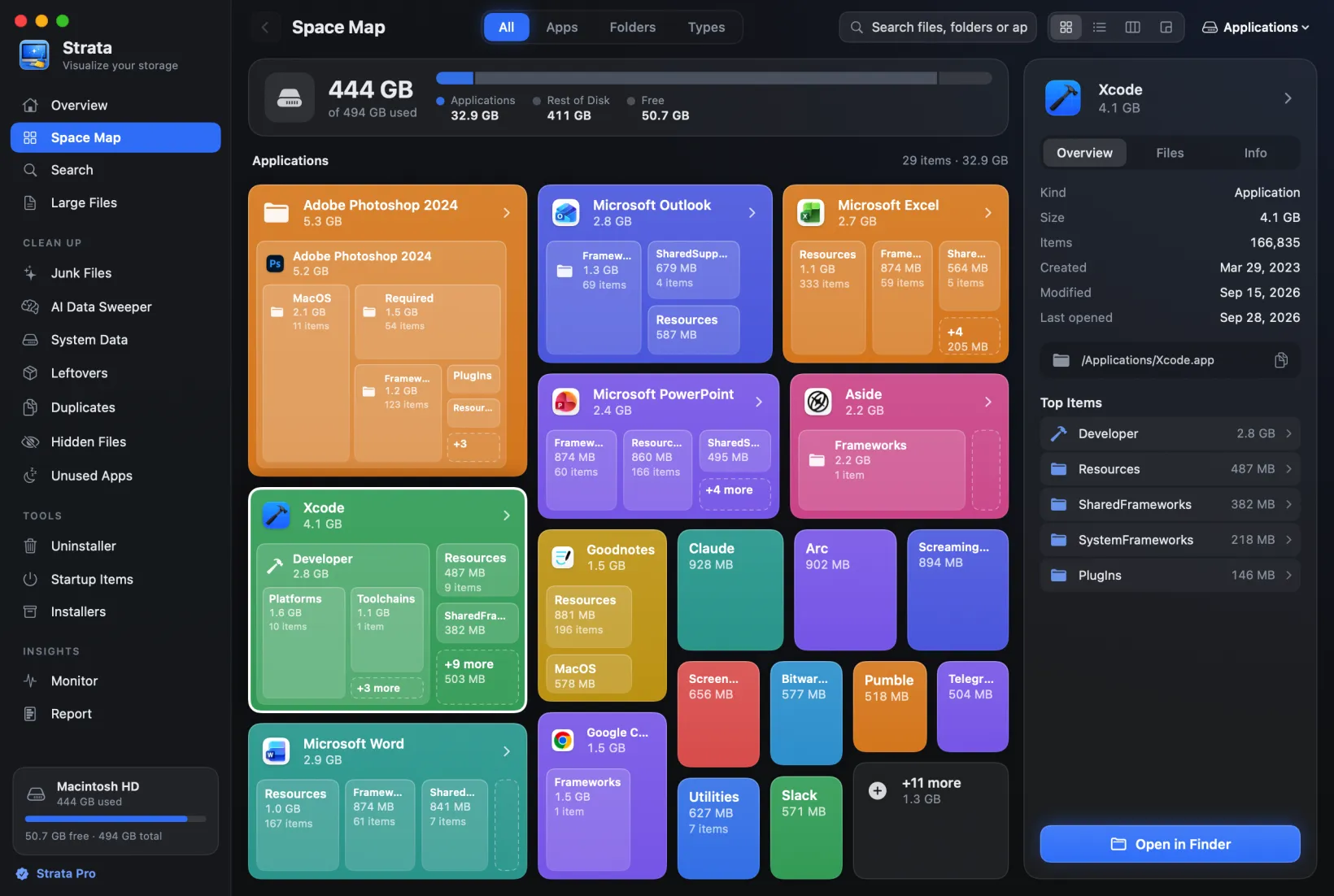
Strata reads every folder on your disk in a single scan and draws it as a map sized by what it actually occupies, so the folder made of 250,000 small files is as visible as the 60 GB virtual machine sitting next to it. It measures allocated size, not logical, so the totals match your real free space.
Scanning, the map, search and large file listing are free forever, with no account and no time limit.
Common questions
Why is my Mac's free space different from the sum of my folders?
Three usual causes, in order of likelihood: Time Machine local snapshots holding space that is not attributed to any visible folder, the difference between logical and allocated size described above, and files in folders your user account cannot read, which get silently skipped rather than reported.
Does emptying the Trash actually free the space?
Yes, immediately, with one exception. If a file is still open in a running app, the space is not released until that app quits or closes it. This is why deleting a large log file that something is actively writing to changes nothing until you restart the program doing the writing.
Should I use "Optimise Mac Storage" for Photos?
If your library is large and you are short on space, yes, and it is probably the single highest impact setting on this page. It keeps smaller versions locally and pulls the full resolution original from iCloud when you actually need it. The trade-off is that you need a connection to work with originals, which matters if you edit on a plane.
How do I find the largest files on my Mac?
Finder's search can filter by file size: press Command-F, change the first dropdown to File Size, and set 'is greater than' 1 GB. This finds large individual files but misses folders made of many small files, which is where a large share of used space usually sits. A disk map that sizes folders by their contents finds both.
Why does my Mac say a file is larger than it is?
Because there are two different sizes. The logical size is how many bytes the file contains. The allocated size is how much disk it actually occupies, rounded up to whole blocks. A folder of 200,000 tiny files can occupy far more space than the sum of its contents, and Finder shows you the logical number.
What is the biggest thing on a typical Mac?
For most people, the Photos library or iOS device backups. For developers, Xcode derived data, iOS simulators or Docker images, any of which can pass 50 GB alone. Time Machine local snapshots often look enormous and should be left alone, because macOS reclaims them automatically when space runs short.
Why can I not find the files taking up System Data?
System Data is not a folder. It is a leftover category macOS uses for everything that did not fit the other labels: caches, logs, swap and sleep files, app support files and more. Device backups have a category of their own, iOS Files. You cannot open System Data because it does not exist as a place. You have to look at the real folders underneath it.