How-to guides: all pages
How to clear junk files safely
Junk is what apps and tools keep for themselves and rebuild when they need it. Strata measures it, ticks only what nobody will miss, and moves it to the Trash, so you can put anything back.
What you need
- Strata Pro or the trial.
- Full Disk Access, to count the caches sandboxed apps keep, Docker's disk and the machines UTM keeps in its own container too (see how to give it). With it or without it, the search reads your home folder, and outside it only the Applications folder and the Epic Games folder in Shared; with Xcode, it also asks Xcode which simulators can no longer run.
Steps
-
Open Junk Files
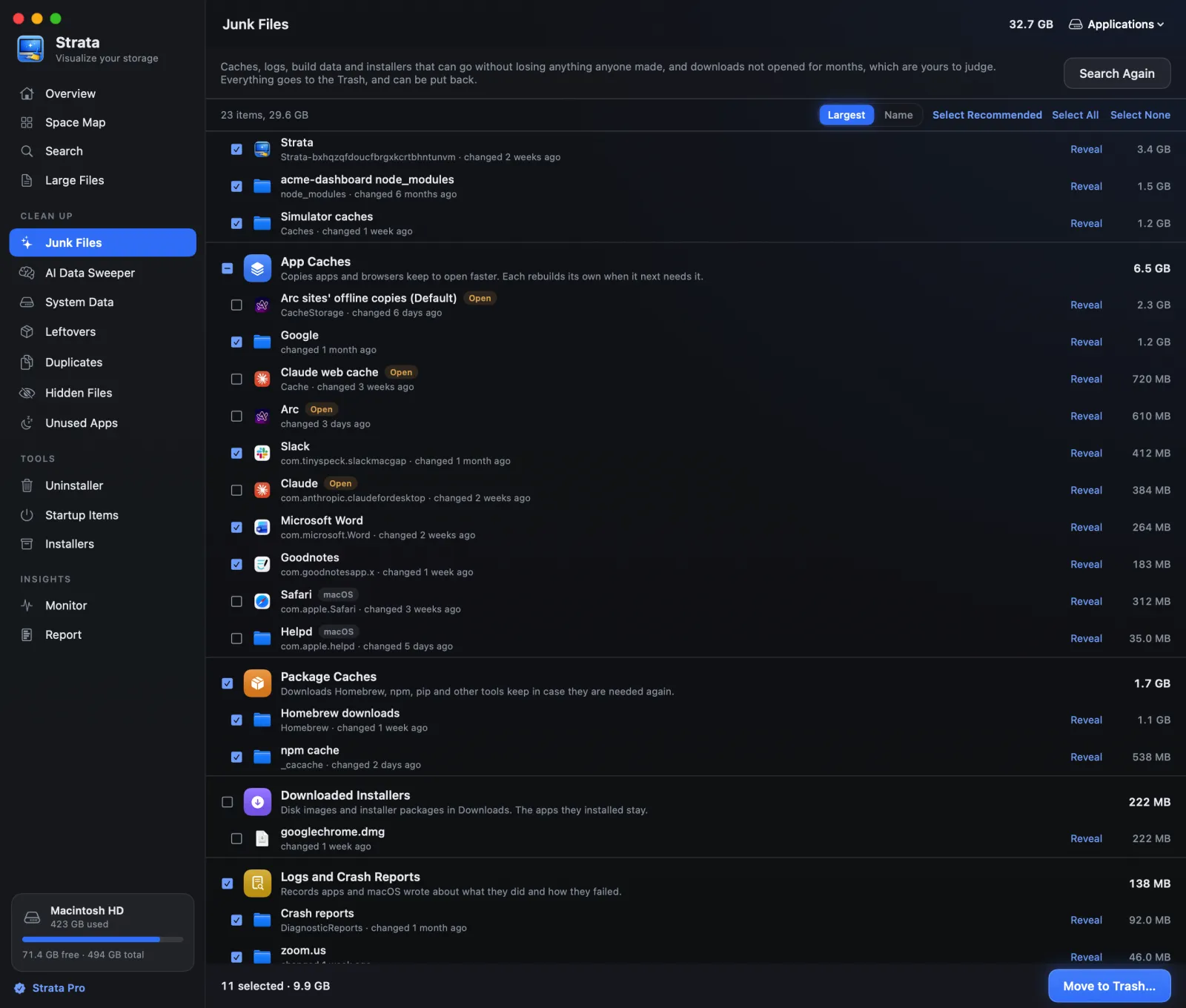
In the sidebar, under Clean Up. The search runs by itself when Strata opens; press Search Again for a fresh measurement.
-
Quit the apps you can
The caches of open apps are tagged Open and left unticked, because the app may be using them. If one is large, quit that app and press Search Again.
-
Check the ticks
Select Recommended ticks exactly what is safe: everything except macOS's own caches, the caches and logs of open apps, caches shared by apps Strata cannot name, the build output and
node_modulesof projects changed in the last three months or too big to check (and installed packages without a lockfile), Xcode's archives, device support files, installers, old downloads, virtual machines, games and anything needing an administrator. Click a row to see it in depth. Untick anything you would rather keep. -
Move it to the Trash
Press Move to Trash…, read the list, and confirm. A notice says how much is now in the Trash, with Put Back.
-
Empty the Trash when you are sure
The space comes back when you empty the Trash in Finder.
Worth knowing
- Developer Build Data (Xcode's DerivedData, simulators, projects'
node_modulesand what their tools build, such as a Flutter project'sbuild) is often the biggest group on a developer's Mac. Xcode rebuilds its part, once, a little slower than usual; a project's tools build theirs again the next time you build it, andnpm installbringsnode_modulesback. - Virtual Machines and Games are listed with when each last changed, and never ticked for you: remove a game in Steam or Epic, which keeps its list right.
- Old Downloads lists the files in Downloads you have not used for three months. They are your own, so Strata never ticks them: look at each before you tick it.
- Device support is left unticked because Xcode needs it again when you plug that device in to debug. Tick the versions for devices you no longer have.
- Caches come back. Clearing them is worth it when they have grown large, not every day.
If something goes wrong
An app that feels slower the first time after a clear is rebuilding its cache; it passes. If an app misbehaves, press Put Back, or put its folder back from the Trash in Finder. Junk Files in the docs lists every category.