How-to guides: all pages
How to scan an external drive or a single folder
FreeStrata 1.0.17Updated Seconds to a minute
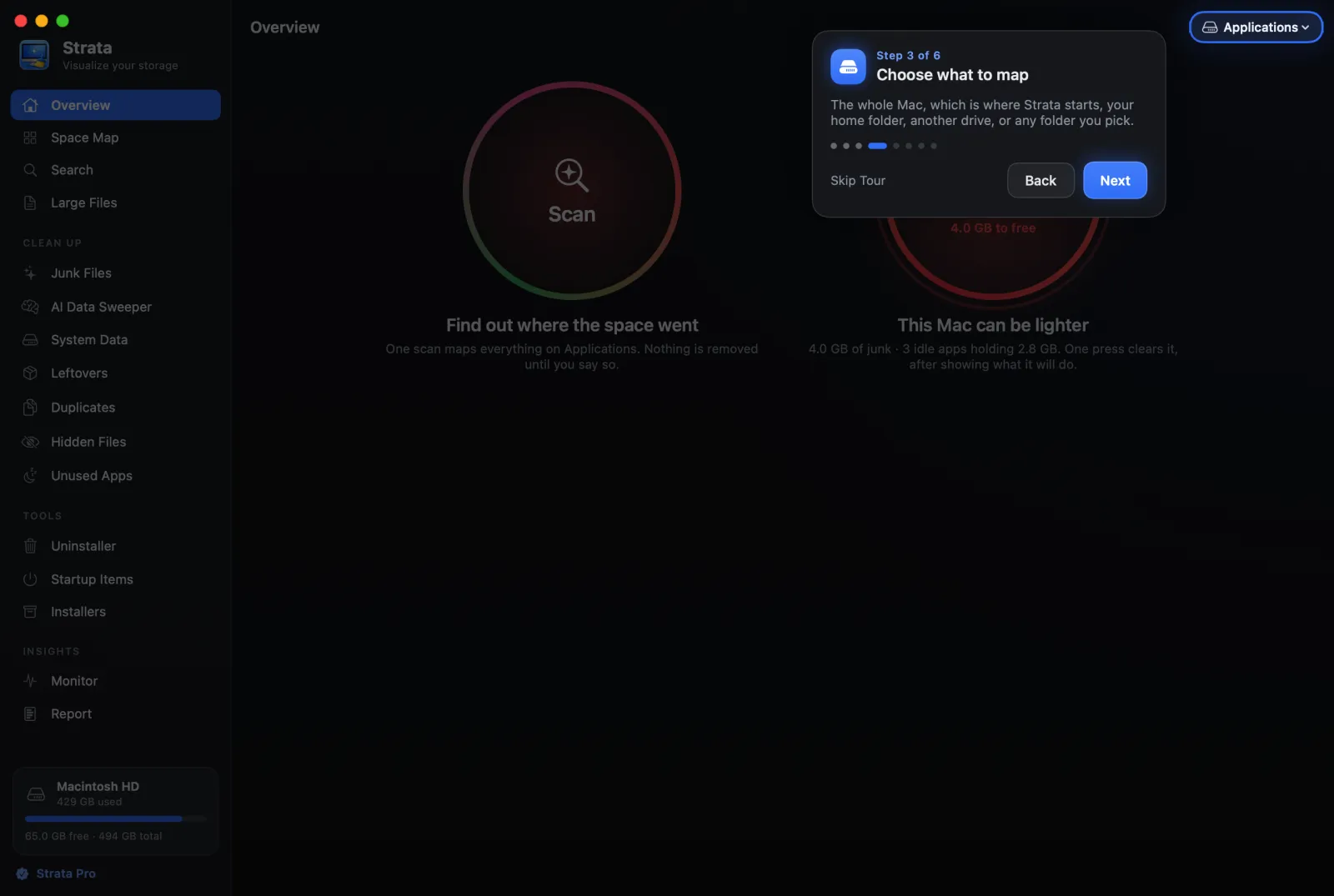
Strata maps the whole Mac by default, but it can map any drive connected to it, or any folder, for free. The menu at the top right of the window chooses what the next scan maps.
What you need
- Strata, free.
- The drive connected before you open Strata, so it is in the menu. Otherwise use Choose Folder.
Steps
-
Open the menu at the top right
It shows the name of what is mapped now, such as Macintosh HD, with a drive icon.
-
Choose what to map
A drive by name, one of Home, Library, Downloads or Applications, or Choose Folder… for anything else. The scan starts at once and stops any scan under way.
-
Read the map
Every room now works on what you chose: the Space Map, Search, Large Files, Duplicates and Hidden Files. The disk bar shows the rest of the drive as Rest of Disk.
-
Go back to the whole Mac
Choose your startup disk in the same menu.
Good to know
- A drive connected after Strata opened is not in the menu until you reopen Strata. Choose Folder… reaches it now.
- Network shares and sleeping drives can be slow. A folder that does not answer for 30 seconds is skipped and named, with Scan Again.
- Some drives have no Trash, such as some network shares. Moving things to the Trash from them fails and says why; Strata never deletes instead.
- Each drive's own Trash can be counted: tick Count each drive's Trash in Hidden Files.