How-to guides: all pages
How to find your largest files and folders
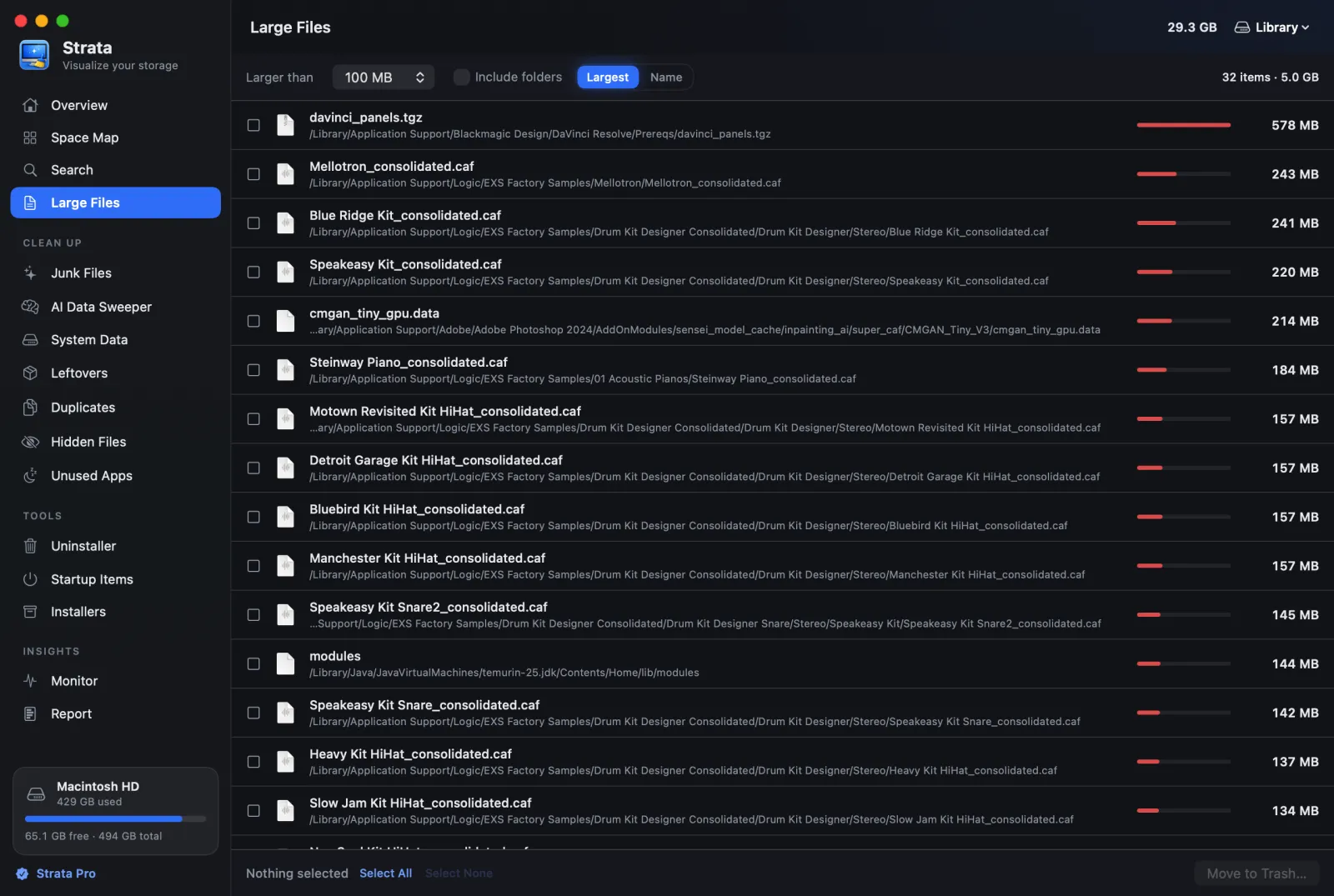
Three ways, all free: Large Files for single big files, the Space Map for folders full of small ones, and Search for one kind of file at a time, such as every video.
What you need
- Strata, free. Moving things to the Trash from these lists needs Strata Pro or the trial.
- A finished scan. Full Disk Access makes it complete.
Single big files: Large Files
-
Open Large Files
In the sidebar, near the top.
-
Pick a threshold
Set Larger than to 1 GB for the giants, or 100 MB for a longer list. It shows the largest 500, biggest first, and never the parts inside an app.
-
Look before you act
Click a row to see where it is and when it was last opened. Double-click to see it in its folder on the Space Map.
Folders full of small files: the Space Map
Forty thousand small files can take more room than one film, and no file list shows that. Open the Space Map, choose Folders at the top, and the biggest folders are opened up to where the space actually splits. Or use the Largest Folders card on the Overview.
One kind of file: Search
Open Search, choose the Videos tab, and set the size to larger than
1 GB: every big video, wherever it is. The same works for Archives, Images and the rest.
Typing .dmg finds every disk image.
Removing what you found
With Strata Pro, tick rows and press Move to Trash…, or press Command Delete. Everything goes to the Trash first. Why Finder's sizes and Strata's differ, and where big files usually hide, is in How to find large files on a Mac.