Documentation: all pages
The Space Map
The Space Map draws whatever you scanned to scale, so the biggest things are the biggest shapes on screen. It is free, including every view, every way of looking and the search. Moving things to the Trash from it needs Strata Pro.
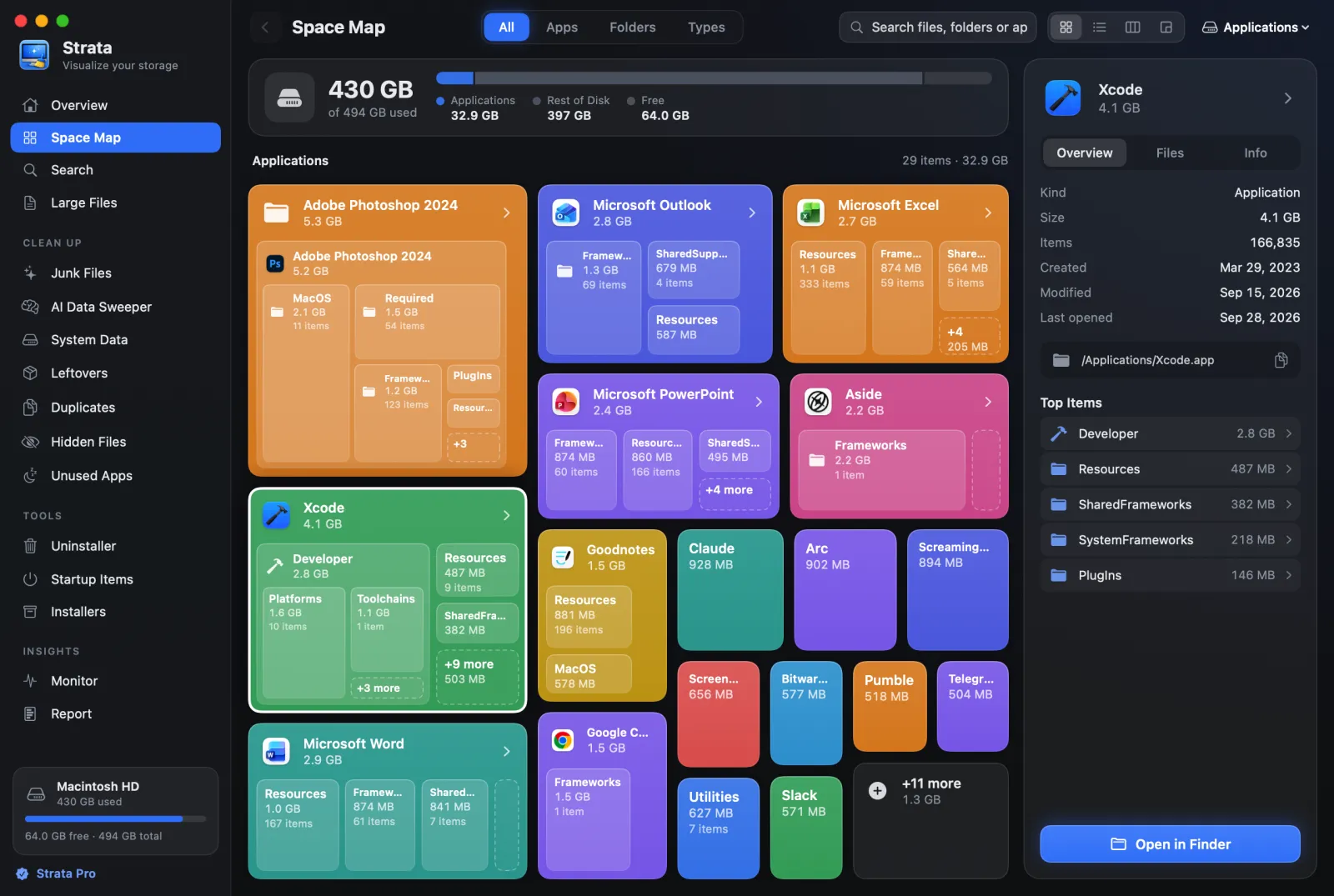
The four views
Four buttons at the top of the room switch between the views, and Strata remembers the one you used last. Each has a shortcut, which works while the Space Map is showing:
| View | Shortcut | What it is for |
|---|---|---|
| Cards | Command 1 | Each app, folder or file is a rounded card with its icon, name and size, and the biggest things inside it are smaller cards. The rest of a long list becomes one +N more card. The quickest way to see where the space went. |
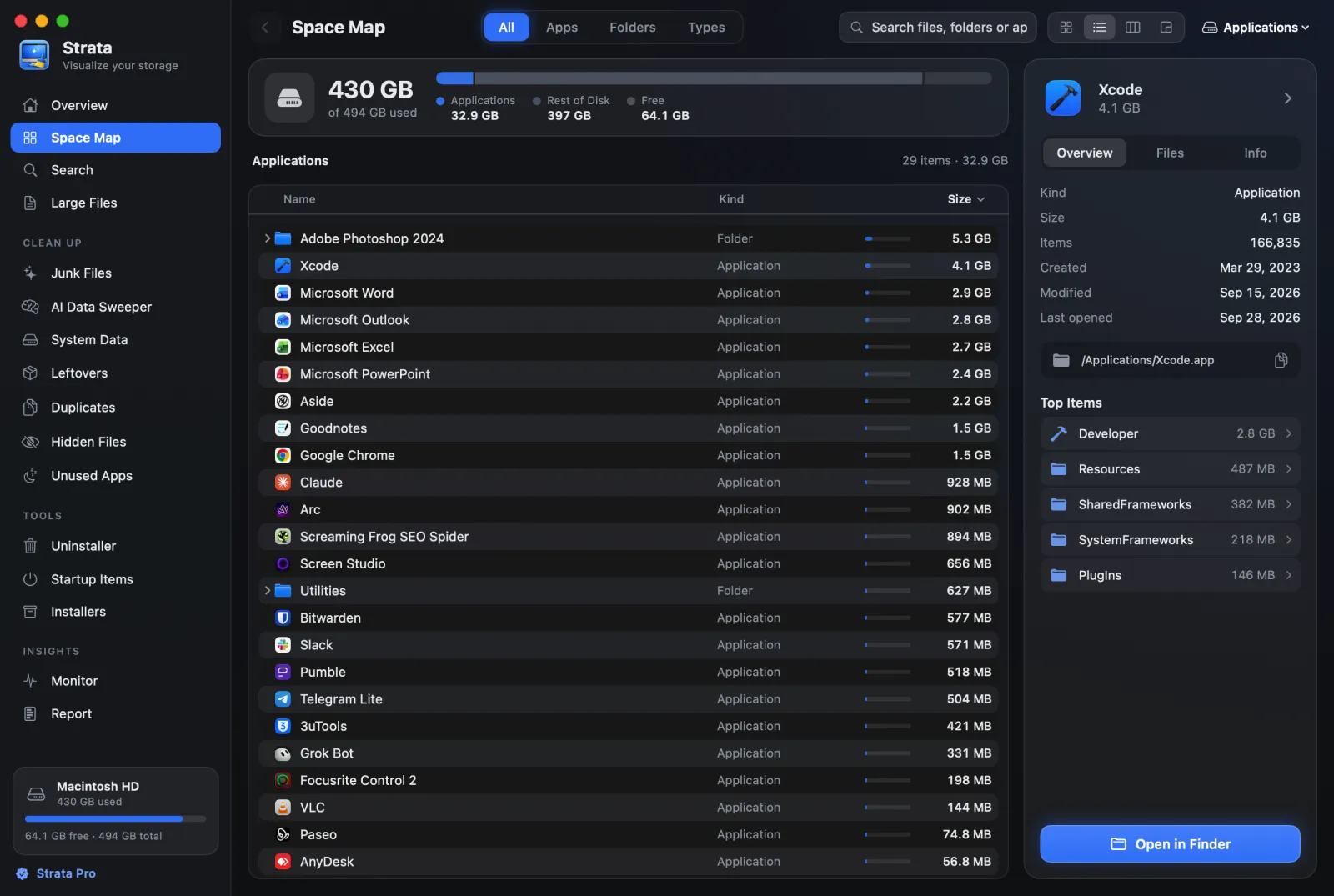
| List | Command 2 | Rows as in Finder's list view, with triangles that open folders in place; Option-click a triangle to open what is inside too, the nearest first, up to 1,000 rows. A folder with more than 500 rows opens 500 at a time, with a "+N more" row at the end that opens the next 500. Click Name, Kind or Size to order by it, and again to reverse. |
| Columns | Command 3 | As in Finder's column view: the folder you choose opens in the next column. The arrow keys move in and out. |
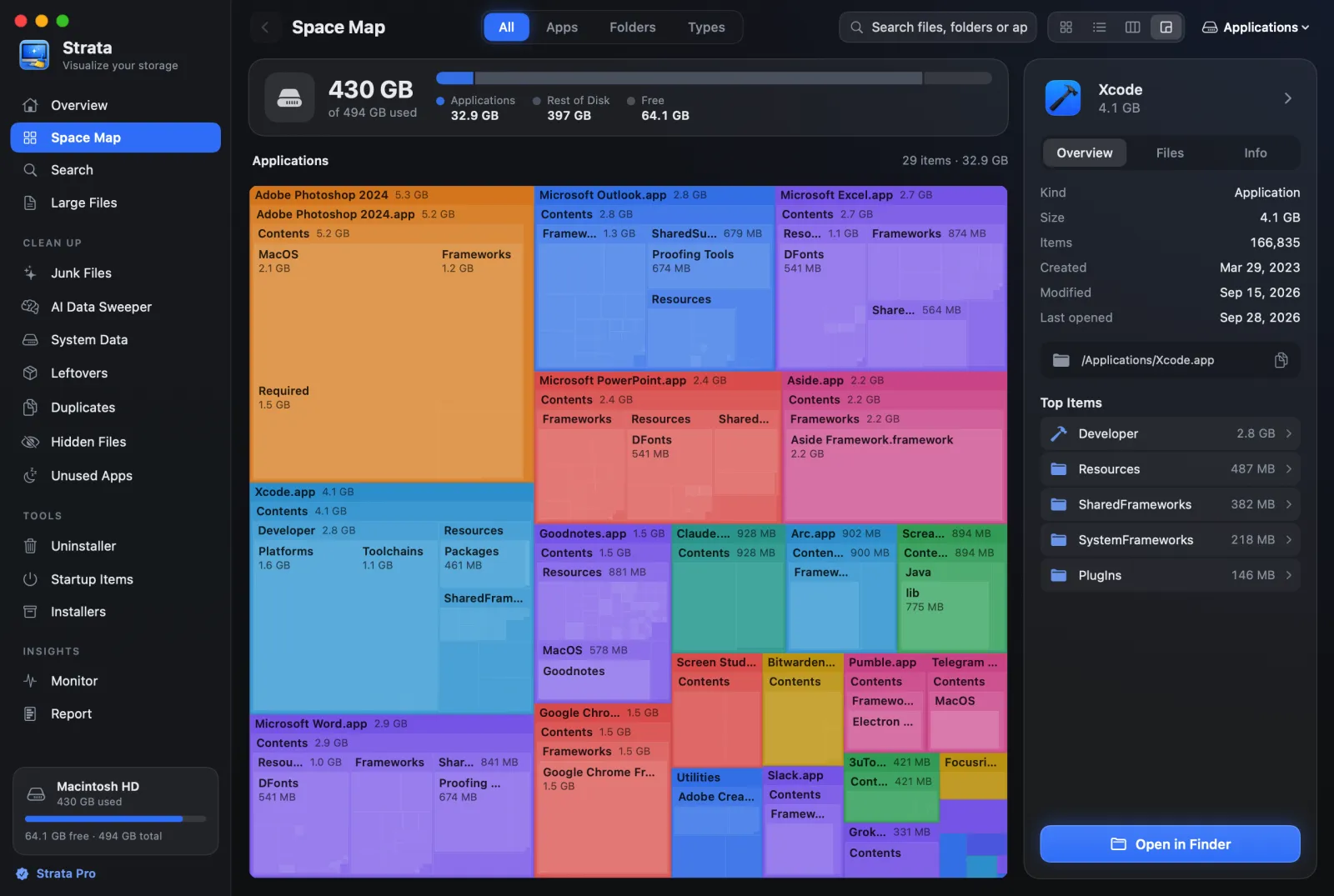
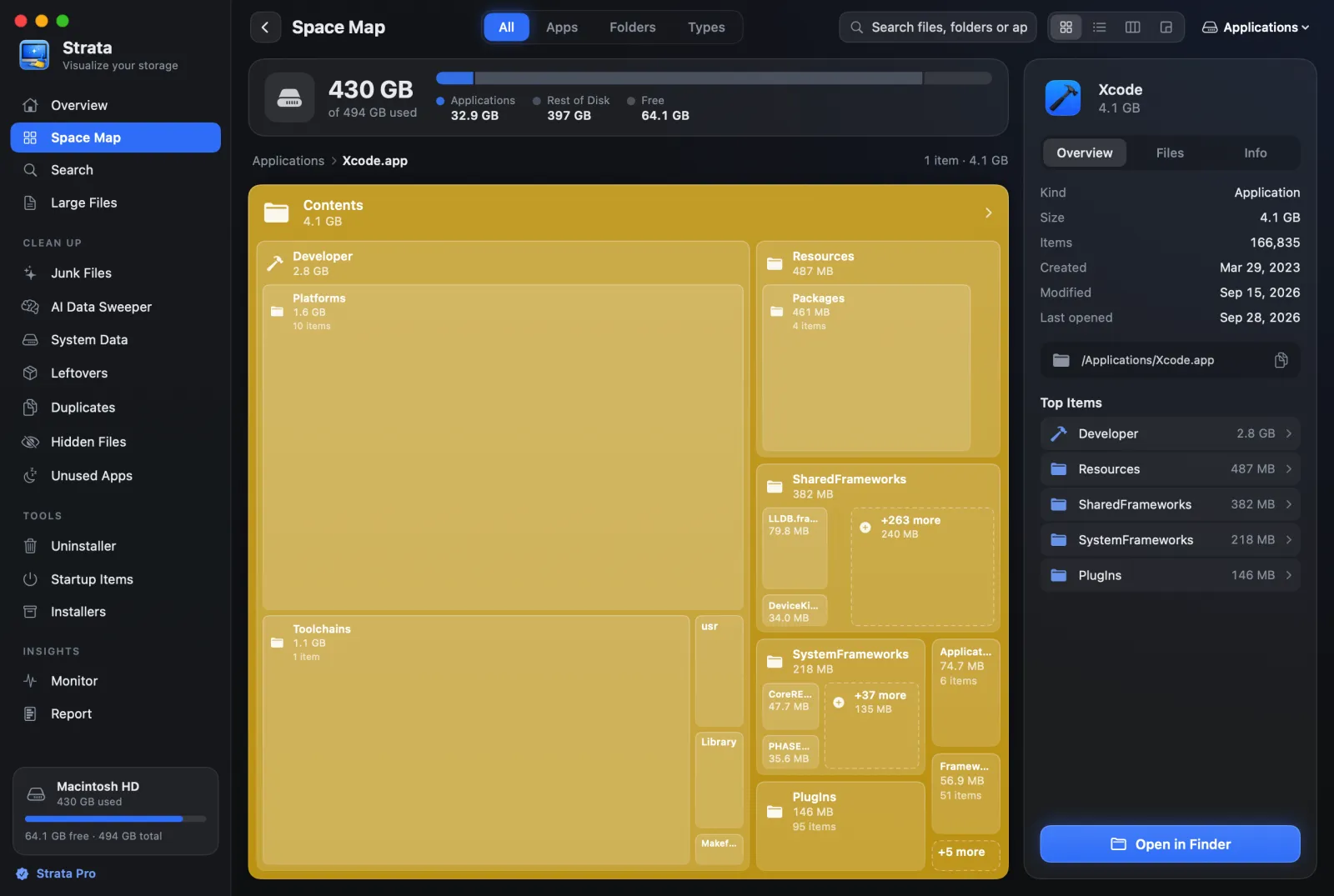
| Detailed Map | Command 4 | The classic treemap, drawn down to single files. Point at a rectangle to read what it is; click a folder to go in. |
The Detailed Map is drawn for All Items. While you search, or look at a folder by its apps, folders or kinds, the map shows as cards.
Four ways of looking at a folder
Tabs beside the view buttons change what the map shows for the folder on screen. In a narrow window their names shorten to All, Apps, Folders and Types.
- All Items
- What is directly inside the folder, largest first. A folder that holds only one other folder is looked through, which is why an app's Contents folder never shows.
- Applications
- Every app anywhere inside the folder, biggest first, however deep. Apps inside Library folders and inside other apps are left out.
- Folders
- The biggest folders, opened up to the level where the space actually splits, so a deep folder full of video is not hidden three levels down. Folders count from 50 MB.
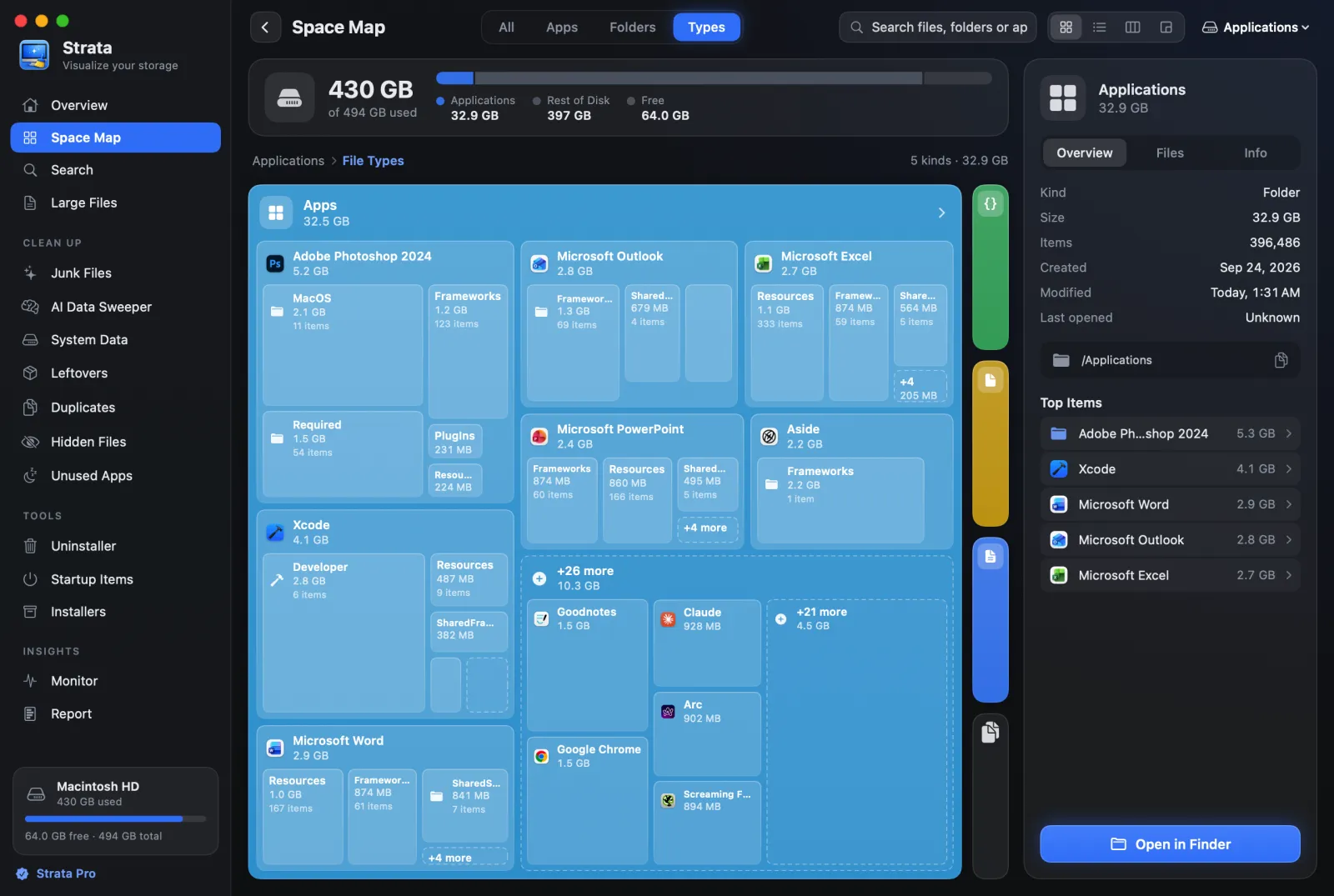
- File Types
- Everything sorted into Apps, Videos, Music & Audio, Images, Documents, Archives, Disk Images, Code & Data and Other Files. A bundle such as a Photos library counts whole, under the kind it holds.
Moving around
- Go in: double-click a card or row, or press Return on it in List or Columns.
- Come back out: the Back button, or Command [.
- Jump up: click any folder in the trail above the map.
- Find something: the search field searches the whole scan, not just the
folder on screen, and shows what matches as cards, biggest first. It follows the same
rules as the Search room, so
.dmgfinds disk images. Esc clears it.
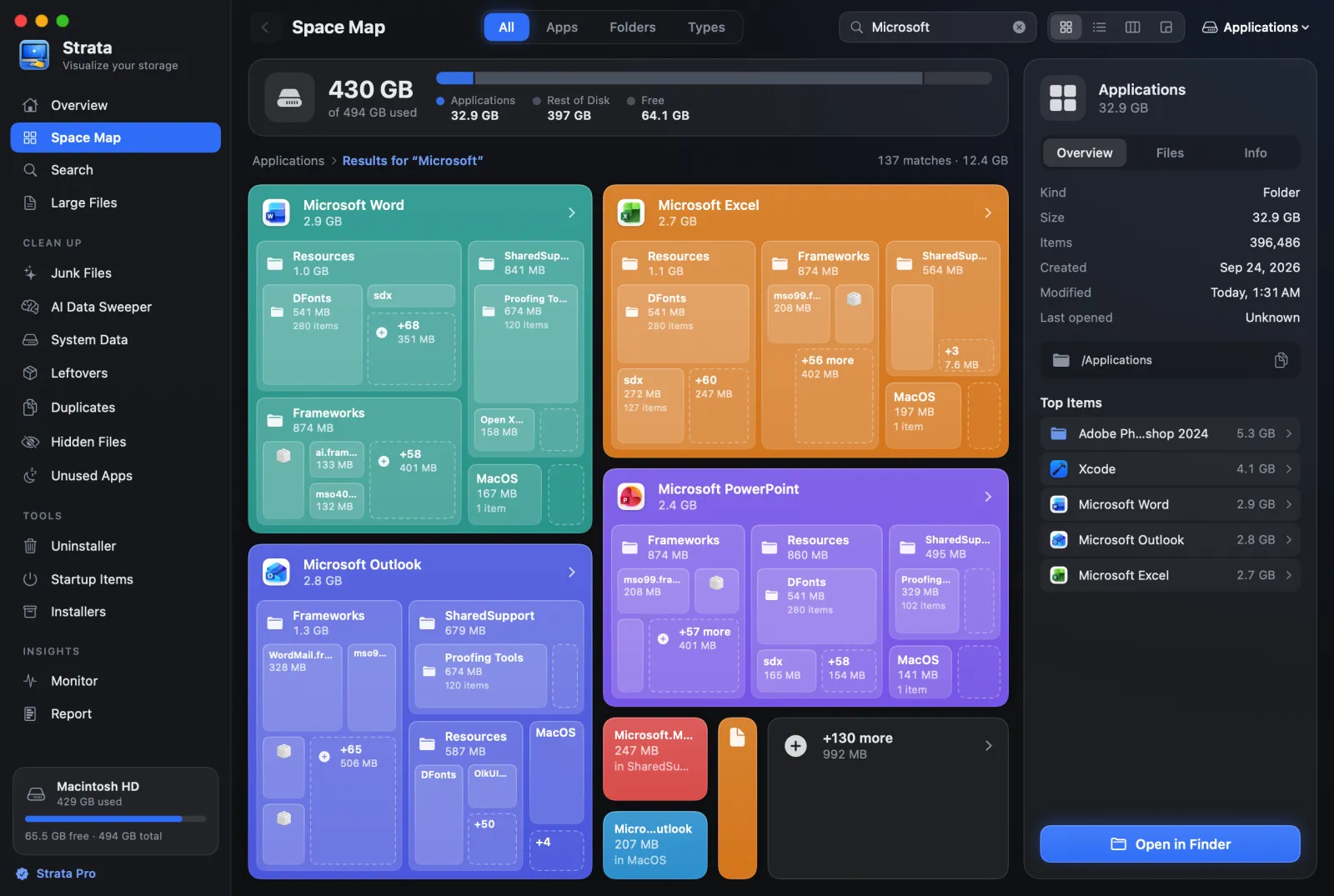
The disk bar across the top
Above the map, one bar shows the whole disk, and pointing at a part of it explains what the part holds:
- Applications
- The Applications folders.
- Documents
- Your home folder, apart from its Library and its hidden folders.
- App Data
- Library folders: what apps keep for themselves, such as caches, containers and support files.
- System
- macOS and the folders it keeps for itself, including used space no folder accounts for, such as snapshots.
- Other
- Everything else the scan counted, such as hidden folders in your home folder and other people's home folders.
- Rest of Disk
- When you scanned one folder, the used space outside it.
- Free
- The disk's free space.
When a total is short because Full Disk Access is off, an orange triangle on this card says so, and clicking it shows how to switch the access on.
The inspector
The column at the right describes whatever you point at on the Detailed Map, or have chosen in the other views, or else the folder on screen. It has three tabs:
- Overview: kind, size, number of items, created, modified and last opened (from Spotlight's record), the path with a copy button, and the five biggest things inside.
- Files: the largest files anywhere inside, up to 15.
- Info: for an app, its version and identifier; for anything, its share of the scan and of the disk, and its full path.
Open in Finder at the foot selects the item in a Finder window. It is part of Strata Pro.
Choosing several, and moving to the Trash
In the List and Columns views, Command-click and Shift-click choose several items, as in Finder. The inspector then adds them up. With Strata Pro, Command Delete, the right-click menu or the inspector's button sends them all to one confirmation sheet; nothing moves until you confirm, and everything goes to the Trash. How deleting works explains what is protected and how to put things back.
The right-click menu on a card or row also has Copy Path, which is free, and Reveal in Finder, which is Strata Pro. The Trash itself offers Open Trash instead of removal: Strata never empties the Trash, because that is the one step that cannot be undone.