Documentation: all pages
How deleting works
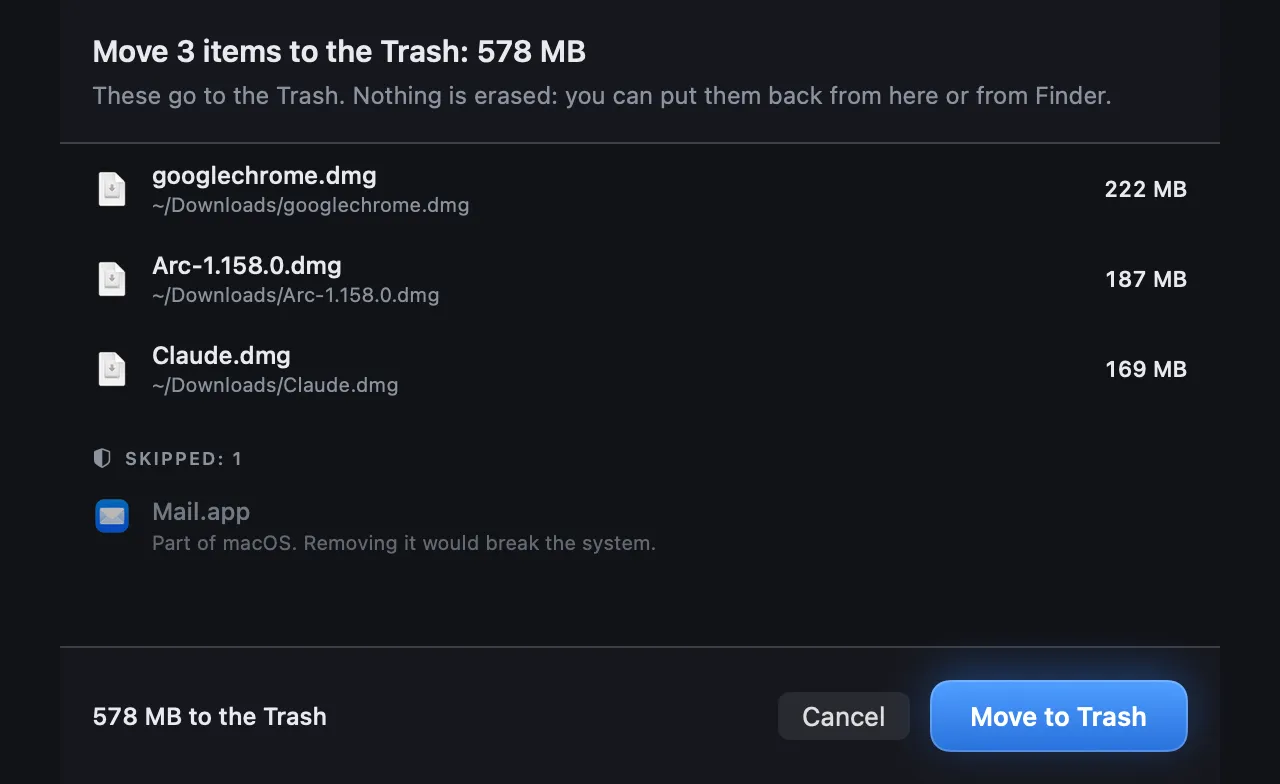
Strata has one way to remove anything: macOS's own move to the Trash. Nothing is ever erased, so a mistake costs one click. Before anything moves, a sheet lists every item, and anything protected is shown with the reason it will not move.
The Trash, and only the Trash
Every room that removes things, from the Space Map to Optimize, moves them with macOS's own move to the Trash. If the move fails, the item stays where it was: Strata never falls back to deleting it. On a drive that has no Trash, such as some network shares, the move fails and says why.
Strata never empties the Trash. That is the one step that cannot be undone, so it is left to you, in Finder. Wherever the Trash itself appears in Strata, it offers Open Trash instead of removing it. When 100 MB or more is waiting there, the Overview says how much, since it still takes space until it is emptied.
The confirmation sheet
Nothing moves without it. It lists every item with its path and size, the total going to the Trash, and Move to Trash (Uninstall in the Uninstaller). Return confirms and Esc cancels. During the trial it also says how much of the trial's 40 GB is left to move; see the trial.
Items that will not move are listed under Skipped, each with its reason, instead of vanishing from the list. The guard that decides is asked twice: once when the sheet is built, and again for each item just before it moves.
What Strata will not touch
| What | Why, as Strata puts it |
|---|---|
| The top of any disk | The top of a disk. |
| Strata itself | This app. |
| The Trash and what is in it | Already in the Trash. Empty the Trash in Finder to remove it for good. |
| Your keychain | Deleting it would lock you out of saved passwords. |
| iCloud Drive and other cloud folders | Deleting it here would remove it from every device. |
/System, /bin, /sbin, /usr (except /usr/local), /Library/Apple and macOS's other own folders | Part of macOS. Removing it would break the system. |
| Standard folders: Applications, your home folder, Desktop, Documents, Downloads, Library, Movies, Music, Pictures, Public | Its contents can be removed, but the folder itself stays. |
| Anything inside an app, a library or another package | Taking it out would break the whole. Move the app itself, or tidy the library in the app that keeps it. |
| Something gone or changed since the scan | No longer on disk, or a file is now a folder: scan again. |
| Something only an administrator can move | Strata never asks for your password: show it in Finder and press Command-Delete there. |
| An app with a system extension | macOS removes the extension only when Finder moves the app; moved from here, it would keep running. Show the app in Finder and press Command-Delete there. |
Putting things back
After anything moves, a notice says how many items went and how much is now in the Trash, with Put Back. The space comes back to the disk only when the Trash is emptied, and the notice says so. It stays ten seconds, and resting the pointer on it stops the clock. Put Back returns the most recent batch from that room to where it was.
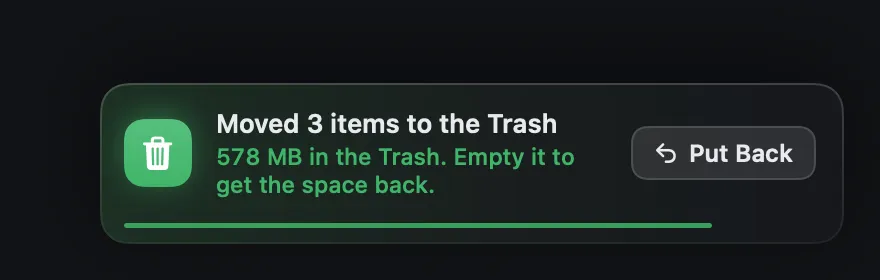
After the notice has gone, Finder's own Put Back works as for anything in the Trash: open the Trash, select the item, and choose File, Put Back. This works even if you never open Strata again.
Put Back never overwrites anything. It cannot return an item if the Trash has been emptied, if something else now sits at its old place, or if the folder it came from is gone; restore those by hand from the Trash, or from a backup.
Items only an administrator can move
Strata never asks for your password and never runs anything as an administrator. What only an administrator can move is shown with Show in Finder, which selects it in a Finder window. Press Command Delete there, and Finder asks for your password or Touch ID and moves it to the Trash.
If Finder says it will delete something immediately, macOS will not keep that item in the Trash, and it cannot be put back. You can cancel there. It is what Finder says, for example, about items on a network drive with no Trash of its own.
The ideas behind all this, and which deletions on a Mac genuinely cannot be undone, are in How to delete files on a Mac without regretting it.