Documentation: all pages
The menu bar
Strata puts an icon in the menu bar with your free space beside it. Click it for a panel of the disk, processor, memory, battery and network, in one of two looks. It is free, and it reads the Mac only while the panel is open.
Beside the icon
By default the icon shows your startup disk's free space, as Finder counts it. In Settings, General, Beside the icon, you can show any of:
- Free space, for example 86 GB;
- CPU, how busy the processor is;
- Memory, the share in use;
- Network, the download and upload rates;
- Battery, the charge, with a bolt while charging.
The processor, memory, network and battery readings each have their own symbol beside the figure, such as a battery beside its percentage and arrows for the network's download and upload, so several together stay easy to read. Free space sits beside the icon itself.
Each is read only while it is shown: every two seconds for the processor, memory and network, every 30 seconds for the battery. Turn Show Strata in the menu bar off to remove the icon altogether. macOS can hide menu bar icons on a crowded menu bar; if Strata's is missing, that is usually why.
The Dashboard look
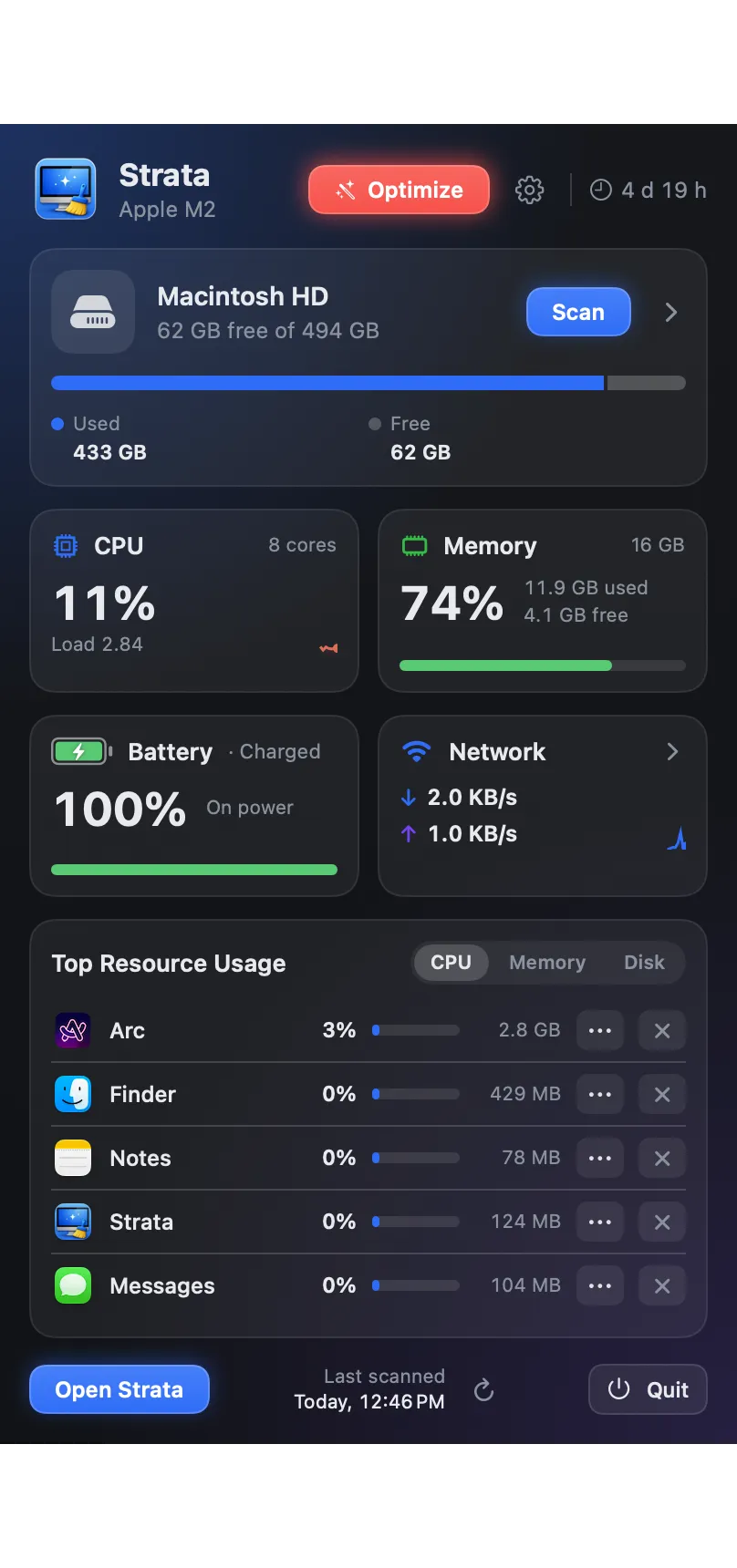
The default. From the top:
- Header
- The Mac's processor, the Optimize button in red, amber or green, the gear for Settings, and how long the Mac has been on. When an update has downloaded, Update takes the uptime's place.
- Disk
- Free space, a bar of the disk by kind from the last whole-Mac scan, and Scan.
- CPU, Memory, Battery and Network
- How busy the processor is and its load; memory in use with its pressure; the battery's charge and time left; and the network's speed. The Network card's arrow opens the Monitor.
- Top Resource Usage
- The five apps using the most processor, memory or disk, as you choose. The list holds still while the pointer is on it. Each app has a menu (Show in Finder, Open Activity Monitor, Quit) and a quit button.
- Footer
- Open Strata, when the last scan was (with an arrow to scan again), the switch to the Cards look, and Quit.
Quitting apps from the panel
The quit button asks the app to quit as Command Q would, so anything with unsaved work asks you first. Parts of macOS, such as Finder, need a second click on Quit?, because macOS starts them again when they are needed. The login window and a few other parts of macOS are never offered.
The Cards look
Choose it in Settings, General, Panel look, or with one click on the switch in the panel's footer. It opens with a word on how the Mac is doing, for example Mac Health: Good, or Low on space, Memory is tight, Running hot or Battery worn, with the reason when you point at it. Then six cards: disk, memory, battery, CPU, network and Optimize, and one recommendation with a button, such as Scan this Mac or Make room on the disk.
Click a card and its details open beside the panel: the disk as a ring, memory by kind with swap, the processor's load and temperature, the battery's cycles and health, the network's totals since start-up, and the apps using the most. Click the card again to close them.
Temperatures and disk activity are read only in this look. The network details never read the name of your Wi-Fi network.
What the panel's buttons do
- Optimize opens Strata's window with the Optimize sheet, so you see what it would do before it does anything.
- Scan opens Strata on the Overview and scans the place it maps, the whole Mac unless you chose another.
- Open Strata brings its window to the front, or opens one.
- The gear opens Settings.
- Quit quits Strata. An update that has downloaded installs then.
Closing Strata's window leaves it running in the menu bar, which is also what keeps Apple's apps closed if you asked it to.