How-to guides: all pages
How to see what changed on your disk
Strata ProStrata 1.0.17Updated A minute
When free space disappears and you do not know why, compare this scan with last week's. Strata keeps a small snapshot of every scan, and Report shows what changed in between.
What you need
- Strata Pro or the trial.
- An earlier scan of the same place. Snapshots start with your first scan with Pro or the trial, so this works from your second scan on.
Steps
-
Scan as usual
Every finished scan is kept as a snapshot: folder sizes only, a few hundred kilobytes.
-
Open Report
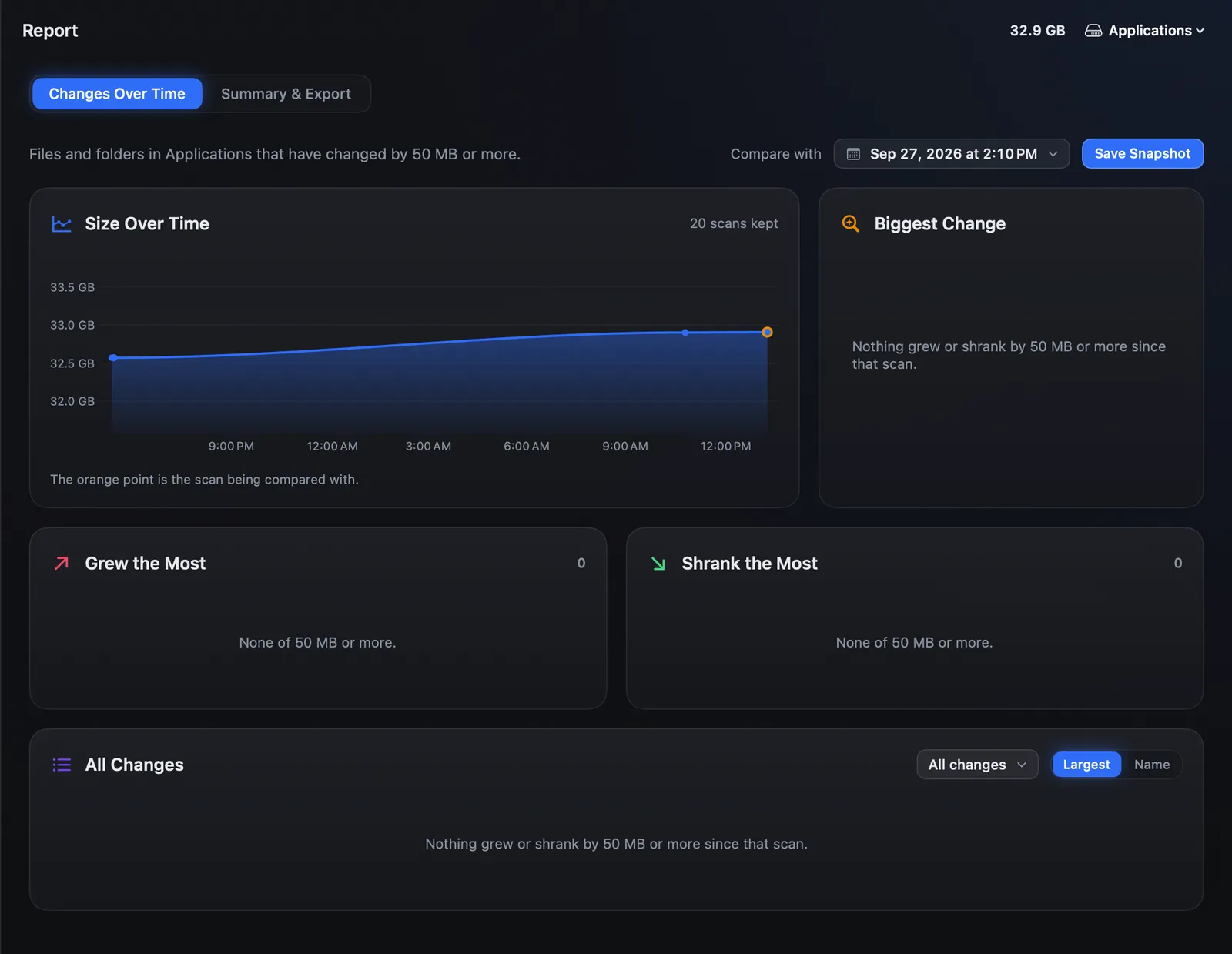
Under Insights, on the Changes Over Time tab. It compares with the newest earlier scan of the same place; Compare with picks another date.
-
Read the biggest change first
Biggest Change is usually the answer. Grew the Most lists the rest, and Show in the Map takes you there.
-
Filter if you need to
All Changes filters to what grew, what shrank, what is new since then or what is gone since then. It lists changes of 50 MB or more.
Tips
- Save a baseline before something big, such as installing a game or an Xcode update: Save Snapshot. Afterwards, the difference is exactly what it cost.
- The line at the top shows the place's size at every kept scan, up to the newest 20.
- The Overview's Storage Trend shows the whole disk's use over 90 days, free.