How to delete messages on a Mac, and free the space they take
Messages keeps every conversation, and every photo, video and file sent in it, until you delete them. Here is how to delete one message, a conversation or many at once on macOS 27, how to keep them on your iPhone while you clear your Mac, and how to free the space the attachments take.
Key takeaways
- Select a message and press Delete, or Control-click a conversation in the sidebar and choose Delete.
- What you delete in Messages waits in Recently Deleted for up to 30 days. What you delete in Storage settings, or Keep messages removes, is gone at once.
- With Messages in iCloud on, deleting on the Mac deletes on your iPhone too. Choose Disable This Device first if you want to keep them there.
- The space goes to attachments. Storage settings lists them by kind, and Keep messages can remove old ones by itself.
- Never delete files from ~/Library/Messages by hand: the conversations would point at files that are gone.
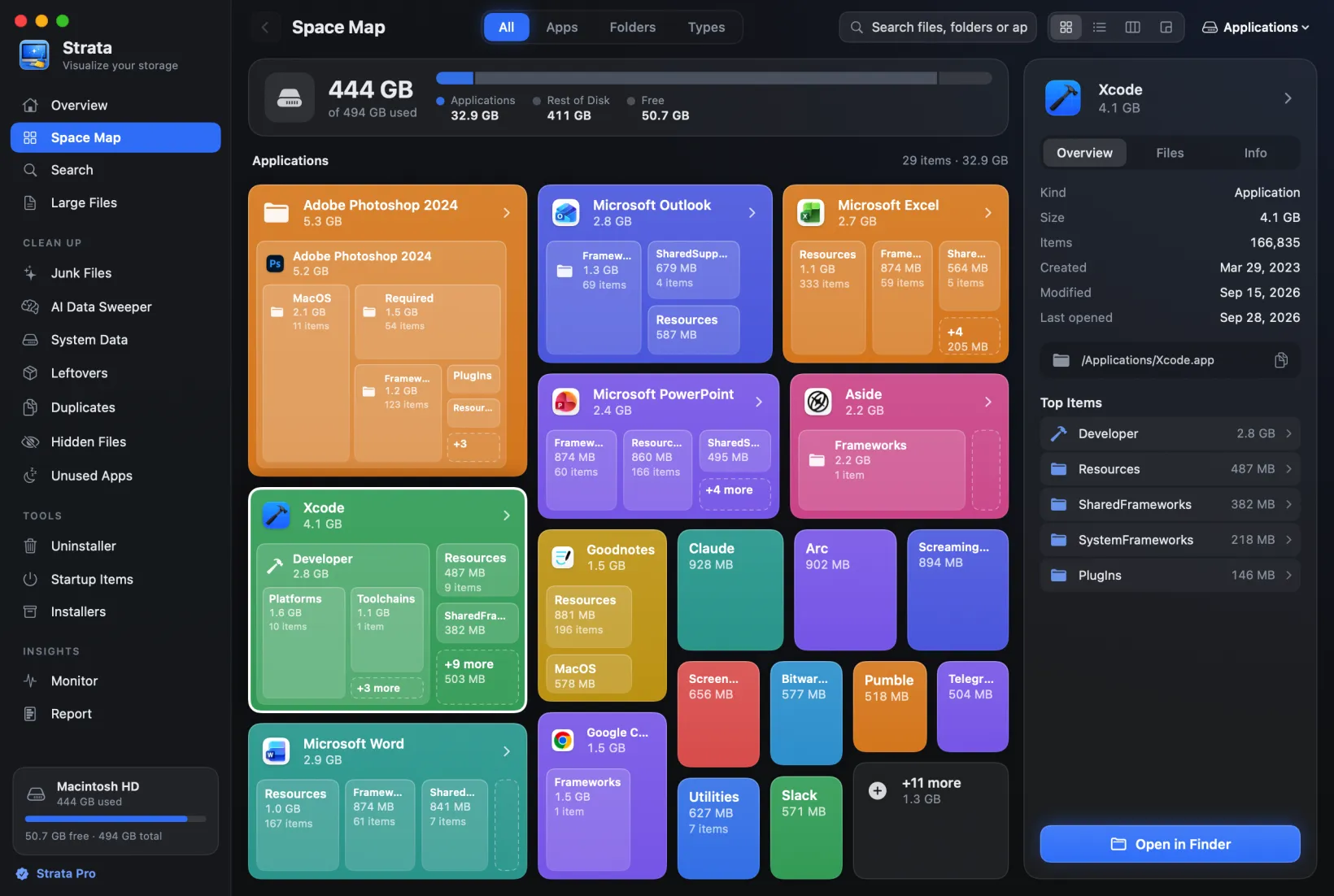
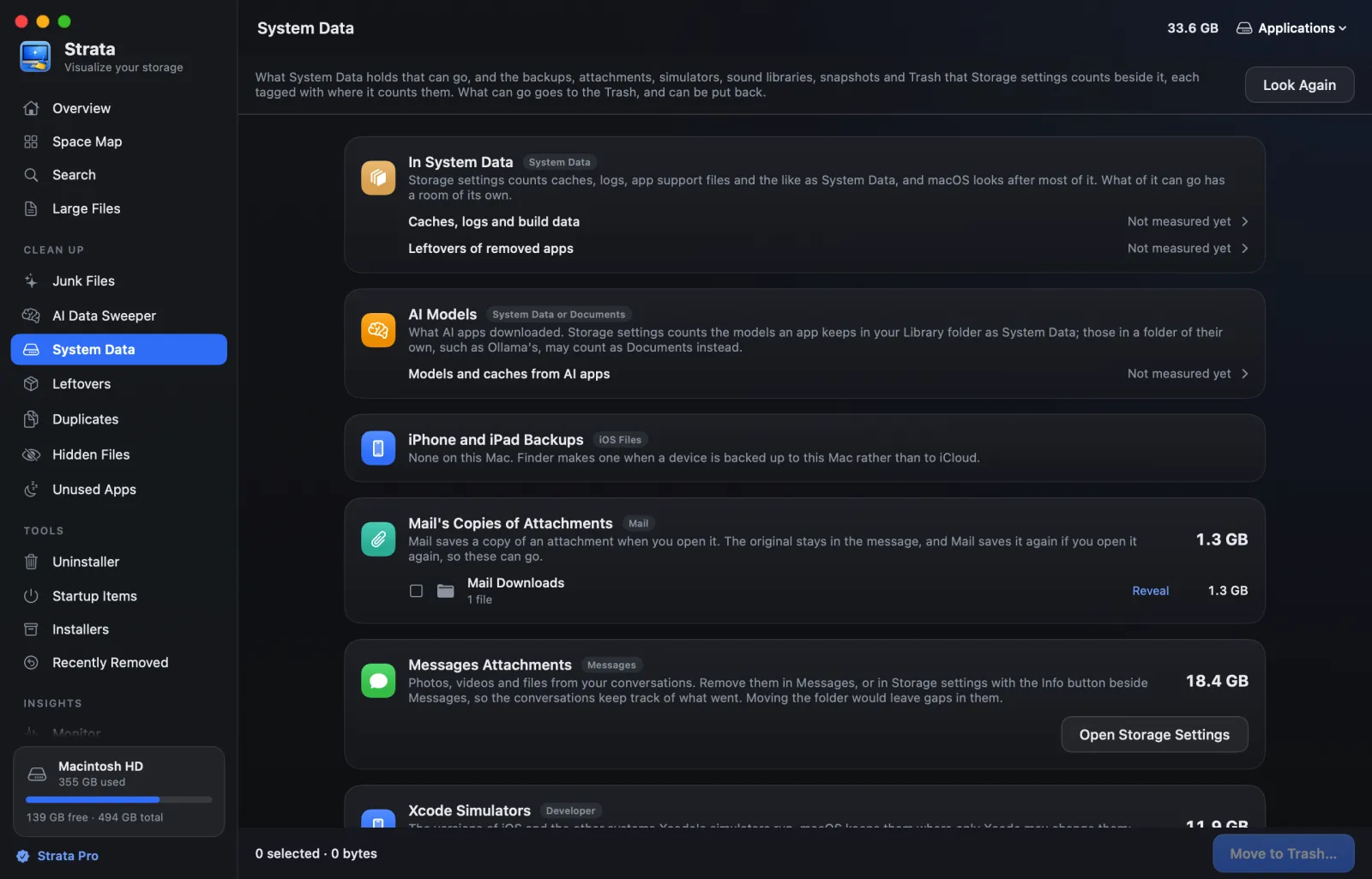
How we tested: we used an M2 MacBook Air running macOS 27.0.1 (26A434) on 23 October 2026, and read Messages' menu items, alerts and settings from the app's own files, and those of the part of Storage settings that lists Messages, and followed Apple's Messages User Guide for macOS 27 for the steps. We did not open anyone's conversations or change a setting. Strata is described as of version 1.0.32. Its picture, with stand-in sizes, comes from a build of the next version, not yet released, whose note names the Mac's Storage settings route.
Delete one message, or several
- Open the conversation in Messages.
- Select the message. It can be text, a photo, a video, a file, a link or an audio message. To select several, hold Command as you click each one.
- Press Delete, then click Delete in the dialog that asks "Are you sure you want to delete this message?"
It works the same for iMessages and for texts your iPhone passes on to the Mac. You can also Control-click a message and choose Delete…. Either way it is deleted for you only: Apple's guide to deleting messages and conversations notes that it works "without affecting what your recipients see".
To take back an iMessage you sent in the last two minutes, Control-click it and choose Undo Send: it then disappears from the other person's device too, if they use iOS 16, macOS 13 or later. Texts sent as SMS, MMS or RCS cannot be unsent.
Delete a conversation, or several
- One conversation: Control-click it in the sidebar and choose Delete. On a trackpad or Magic Mouse, you can also swipe left with two fingers on it and click the Delete button.
- Several: select them in the sidebar, holding Shift to pick a run of them or Command to pick them one by one, as in other lists on a Mac, then Control-click one of them and choose Delete. Pinned conversations sit apart at the top of the sidebar, so select those too if you mean to.
Messages asks "Are you sure you want to delete these conversations?" With Messages in iCloud on, it warns that they "will be deleted from all of your devices". The Conversation menu in the menu bar has the same command, Delete Conversation….
Delete all your messages
Messages has no command that deletes every conversation at once. Select them all in the sidebar, using Shift as above, and delete them together. Then open Recently Deleted, below, and delete them there for good; otherwise they wait there for up to 30 days.
Before you do, check Messages in iCloud. If it is on, this empties Messages on your iPhone and every other device where it is on, and emptying Recently Deleted then removes them everywhere for good. To clear only the Mac, turn it off on the Mac first, as described below.
If what you want is fewer old messages rather than none, let Messages do it. Choose Messages > Settings, click General, and set Keep messages to 30 Days or One Year instead of Forever. Messages older than that, with their attachments, are then removed automatically, even in conversations you still use. Messages asks first, and its warning says the deletion is permanent, and whether it reaches all your devices or only this one.
Recently Deleted: getting messages back
A message or conversation you delete in Messages first moves to Recently Deleted. Choose View > Recently Deleted, or press Control-Command-5, to see it. Select a conversation and click Recover to bring it back, or click Delete to remove it for good now. With Messages in iCloud on, a recovered conversation comes back on your other devices too.
Messages keeps deleted items there for up to 30 days, after which they are removed from all your devices. Apple adds: "After 40 days, the messages are permanently deleted from iCloud." Some deletions never go there, so they cannot be recovered: messages removed with Undo Send, audio messages that expired before you saved them, attachments deleted in Storage settings, and messages Keep messages removes.
Delete messages on your Mac but keep them on your iPhone
With Messages in iCloud, your conversations live in iCloud and every device shows the same ones, so Apple says deleting a message or conversation on your Mac deletes it on every device where Messages in iCloud is on. To clear only the Mac, turn Messages in iCloud off on the Mac alone first:
- Choose Messages > Settings, then click iMessage.
- Untick Enable Messages in iCloud. Messages asks "Disable Messages in iCloud?" and offers a choice.
- Click Disable This Device. Not Disable All, which turns it off on your iPhone and every other device as well.
- Wait for the download, then delete what you want on the Mac.
Two things to know first. Messages says turning it off means your messages "will be downloaded to your device", so a Mac that kept only recent messages can use more space before it uses less. A long history can take a while, so keep the Mac awake and online, and give it time before you delete anything. And we found nothing from Apple on what happens to messages you deleted on the Mac alone if you turn Messages in iCloud back on later, so do not count on either result.
Free the space Messages takes
Text takes little room. The space goes to attachments: every photo, video, GIF, sticker and file sent or received, kept in Messages as long as its conversation, which by default is forever. With Messages in iCloud on, the Mac may keep only recent ones and fetch the rest when you open them, and Apple's iCloud guide says they count towards your iCloud storage. There are three ways to clear them.
- Storage settings. Choose Apple menu > System Settings, click General, then Storage, and click the Info button beside Messages. On macOS 27 it lists each attachment as a Photo, Video, GIF / Sticker or Other Attachment. Select those you no longer need and click Delete, or click Open Messages. Its warning says they "will be deleted immediately": nothing goes to Recently Deleted, and it cannot be undone.
- In a conversation. Click the contact or group icon at the top of it, or press Option-Command-I, scroll to Photos and click Show more. Shift-click the attachments you want to remove, Control-click them, choose Delete and confirm.
- Keep messages. Set to 30 Days or One Year, as above, it removes old messages with their attachments by itself, permanently.
| Way to clear | Recently Deleted first? | With Messages in iCloud on |
|---|---|---|
| Delete in Messages | Yes, for up to 30 days | Deleted on your other devices too |
| Storage settings | No: deleted at once | Apple does not say |
| Keep messages | No: permanent | Its warning says which devices |
What you delete in the Messages app waits in Recently Deleted first, so empty it there when you want the room back now.
Storage settings may also offer Store in iCloud, which keeps all your messages in iCloud and only recent attachments on the Mac when space runs short. That frees the Mac but uses your iCloud storage instead, and it turns on Messages in iCloud, so from then on deleting on the Mac reaches your other devices too.
What not to do is open ~/Library/Messages in Finder and delete files there. That folder holds the conversations' database and the Attachments folder, and the conversations keep track of every attachment in it, so taking files away by hand leaves gaps in them, and frees no iCloud storage either. Delete attachments through Messages or Storage settings, which keep the two in step.
See how much Messages is using
macOS hides Messages' folder from apps unless you give them Full Disk Access, which is why some disk tools cannot see it at all; our guide to what Full Disk Access allows explains why. Storage settings shows the total for Messages. Strata's System Data room, with Full Disk Access, measures the attachments Messages keeps on the Mac, beside Mail's copies of attachments, iPhone backups and the other large things macOS counts apart, and opens Storage settings for you. System Data is part of Strata Pro, which every download includes for 14 days. For everything else that fills a Mac, see what is taking up space on your Mac.
Frequently asked questions
How do I delete a message on my Mac?
In Messages, open the conversation, select the message, press Delete, then click Delete to confirm. It works the same for iMessages and texts. To delete a whole conversation, Control-click it in the sidebar and choose Delete. Deleted messages wait in Recently Deleted for up to 30 days.
How do I delete all messages on a Mac at once?
Messages has no command that deletes every conversation at once. Select the conversations in the sidebar, holding Shift or Command as you click, then Control-click and choose Delete. With Messages in iCloud on, this deletes them from your iPhone and other devices too, so turn it off on the Mac first if you want to clear only the Mac.
How do I delete messages on my Mac but not my iPhone?
With Messages in iCloud on, a deletion on the Mac deletes on every device where Messages in iCloud is on. Turn it off on the Mac only first: in Messages, Settings, iMessage, untick Enable Messages in iCloud and choose Disable This Device, not Disable All. Messages then downloads your messages to the Mac; wait for that to finish before you delete anything.
Can I recover deleted messages on a Mac?
Yes, for up to 30 days, if you deleted them in Messages. Choose View > Recently Deleted, select the conversation and click Recover. With Messages in iCloud on, it comes back on your other devices too. Messages removed with Undo Send, attachments deleted in Storage settings and messages that Keep messages removed cannot be recovered.
Why is Messages taking up so much space on my Mac?
Attachments: photos, videos and files sent or received are kept as long as their conversation, and Keep messages is set to Forever unless you change it. Open System Settings, General, Storage, and click the Info button beside Messages to see them by kind. What you delete there goes at once and cannot be undone.
Can I delete the Messages Attachments folder?
Not by hand. The conversations keep track of their attachments, so removing files from ~/Library/Messages/Attachments in Finder leaves the conversations pointing at files that are gone, and frees no iCloud storage. Delete attachments in Messages or in Storage settings instead.
See what fills your Mac
Strata maps the whole disk in one scan, including Messages, Mail and iPhone backups with Full Disk Access, and shows what can go safely.
The scan, the map and search are free. Every download starts with 14 days of Strata Pro, removing up to 40 GB.