How to find similar photos on a Mac
To find similar photos on a Mac, start with Photos' own Duplicates, under Utilities in its sidebar, for the pictures in your library. It finds exact copies and photos that look the same at another size or format. Bursts, edits and resized copies kept in folders outside the library need a tool that compares what the pictures show.
Key takeaways
- Photos' Duplicates, under Utilities in its sidebar, covers the photos in your Photos library.
- It finds exact copies and look-the-same versions at another size or format; Apple does not claim it finds bursts or edits.
- Merge keeps one combined version and moves the rest to Recently Deleted for 30 days.
- Photos in folders, Downloads or an external drive need another tool, and never edit the Photos library in Finder.
- Keep the original over an edit or a smaller copy, unless you prefer the edit.
How we checked: on macOS 27.0.1 (26A434) with Photos 12.0, on 12 November 2026, we read Photos' own wording from its files, and Apple's guide, linked below. The look-alike photos pictured were drawn for this guide, not taken from anyone's library. Written by the maker of Strata, which is described as of version 1.0.41.
Duplicates, similar photos and look-alikes
Three kinds of near-copies fill a photo collection, and tools treat them differently:
- Exact copies: the same file twice, from importing a card twice or saving an attachment again.
- The same picture, saved another way: a resized copy sent by message, a JPEG exported from a HEIC, a picture saved again with other settings.
- Different shots that look alike: a burst, a few frames of the same view, an edit saved beside its original.
The first is easy to find by content, as our guide to finding duplicate files explains. The other two need software that compares the pictures themselves, and a person to choose the keeper.
1. In the Photos library: Duplicates
Photos has looked for duplicates in your library since macOS Ventura. On macOS 27:
- Open Photos and click Duplicates, under Utilities in the sidebar. If it is hidden, hold the pointer over Utilities, then click the arrow beside it.
- Select the duplicates to merge, or press Command A to select all.
- Click Merge followed by the number of items, then confirm in the dialog.
Guides written for macOS Ventura show Duplicates as an album in the sidebar, with a button that reads Merge and the number of duplicates; on macOS 27 it sits under Utilities.
Photos' own wording says what it counts as a duplicate. One kind is exact copies, which may differ in their metadata, such as dates. The other is photos that look the same but differ in resolution, file format or other slight ways. A merge keeps one version, which takes the details of the others, and for look-the-same photos the best quality of them. The rest go to Recently Deleted for 30 days. Apple's guide to removing duplicates has the steps for your version of macOS.
Three things catch people out. Photos looks for duplicates in the background, while you are not using it, and on a laptop only while it is plugged in, so a big library takes time. With an iCloud Shared Library, Duplicates needs the Both Libraries view. And Photos' own wording warns that merging some duplicates may not free iCloud storage.
What Apple does not claim is that Duplicates finds a burst of different shots or an edit saved as its own file. Nothing in Photos' wording calls them similar photos.
2. Outside the library: line them up in Finder
Photos you keep as files, in Downloads, on the Desktop, in an export folder or on an external drive, are not in Photos' reach. Finder cannot compare pictures, but it can line them up so you can:
- In a Finder window, search for
kind:imageand choose the folder to look in. - Sort by date, so that a burst or a day's near-copies sit together.
- Choose View > as Gallery to see each one large, and the next with the arrow keys.
That works for a folder or two. For years of exports, it is slow, and easy to get wrong.
3. Outside the library: find look-alikes with a tool
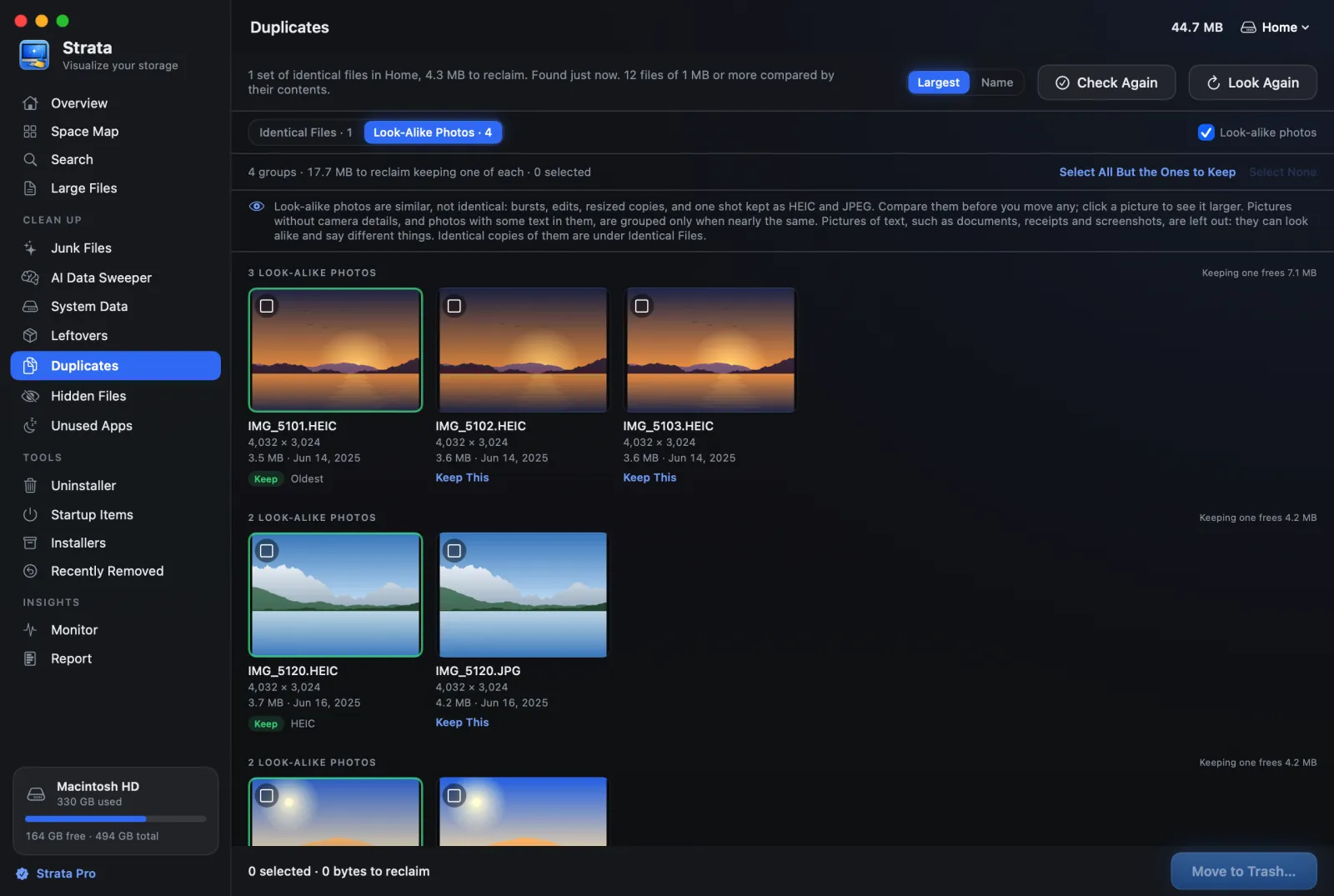
A look-alike finder reads every photo, describes what each shows, and groups those whose descriptions are close. From 1.0.41, Strata's Duplicates does this alongside identical files, on macOS 14 or later. It uses macOS's own Vision framework, which makes a feature print of each picture on the Mac, so the photos never leave it.

It groups bursts, edits, resized copies, and the HEIC and JPEG of one shot. It leaves out:
- the Photos library, which Photos manages;
- photos kept only in iCloud, so that nothing downloads;
- pictures of text, such as receipts and screenshots, which can look alike yet say different things.
Each group suggests one photo to keep, with the reason beside its Keep tag, and nothing is ticked until you tick it. The guide to finding look-alike photos in Strata covers the rest.
Which one to keep
- An edit and its original: keep the original unless you prefer the edit. An edit can be made again from the original, but not the other way round.
- A resized copy: keep the one with the most pixels. The smaller one was made for sending.
- HEIC and JPEG of one shot: keep the HEIC, which holds the same picture in less space, unless you need the JPEG for a device or a site that cannot open HEIC.
- A raw file and its JPEG: keep the raw file if you edit photos; it is the camera's original.
- A burst: open each large and keep the sharpest, or two. No tool knows which smile you like.
Whatever the tool, move the extras to the Trash rather than deleting them outright, so a wrong choice can be put back, and empty the Trash only once you are sure.
Leave the Photos library to Photos. The library is a package of its own, and Apple advises against changing its contents in the Finder, which can damage it. Export a photo first if you need it as a file, and use Photos' Duplicates inside the library.
Frequently asked questions
Does Photos find similar photos, or only duplicates?
Duplicates, in Apple's sense: exact copies, and one picture kept at another size or in another format. Apple never says it finds a burst or an edit kept as its own file. For photos kept as files outside the library, a look-alike finder can group those.
Why has Photos not found any duplicates yet?
Give it time. Photos scans while you are not using the app and, on a laptop, while it is connected to power, so a large library takes a while. With an iCloud Shared Library, set the Library menu in the toolbar to Both Libraries; Duplicates is unavailable in either library alone.
Does merging duplicates in Photos delete them?
Merging keeps one version of each set, combining the details of the others into it, and moves the rest to Recently Deleted, where they stay for 30 days. Photos also warns, in its own words, that merging some duplicates may not free up your iCloud storage.
Can Strata find similar photos inside my Photos library?
No. Strata leaves the Photos library to Photos, which manages its own files, and Apple advises against changing a library's contents in the Finder. Strata finds look-alike photos in your folders and on external drives; use Photos' Duplicates for the library.
Look-alikes, found on your Mac
Strata maps your disk and clears what you no longer need. From 1.0.41, its Duplicates room also finds look-alike photos in your folders and on external drives, compared on your Mac, with one of each group suggested to keep and nothing ticked for you. Everything goes to the Trash, and Recently Removed puts it back. The scan and the map are free; Duplicates is part of Strata Pro, $19.99 once, and of the 14-day trial.