How-to guides: all pages
How to find look-alike photos
From 1.0.41, on macOS 14 or later, Strata's Duplicates can group photos that look alike but are not identical: a burst, an edit and its original, a resized copy, or one shot saved as both HEIC and JPEG. It suggests which photo of each group to keep, says why, and ticks nothing for you. The photos are compared on your Mac.
What you need
- Strata 1.0.41 or later on macOS 14 or later, and a scan of the folders that hold your photos, such as your home folder or an external disk. Duplicates is a Strata Pro room, open during the 14-day trial.
- Photos outside the Photos library. Strata leaves the library to Photos, which has a Duplicates collection of its own.
Steps
-
Turn on look-alikes
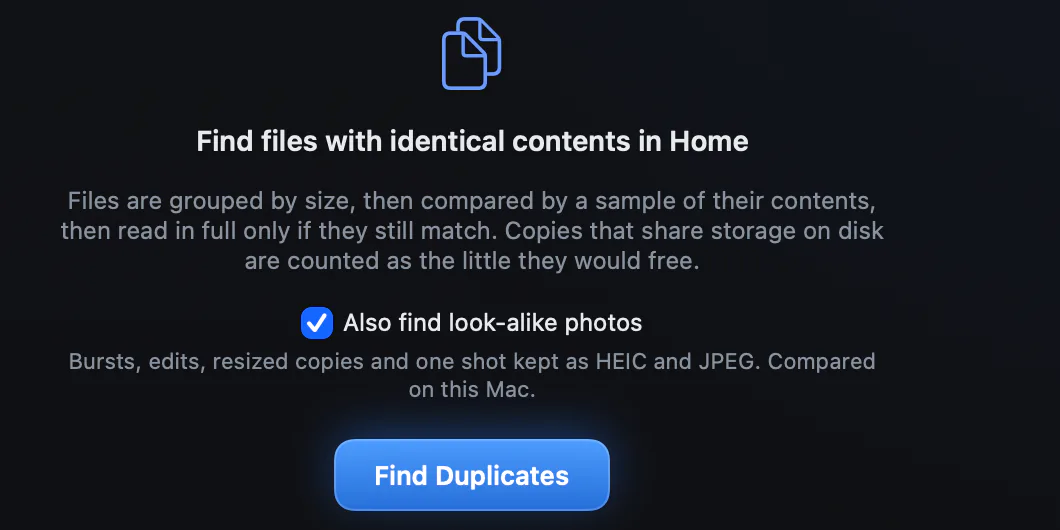
Open Duplicates and tick Also find look-alike photos before you press Find Duplicates. Searched already? Tick Look-alike photos beside the count of sets, or press Find Look-Alike Photos if no identical files were found, and the comparison starts at once. Strata remembers the choice.
-
Find Duplicates
Strata finds identical files first, then compares the photos among the files it checked: photos of 1 MB or more in HEIC, JPEG, PNG, TIFF, WebP or a raw format. Vision, the image analysis built into macOS, describes each picture on your Mac, so nothing about your photos leaves it. A second search reads only the photos that have changed. Stop keeps what was read.
Identical files first, then the look-alikes, in a list of their own. -
Open Look-Alike Photos
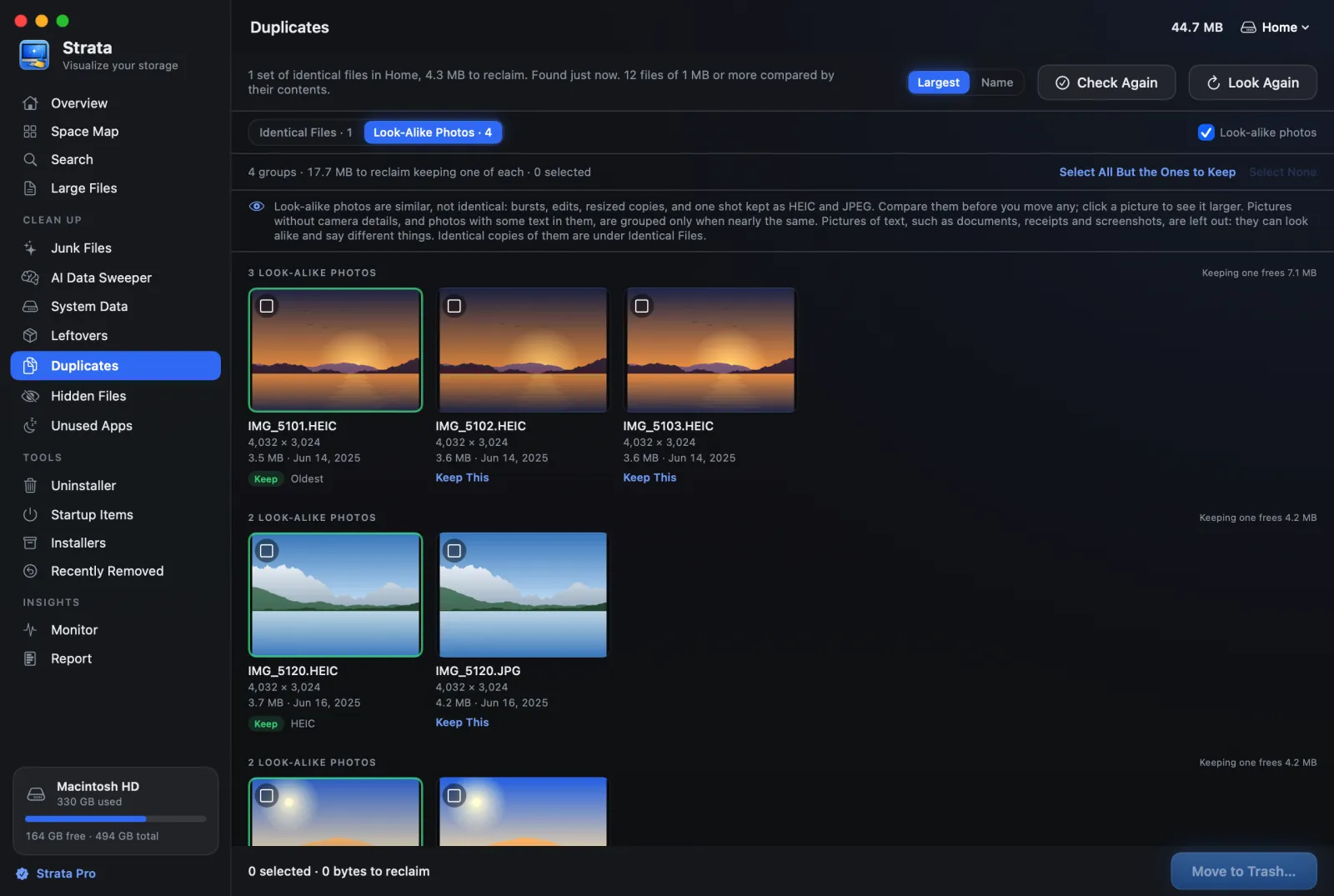
Click Look-Alike Photos, beside Identical Files above the results. Each group is a row of cards, headed by the space that keeping just one would free. A card shows the photo with its name, pixel size, file size and date.
-
Check the one to keep
One card in each group is tagged Keep, with the reason beside it. Largest means it has the most pixels. Original means the others' names mark them as edits or copies, as
IMG_E5133.JPGis. A format, such as HEIC, means the formats decided it: raw first, then lossless, then HEIC, then JPEG. Oldest means the date decided it. Keep This, on any other card, keeps that one instead.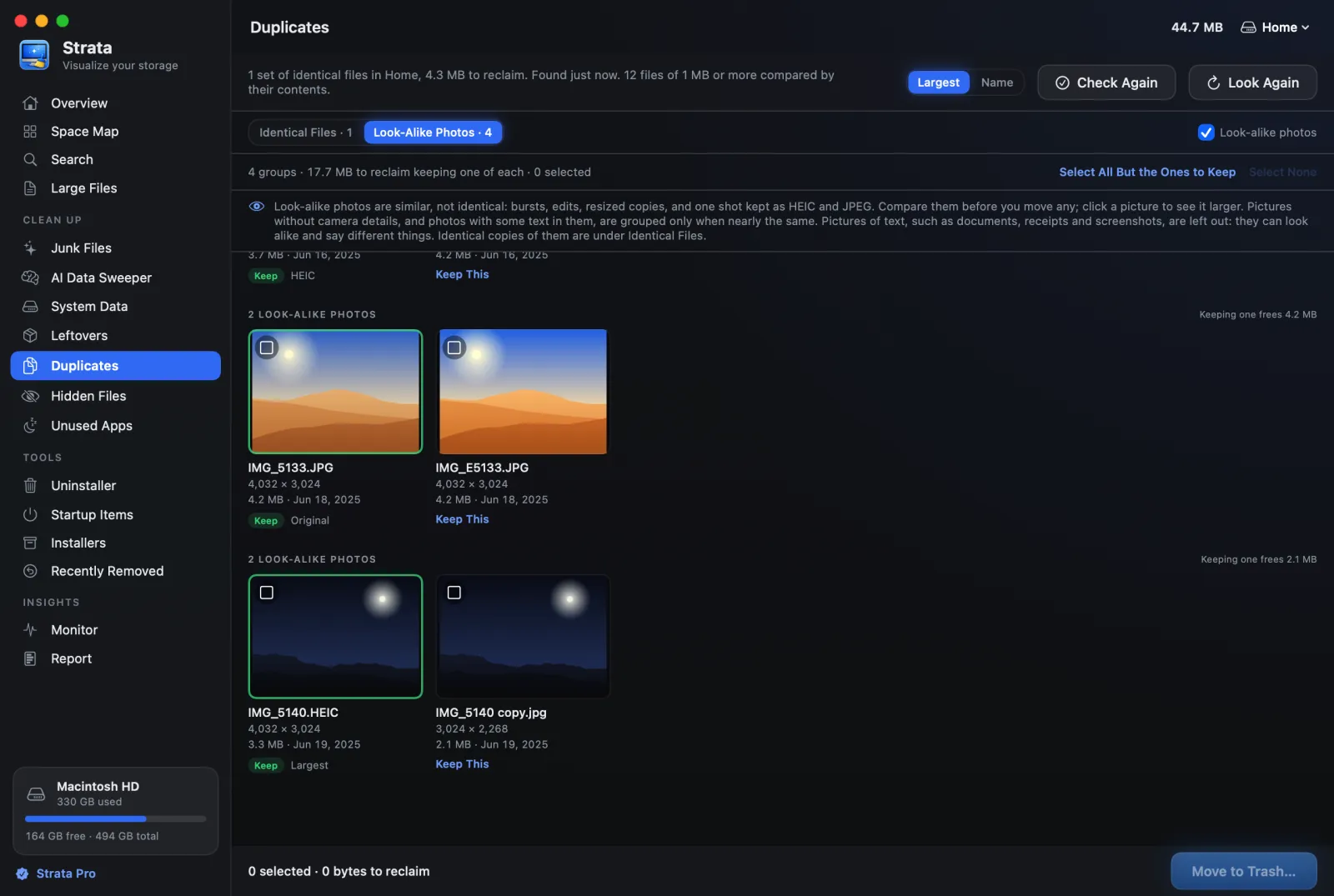
The edit and the smaller copy give way to the original and the largest. -
Look closer
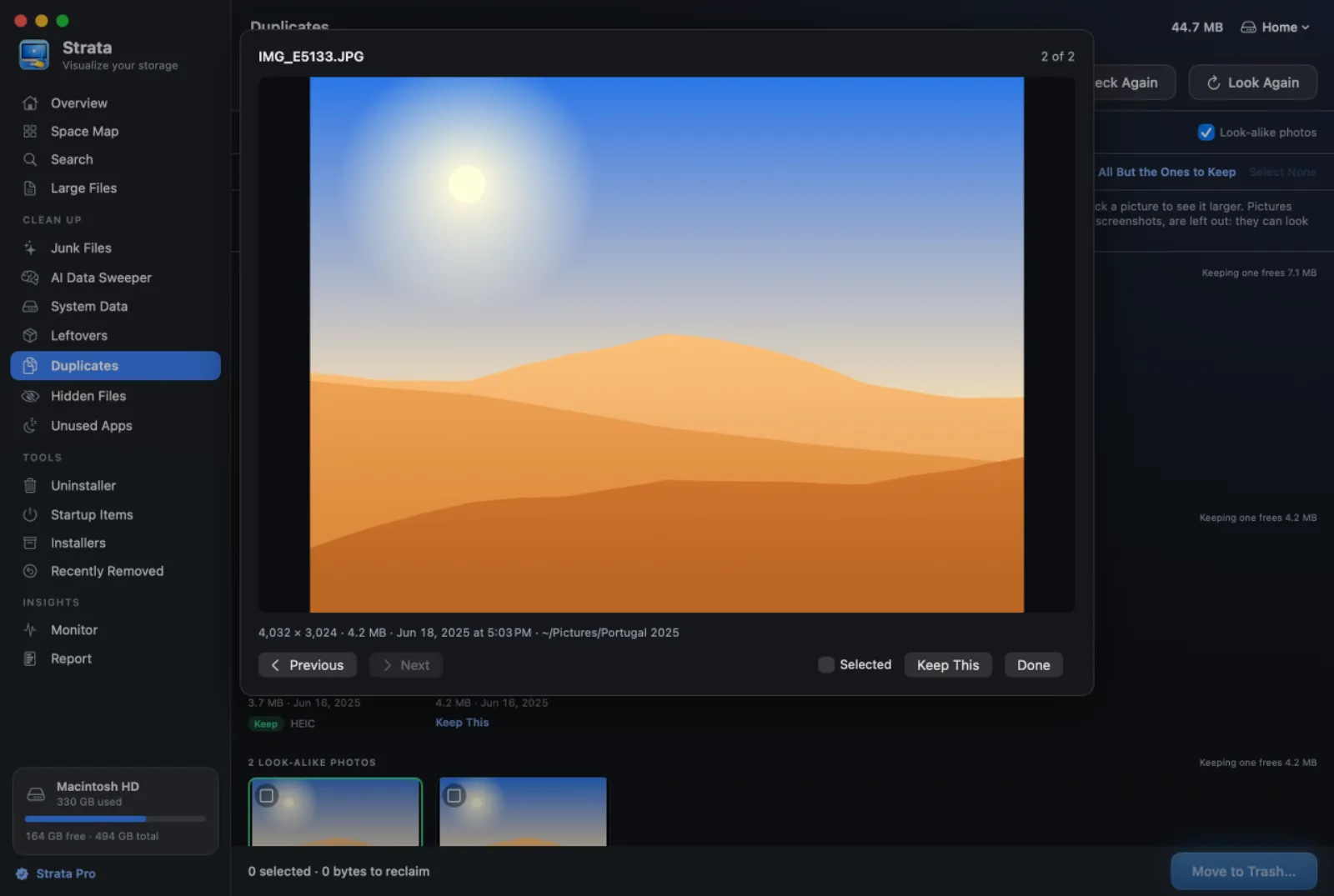
Click a picture to see it larger. The left and right arrow keys move through its group, with its tick box and Keep This below; Esc closes it.
-
Tick and move to the Trash
Nothing is ticked for you. Select All But the Ones to Keep ticks every photo except the kept one in each group, for you to look over, and Move to Trash… lists what you ticked on a sheet first. Ticking every photo of a group brings a warning. Changed your mind? Recently Removed puts them back.

What it leaves out, and why
- The Photos library, and everywhere else the search for identical files never looks, such as apps and your Library.
- Photos stored only in iCloud, since comparing them would download them. The list tells you how many it skipped.
- Pictures of text, such as receipts, documents and screenshots. Two of them can look the same yet say different things. Exact copies of them still show under Identical Files.
- Extra identical copies. Only the copy each set of identical files keeps is compared, on behalf of the rest.
How alike is alike enough depends on the photos. Two pictures that both have a camera's details, such as the exposure time or the lens, and no text in them, are grouped when they look alike. Others are grouped only when they are almost the same picture, as a resized or re-saved copy is with its original. The Duplicates documentation gives every rule, and the guide to duplicate files covers identical copies.