How-to guides: all pages
How to search your Mac in plain English
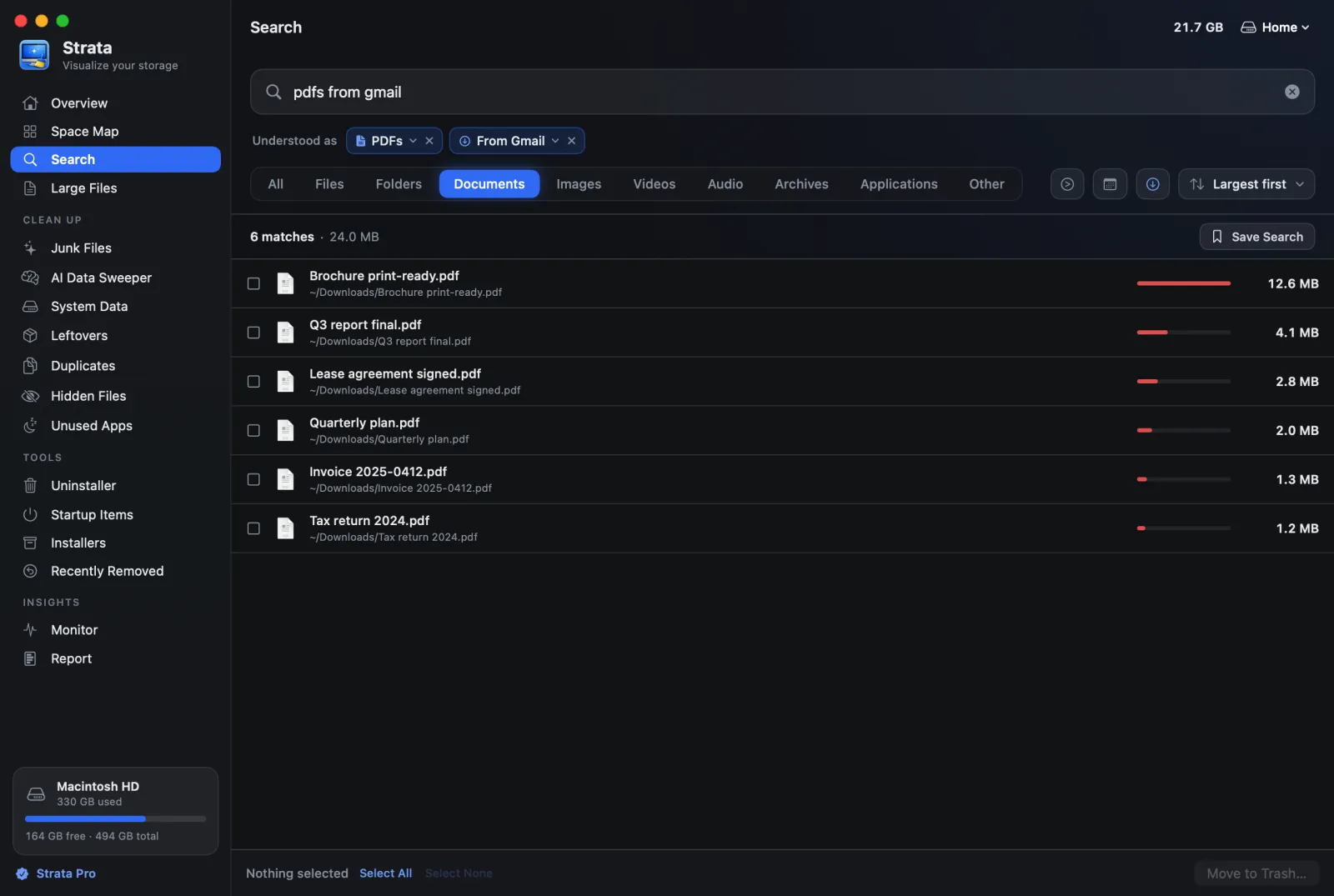
From 1.0.41, Strata's Search reads plain English. Type what you are looking for, such as dmgs older than a month or pdfs from gmail. Search turns the kind, the size, the date and where a download came from into filters, shown as chips under the field. It is free, and it works on your Mac from your last scan.
What you need
- Strata 1.0.41 or later, and a scan of the folder or disk you want to search. Searching is free. Moving what you find to the Trash needs Strata Pro or the trial.
Steps
-
Open Search
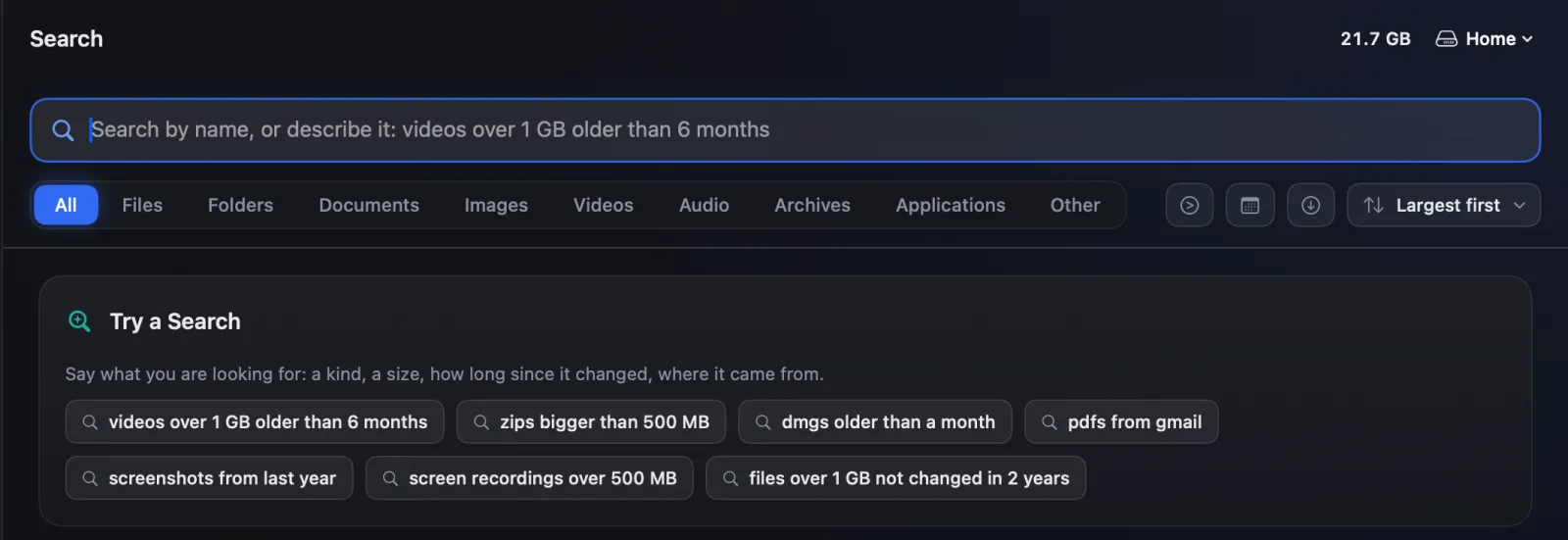
Click Search in Strata's sidebar. It looks through your last scan, so it answers at once, and it finds only what that scan covered: scan your home folder or the whole disk first. Before you type, Try a Search lists ready-made searches to click, such as dmgs older than a month.
-
Say what you are looking for
Type it as you would say it, in any order: a kind of file, a size, how long ago it changed, and where it came from. Both
videos over 1 GB older than 6 monthsandpdfs from gmailwork, and so does a name with a filter, such asinvoice from outlook. Other words are looked for in names, apart from small words such asofandmy.
The chips follow the words as they are typed; the results come once you stop. -
Check what it understood
Under the field, Understood as shows a chip for each part it read, such as PDFs, Over 1 GB, Changed more than 6 months ago and From Gmail. Words left for names get a Name contains chip. Click a chip's arrow to change it, or its cross to remove it. Right-click a chip that came from your own words to search for those words in names instead.
-
Use what it found
The results are largest first. With Strata Pro or the trial, tick what you no longer need and press Move to Trash…. Save Search keeps the search for next time, and Esc clears the words and every filter together.

What it understands
| Part | For example |
|---|---|
| Kind | videos, PDFs, documents, images, screenshots, screen recordings, music, zips, archives, disk images, dmgs, installers, apps |
| Size | over 1 GB, under 100 MB, bigger than 500 MB, between 100 MB and 1 GB, 1gb+ |
| Date | in the last 30 days, older than 6 months, last week, not changed in 2 years, this year, before 2020, since 2024 |
| Where it came from | from gmail, from slack, from whatsapp, from google drive,
downloaded from a site, as in from example.com |
| Order | biggest, largest, smallest, as in biggest videos |
Search reads a word as a filter only where nothing else is likelier, so names still work.
A year is a date only after a word such as in, since or before: Taxes 2024
looks for both words in names, while in 2024 is a date. Quotes keep words for
names, as in "2024" report.
How dates, sources and names are matched
Search dates a file by its Date Modified, the date Finder shows. A folder takes the date of the newest change anywhere inside it, so a folder of old projects with one film edited yesterday counts as changed yesterday. Search reads dates from the disk as it goes, and says Reading dates until it has them.
Where a file came from is the record its downloading app leaves with it, read on your Mac.
A source matches files only, never folders, and only files that arrived with a record, so
from gmail finds downloads from Gmail and nothing else. The
guide to where downloads came from covers
the record.
Only folders, and files of 1 MB and up, are searched by name; smaller files count towards their folder's size. The Search documentation lists every word it knows.