How-to guides: all pages
How to see when your disk will fill
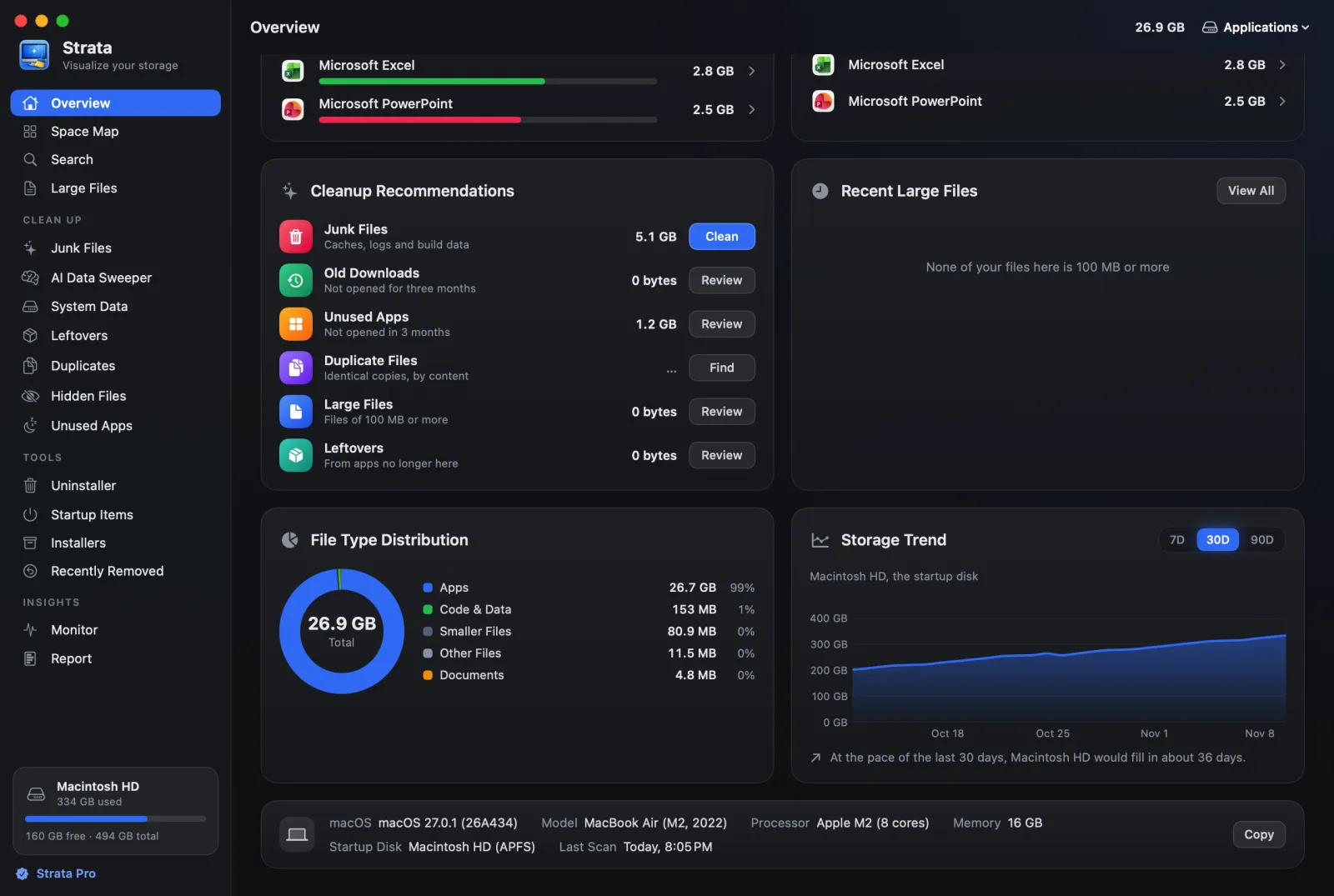
From 1.0.40, the Overview says how long the startup disk has left at its recent pace, worked out from up to 30 days of readings. A notice covers sudden falls in free space, measured over half an hour.
What you need
- Strata 1.0.40 or later, and a week of readings. Strata notes the disk once a day while it runs, and the estimate needs seven readings, the first and the last a week or more apart. Readings taken before 1.0.40 count, so, after updating, the line often shows at once. The readings stay on your Mac.
- For the notice, Strata's notifications allowed in System Settings > Notifications.
See where the disk is heading
-
Open the Overview
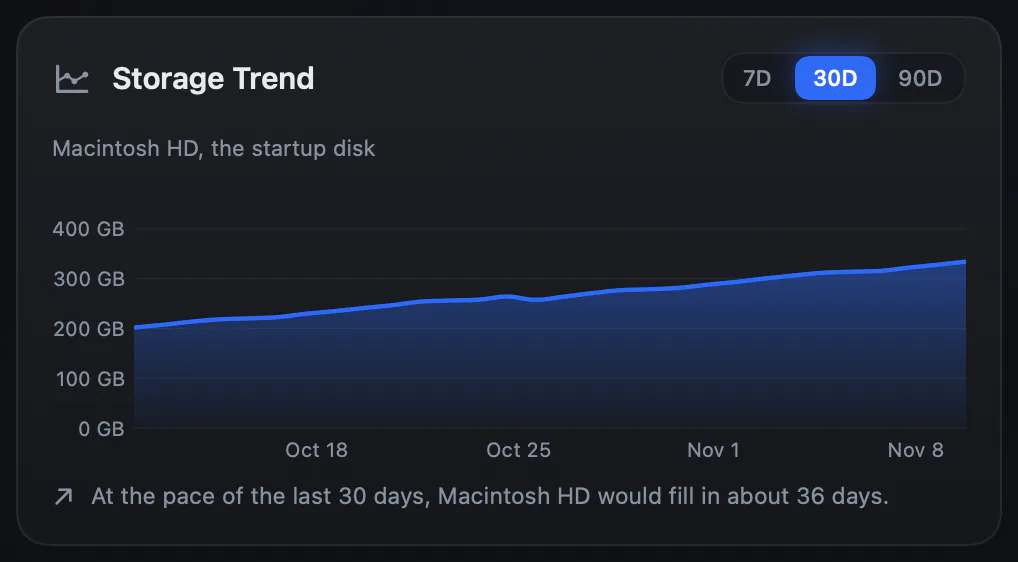
It is the first room in the sidebar. Scroll to Storage Trend, the chart of the startup disk's use over 7, 30 or 90 days.
-
Read the line under the chart
It works out the pace from up to 30 days of readings and says where that leads. For example: At the pace of the last 30 days, Macintosh HD would fill in about 36 days. Otherwise it says the disk would take more than a year to fill, or that its use has held steady or fallen. A disk that is already full says so.
From the second day until there is a week of readings, the line says Strata needs a week of daily readings before it can say where this is heading. Strata takes a reading only on days it runs, so a Mac that is often off takes longer.
-
Act on what it says
If it says days, or only a few weeks, find what is filling the disk before it fills: the guides at the end of this page start there. The line is an estimate worked out on your Mac, and one unusual day barely moves it.
Hear about it when free space falls fast
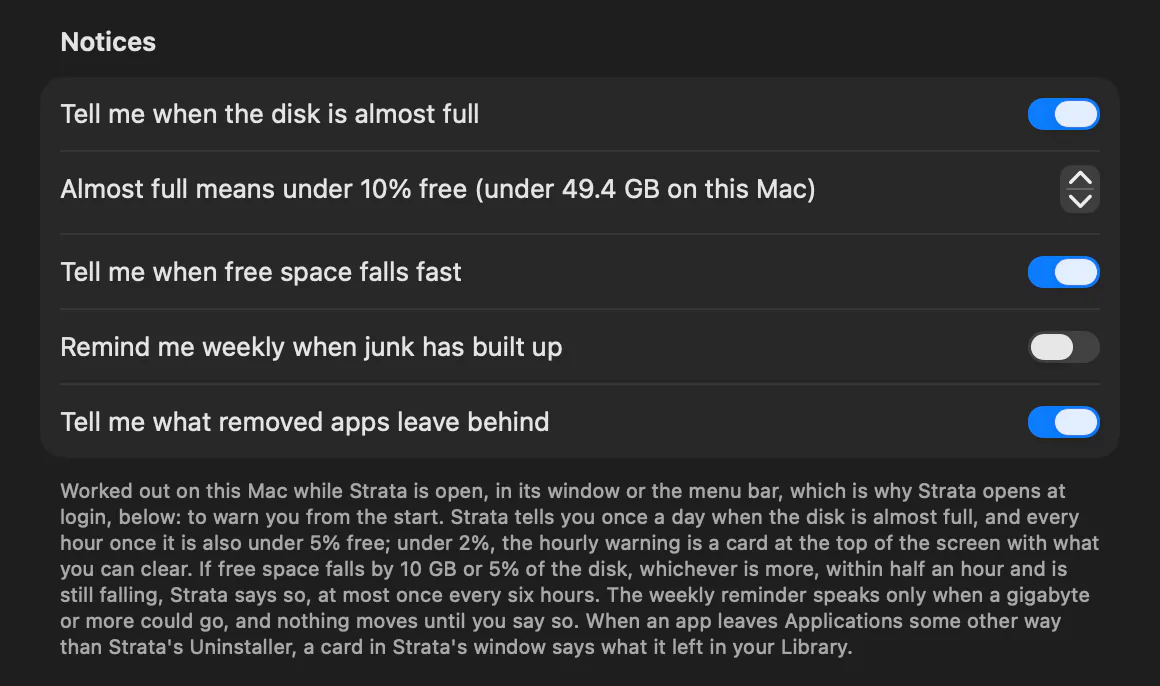
A pace worked out over weeks misses a sudden fall: something writing tens of gigabytes in an hour. For that, Strata checks free space every minute while it runs. A notice comes when free space on the startup disk drops fast and is still dropping. Fast means 10 GB or 5% of the disk, whichever is more, within half an hour: about 25 GB on a 512 GB Mac. A large copy that has finished says nothing, and there is at most one notice every six hours.
-
Check that the notice is on
It is on unless you turned it off: in Settings, General, under Notices, Tell me when free space falls fast.
-
Click the notice when it comes
Headed Free space is falling fast, it says how much went and over how long. A click opens Strata's Monitor, which shows the disk's activity and how much each open app reads and writes.
From 1.0.45, Strata first looks for a program holding a file it deleted: such a file is in no folder, yet its space stays in use. When one accounts for half or more of what went, the notice names it too, as dasd holds 91.7 GB in a file it deleted, which no folder shows, and with Strata Pro or the trial a click opens System Data instead, whose Deleted Files Still Open part shows the file and how to free it. Without Strata's administrator helper, Strata can see only your own programs.
-
Find what is writing
If the notice named a program, System Data's Restart or Quit frees the space where it offers one; without either, the space comes back when that program quits, or when the Mac restarts. If the notice named none, sort the Monitor's Processes card by disk to see which open app it is. If the Monitor's line says the disk has been written fast, the guide to what is straining your Mac lists what to try. macOS's own processes show only in Activity Monitor's Disk tab, with View > All Processes.
When the disk is filling, why Mac storage keeps filling up lists the usual causes, and the guide to freeing up space goes through the clean-up, start to finish. Every notice Strata can send is listed under Notices in Settings, and the Overview's documentation describes Storage Trend with the other cards.