How-to guides: all pages
How to find the apps that still need Rosetta
On a Mac with Apple silicon, apps made only for Intel Macs run through Rosetta 2, and Apple keeps Rosetta fully available only through macOS 27. Four ways to find yours, and what to do about each.

Why it matters now
A Mac with Apple silicon runs an app made only for Intel Macs through Rosetta 2, which translates it in the background. Apple's support page, published on 21 September 2026, says Rosetta is available on any Mac with Apple silicon using macOS 27 or earlier. From macOS 28 it stays only for certain older, unmaintained games that rely on Intel-based frameworks. So an Intel-only app you rely on needs a version made for Apple silicon, or a replacement, before you move to macOS 28.
This is about Macs with Apple silicon. On a Mac with an Intel processor, the same apps run natively.
In Strata
-
Open the Uninstaller
Under Tools in the sidebar. It lists the apps in Applications, its Utilities folder, and the Applications folder in your home folder.
-
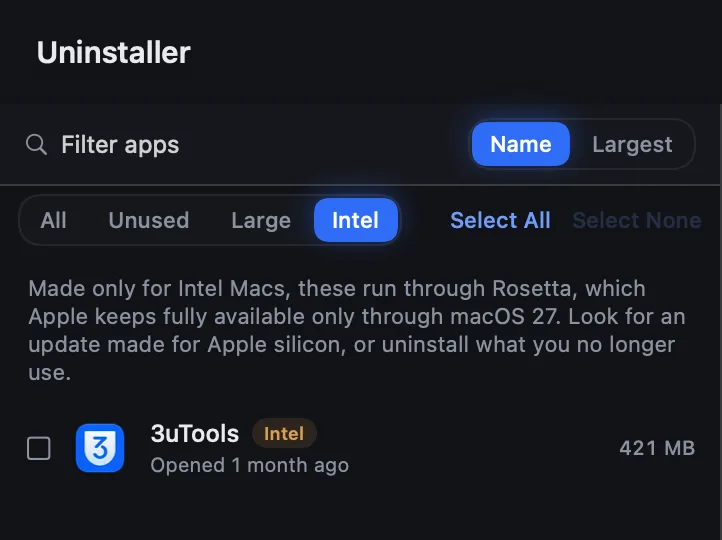
Choose Intel
It sits above the list, next to All, Unused and Large, and appears only on a Mac with Apple silicon. Each app shows its size and when it was last opened, and keeps its Intel tag under the other filters too. When there are none, it says "No app here is made only for Intel."
-
Decide about each
Click an app to see the files it keeps in your Library; clicking it also ticks it. To remove an app you no longer use, press Uninstall…: the app and its files go to the Trash, and Put Back in Strata returns them while they are still there. If the app shows a lock, an installer put it there and only Finder can move it: Show in Finder, then Command Delete, which asks for your password, and Strata still clears its files. Looking is free; uninstalling needs Strata Pro or the trial.
In System Settings, on macOS 27 or later
-
Open About
Choose Apple menu > System Settings, click General in the sidebar, then About.
-
Open the list
In the macOS section, click Details… next to Intel-based Apps. It lists the ones you used recently or that are installed in common locations.
-
Act on one
Hold the pointer over an app, click More Info, then choose Show App in Finder… or Move to Trash. Move to Trash moves only the app; if Strata is running, a notice then says how much the app left in your Library.
For one app, in Finder
-
Get Info
Select the app in Applications and choose File > Get Info, or press Command-I.
-
Read Kind
Application (Intel) is made only for Intel Macs and needs Rosetta. Application (Universal) and Application (Apple silicon) run natively. Some Universal apps offer Open using Rosetta, so they can load add-ons made only for Intel. Leave it off unless an add-on you use needs it.
Every app it finds, in System Information
-
Open System Information
It is in Applications > Utilities, or search for it with Spotlight.
-
List the applications
Under Software in the sidebar, click Applications, and sort by the Kind column. Only Intel needs Rosetta; everything else in the column, such as Apple Silicon, Universal, iOS or Other, runs without it.
System Information lists every app it finds on the disk, including printer drivers and helpers. On our Mac it found 13 Intel items, and only one of them, 3uTools, was an app in Applications; the rest were printer drivers and helpers, most in Library folders and two inside another app. Apple notes that some components, such as extensions or updaters, and third-party plug-ins have to be updated separately from their app.
What to do with each
- Update it. Look for a version made for Apple silicon, or a Universal one, on the developer's site or in the App Store. The copy on your Mac may simply be old.
- Replace it. If the developer has stopped, find an app that runs natively. Our guide to Disk Inventory X on Apple silicon walks through one case: an app made only for Intel, its forks and its native alternatives.
- Uninstall what you no longer use. Strata's Uninstaller moves the app and its files to the Trash, with Finder's help for an app that shows a lock; see how to uninstall an app completely.
- Keep it for now. It still runs through Rosetta on macOS 27. Apple says macOS may show a notice that support for Intel-based apps is ending when you open one, sometimes with a link to the developer's site.
Installing Rosetta. Rosetta is not an app you open. With your Mac online,
open an app made for Intel, and macOS offers to install Rosetta if it is missing: click
Install and enter your user name and password. Apple's page also
gives a Terminal command, softwareupdate --install-rosetta.
Frequently asked questions
Will Intel apps stop working on macOS 28?
On a Mac with Apple silicon, Apple says they will, apart from certain older games. It says Rosetta is available on macOS 27 or earlier, and from macOS 28 only for certain older, unmaintained games that rely on Intel-based frameworks. An app made only for Intel needs a version made for Apple silicon by then.
How do I install Rosetta 2?
With your Mac online, open any app made for Intel Macs. If Rosetta is missing, macOS offers to install it: click Install and enter your user name and password. Apple also gives a Terminal command, softwareupdate --install-rosetta. Rosetta is not an app you open; it works in the background.
Does Strata need Rosetta?
No. Strata is a Universal app, made for both Apple silicon and Intel, so it runs natively on either kind of Mac.