Why Mac storage keeps filling up by itself, and how to find what is doing it
When a Mac's available space shrinks by itself, the usual causes are things macOS runs for you: swap, caches that refill, iCloud downloads, staged updates and Apple Intelligence's models. Now and then a program writes far more than it should, sometimes to a file it has already deleted. Time Machine's local snapshots show in free space rather than in Finder's figure, because Apple counts their space as available. The fastest way to tell: note the available space now and again in an hour, then open Activity Monitor's Disk tab with View > All Processes and sort by Bytes Written. Here is how to confirm each cause, which folders to check with Strata, and what to do.
Key takeaways
- Measure first: note the available space now and in an hour. A steady fall while the Mac is idle means something is writing.
- Swap, caches, iCloud downloads and Apple Intelligence's models can lower that figure by themselves, and so can a deleted file still held open.
- Time Machine's local snapshots barely move that figure, since Apple counts their space as available; they show in free space, in Disk Utility and
df. - To catch a process writing now, use Activity Monitor: View > All Processes, Disk, then sort by Bytes Written. An ordinary app, Strata included, cannot read the disk use of processes outside your account.
- To see which folders grew, scan again and look at the Overview and Space Map (free), or let Changes Over Time (Strata Pro) compare two scans.
Written by the maker of Strata. What macOS does is described from Apple's support pages and manual pages, read on 10 November 2026. On-screen names follow macOS 27, and Strata's features version 1.0.39.
Measure it before you hunt
"It keeps filling up" is a feeling; a figure with a time beside it is evidence. Note the space now, in an hour and the next morning, with anything you did in between.
Then read the pattern. A steady fall while the Mac sits idle means something is writing now, and Activity Monitor can name it. A fall that reverses in one jump suggests space held for a while, then let go.
Know which figure you are reading, because there are two. Available space, which Finder shows
in its status bar (View > Show Status Bar), includes purgeable
caches that macOS deletes when it needs room. Apple says the Mac also counts the space Time
Machine's snapshots use as available. Free space leaves both out: Disk Utility's Info button
shows it beside the purgeable amount, and df -H / in Terminal reports it, in the same gigabytes Finder uses.
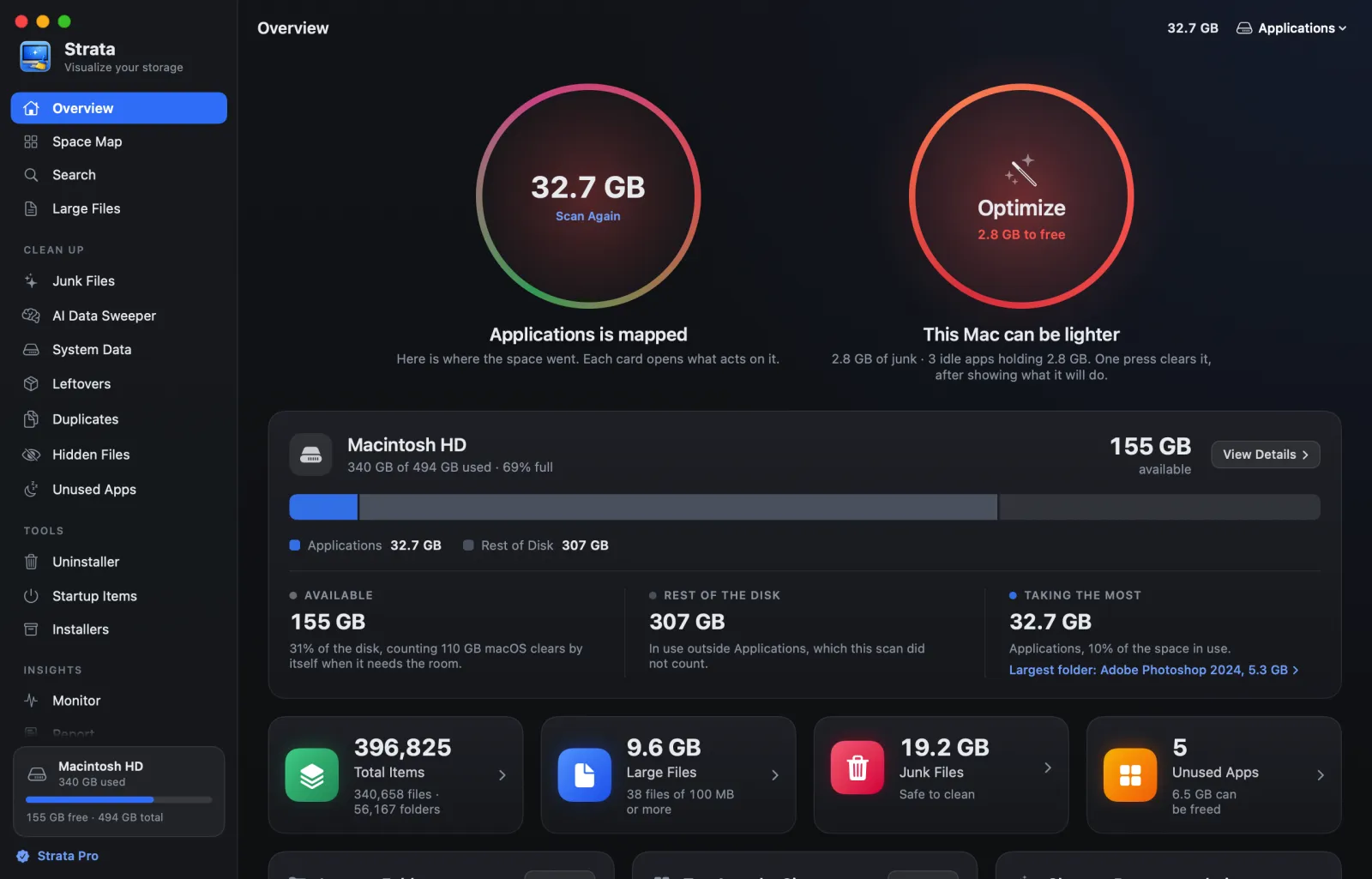
Strata's menu bar item shows the available figure beside its icon by default, counted as Finder counts it. The Overview's free Storage Trend card records the disk's use once a day while Strata runs, charting up to 90 days.

Swap and caches: space macOS lends and takes back
Swap
When memory runs short, macOS moves data it is not using out to the startup disk and reads it back when needed. That space is swap: Activity Monitor's Memory pane shows it as Swap Used, and Storage settings counts these virtual memory files as System Data. Strata's Monitor lists swap in its Memory Pressure card.
Caches and purgeable space
Caches are files apps keep to work faster, and apps rebuild them as they run. When space is needed, Apple says macOS clears caches and logs it judges safe to delete, among them interrupted downloads, staged updates and Safari's website data. Purgeable caches already count as available; ordinary ones lower the figure until something clears them.
Strata's Junk Files (Strata Pro) lists caches app by app. Our guides to purgeable space and what is taking up space explain the gap between free and available, and why a disk refills after a cleanup.
Downloads you did not start
iCloud Drive and Photos
Optimize Mac Storage is the setting that lets the Mac keep older documents only in iCloud when it needs space. While there is room, Apple says the full contents of iCloud Drive stay on the Mac, so what you add on your other devices can land here too. In Photos, Download Originals to this Mac keeps every full-size photo here, while Optimize Mac Storage keeps smaller versions when space is limited. Check Photos > Settings > iCloud, and watch the Pictures part of Strata's disk bar, which includes the Photos library.
Updates waiting to install
With Download new updates when available on in Software Update settings, macOS fetches updates without asking, a laptop only on power. Staged updates are among what macOS clears when it needs room. After an update, especially a major one, Apple says the Mac spends a while indexing files, downloading new assets and updating apps. System Data after the macOS 27 update covers what is normal then.
Apple Intelligence after an update
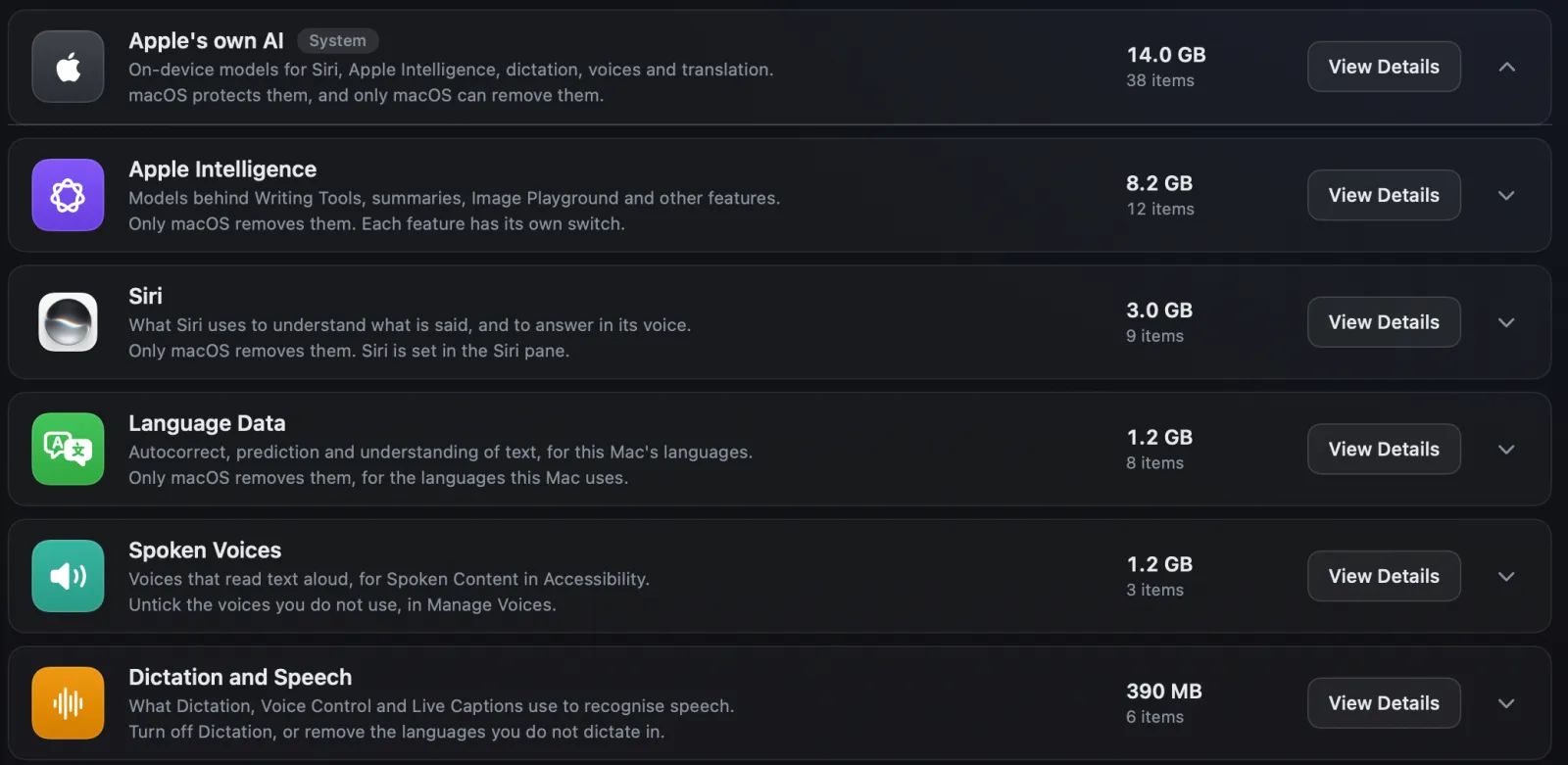
For macOS 27, Apple says Apple Intelligence needs up to 14 GB on Macs with M3 or later and 12 GB or more of unified memory. Other supported Macs need up to 8 GB. Around a software update it can briefly need more, while new models download and old ones go. Strata's AI Data Sweeper (Strata Pro) adds up what Apple's own AI keeps and opens the setting where each part is managed, since macOS protects those files.
Programs that keep writing
Sometimes one program writes far more than it should: a log that never stops, a sync stuck in a loop, a download that fails and restarts. On macOS Sonoma and Sequoia, failed Aerial wallpaper downloads have piled up where only root, the account macOS keeps for its own work, can look. The figure cannot tell this from the other causes; Activity Monitor can.
A deleted file that keeps its space
A deleted file can keep its space in three ways. It can sit in the Trash until you empty it, as
Apple notes, or in a Time Machine snapshot, covered below. Or a program
can hold it open, deleting a file and still writing to it. Apple's manual page for unlink,
which comes with Xcode and its Command Line Tools, says the space is then freed only when no
process has it open.
SQLite, the database engine built into macOS, is written this way: its
source
deletes its scratch files for sorting and temporary tables right after opening them, and names them starting with
etilqs_, "sqlite" spelled backwards. No folder lists such a file, so Finder,
Storage settings and Strata's scan cannot show it; its space comes back all at once when the
program closes it.
To list such files, run sudo lsof +L1 in Terminal as an administrator. Each line
gives the program (COMMAND), its process ID (PID), the file's size in
bytes (SIZE/OFF) and the path it had. Look for large sizes: the same file appears
once for each program holding it, and many small lines are normal.
It needs sudo because macOS shows an ordinary app, Strata included, only the open
files of its own account's processes. Seeing those of root and of macOS's service accounts takes
an administrator. Strata does not list open files at all.
Time Machine's local snapshots: free space, not available space
Time Machine also keeps local snapshots on the Mac, so files can be restored while the backup disk is away; purgeable space sets out how long each is kept. A snapshot is a read-only copy of the disk at one moment, so a file you delete keeps its space until every snapshot holding it has gone.
But Apple's article on local snapshots
says the Mac counts the space they use as available. So on Finder's figure or
Strata's menu bar they barely move the number, and a fall there points elsewhere. They show in
free space: in Disk Utility's free and purgeable figures, in df, and in the part
of Strata's Available line that macOS clears by itself. When macOS deletes them, as they age or
when space is needed, free space jumps back in one step.
Disk Utility lists them under View > Show APFS Snapshots, with columns for each one's date and size. Strata's System Data room (Strata Pro) counts them and dates the oldest, and its button opens Time Machine settings. Strata never deletes them.

When the backup disk has been away
If the backup disk has been away for weeks, the snapshot of the last good backup can be weeks old, holding the space of everything deleted since. If the oldest is that old, check when Time Machine last backed up; Apple says it resumes its schedule once the disk is reconnected.
Find the process with Activity Monitor
Activity Monitor, in Applications > Utilities, is Apple's tool for seeing what each process does. Its Disk pane counts how often and how much the Mac reads and writes.
-
Show every process
Choose View > All Processes; My Processes would show only your account's.
-
Open the Disk tab
Click Disk at the top of the window.
-
Sort by what is written
Click the Bytes Written heading, and again if the largest figure is not at the top.
-
Watch for a minute
The window refreshes every 5 seconds by default. Note the figure that keeps climbing between refreshes, not just the largest: that is the process writing now.
If it is an app you opened, quit it and see whether the fall stops. If it is part of macOS, it may simply be busy after an update.
Why this step needs Activity Monitor
Its View menu picks which processes are listed, by owner: My Processes are your account's, System Processes macOS's, and Other User Processes neither yours nor root's. An ordinary app runs as you, and macOS lets it read disk figures only for processes in your account. Ask about one owned by root, or by an account macOS keeps for its services, and macOS refuses. Activity Monitor, part of macOS, lists them all.
Strata's Monitor lists open apps only, by design, and could not read root's processes' figures anyway. Its Disk Activity card charts reads and writes across all disks from the disks' own counts, so macOS's background work is in that line. With Strata running, the 1 Hour view shows when it happened.
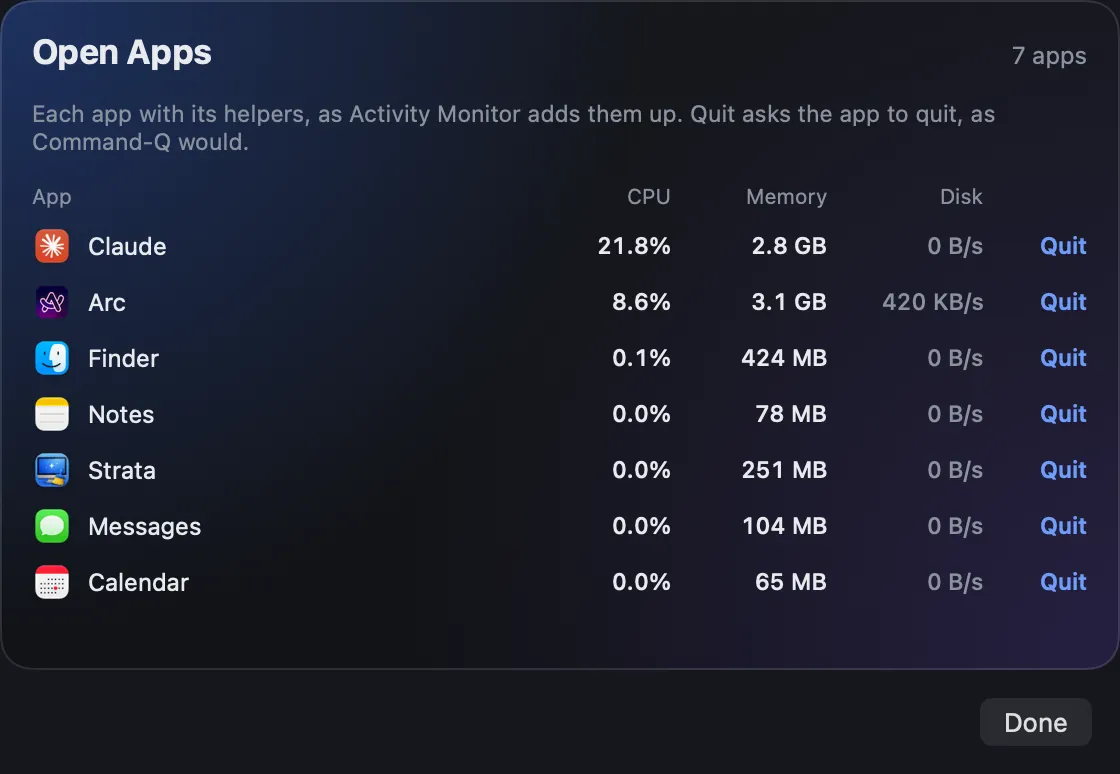
Top Apps and Open Apps name the open apps using the most disk. How the Monitor compares with a monitoring app is in Strata against Sensei.
Find the folders: what Strata shows
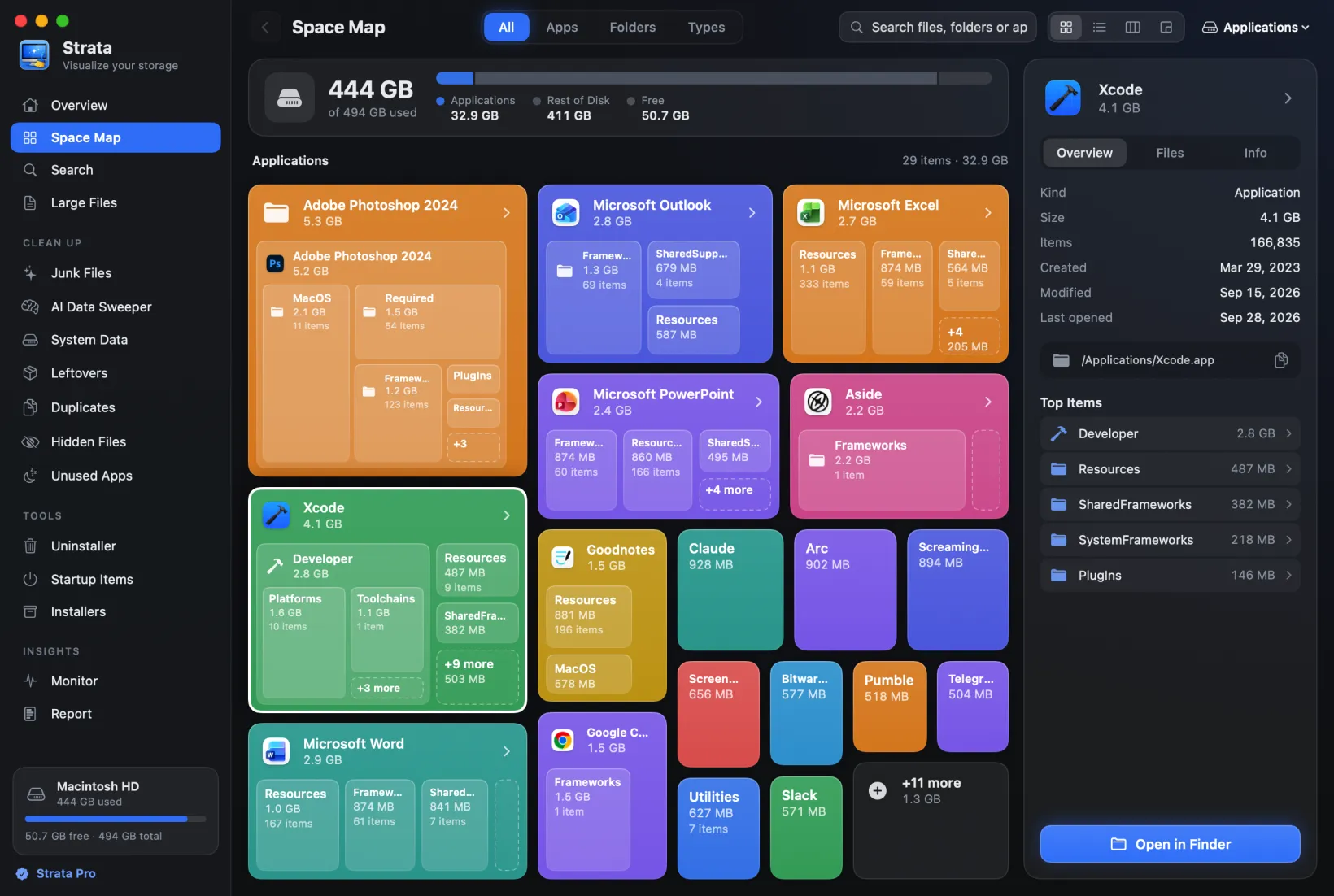
Activity Monitor names the writer, not where the bytes went. For that, scan and compare; Strata's scan, Overview and Space Map are free.
The Overview: the whole disk in one bar
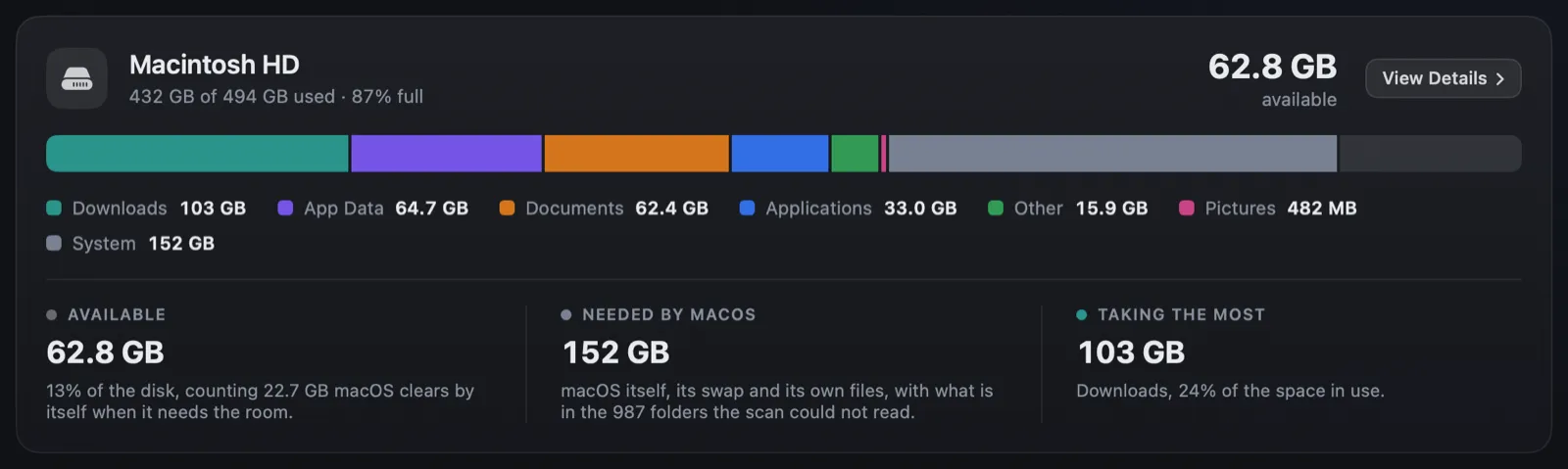
The Overview splits the disk into your parts, what apps keep and what macOS needs, with the available space last. Needed by macOS is macOS, its swap and its own files, plus whatever the disk uses beyond what the scan counted, folders it could not open included. If that part grows between scans while yours hold still, look at what macOS keeps, such as swap or Spotlight's index, at folders the scan could not read, or at a deleted file still held open.
The Space Map: open the folder and watch it
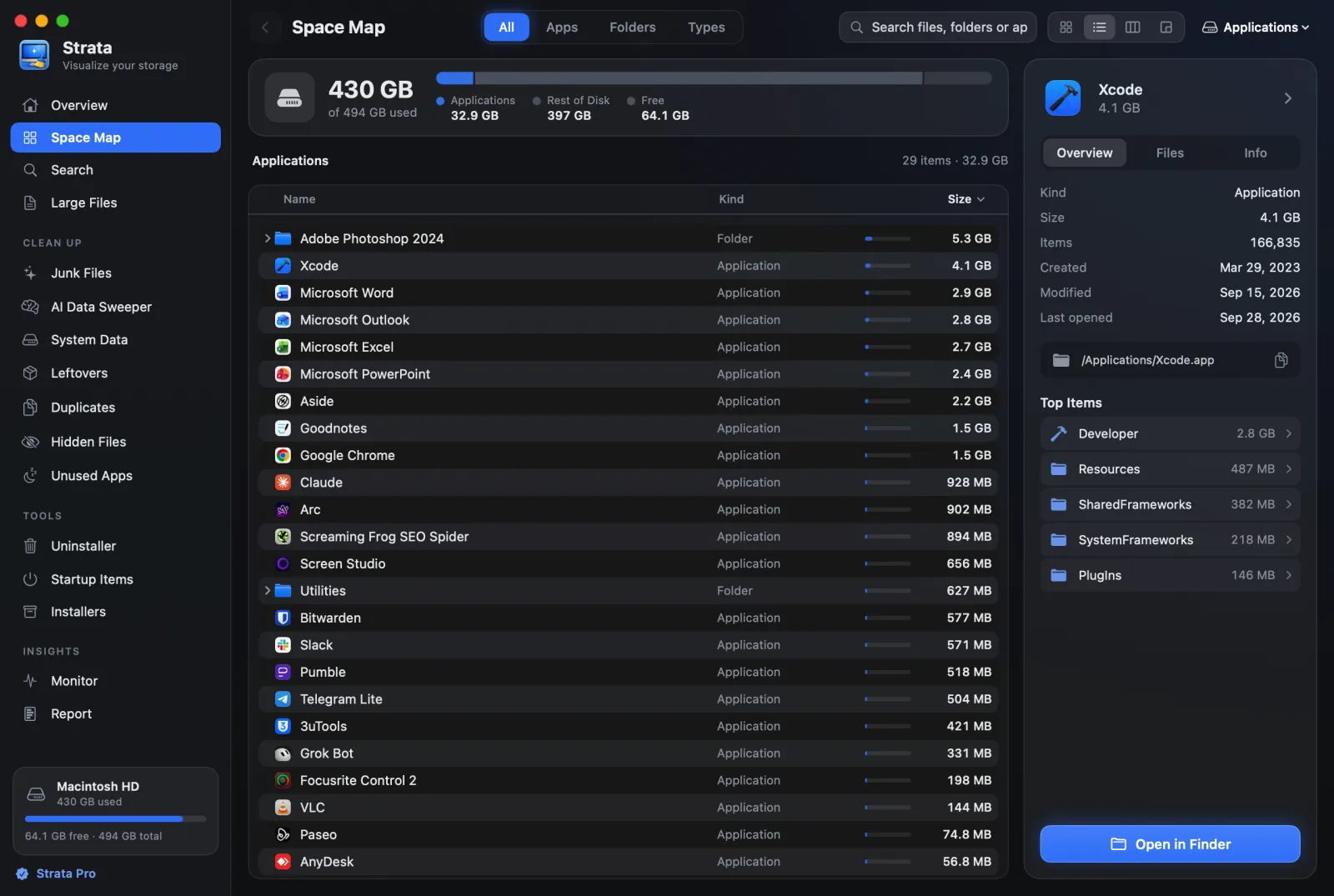
The Space Map shows any folder by size, four ways. Leave the one you suspect on screen: while Strata is the app in front, the map measures changed folders again within seconds. Rescan This Folder measures one afresh and says how much it changed.
Changes Over Time: what moved between two scans
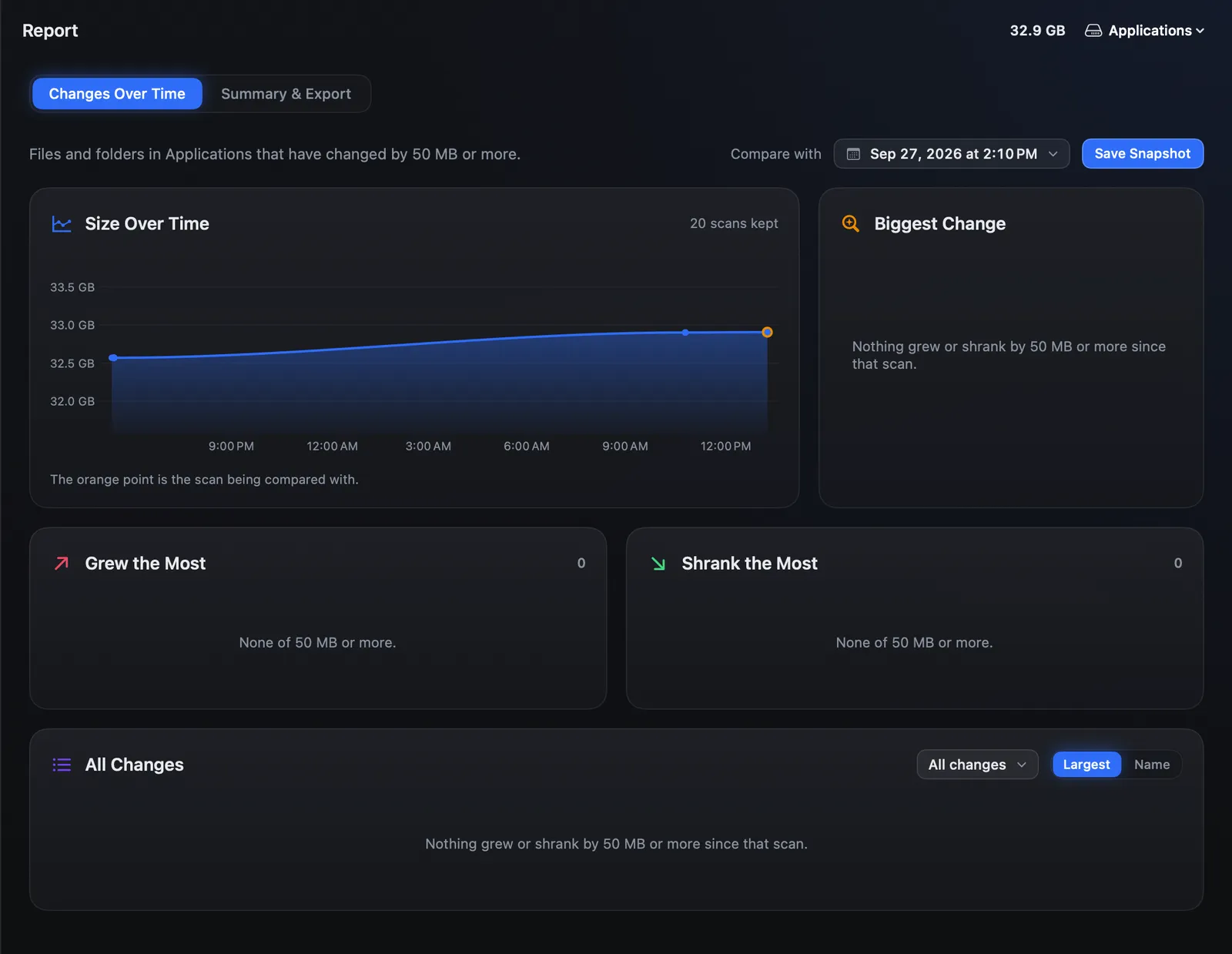
With Strata Pro, Strata keeps a record of folder sizes from your scans, the newest 20 per place. Report's Changes Over Time sets two side by side, or one against the scan on screen, and lists folders that changed by 50 MB or more. Scan today and tomorrow, and Biggest Change names the folder that moved most. Seeing what changed on your disk walks through it.
System Data, part by part
If System Data is what grows in Storage settings, Strata's System Data room (Strata Pro) shows what of it can go. It also tags what Storage settings counts beside it, from device backups to the Trash. Our System Data guide explains what Apple puts in it.
What to do about each cause
- Swap. Quit apps you are not using, as Apple advises for a slow Mac; if memory pressure stays red, Apple says the Mac needs more memory.
- Caches. Leave macOS's own to macOS. A big cache of an app you rarely use can go, with the app quit. How to clear cache on a Mac shows which folders are safe, and Strata's Junk Files ticks only what nobody will miss. Caches grow back.
- iCloud Drive and Photos. Turn on Optimize Mac Storage, in System Settings under your name, iCloud, then Drive, and in Photos > Settings > iCloud. If your iCloud storage is full, Apple says new documents stay on the Mac until there is room.
- Updates. Install what is waiting, or click Update Tonight.
- Apple Intelligence. By Apple's account the extra after an update is temporary; only macOS removes those models.
- A program that keeps writing, or holds a deleted file. Quit the app with Quit, not Force Quit, which Apple warns can lose data. For a part of macOS, restart instead: Apple warns that force quitting a process can cause problems for apps relying on it, and launchd, which runs macOS's services, starts them again as needed. If it returns after a restart, tell Apple, through Feedback Assistant if your Apple Account is registered as a developer or in its beta programs, or else its Product Feedback page.
- Time Machine's snapshots. Usually nothing: macOS deletes them as they age or as space is needed. If the backup disk has been away, connect it and let a backup finish. Apple says they do not take the room a copy or install needs, though tests cited in our purgeable space guide found freeing them can lag. Before a big job, Apple's way is to set Backup Frequency to Manually in Time Machine's options for a few minutes, then back. Freeing purgeable space yourself has the steps and two other routes.
When a restart helps, and when it does not
A restart ends every process and empties memory, so it stops a runaway writer, at least until it starts again, closes files deleted while open and lets swap begin from nothing. Files apps have written, caches and downloads stay, and Apple ties Time Machine's snapshots to their age and to the need for space, not to a restart.
Safe mode goes further. Apple's article on freeing up storage says starting up in it clears certain system caches, which macOS creates again as needed. Apple suggests it when a task such as a macOS update needs room now. If the disk is that full, our guide to a startup disk that is almost full says what to clear first.
Frequently asked questions
Why does my Mac's storage keep filling up by itself?
Usually because of things macOS and your apps manage for you: swap, caches that refill, iCloud Drive and Photos downloads, staged updates and, after an update, Apple Intelligence's models. Sometimes a program writes far more than it should, at times to a file it has already deleted. Note the available space now and again in an hour, then open Activity Monitor's Disk tab with View > All Processes to see which process is writing.
Why did my Mac's free space suddenly come back?
Something let go of space it was holding. Apple says that when space is needed, macOS clears caches, logs and staged updates it judges safe to delete. A program that closes a file it deleted while still using it frees all of that file's space at once. macOS also deletes Time Machine's local snapshots as they age or as space is needed, but that shows in free space more than in available space, since Apple counts their space as available.
Can a deleted file still take up space on a Mac?
Yes, in three cases. A file in the Trash keeps its space until you empty the Trash. A Time Machine local snapshot can hold a deleted file's space until the snapshot is deleted, though Apple counts that space as available. And a program can keep a deleted file open: its space is freed only when no process has it open, then comes back all at once. SQLite's code does this on purpose with its temporary files, whose names start with etilqs_. To list such files, run sudo lsof +L1 in Terminal as an administrator.
How can I see which process is writing to my Mac's disk?
Open Activity Monitor, choose View > All Processes, click Disk, then click the Bytes Written heading to sort by it. Watch for a minute: the figure that keeps climbing between refreshes belongs to the process writing now. An ordinary app cannot read the disk use of processes outside your account, which is why Activity Monitor is the tool for this.
Does restarting a Mac free up storage?
It helps with some causes. A restart ends every process and empties memory, so swap starts over, a process writing heavily stops, at least until it starts again, and files deleted while still open are closed. It does not remove caches, downloads or Time Machine's snapshots, which Apple ties to their age and to the need for space. Starting up in safe mode also clears certain system caches, which macOS makes again as needed.
Can Strata stop a background process or delete Time Machine snapshots?
No. Strata's Monitor charts reads and writes across all disks and names the open apps using the most disk, and its Quit button asks an open app to quit. It does not list or stop macOS's background processes; Activity Monitor shows those. Its System Data room (Strata Pro) shows Time Machine's local snapshots and opens Time Machine settings, and never deletes them.
See where the space is going
Strata keeps the space you have left in the menu bar, charts what the disks write and maps every folder by size. Strata Pro adds what changed between two scans.
The scan, the map, the Monitor and the menu bar are free for good. Strata Pro is $19.99 once, and your first launch starts 14 days of it, moving up to 40 GB to the Trash.