How-to guides: all pages
How to browse files and see every folder's size
From 1.0.41, the Space Map's List and Columns views work as a file browser, as Finder does, with what every folder takes beside it. Go back and forward, type a path, preview with Space, rename with Return, copy and paste to and from Finder, move, and undo. All of it is free.
What you need
- Strata 1.0.41 or later, and a scan of your home folder, a disk or the folder you want to work in. Browsing, renaming, copying, moving and Undo are free. Moving something to the Trash needs Strata Pro or the trial.
Steps
-
Open a folder in the List
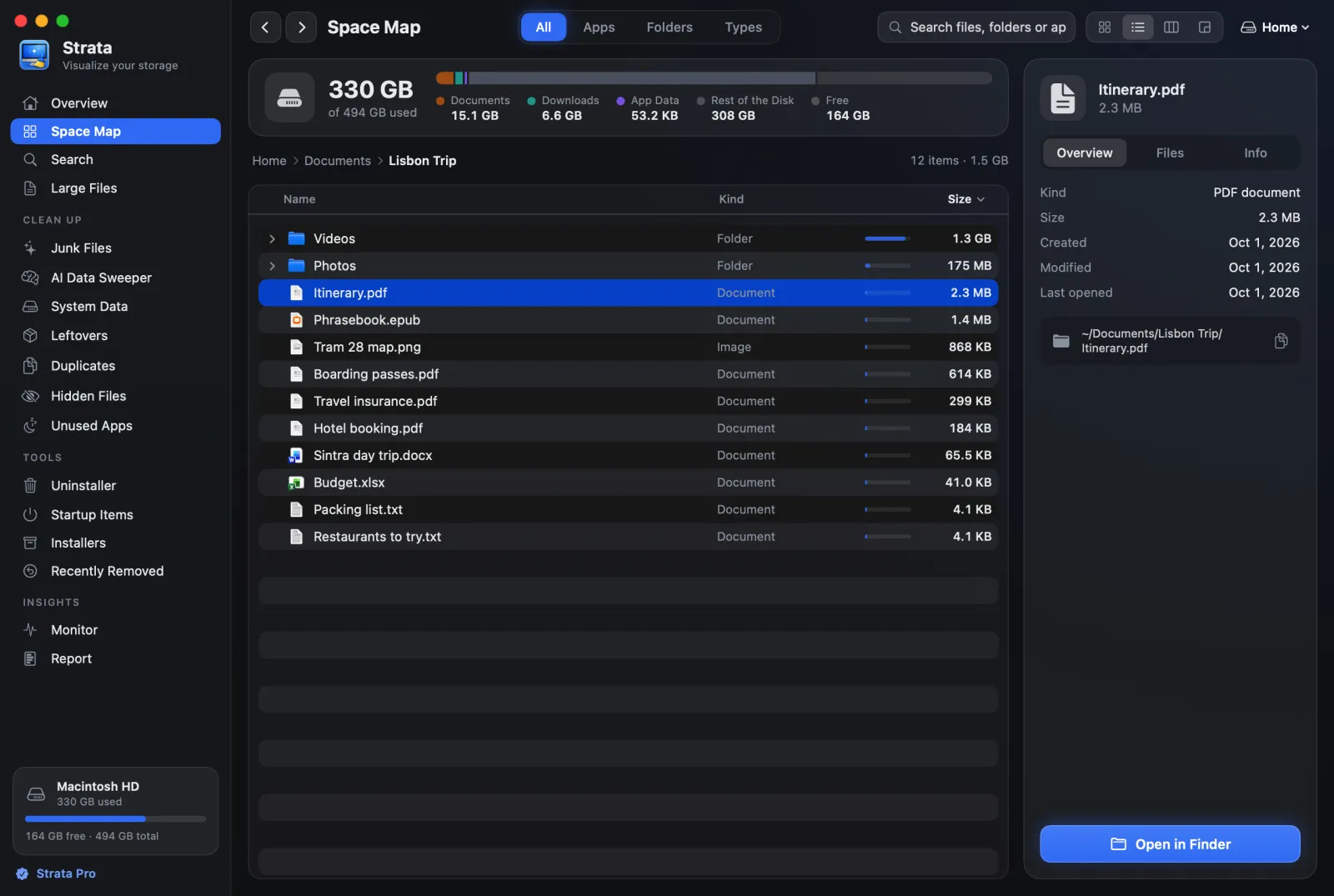
Click Space Map in Strata's sidebar, then the List, the second of the four view buttons at the top right, or press Command 2; Command 3 opens Columns. Double-click a folder to go in, or choose it and press Command ↓. Every row says how much it takes, the biggest first, so you browse and see where the space went at the same time.
The back arrow, or Command [, goes back. The forward arrow beside it, or Command ], goes forward again, and Command ↑ goes to the folder above.
-
Go straight to a folder
Click the empty space beside the trail of folders above the list, or press Shift Command G. The trail becomes a field holding the folder's path. Type another, such as
~/Downloads, and press Return; Esc brings the trail back. A folder made since the scan offers Count It, and one outside the scan offers Scan It Instead. Nothing is scanned until you ask.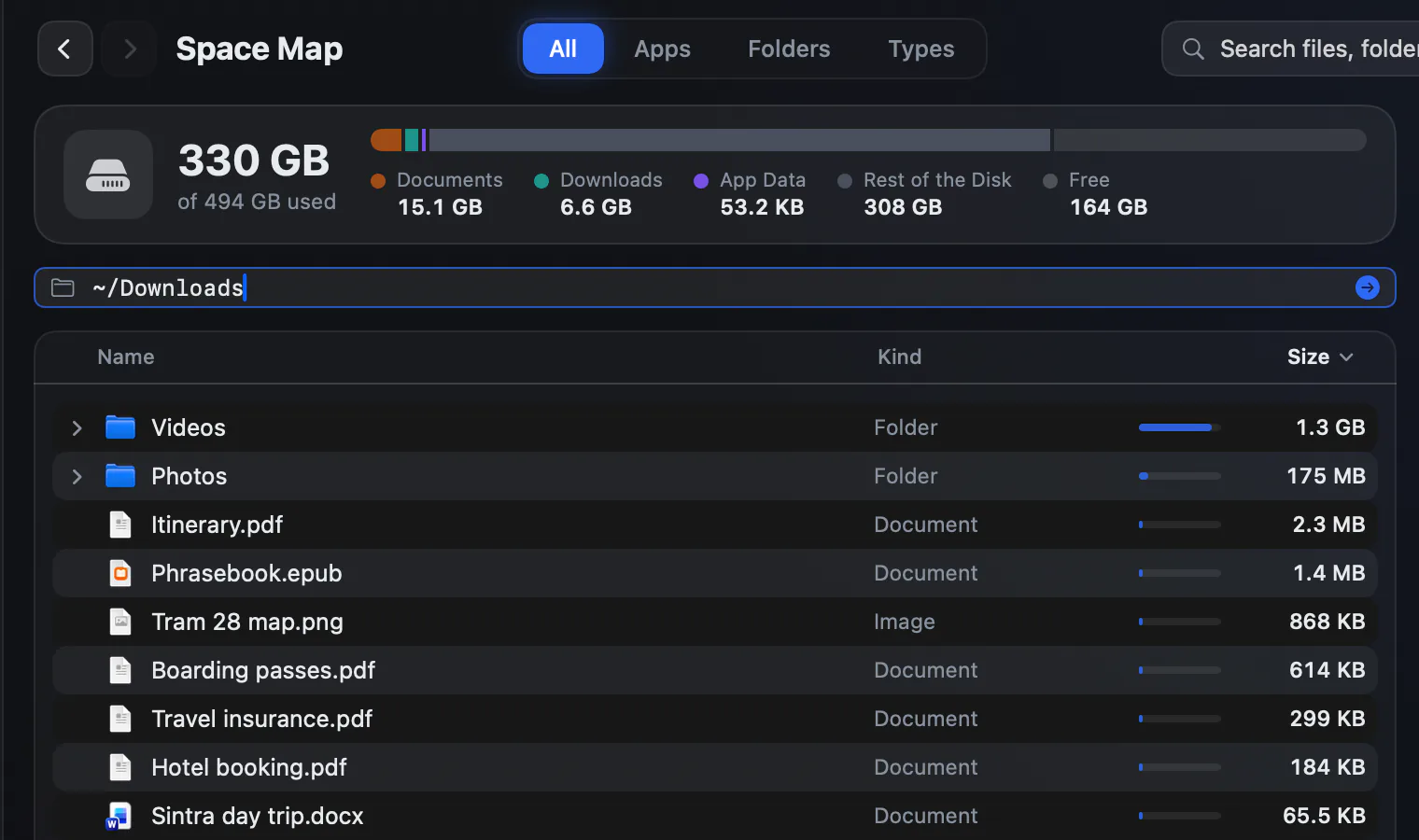
The trail as a path field, with ~/Downloadstyped over the folder's own path. -
Look before you change anything
Choose a file and press Space, or Command Y, to preview it in Quick Look. With the preview open, the up and down arrow keys step through the list and the preview keeps up; Space closes it. A file kept only in iCloud is not previewed, since that would download it.
Files under 1 MB are listed one by one too, in place of a row such as 8 smaller files, so any of them can be previewed, renamed or moved.
-
Rename with Return
Choose one item and press Return, as in Finder. Its name becomes a field, chosen up to the extension, so what you type replaces the name and keeps
.pdf. Return gives the new name and Esc keeps the old one. Change the extension and Strata asks first, as Finder does.
Return renames, and Command Z takes it back. The key labels at the foot were added to the clip; Strata does not show them. -
Copy, cut, paste and move
Command C copies and Command V pastes into the folder on screen. Both work with Finder: copy in Strata and paste in a Finder window, or the other way round. Command X marks what to move, drawn faint, and the next Paste moves it. Option Command V moves what you copied instead of copying it, and Move To…, in the File menu or on a right-click, picks a folder in macOS's own panel. Shift Command N makes a new folder in the folder on screen.
When a name is already taken, Strata asks: Keep Both, which adds a number to the new name, Skip or Stop. Nothing is ever replaced. A move to another disk copies; with Strata Pro or the trial, Strata then offers the originals for Move to Trash….
-
Undo a slip
Press Command Z. The Edit menu names the change it will take back, such as Undo Rename, and Shift Command Z redoes it. A renamed or moved item goes back to its old name and place. A copy or a new folder goes to the Trash, even without Strata Pro, and Recently Removed lists it. One made in iCloud Drive, or in a Desktop or Documents folder kept in iCloud, stays where it is, since Strata moves nothing there to the Trash. Changed the item since? Then Undo leaves it alone and tells you why.

Where it can change things
Strata changes files only where your own files live, so apps and macOS find theirs where they left them. You can rename, cut, paste, move and make folders in:
- your home folder, apart from its Library, its Trash and anything inside an app or another package;
- the Shared folder;
- external disks you can write to.
The folders macOS makes in your home folder, such as Desktop, Documents and Downloads, cannot be renamed or moved, but you can put things in them. Anywhere else, Applications and macOS's own folders included, you can browse, preview and copy; the other commands are dimmed and say why, as Rename: In Your Library does.
Every shortcut, and what Undo checks before it acts, is in the Space Map's documentation. To find the files worth moving first, list your largest files or search in plain English.