How-to guides: all pages
How to see where your downloads came from
When you download a file, the app that saves it often records where it came from. From 1.0.41, Strata reads that record and names the source beside a download whose record says, such as From Gmail, From Slack or From AirDrop. Junk Files can group old downloads by source, and Large Files and Search can show one source's files. Nothing is looked up online.
What you need
- Strata 1.0.41 or later, and a scan of your home folder. Large Files, Search and the Space Map are free. Junk Files is a Strata Pro room, open during the 14-day trial.
Steps
Four of Strata's rooms put the record to work. Use whichever fits what you are doing:
-
Sort old downloads by where they came from
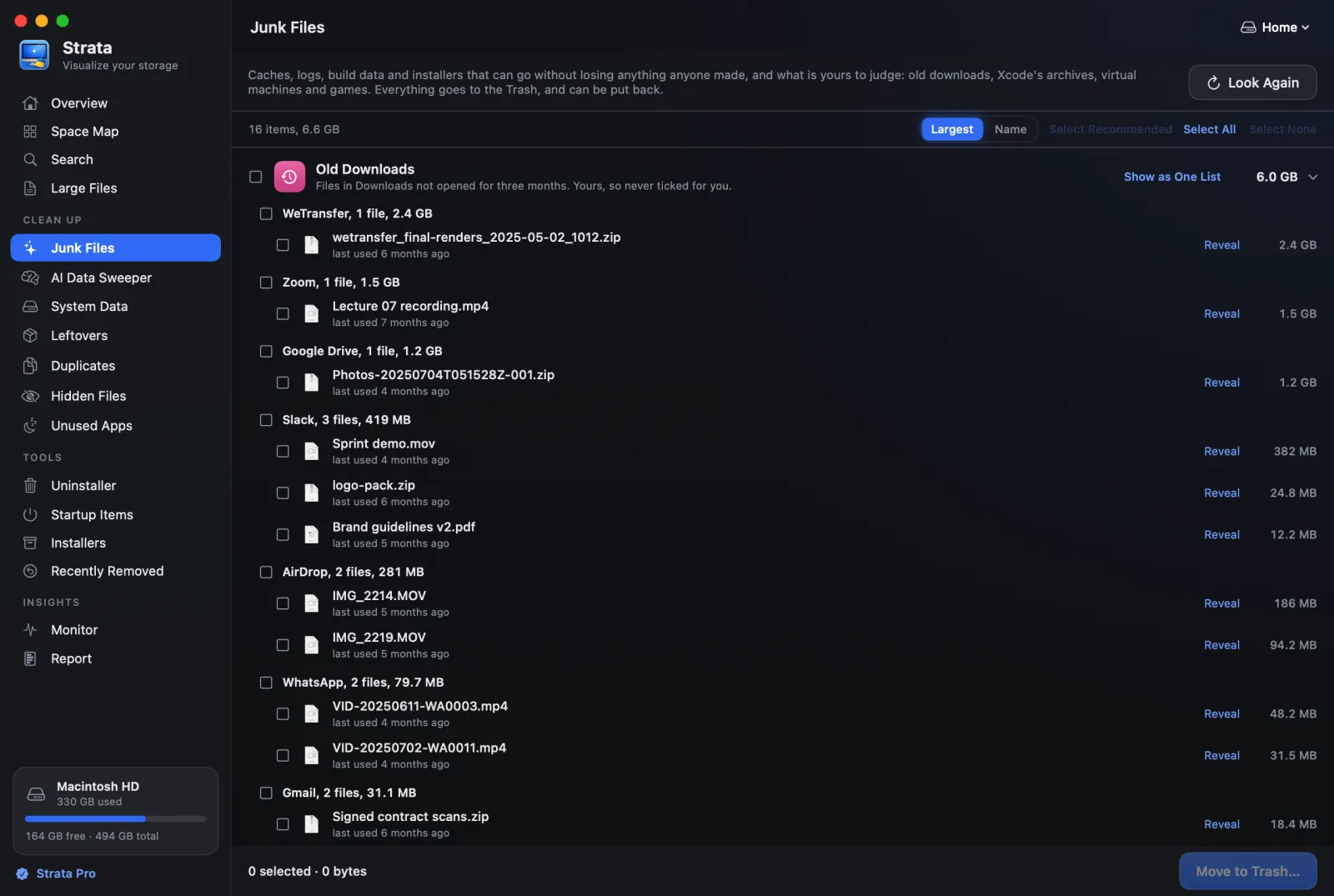
Open Junk Files. Old Downloads lists files of 10 MB or more, apart from installers, that have sat in your Downloads folder for three months without being opened, changed or added. Each row whose record names a place says where it came from, such as From Gmail. Open the group if it is closed, then click Show by Source on its heading. The downloads gather under a heading for each place, largest first. Each heading's tick box ticks all of that place's downloads.
Downloads with no record, or one that does not say, sit at the end, under Source not known. To go back to a single list, click Show as One List; Strata keeps whichever view you chose last. Nothing in Old Downloads is ever ticked for you.
Show by Source turns one list into a heading for each place. -
See where your biggest files came from
Large Files lists the largest files over a size you choose. A download's row names its source before its path, such as From WeTransfer. Once any file in the list says where it came from, a From menu appears among the controls: pick a place to see only its files, or Anywhere to see them all again.
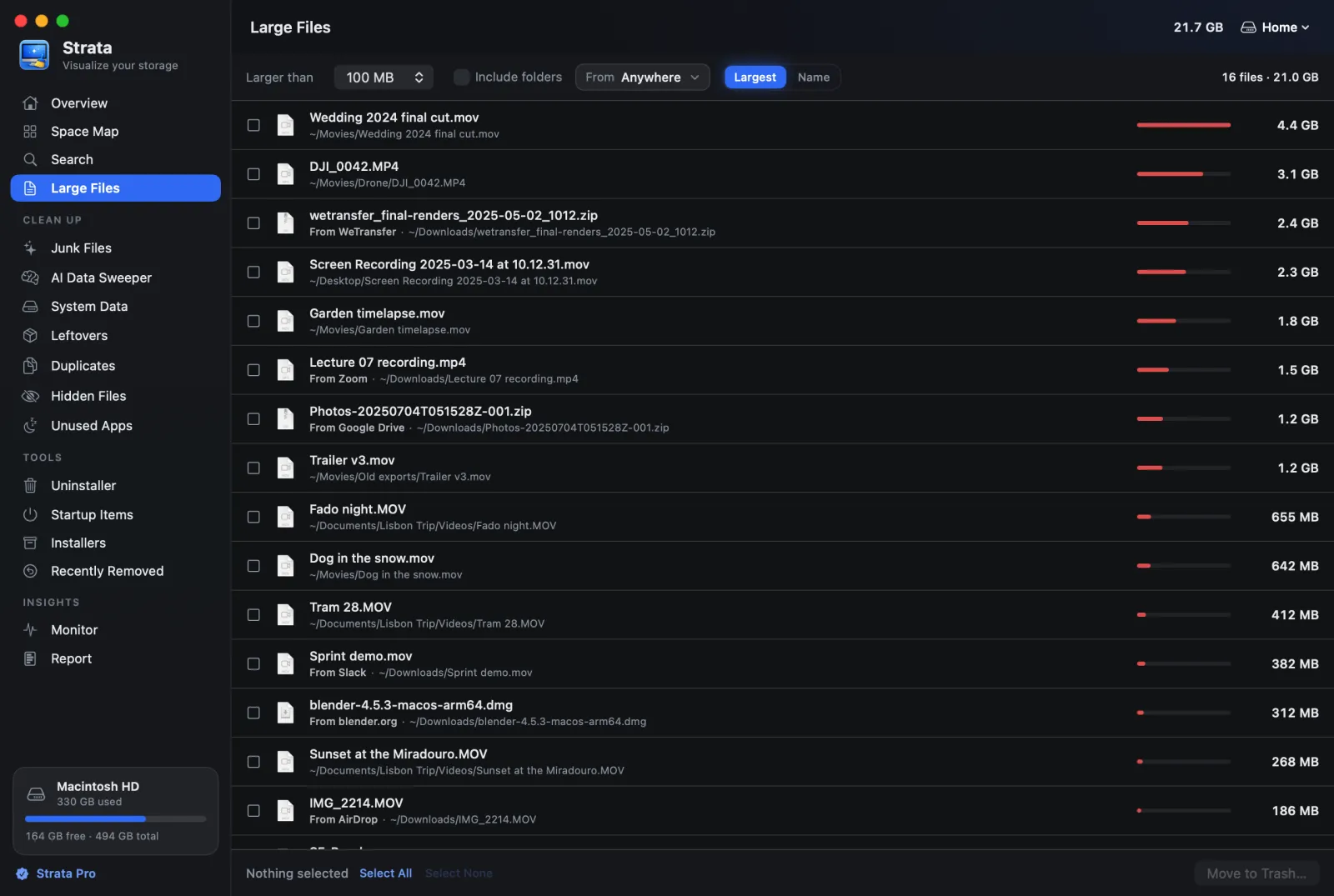
-
Look at one download
In the Space Map's List, open your Downloads folder and choose a download: the inspector says, for example, Downloaded from Gmail. Its Info tab adds the site, as Gmail (mail.google.com), and the app that downloaded it when that differs from the source, here Google Chrome. Click a row in Large Files, Search or Junk Files and its details say Downloaded from too.
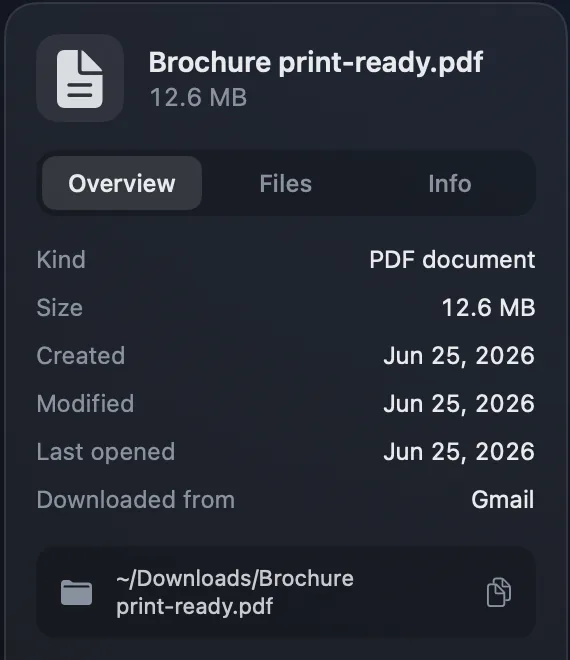
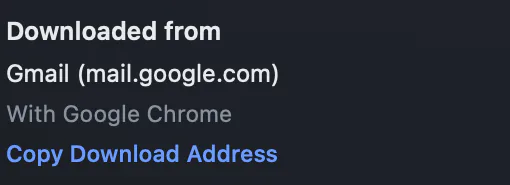
The Info tab adds the site, the app and Copy Download Address. -
Find everything from one place
In Search, add the place to what you are looking for:
pdfs from gmail,videos from whatsapp over 1 GB, orzips from wetransfer. Search knows services, sites and AirDrop; an app such as Mail is read as part of a name. The guide to searching in plain English has more.

How Strata names a source
Strata picks the most telling name it can find in the record:
- a service, when the file came from its site: Gmail, Outlook, Google Drive, ChatGPT, Slack, WhatsApp, Dropbox, WeTransfer and others;
- any other site by its domain, such as
blender.org; - otherwise the app it arrived through, such as Safari, Mail, Messages or AirDrop.
Apps that only saved a file, such as Preview or Word, are never named, and Strata never guesses.
The record is written by the app that downloads a file, as it arrives. Firefox leaves out the
addresses of a download from a private window, so Strata can name at most Firefox.
Command-line tools such as curl write no record at all, and some apps leave it
out, so not every download can say. Strata reads all of this on your Mac, from the records
stored with each file, and looks nothing up online.
The address stays private
Strata's lists show only the place's name. The full address stays out of them, because it can be a private link that opens the file for anyone who has it. Copy Download Address, in a download's details, copies the file's own address for you to paste. Strata never opens it and sends it nowhere. To see the record in Finder or Terminal too, read how to see where a file was downloaded from.
The Junk Files documentation covers old downloads in full.