How to see where a file was downloaded from on a Mac
To see where a file was downloaded from on a Mac, select it in Finder, choose File > Get Info, and look for Where from under More Info. That line comes from a record the downloading app attaches to the file. Here is how to read it in Terminal too, why some downloads have none, and how to remove it.
Key takeaways
- Get Info shows a download's source as Where from, under More Info. General's Where is the file's place on your Mac, not its source.
- A browser's record lists the file's own address first, then the page it was downloaded from.
- In Terminal,
mdls -name kMDItemWhereFromsreads it, as long as Spotlight indexes the folder. - Private windows in Firefox, tools such as curl and some apps leave no Where from, so a missing one proves nothing.
- The address can hold a link that opens the file, so take care when you share a Get Info window.
How we checked: on macOS 27.0.1 (26A434), on 12 November 2026, we read Finder's and Spotlight's own labels from macOS's files and tested every command on files we made, with made-up addresses on example.com. We also read Apple's documentation, linked below, and the source code Firefox, Chromium and WebKit publish. Written by the maker of Strata, which is described as of version 1.0.41.
1. Look in Get Info
Select the file in Finder and choose File > Get Info, or press Command I. Open the More Info section if it is folded. The line called Where from holds the addresses the file came from, when the app that downloaded it wrote them down.
Two lines look alike. Where, in the General section, is where the file sits on your Mac. Where from, in More Info, is where it came from. More Info is Spotlight's section of the window, which is why it also shows when the file was last opened.
A browser usually writes two addresses: the file's own, first, and then the page you downloaded it from. The file's own address can be long and unreadable, since sites such as Gmail serve attachments from storage hosts. The page is usually the clearer clue. For a file received by email, Apple's documentation says the line may hold the sender's address and the message's subject instead.
2. Read it in Terminal
Spotlight keeps the same record under the name kMDItemWhereFroms, which Apple
documents as an array
of strings describing where a file came from. To read it:
mdls -name kMDItemWhereFroms ~/Downloads/sample-report.pdfFor a file downloaded from a page on example.com, the answer looks like this:
kMDItemWhereFroms = (
    "https://downloads.example.com/files/sample-report.pdf",
    "https://www.example.com/reports/"
)
(null) means Spotlight has no record for the file. That can mean the file has
none, or that it sits somewhere Spotlight does not index, such as a temporary folder: mdls
reads Spotlight's index, not the file. To read the file itself, ask for the extended attribute
the record is kept in, the extra data macOS stores with a file, and turn it back into
text:
xattr -px com.apple.metadata:kMDItemWhereFroms ~/Downloads/sample-report.pdf | xxd -r -p | plutil -p -On macOS 27.0.1, a plain xattr -p stops at the first zero byte of the record and
prints only part of it, so use -px as above.
3. Check the quarantine record for the app
A downloaded file usually carries a second record, com.apple.quarantine, which
macOS's Gatekeeper uses to check
downloaded software the first time it opens. Read it with:
xattr -p com.apple.quarantine ~/Downloads/sample-report.pdfFor our scratch file, which we gave a record like Safari's, it prints:
0083;6af50180;Safari;6F1C2B3A-1D2E-4F50-8A6B-7C8D9E0F1A2BIts four fields, separated by semicolons, are flags, a time, the app that attached the record
and an identifier. That app is usually the one that downloaded the file. An app that saves
the file again, such as Preview, can put its own name there, and in our test a copy
made with cp left it blank. The time is in hexadecimal seconds since 1970: 6af50180 is
12 November 2026, 00:00 UTC. The app's name is the useful part when Where from is empty: a file
with no addresses may still name the browser or chat app that brought it in. Apple treats this layout as
internal, so read it as a clue rather than a fixed format.
Find every file from one site
Spotlight can also search the Where from record. In Terminal, this lists everything in Downloads whose record mentions example.com, whatever the case:
mdfind -onlyin ~/Downloads 'kMDItemWhereFroms == "*example.com*"cd'Keep the -onlyin part, or the search covers the whole Mac. The
cd after the quotes makes it ignore case and accents.
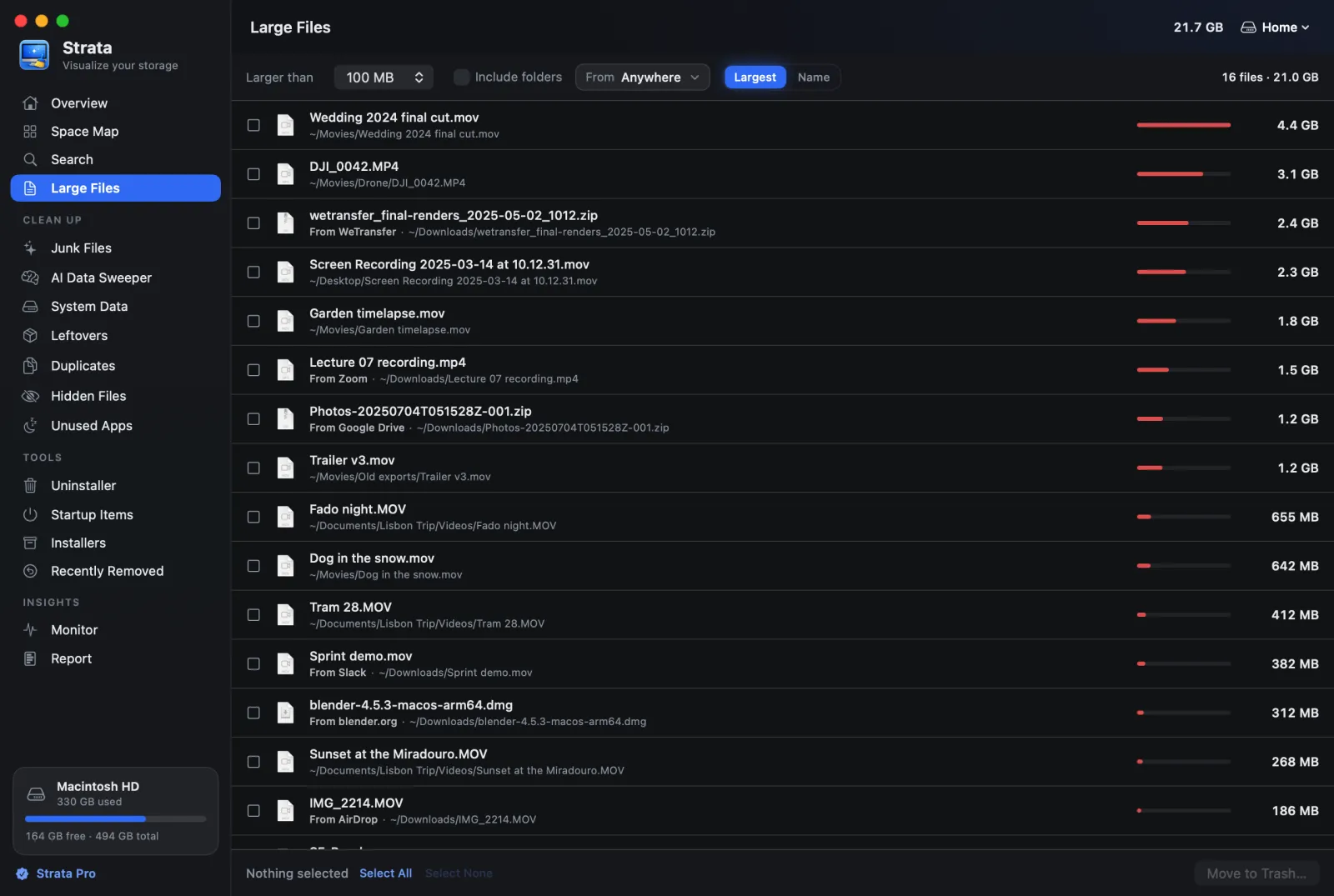
For a folder full of downloads, a list by source is quicker to read. From 1.0.41, Strata reads
the same records. Junk Files and Large Files name a download's source, such as
From Gmail, and Search finds the files from one place, as in
pdfs from gmail. Our guide to
seeing where your downloads came from
walks through it:

Why some downloads have no Where from
macOS does not record downloads on its own. The app that saves a file decides: it can write the record itself, ask macOS to add it, or leave it out:
- Firefox writes no Where from for a download from a private window, by design since Firefox 59 (Mozilla's bug 1432915). The file may still carry a quarantine record naming Firefox, since Firefox asks macOS to quarantine every file it saves. Chrome's code skips addresses it does not have, as for an Incognito download.
- Command-line tools such as
curlattach no quarantine record and no addresses. - Files you made yourself usually have no Where from, and nor does a copy that
leaves extended attributes
behind, such as one made with
cp -X. In our test, that copy still carried a quarantine record.
The record is also no proof. An Apple engineer explains in Apple's developer forums that the record shows only that some app chose to attach it, and agrees that any process can set it. It tells you what the downloading app wrote down, not what the file is. A missing Where from means nothing either way.
How to remove the record
To take the addresses off a file, run:
xattr -d com.apple.metadata:kMDItemWhereFroms ~/Downloads/sample-report.pdfIn our test, Spotlight caught up about three seconds later. The quarantine record is separate and stays. Leave that one alone unless you know why you are removing it, since it is what makes macOS check an app the first time you open it.
Take care when you share it
The file's own address can be a link that opens the file for whoever has it, as many attachment and share links are. Crop it out of a screenshot of Get Info before you send one, and remove the record from a file before you pass it on, if the link should stay private. macOS's own rules for the record say to drop it when a file is shared, but whether that happens is up to the app that shares it.
Frequently asked questions
Why does Get Info not show Where from for my file?
Usually the file has no record: Firefox's private windows, command-line tools such as curl and some apps write no Where from, and files you made yourself have none. More Info shows what Spotlight knows about a file, so a file Spotlight has not indexed may show none even with the record attached.
Is Where from proof of where a file came from?
No. It is a label that the downloading app chose to write, and any app on the Mac can write or change it. Treat it as a strong clue about where you got a file, not as evidence about its contents.
Does copying a file keep its Where from?
In our tests on macOS 27.0.1, cp and ditto kept it, and cp -X, which leaves extended attributes behind, dropped it, though the copy still got a quarantine record. macOS's own rules for the record keep it with copies and backups, and drop it when a file is shared with someone else.
How do I remove the Where from record from a file?
In Terminal, run xattr -d com.apple.metadata:kMDItemWhereFroms followed by the file. In our test, Spotlight forgot it about three seconds later. The separate quarantine record stays, and it is better left alone, since Gatekeeper uses it to check apps you open for the first time.
Can I see a list of everything I have downloaded?
Not reliably. Older guides point to a database in your Library called QuarantineEventsV2. It is still there on macOS 27, but a note in Chromium's source code says macOS has not kept the addresses it is given since macOS 12.4. So the list may name apps and times without saying where anything came from. Your browser's own download history is the better record.
See where a whole folder of downloads came from
Strata maps your disk and clears what you no longer need. From 1.0.41 it reads these
records on your Mac and names where downloads came from. Junk Files groups old downloads by
place, with Strata Pro or the 14-day trial, and
Large Files and Search show one place's
files, as in pdfs from gmail. Lists never show the address itself,
and nothing is looked up online. The scan, the map, Search and Large Files are free; Strata
Pro is $19.99 once.