How to hide an app's icon from the Dock on a Mac
To hide an app's icon from the Dock on a Mac, start with the app's own settings. An open app shows in the Dock unless its developer built it not to, or gave you a switch. Here is what else works on macOS 27, and why editing an app's Info.plist now does more harm than good.
Key takeaways
- An open app shows in the Dock unless it is built not to, so the first place to look is the app's own settings.
- A closed app's icon goes with Options > Remove from Dock; it comes back while the app runs.
- Apps you never added that stay after quitting are recent ones: turn off Show suggested and recent apps in Dock.
- To hide everything, hide the Dock itself, with Option-Command-D.
- Editing an app's Info.plist to hide its icon breaks the app's code signature, so skip it.
How we checked: on macOS 27.0.1 (26A434), on 11 November 2026, we read the Dock's menus and the Desktop & Dock settings from macOS's own files. Then we followed Apple's guides, linked below. Written by the maker of Strata, which is described as of version 1.0.40.
Why an open app is in the Dock
macOS gives every open app an icon in the Dock, so you can switch to it, see that it is running and quit it. The exception is an app its developer built as an agent. Apple's documentation describes LSUIElement as marking "an agent app that runs in the background and doesn't appear in the Dock". Many menu bar apps are made that way, and some let you choose.
So there is no switch in System Settings that hides one running app's icon. Command H hides an app's windows, not its icon. What you can change is whether an app keeps a place in the Dock when it is closed, whether macOS adds recent apps, and whether the Dock shows at all.
1. Look for a setting in the app
Menu bar apps often have a switch for their Dock icon in their settings, under a name such as Show in Dock or Hide Dock icon. With the icon turned off, the app lives in the menu bar. Some, Strata among them, join the Dock while one of their windows is open, so their menus are there when you need them.
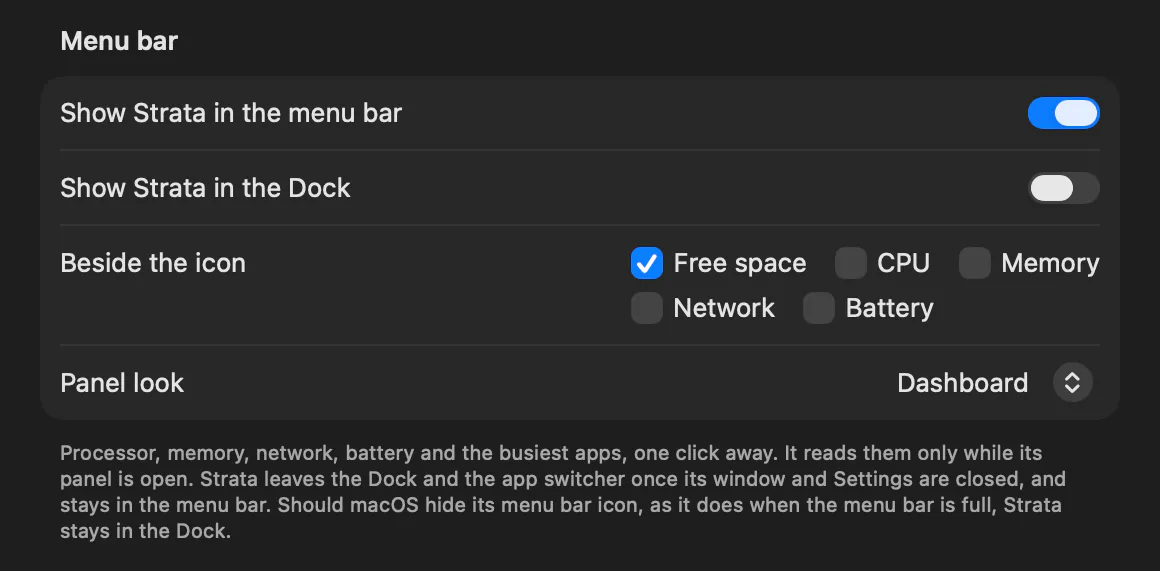
Strata has one from version 1.0.40: Settings, General, under Menu bar, Show Strata in the Dock. Keeping Strata out of the Dock goes through it, and through the times Strata stays in the Dock anyway, such as when a full menu bar hides its icon.
2. Take a closed app's icon out of the Dock
For an app kept in the Dock, Control-click its icon and choose Options > Remove from Dock, or drag the icon out until Remove shows. Apple's guide to using the Dock points out that only the shortcut goes; the app stays on your Mac. To take the app itself off the Mac, uninstall it with everything it leaves behind.
This does not hide an app while it runs: open it again and its icon is back until it quits. To pin an app again, open it, Control-click its icon and choose Options > Keep in Dock. The same Options menu has Open at Login, which our guide to apps that open at startup covers.
3. Stop recent apps appearing
If apps you never added stay at the end of the Dock after you quit them, they are recent ones. In System Settings > Desktop & Dock, turn off Show suggested and recent apps in Dock. Apple's guide to Desktop & Dock settings says it shows recently opened apps that are not already in the Dock. While you are there, Show indicators for open applications sets whether a dot marks the apps that are running.
4. Hide the whole Dock
When the aim is a clean screen rather than one app gone, hide the Dock itself. Turn on Automatically hide and show the Dock in Desktop & Dock, or press Option Command D, which Apple's list of Mac keyboard shortcuts gives for showing or hiding the Dock. The Dock slides out when the pointer reaches its edge of the screen.
Why not edit the app's Info.plist?
Older guides tell you to open an app's package and add LSUIElement to its Info.plist, making it an agent. On a current Mac that does more harm than good. Apps are code signed, and Apple's Code Signing Guide explains that, once an app is signed, "the system can detect any change to the app".
macOS may block the edit outright, saying that the app you used, Terminal for instance, was prevented from modifying apps on your Mac. If the change goes through, the signature no longer holds, so macOS may refuse to open the app, and its next update may put the file back. Even when it works, an agent app has no menu bar of its own, so its File, Edit and other menus go too. A setting in the app does the same job without touching it.
Frequently asked questions
How do I hide an app from the Dock while it is running?
Only the app itself can do that safely. Look in its settings for a switch such as Show in Dock or Hide Dock icon, usually in a menu bar app. Without one, the icon stays while the app runs. You can hide the whole Dock instead: press Option-Command-D, or turn on Automatically hide and show the Dock in System Settings, Desktop & Dock.
Why does an app keep coming back to my Dock?
Either it is running, since every open app has an icon unless its developer made it an agent, or macOS is showing it as a recent app. If it stays after the app quits, open System Settings, Desktop & Dock, and turn off Show suggested and recent apps in Dock.
How do I get the Dock back after hiding it?
Move the pointer to the edge of the screen where the Dock sits and it slides out. Press Option-Command-D to turn hiding off again, or turn off Automatically hide and show the Dock in System Settings, Desktop & Dock.
Is it safe to edit an app's Info.plist to hide its Dock icon?
No. Apps on a current Mac are code signed, and changing a file inside one breaks that signature. macOS may then refuse to open it, and its updates may undo the change. Use the app's own setting, or ask its developer for one.
A disk app that stays out of the way
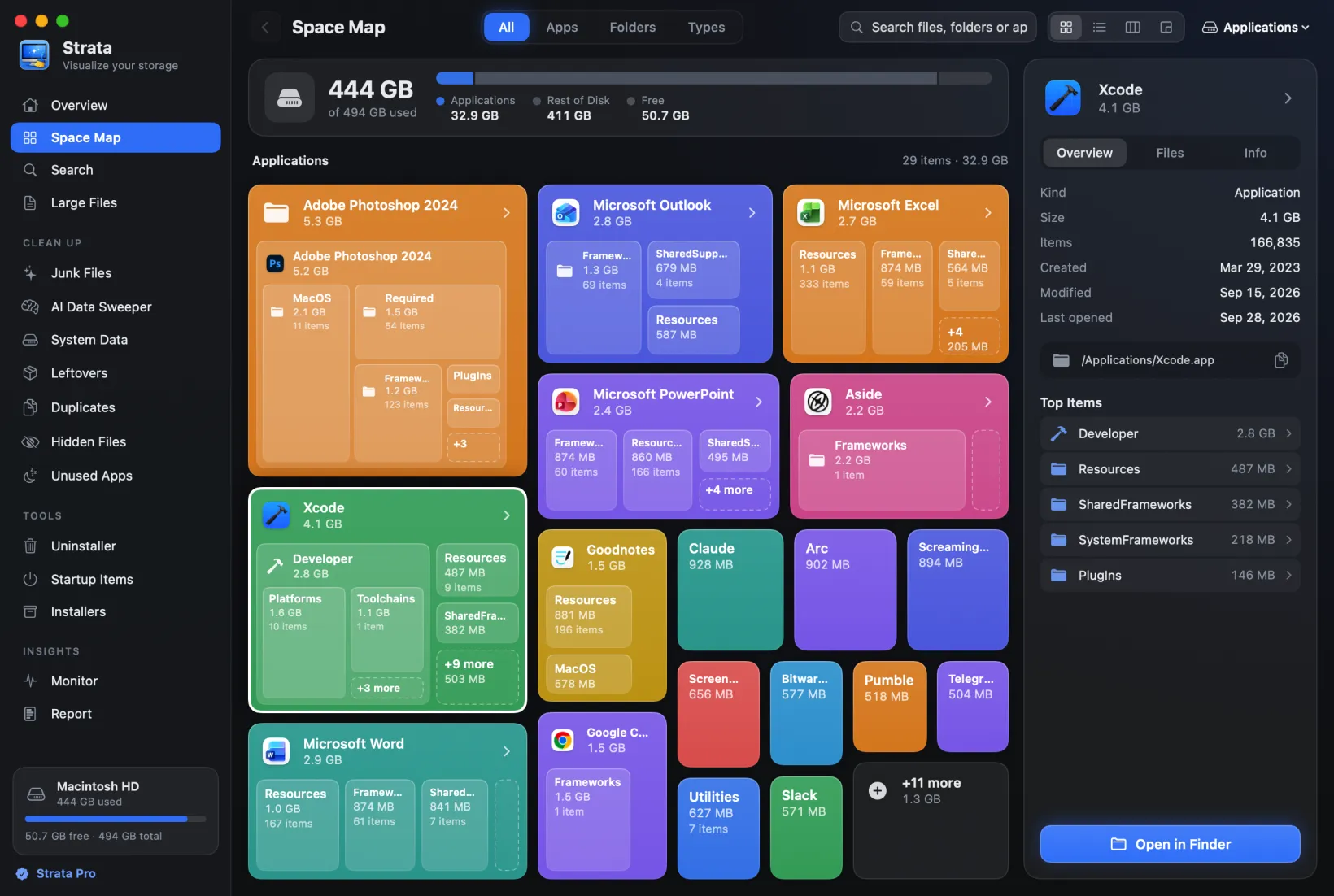
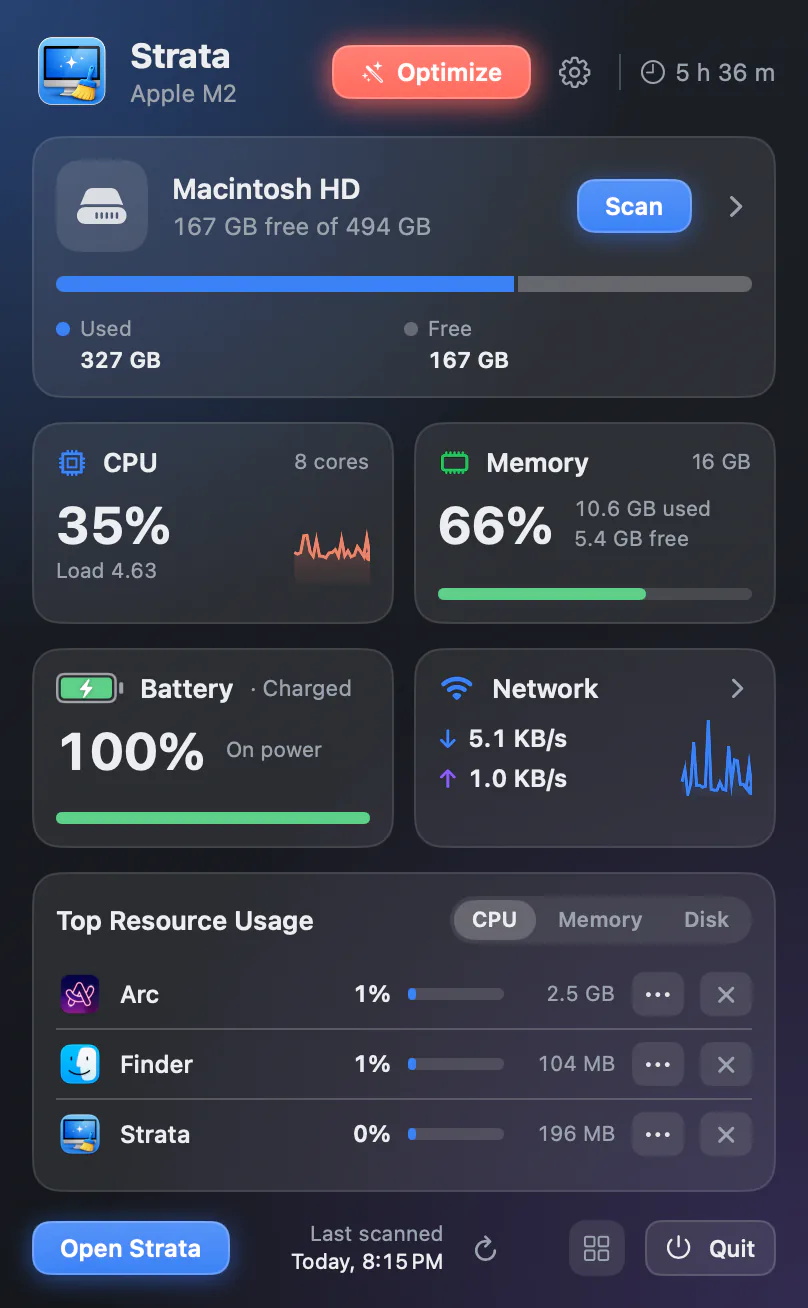
Strata maps your disk and clears what you no longer need. From 1.0.40 it can wait in the menu bar without a Dock icon. Its icon there shows the free space and opens a panel with the processor, memory and disk at a glance. The panel opens the full window, and Strata joins the Dock until you close it. The scan and the map are free; Strata Pro is $19.99 once.