How to clear Xcode's cache and derived data, and what else Xcode keeps
Xcode cleans up little after itself. Derived data, simulator systems, device support files and package caches grow with every project and every iOS release. Here is what each one is, which are safe to delete, how to remove them from Xcode or Terminal, and the few things to keep.
Key takeaways
- Derived data is safe to delete: quit Xcode first, and it rebuilds what it needs, more slowly the first time.
- Xcode 27 adds Product > Delete Derived Data…, beside Clean Build Folder, which removes less.
- Simulator systems are often the biggest item. They sit in a protected system folder, so remove them in Xcode's Settings, under Components, or with
xcrun simctl runtime delete, not in Finder. - Old device support folders and simulators that can no longer run can go. Keep the archives of versions people still use: they hold the symbols for crash reports.
- Leave Xcode's UserData folder alone: apart from Previews, it holds your settings.
How we tested: with Xcode 27.0 (27A266a) on an M2 MacBook Air running macOS
27.0.1, on 23 October 2026, we measured each folder Xcode uses and read the help of
xcrun simctl, xcodebuild and swift package, without
running anything that deletes. Xcode's menus and confirmations were read from Xcode 27's own
files. Strata is described as of version 1.0.32, and its Junk Files picture uses a
demonstration home folder with stand-in sizes.
What Xcode keeps, and where
| What | Where | Delete it? |
|---|---|---|
| Derived data: each project's build output, index and logs | ~/Library/Developer/Xcode/DerivedData | Yes, with Xcode quit. Xcode rebuilds it |
| Simulator systems (iOS, watchOS and so on) | A protected system folder, /System/Library/AssetsV2 on our Mac | In Xcode or with simctl, the ones you no longer test on |
| Simulators and their apps and data | ~/Library/Developer/CoreSimulator/Devices | Unusable ones, yes; others lose what is on them |
| Simulator caches | ~/Library/Developer/CoreSimulator/Caches | Yes. Rebuilt |
| Device support for each iOS version you debugged on | ~/Library/Developer/Xcode/iOS DeviceSupport, and one per platform | Old versions, yes. Copied again from the device |
| SwiftUI preview data | ~/Library/Developer/Xcode/UserData/Previews | Yes, with Xcode quit. Rebuilt for the next preview |
| Xcode's own cache of web and download data | ~/Library/Caches/com.apple.dt.Xcode | Yes, with Xcode quit. It is small |
| Archives of apps you built for release | ~/Library/Developer/Xcode/Archives | Only for versions nobody uses |
| Swift Package Manager's cache | ~/Library/Caches/org.swift.swiftpm | Yes. Downloaded again |
| Downloaded documentation | A protected system folder | Xcode manages it; Finder cannot remove it |
The folder named after Xcode in your Caches is not where the space is: on our Mac it held
under 300 KB. Derived data and simulators are. And two folders nearby are not caches at all.
~/Library/Developer/Xcode/UserData holds your key bindings, code snippets and
themes, so delete only its Previews folder, with Xcode quit, or run
xcrun simctl --set previews delete all. ~/Library/org.swift.swiftpm
holds Swift Package Manager's settings and the fingerprints it trusts packages by. Never delete
~/Library/Developer as a whole: that takes your archives, your simulators' data and
your Xcode settings with it.
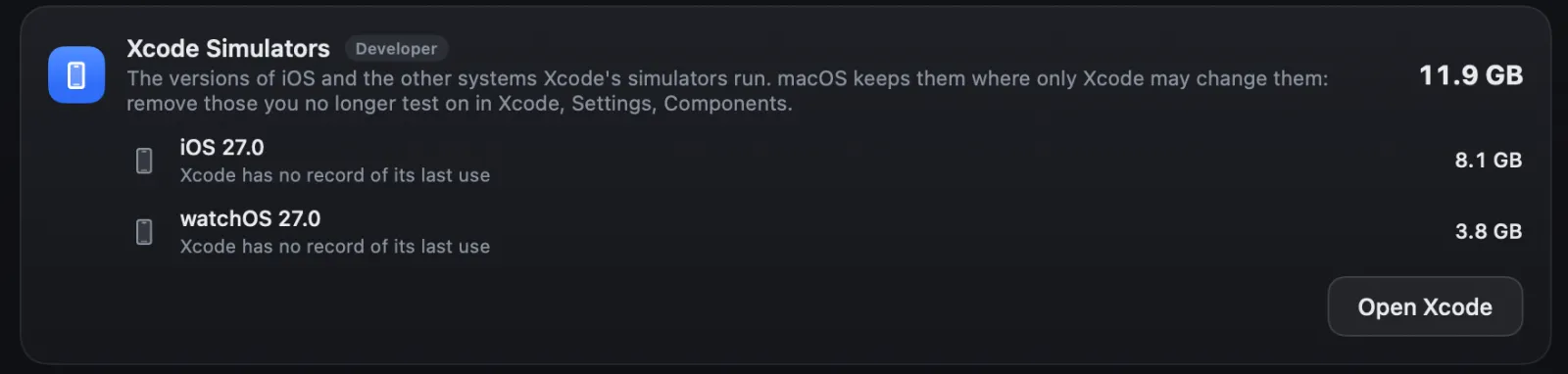
On our Mac, a MacBook Air we develop Strata on, the simulator systems were most of it: iOS 27
at 8.1 GB and watchOS 27 at 3.8 GB, 11.9 GB together, which
xcrun simctl runtime list prints as 11.1G because it counts in binary units. The
sixteen simulators themselves took about 200 MB, never having been used, and Swift Package
Manager's cache 64 MB. Derived data was almost empty, because we build with Swift Package
Manager, which keeps its build output in a .build folder inside the project
instead: about 940 MB for Strata, changing with every build. Xcode 27's documentation,
downloaded for offline reading, took another 1.7 GB.
One trap when you measure: du on
/Library/Developer/CoreSimulator/Volumes printed 25G here. That
folder only holds the simulator systems while they are mounted, so it counts their contents a
second time; it is not extra space.
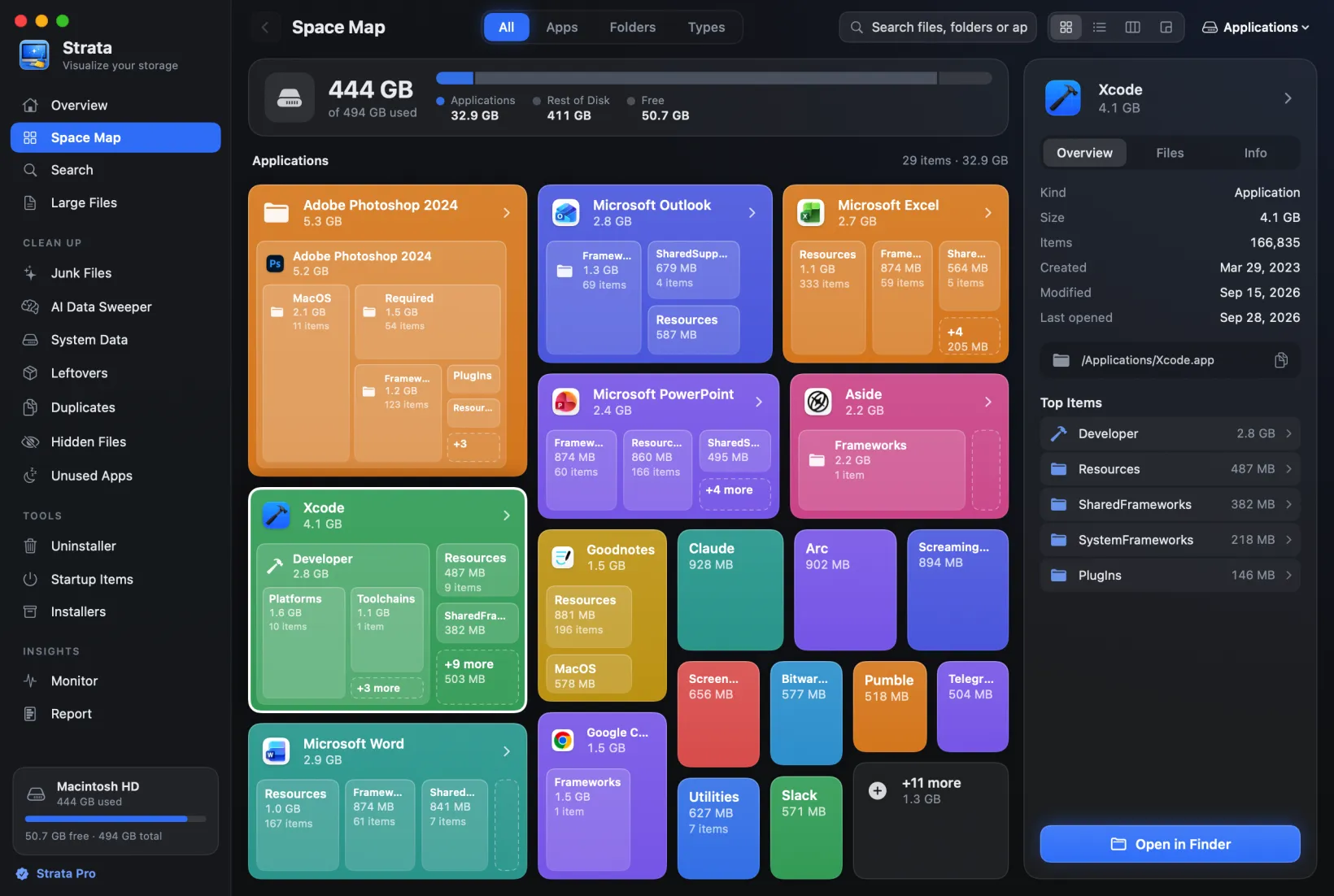
macOS 27's Storage settings has a Developer category for all this too. Its part of macOS lists Xcode Caches, Project Build Data and Indexes, Project Archives, Device Support and Simulator Support, the last with a Manage in Xcode button; we read that from its files rather than seeing it on screen. For caches beyond Xcode's, see our guide to clearing every kind of cache on a Mac.
How to delete derived data
Derived data is what Xcode makes from your source: compiled code, the index behind search and autocomplete, and build logs, along with copies of the packages a project depends on. Xcode 27's own warning says it well: "The first indexing and rebuild of a project after that may be slower." Nothing in it is your work. There are three ways to remove it:
- For one project, in Xcode 27. Open the project and choose Product > Delete Derived Data…. Xcode asks first, and says the project's derived data "will be immediately deleted"; it cannot be undone. The command is new in Xcode 27, and has no shortcut.
- For every project, in Finder. In Xcode, choose Xcode > Settings, click
Locations, and click the small arrow after the Derived Data path to open the folder in
Finder. Quit Xcode, then move the projects' folders, or everything in it, to the Trash. Or,
without Xcode, choose Go > Go to Folder in Finder and enter
~/Library/Developer/Xcode/DerivedData. - In Terminal. macOS 15 and later have a
trashcommand that moves things to the Trash, so you can still change your mind:trash ~/Library/Developer/Xcode/DerivedData/*. Therm -rfmost guides give deletes at once, with no way back.
Quit Xcode before deleting the folder from Finder or Terminal. An Apple engineer said as much in Apple's developer forums: make sure Xcode is quit before you delete things behind its back. And a project can keep its derived data somewhere else, set in File > Project Settings… (Workspace Settings… when a workspace is open), so if the folder looks small, check there.
Product > Clean Build Folder (Shift-Command-K) is the lighter tool. Xcode 27 says it "will delete all of the products and intermediate files in the build folder" of the open project. The index, the logs, package checkouts and other projects' folders stay, so it frees less, but the next build is quicker than after a full delete.
How to remove simulators you no longer use
The systems simulators run are not in your home folder's Library at all. On our Mac, with
Xcode 27, xcrun simctl runtime list -v showed them as disk images in
/System/Library/AssetsV2, a protected part of macOS that Finder cannot change; Xcode removes
them for you. Guides that send you to /Library/Developer/CoreSimulator/Images describe where
older versions of Xcode put them. Wherever yours are, that command prints each one's Image
Path. Remove them one of two ways:
- In Xcode, choose Xcode > Settings, click Components, and delete the platform versions you no longer test on. Apple's guide to Xcode components covers it. Components also has a section for systems that older versions of Xcode installed.
- In Terminal, see what would go, then remove it:
Read the dry run's list before you run the command again withoutxcrun simctl runtime list xcrun simctl runtime delete --notUsedSinceDays 90 --dry-run--dry-run: a system Xcode has no record of using, as was true of both of ours, may be on it. To remove one system only, give its identifier from the list:xcrun simctl runtime deletefollowed by it. The command also takes--unusablefor systems marked unusable, and--outdatedfor older builds of a version, such as betas, once a newer build of that same version is available.
If a system you removed does not free its space, or comes back after a restart, that is a known bug: Apple's Xcode 27 release notes list simulator systems that are not completely deleted, and the notes of Xcode 27.2, a release candidate as we write, list it as fixed. Do not try to delete them by hand; macOS does not allow it.
The simulators themselves, each a folder of a device's apps and data, are smaller. A simulator for a system you have removed cannot run any more, and one command clears all of those:
xcrun simctl delete unavailableIts help says it deletes "devices that are not supported by the current Xcode SDK". If you keep two versions of Xcode, run it with the newer one selected only if you no longer need the older one's simulators.
To remove a simulator you could still use, Xcode 27 has Device Hub, which replaces both the
Simulator app and the Devices and Simulators window. Choose Xcode > Open Developer Tool >
Device Hub, or Manage Devices… in the run destination menu, then Control-click the
simulator in the sidebar, which shows the ones you added or ran on, and choose Remove, as
Apple's guide to
Device
Hub describes. Its apps and data go with it. In Xcode 26 and earlier, use Window >
Devices and Simulators. Or run xcrun simctl delete with the simulator's
identifier, which xcrun simctl list devices shows.
Device support, archives and package caches
- Device support. When you connect an iPhone to debug, Xcode copies files
with symbols for its version of iOS into
~/Library/Developer/Xcode/iOS DeviceSupport, with folders of the same kind for watchOS, tvOS and visionOS, as Apple's guide to operating system symbols explains. Delete the versions you no longer debug on; if you connect a device running one again, Xcode copies it again. - Archives. Each archive you made for TestFlight or the App Store keeps the debug symbols needed to read that version's crash reports, and nothing makes them again. Apple puts it plainly: "You must retain the Xcode archive for each build of your app you distribute." Delete old ones in Window > Organizer, and keep those of every version people still run.
- Swift packages. In Xcode, File > Packages > Reset Package Caches
clears what Xcode keeps of them. In Terminal,
swift package purge-cacheempties the shared cache of package repositories; with Xcode 26.3 or earlier, run it in a package's folder. In a package,swift package cleandeletes its build output, andswift package resetits whole.buildfolder.
Find all of it in one list
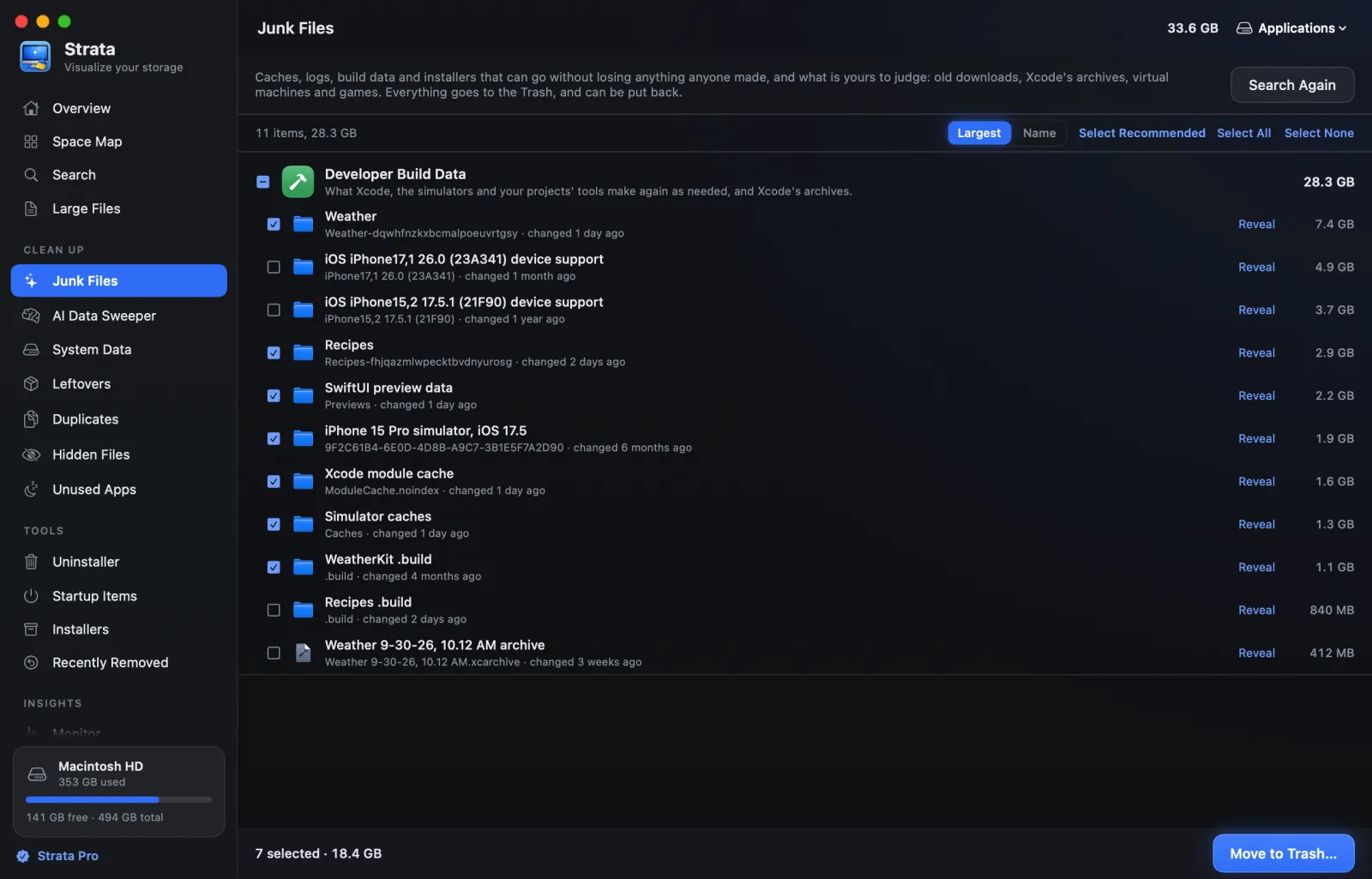
Strata's Junk Files room gathers Xcode's leftovers under
Developer Build Data: derived data for each project, the module cache, device support for each
version, simulator caches, SwiftUI preview data, simulators whose system is gone, and Xcode's
archives. It also finds the build output of your projects' own tools, such as Swift's
.build, Rust's target and Flutter's build, by the project
file beside each, in your home folder.
The picture at the top shows it. It ticks what Xcode makes again and leaves the rest to you. Each row says when it last changed; point at one to see why it is or is not ticked. Device support and archives start unticked. A project's build output is ticked only when nothing in the project has changed for three months. While Xcode is running, its build data is tagged In use and left unticked, since Xcode may be writing to it. Everything goes to the Trash, and Put Back in Strata returns it. The simulator systems appear in the System Data room instead, since only Xcode may remove them; our guide to System Data after macOS 27 explains where Storage settings counts them. Junk Files and System Data are part of Strata Pro, which every download includes for 14 days.
Frequently asked questions
Is it safe to delete Xcode's DerivedData folder?
Yes. It holds what Xcode makes from your source, such as build products, intermediate files, the index and logs, and copies of the packages your projects use. Quit Xcode first. Xcode makes again what it needs, so the next build and indexing of each project are slower, and the packages download again.
Does Clean Build Folder delete derived data?
Only part of it. Product > Clean Build Folder (Shift-Command-K) removes the build products and intermediate files of the open project. Its index, logs and package checkouts stay, and so do other projects' folders. Xcode 27 adds Product > Delete Derived Data… for the whole of the open project's derived data.
Where does Xcode 27 keep simulators?
Each simulator's own data is in ~/Library/Developer/CoreSimulator/Devices. The systems they run, such as iOS 27, are disk images in a protected system folder (on our Mac, /System/Library/AssetsV2), which Finder cannot change: remove them in Xcode's Settings, under Components, or with xcrun simctl runtime delete.
Can I delete iOS DeviceSupport files?
Yes, for versions of iOS you no longer debug on. Xcode copies them from a device when you connect it to debug, and copies them again the next time. They live in ~/Library/Developer/Xcode, in a folder for each platform, such as iOS DeviceSupport.
Should I delete old Xcode archives?
Only for versions nobody uses any more. An archive holds the debug symbols needed to read the crash reports of the version you shipped, and nothing makes them again; Apple says you must keep the archive of each build you distribute. Delete old ones in Xcode's Organizer.
How do I clear the Swift Package Manager cache?
In Xcode, choose File > Packages > Reset Package Caches. In Terminal, swift package purge-cache empties the shared cache of package repositories in ~/Library/Caches/org.swift.swiftpm; with Xcode 26.3 or earlier, run it in a package's folder. Leave ~/Library/org.swift.swiftpm, which holds settings, not cache.
See what Xcode left behind
Strata finds derived data, old simulators, device support and your projects' build output in one list, ticks what rebuilds itself, and moves what you choose to the Trash.
The scan, the map and search are free. Every download starts with 14 days of Strata Pro, removing up to 40 GB.