Documentation: all pages
Uninstall Strata
From 1.0.45, Uninstall Strata in Settings turns off Strata's administrator helper and Open at Login if they are on, and moves Strata, its settings, its records and its caches to the Trash. In any version you can do the same by hand in a few minutes.
Dragging Strata to the Trash removes the app, but not the few things it keeps in your Library: its settings, the records behind Recently Removed and Report, and its caches. And if you allowed its administrator helper, that is best turned off before the app goes. Either way below takes all of it. Nothing is deleted: it all waits in the Trash until you empty it.
From 1.0.45: Uninstall Strata in Settings
-
Open Strata's Settings
Choose Settings… in the Strata menu, press Command ,, or click the gear in the menu bar panel. At the foot of General, under Uninstall, press Uninstall Strata….
-
Read what goes
A sheet lists everything that goes to the Trash, each with where it is: Strata itself, its settings, its records, its caches, and what macOS and its update window keep for it. It says what is turned off first, and what stays.
-
Free a licence bought from 10 November 2026, if you will use it on another Mac
Such a licence works on one Mac at a time. Press Open the Licence Room in the sheet, then Remove from This Mac, with the Mac online. Uninstall Strata itself never contacts the licence server, so it cannot free the licence for you. A licence bought before then needs nothing.
-
Press Uninstall Strata
Strata turns off its administrator helper and Open Strata at login, if they are on, moves its files to the Trash and then itself, takes its icon out of the Dock if you keep it there, and quits. From its folder in Application Support it takes what it keeps there, and the folder too once nothing else is in it.
The administrator helper is the Mac's, and so is Strata in Applications: when the Mac has other accounts, the sheet says that uninstalling takes them away for those accounts too. Their own settings and records stay in their accounts. In an account that is not an administrator's, the helper is left as it is.
The button waits while something would undo the uninstall or be cut short by it, and the sheet says which:
- An update has downloaded. It would install itself as Strata quits and put Strata back, so choose Update Now first, then uninstall.
- Strata's updater is busy: looking for an update, downloading one, or waiting for an answer in its update window.
- Strata is at work: a scan, a search, or something moving to the Trash or coming back from it. Let it finish, or stop it.
A copy running from its disk image, or from the hidden copy macOS makes of an app opened where it was downloaded, cannot move itself, so it does not begin. Quit it, put Strata in Applications if it is not there, open it from there and uninstall; or do it by hand, as below.
If Strata cannot turn off its helper or leave Open at Login, it stops before anything moves and says what to switch off, and whether the helper was already off by then. If something of its own cannot go, Strata says which, with Show in Finder beside it, and waits for you to press Quit Strata. Strata itself can stay, as when another account on the Mac installed it: quit Strata and drag it to the Trash, and Finder asks for an administrator's password if it needs one.
By hand, in any version
-
Turn off the administrator helper
If you allowed it (from 1.0.35), press Turn Off beside Administrator helper in Strata's Settings, under Permissions, before Strata goes to the Trash. Its launch file is inside the app, and otherwise macOS keeps it registered after the app has gone.
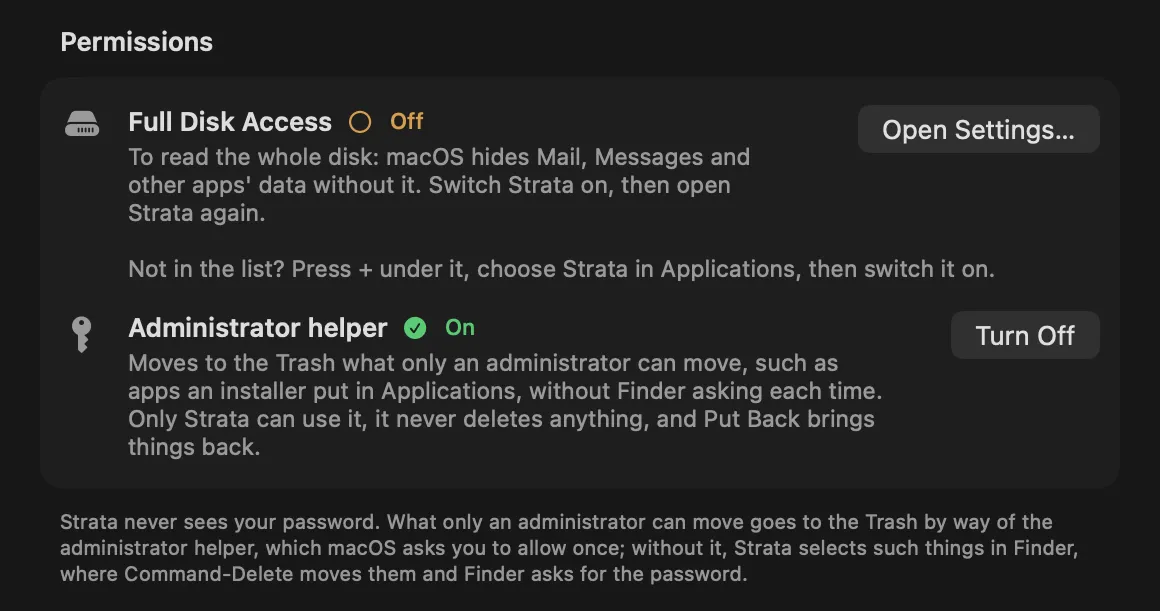
Settings, General, Permissions, with the administrator helper allowed. Turn Off is the button to press. -
Turn off Open Strata at login
In Settings, under Login. Otherwise remove Strata afterwards from System Settings, General, Login Items & Extensions (Login Items on macOS 13 and 14).
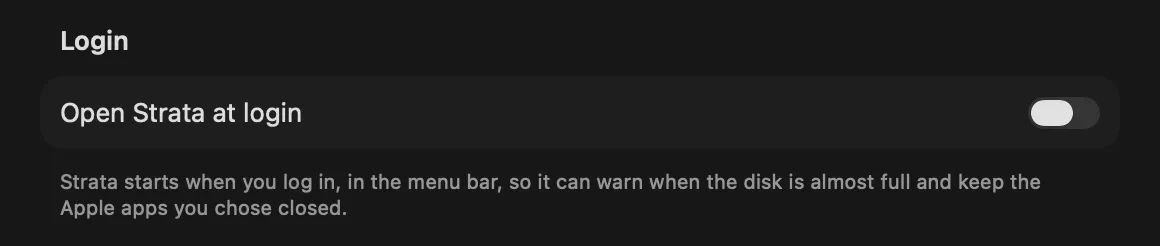
Settings, General: Open Strata at login, switched off. -
Free a licence bought from 10 November 2026
With the Mac online, open the Licence tab of Settings and press Remove from This Mac, so the licence is free for your next Mac.
-
Quit Strata and move it to the Trash
Choose Quit from the menu bar panel or the Strata menu, then drag Strata from Applications to the Trash. If you keep it in the Dock, drag its icon out of the Dock too.
-
Move its files to the Trash
In Finder, choose Go, Go to Folder, and move each of these to the Trash if it is there:
~/Library/Preferences/com.stratamaccleaner.strata.plist, its settings, your licence key among them if you entered one;~/Library/Application Support/Strata, the list behind Recently Removed and the scans behind Report, and~/Library/Application Support/com.stratamaccleaner.strata, more of its data;~/Library/Caches/com.stratamaccleaner.strata, its caches and any update it downloaded;~/Library/HTTPStorages/com.stratamaccleaner.strata, and a file of the same name ending.binarycookiesbeside it, and~/Library/WebKit/com.stratamaccleaner.strata, what its update checks and its update window kept;~/Library/Cookies/com.stratamaccleaner.strata.binarycookies, its cookies;~/Library/Saved Application State/com.stratamaccleaner.strata.savedState, its windows as macOS saved them;- in
~/Library/Preferences/ByHost, any file whose name beginscom.stratamaccleaner.strata.followed by a long code of letters and numbers, its settings for this Mac.
What stays, and why
- The two Strata trial items in your keychain. They remember when the trial began and how much it has moved to the Trash, and stay on purpose, so that a new copy does not start the trial again. Keychain Access shows them, labelled Strata trial.
- The administrator helper's list of what it moved, if it ever moved
anything, in
/private/var/db/com.stratamaccleaner.strata.helper. It is kept for Put Back, nothing reads it once Strata is gone, and only an administrator can remove it. - Strata in the Full Disk Access list. Remove it in System Settings, Privacy & Security, Full Disk Access: choose Strata, then the minus button.
- Anything you turned off in Startup Items. It stays off once Strata has gone, so turn it back on in Startup Items first if you want it to start again.
- Perhaps, a settings file. Forgetting the settings can make macOS write an
empty
com.stratamaccleaner.strata.plistin Preferences; Strata moves it to the Trash too if it appears within a few seconds. One there after Strata has quit can go to the Trash as well.
Your licence key is not lost with any of this: it is in the email you got when you bought Strata Pro, and you can look it up again if that email is gone.
Put Back, and changing your mind
The list behind Recently Removed goes with Strata's records, so Strata can no longer put back what it removed before. Anything still in the Trash can be dragged back out of it, and Finder's Put Back may still work for some of it. How to restore files from the Trash covers Finder and Time Machine.
Changed your mind before emptying the Trash? Drag Strata from the Trash back to Applications.
For its records, drag Removals, Snapshots and
Name Holds.json back into ~/Library/Application Support/Strata (make
the folder again if it went too); for its settings, drag
com.stratamaccleaner.strata.plist back to ~/Library/Preferences,
the larger if the Trash holds two, without any number the Trash added to its name. Strata then
opens with its records as they were.
Uninstall Strata also has macOS forget Strata's settings, so they may not come back until you
log out and in again; if your licence key is missing, paste it again from your licence email.
Turn the administrator helper and Open Strata at login back on in Settings if you want
them.